
What is Uninstalling Apps on Roku?
If your Roku device is cluttered with unused channels or you are experiencing performance issues, learning how to uninstall apps on Roku in 2026 is essential. Read this article to find out how Roku app management works, why removing unused channels improves performance, and what you should know before deleting any app from your device.
Roku devices operate using a channel-based system, where applications are referred to as “channels.” These channels can range from streaming services and games to niche utilities. Over time, users tend to install multiple apps, many of which remain unused. This can lead to interface clutter, slower navigation, and unnecessary data collection.
Uninstalling apps on Roku is a straightforward process, but understanding how it works in the latest 2026 interface update is crucial. Roku has introduced subtle UI improvements and system drive optimizations, making channel management more intuitive but slightly different from older versions.
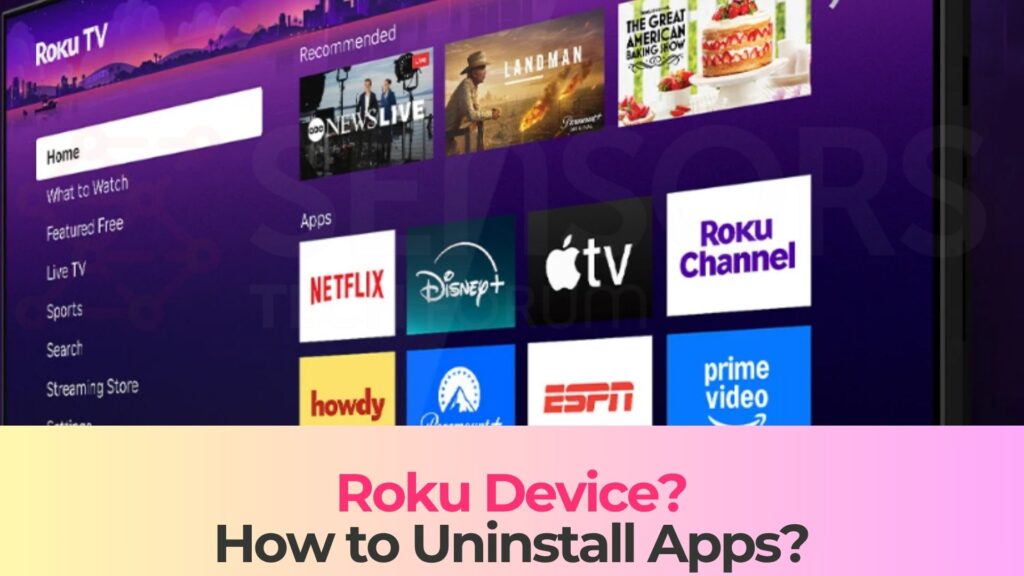
By removing apps you no longer need, you can streamline your Roku experience, improve responsiveness, and maintain better control over your device’s content ecosystem.
How Did I Get It on My Roku?
Apps or channels on Roku are typically installed intentionally through the Roku Channel Store. However, many users find themselves with apps they don’t remember installing. This happens due to several common reasons tied to how Roku accounts and devices function.
First, Roku devices are linked to a central account. Any channel installed on one Roku device associated with that account can automatically sync across other Roku devices. This means if you install an app on your living room TV, it may also appear on your bedroom device.
Additionally, some apps are pre-installed or suggested during initial setup. Users often add multiple channels quickly during setup without reviewing them carefully. Over time, these accumulate and contribute to clutter.
Another factor is promotional installs. Certain apps may be suggested or temporarily added during firmware updates or promotional campaigns. While these are not intrusive, they can still occupy space and attention.
Understanding how apps appear on your Roku device helps you better manage them and decide which ones are safe to remove.
What Does Uninstalling Apps on Roku Do?
Removing apps from your Roku device does more than just clean up your home screen. It directly impacts performance, usability, and even your subscription management.
When you uninstall a channel, it is completely removed from your device interface. This reduces visual clutter and makes navigation smoother, especially if you frequently switch between apps.
In terms of system performance, Roku devices—particularly older models—benefit from fewer installed channels. While Roku does not impose strict limits, having too many apps can slow down menu responsiveness and increase loading times.
Another important aspect is subscription management. Some Roku channels are tied to active subscriptions. Removing the app does not always cancel the subscription itself. Users must ensure subscriptions are managed separately through their Roku account settings.
Here are some key effects of uninstalling Roku apps:
- Removes the app from the home screen interface
- Improves navigation speed and responsiveness
- Reduces clutter and enhances user experience
- Does not automatically cancel paid subscriptions
- Frees up system resources for better performance
It is also worth noting that uninstalling an app does not delete your account or data associated with that service. If you reinstall the app later, you can simply log back in and continue using it.
How to Remove It
In 2026, Roku has maintained its user-friendly approach while slightly refining the interface for better accessibility. Removing apps is still a simple process, but the updated layout requires users to understand where options are located.
Users can manage their installed channels directly from the Roku home screen. By navigating through the interface, selecting a channel, and accessing its options menu, removal becomes available. The process is designed to be intuitive, ensuring even non-technical users can easily uninstall apps.
There are also alternative ways to manage channels, such as through the Roku mobile app or the web-based account dashboard. These methods provide additional flexibility, especially for users managing multiple devices.
The Roku mobile app, for instance, mirrors your device’s interface and allows remote channel management. Meanwhile, the web dashboard enables users to review subscriptions and installed channels linked to their account.
Despite these options, most users prefer managing apps directly from their TV screen due to convenience and immediate feedback.
When removing apps, it is important to review whether the channel is tied to an active subscription. If so, users should first cancel the subscription to avoid ongoing charges.
Roku’s 2026 system update also includes improved confirmation prompts, ensuring users do not accidentally remove important apps. These prompts provide additional clarity about what will happen after removal.
Overall, uninstalling apps on Roku remains a safe and reversible process. Apps can always be reinstalled later from the Channel Store without permanent consequences.
What should you do?
If your Roku device feels slow, cluttered, or difficult to navigate, the best course of action is to review your installed apps and remove anything you no longer use. Regular maintenance of your channel list ensures optimal performance and a better viewing experience.
Take time to evaluate which apps you actually use and which ones are unnecessary. Keeping your Roku clean and organized not only improves speed but also makes it easier to find the content you enjoy.
After reviewing this guide, proceed with removing unwanted apps and continue maintaining your Roku device regularly for the best results.

Ventsislav Krastev
Ventsislav is a cybersecurity expert at SensorsTechForum since 2015. He has been researching, covering, helping victims with the latest malware infections plus testing and reviewing software and the newest tech developments. Having graduated Marketing as well, Ventsislav also has passion for learning new shifts and innovations in cybersecurity that become game changers. After studying Value Chain Management, Network Administration and Computer Administration of System Applications, he found his true calling within the cybersecrurity industry and is a strong believer in the education of every user towards online safety and security.
Follow Me: