

What is the “Tai Chi Walking” Scam?
You have seen the ad: an older, noticeably fit man crediting his entire transformation to “Tai Chi Walking,” claiming women over 50 can go from a size XL to a size M, or that your body will change so much in a month your own family won’t recognize you. Before you click through and hand over a card number for the trial, read this fully — the short answer is yes, this is a scam.
“Tai Chi Walking” is not a real, separate discipline being sold here — it is a marketing label attached to MadMuscles, a fitness subscription app operated by AmoApps Limited, a company registered in Cyprus. An investigation into the campaign found the app delivers an AI-generated workout and meal plan built around conventional strength training with weights, with little to no connection to actual Tai Chi Chuan technique. The same investigation documented roughly 18,000 AI-generated ads run across YouTube, Instagram, and Reddit using fabricated before-and-after narratives and direct, factually baseless health claims about what slow, deliberate walking can do for fat loss and muscle gain.

Tai Chi Walking Short Overview
| Type | Deceptive fitness subscription marketing campaign. Uses fabricated health claims and AI-generated testimonials attached to the “Tai Chi Walking” label to sell the MadMuscles app, operated by AmoApps Limited. |
| Symptoms | Trial subscription charged at a higher amount than advertised. Additional add-on charges appearing seconds after the initial purchase. Difficulty locating or completing in-app cancellation. Customer service unresponsive to refund requests. Delivered workout plan is generic strength training, not Tai Chi instruction. |
| Removal Time | Approximately 15 minutes for a full-system scan |
| Removal Tool | See If Your System Has Been Affected by malware
Download
Malware Removal Tool
|
How Did I Find the Tai Chi Walking Ads?
This campaign is built entirely around paid reach rather than word of mouth. Here is how it typically appears:
- AI-generated video testimonials — The ads feature a synthetic or heavily scripted spokesperson describing dramatic physique changes, deliberately targeting men over 50 and women over 40 with the suggestion that gym training is unnecessary or even counterproductive.
- Mass ad deployment across platforms — The same investigation found close to 18,000 variations of these ads running simultaneously, a volume designed to make the claim feel ubiquitous and therefore more credible.
- A low-cost “trial” hook — Like most subscription-trap apps, the entry point is a heavily discounted trial price, positioned to lower the psychological barrier to entering payment details.
- Borrowed cultural credibility — Attaching a centuries-old, genuinely respected practice to the marketing lends an undeserved sense of authenticity that a generic “AI workout app” pitch would not get on its own.
What Does the Tai Chi Walking Scam Do?
Once someone signs up for the trial, the pattern reported by affected customers is consistent. Here is what happens:
- Charges more than the advertised trial price — Customers report being billed amounts higher than what was shown at signup, with additional add-on charges appearing within seconds of the original purchase.
- Delivers a generic AI workout plan, not Tai Chi instruction — The plan generated is a standard strength-training program with weights, bearing little resemblance to the”Tai Chi alone” transformation promised in the ad.
- Makes cancellation deliberately difficult — Multiple reviewers describe a subscription that is hard to locate and cancel inside the app, with the cancellation flow seemingly designed to create friction.
- Stonewalls refund requests — Customer service is widely reported as unresponsive once a refund is requested, leaving the unauthorized or unexpected charges unresolved for many users.
None of the underlying health claims hold up either — there is no credible basis for the idea that walking alone, Tai Chi-influenced or otherwise, can produce the kind of dramatic muscular transformation shown in the marketing.
What Should You Do?
Do not enter your card details for a “Tai Chi Walking” trial based on the ad alone — treat the dramatic before-and-after claims as a red flag rather than evidence. If you already subscribed, check your bank or app store billing history for the exact amount charged, and cancel the subscription directly through your app store account settings (Apple ID or Google Play) rather than relying on in-app cancellation alone, since this also stops future billing even if the app’s own cancellation flow is unresponsive. If you were charged more than advertised, dispute the transaction with your card issuer or app store support and keep screenshots of the original ad and pricing as evidence. Follow the complete guide below this article to scan your device for any unwanted software if you downloaded anything beyond the app itself.

Ventsislav Krastev
Ventsislav is a cybersecurity expert at SensorsTechForum since 2015. He has been researching, covering, helping victims with the latest malware infections plus testing and reviewing software and the newest tech developments. Having graduated Marketing as well, Ventsislav also has passion for learning new shifts and innovations in cybersecurity that become game changers. After studying Value Chain Management, Network Administration and Computer Administration of System Applications, he found his true calling within the cybersecrurity industry and is a strong believer in the education of every user towards online safety and security.
Follow Me:
- Windows
- Mac OS X
- Google Chrome
- Mozilla Firefox
- Microsoft Edge
- Safari
- Internet Explorer
- Stop Push Pop-ups
How to Remove Tai Chi Walking from Windows.
Step 1: Scan for Tai Chi Walking with SpyHunter Anti-Malware Tool
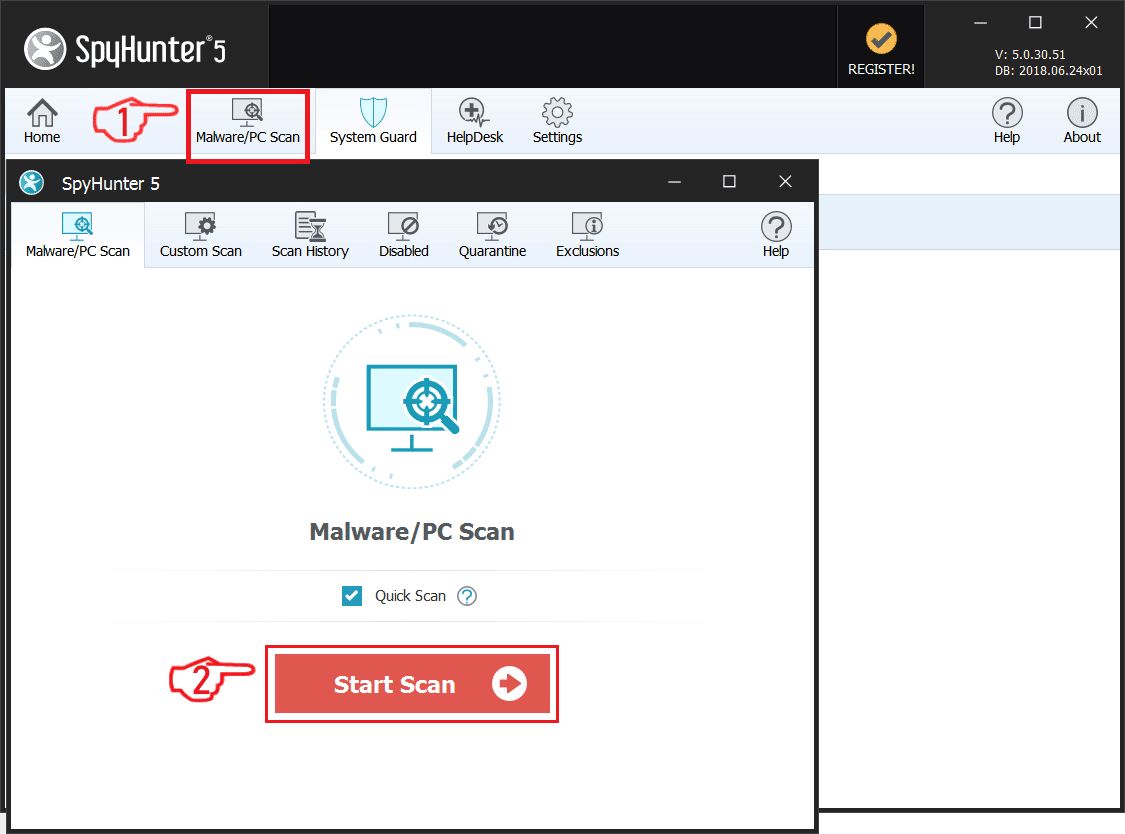
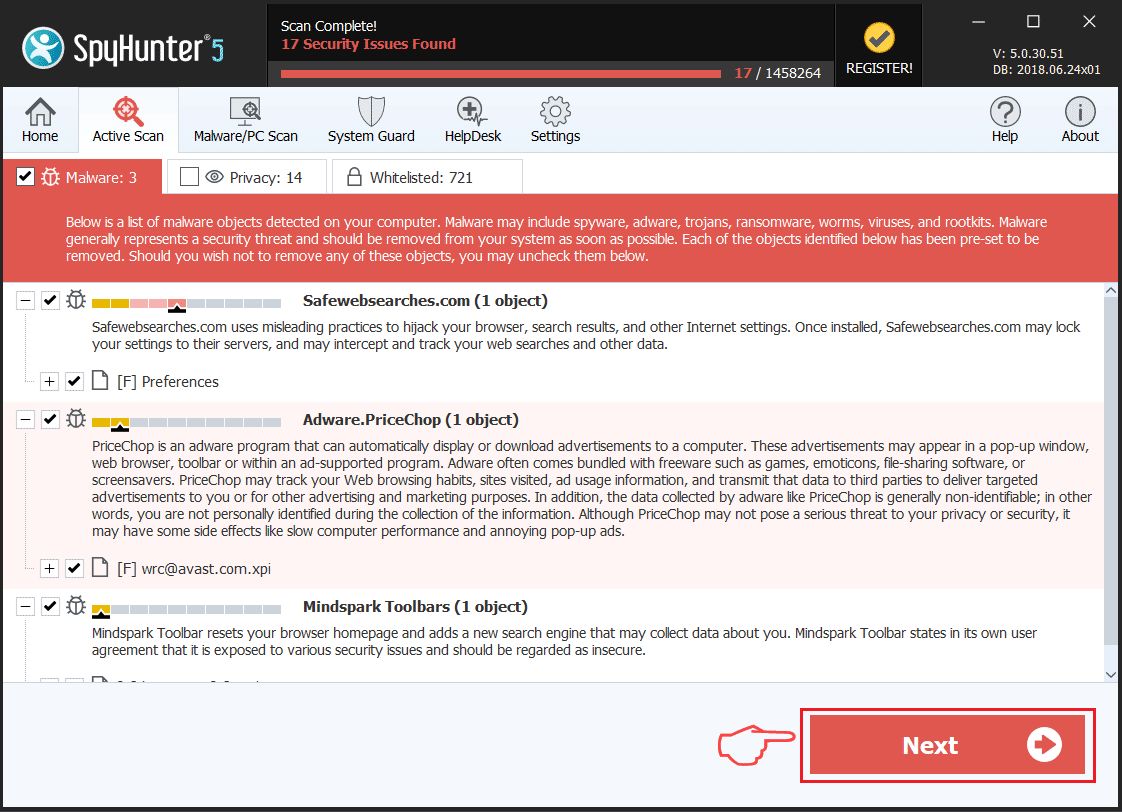
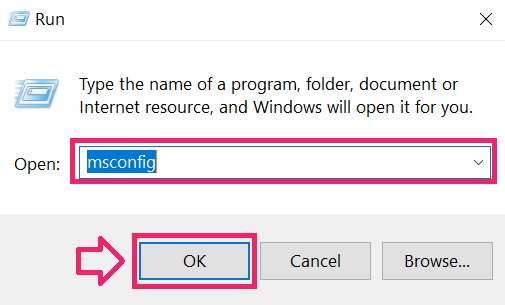
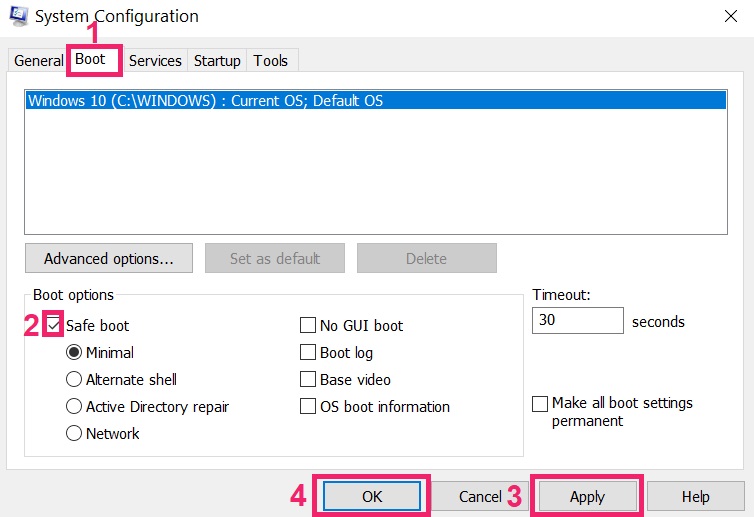
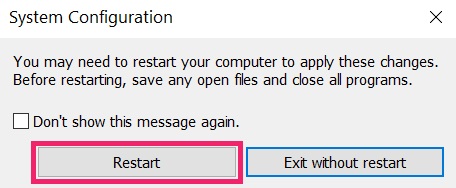
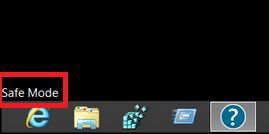
Step 2: Boot Your PC In Safe Mode
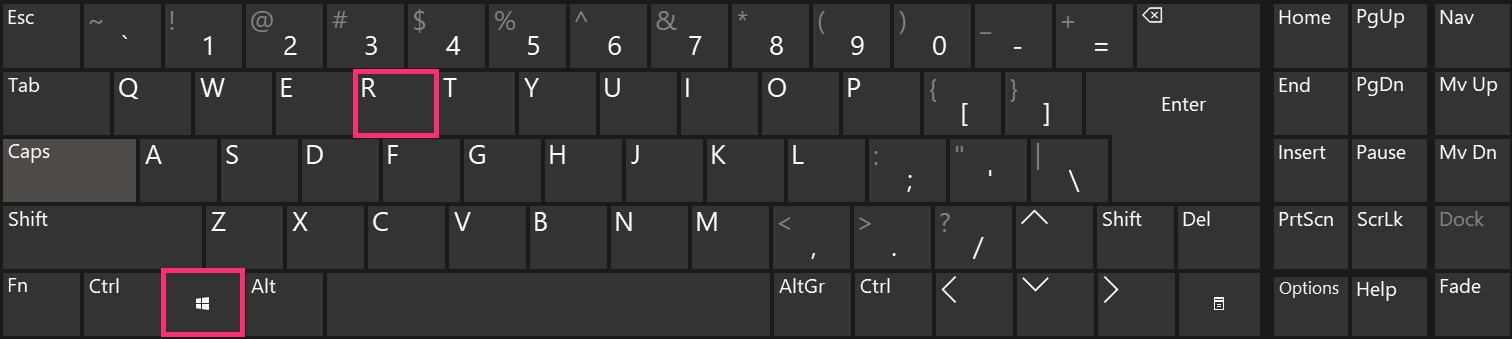
Step 3: Uninstall Tai Chi Walking and related software from Windows
Uninstall Steps for Windows 11
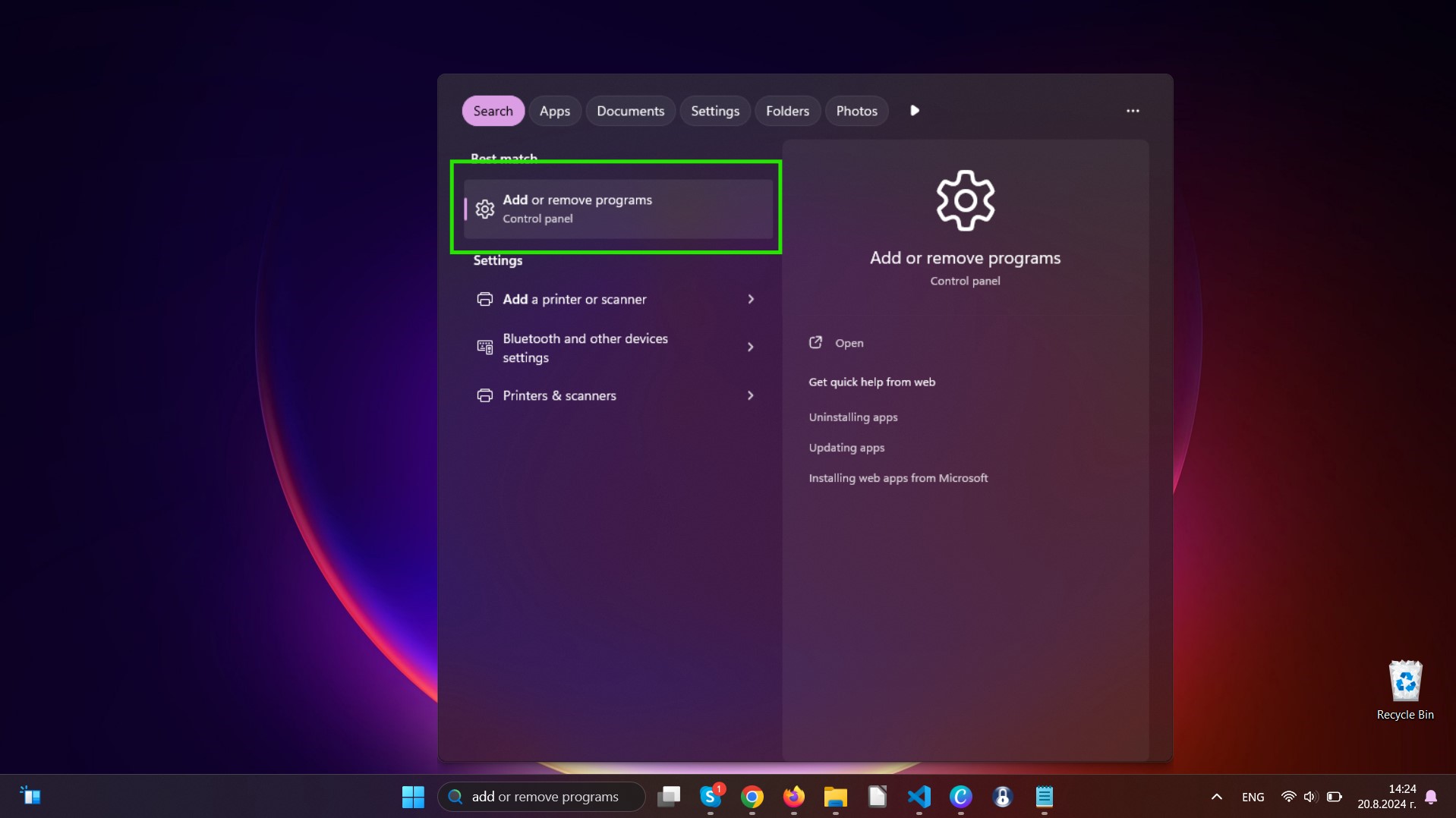

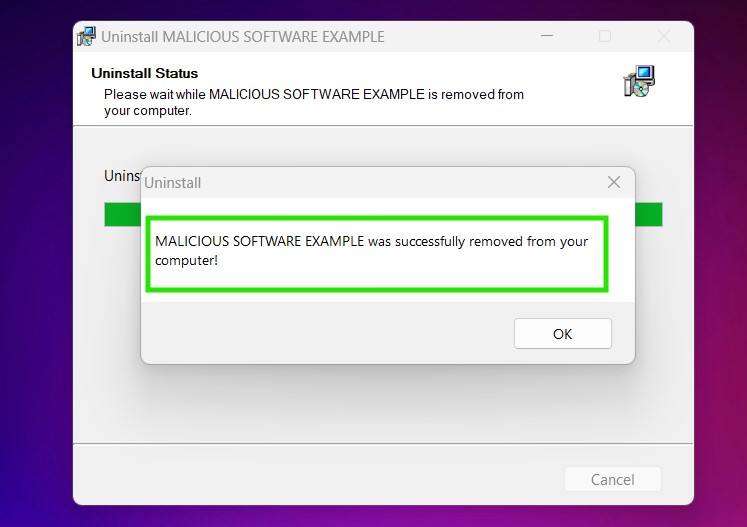
Uninstall Steps for Windows 10 and Older Versions
Here is a method in few easy steps that should be able to uninstall most programs. No matter if you are using Windows 10, 8, 7, Vista or XP, those steps will get the job done. Dragging the program or its folder to the recycle bin can be a very bad decision. If you do that, bits and pieces of the program are left behind, and that can lead to unstable work of your PC, errors with the file type associations and other unpleasant activities. The proper way to get a program off your computer is to Uninstall it. To do that:
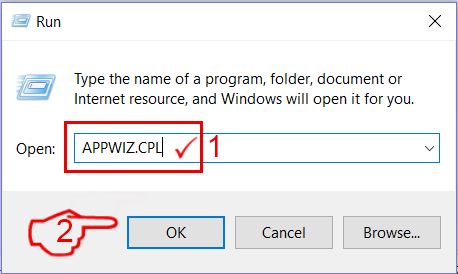
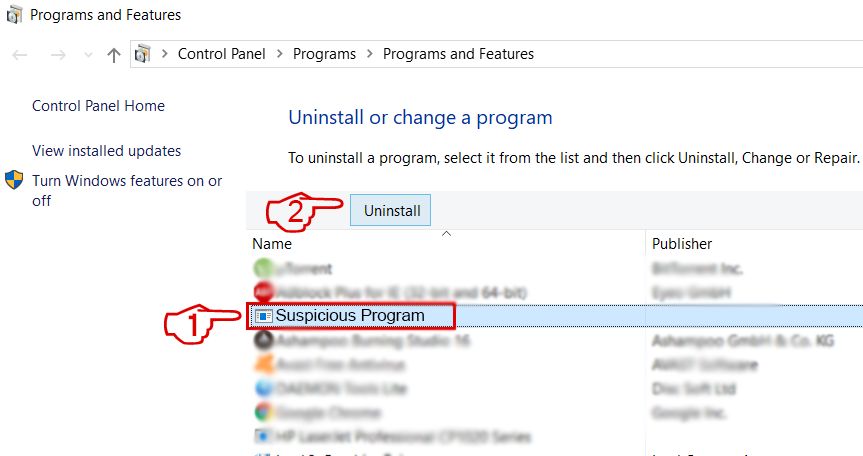 Follow the instructions above and you will successfully uninstall most programs.
Step 4: Clean Any registries, Created by Tai Chi Walking on Your PC.
The usually targeted registries of Windows machines are the following:
- HKEY_LOCAL_MACHINE\Software\Microsoft\Windows\CurrentVersion\Run
- HKEY_CURRENT_USER\Software\Microsoft\Windows\CurrentVersion\Run
- HKEY_LOCAL_MACHINE\Software\Microsoft\Windows\CurrentVersion\RunOnce
- HKEY_CURRENT_USER\Software\Microsoft\Windows\CurrentVersion\RunOnce
You can access them by opening the Windows registry editor and deleting any values, created by Tai Chi Walking there. This can happen by following the steps underneath:
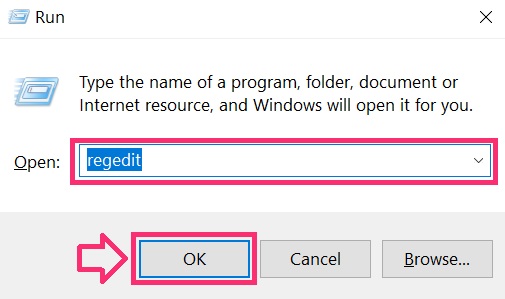
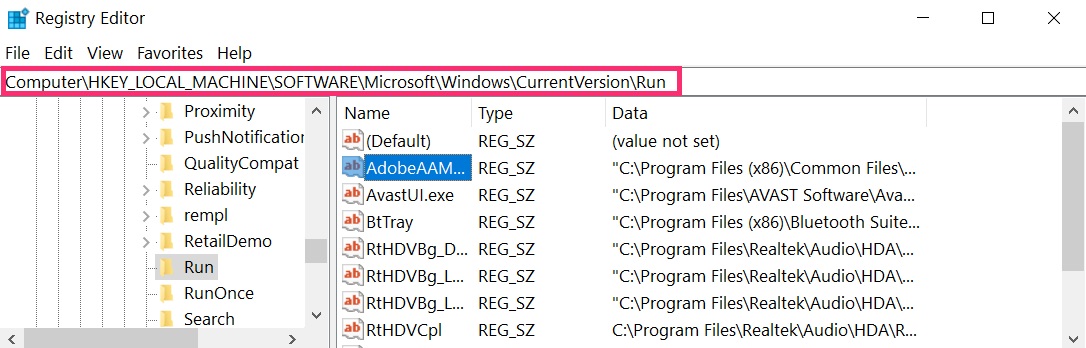
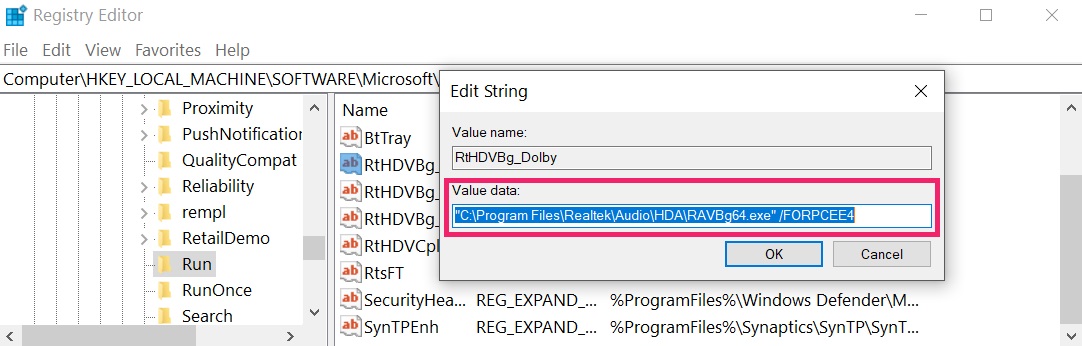 Tip: To find a virus-created value, you can right-click on it and click "Modify" to see which file it is set to run. If this is the virus file location, remove the value.
Video Removal Guide for Tai Chi Walking (Windows).
Get rid of Tai Chi Walking from Mac OS X.
Step 1: Uninstall Tai Chi Walking and remove related files and objects
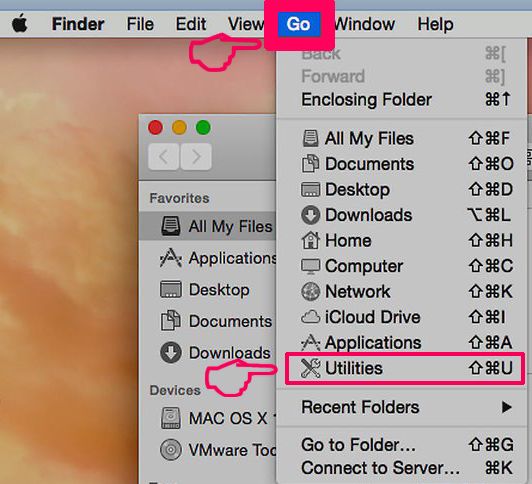

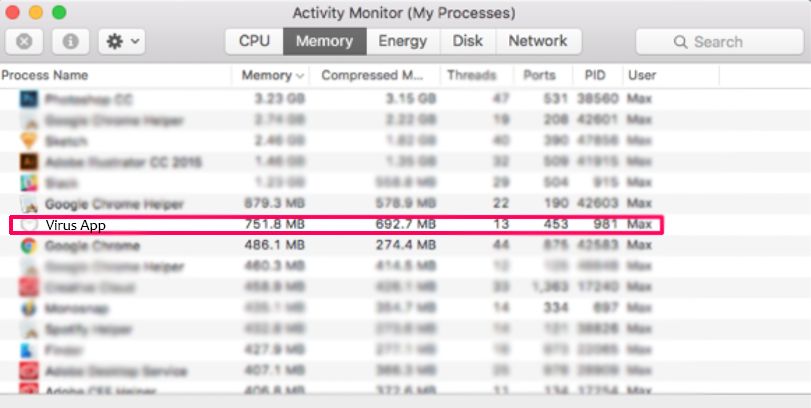
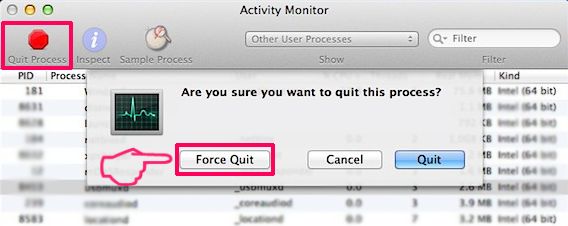

Your Mac will then show you a list of items that start automatically when you log in. Look for any suspicious apps identical or similar to Tai Chi Walking. Check the app you want to stop from running automatically and then select on the Minus (“-“) icon to hide it.
- Go to Finder.
- In the search bar type the name of the app that you want to remove.
- Above the search bar change the two drop down menus to “System Files” and “Are Included” so that you can see all of the files associated with the application you want to remove. Bear in mind that some of the files may not be related to the app so be very careful which files you delete.
- If all of the files are related, hold the ⌘+A buttons to select them and then drive them to “Trash”.
In case you cannot remove Tai Chi Walking via Step 1 above:
In case you cannot find the virus files and objects in your Applications or other places we have shown above, you can manually look for them in the Libraries of your Mac. But before doing this, please read the disclaimer below:



You can repeat the same procedure with the following other Library directories:
→ ~/Library/LaunchAgents
/Library/LaunchDaemons
Tip: ~ is there on purpose, because it leads to more LaunchAgents.
Step 2: Scan for and remove Tai Chi Walking files from your Mac
When you are facing problems on your Mac as a result of unwanted scripts and programs such as Tai Chi Walking, the recommended way of eliminating the threat is by using an anti-malware program. SpyHunter for Mac offers advanced security features along with other modules that will improve your Mac’s security and protect it in the future.
Video Removal Guide for Tai Chi Walking (Mac)
Remove Tai Chi Walking from Google Chrome.
Step 1: Start Google Chrome and open the drop menu

Step 2: Move the cursor over "Tools" and then from the extended menu choose "Extensions"
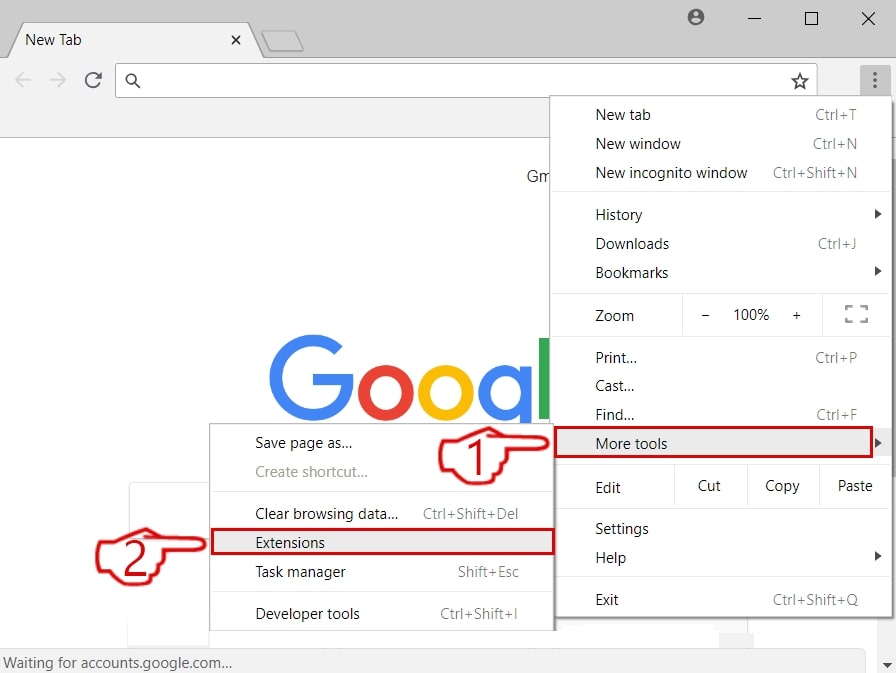
Step 3: From the opened "Extensions" menu locate the unwanted extension and click on its "Remove" button.
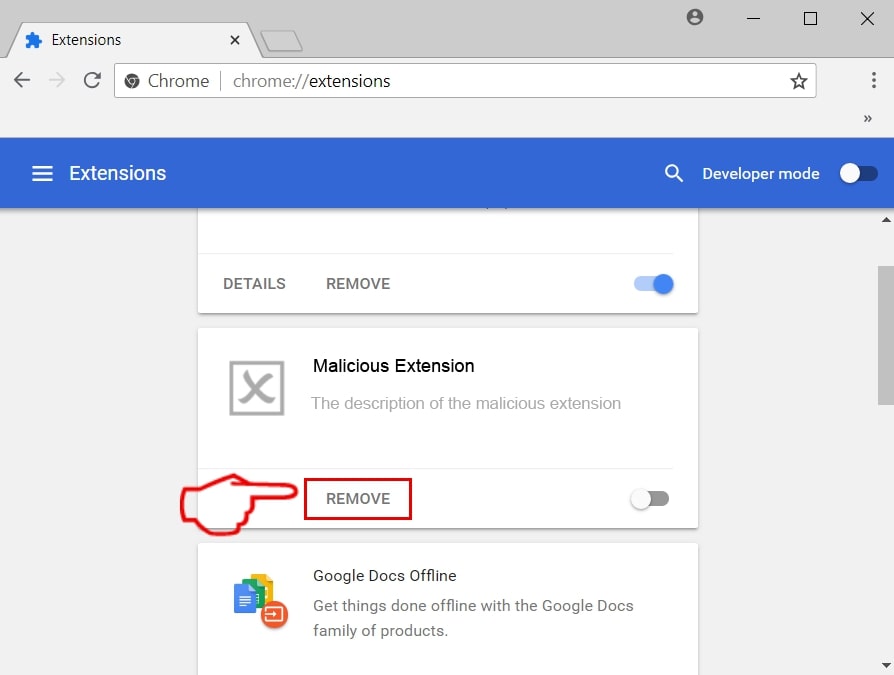
Step 4: After the extension is removed, restart Google Chrome by closing it from the red "X" button at the top right corner and start it again.
Erase Tai Chi Walking from Mozilla Firefox.
Step 1: Start Mozilla Firefox. Open the menu window:
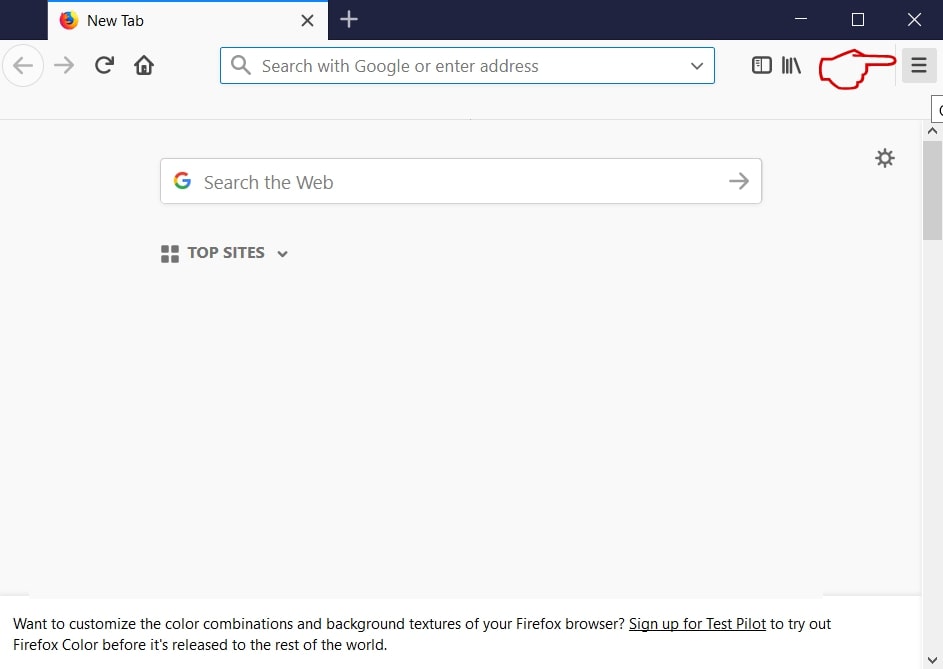
Step 2: Select the "Add-ons" icon from the menu.
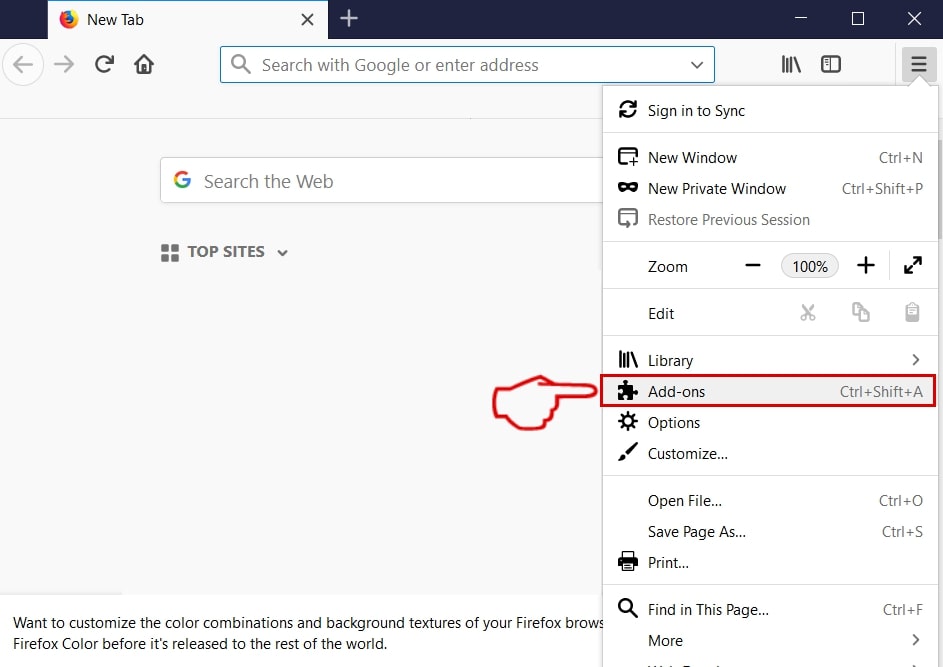
Step 3: Select the unwanted extension and click "Remove"

Step 4: After the extension is removed, restart Mozilla Firefox by closing it from the red "X" button at the top right corner and start it again.
Uninstall Tai Chi Walking from Microsoft Edge.
Step 1: Start Edge browser.
Step 2: Open the drop menu by clicking on the icon at the top right corner.

Step 3: From the drop menu select "Extensions".
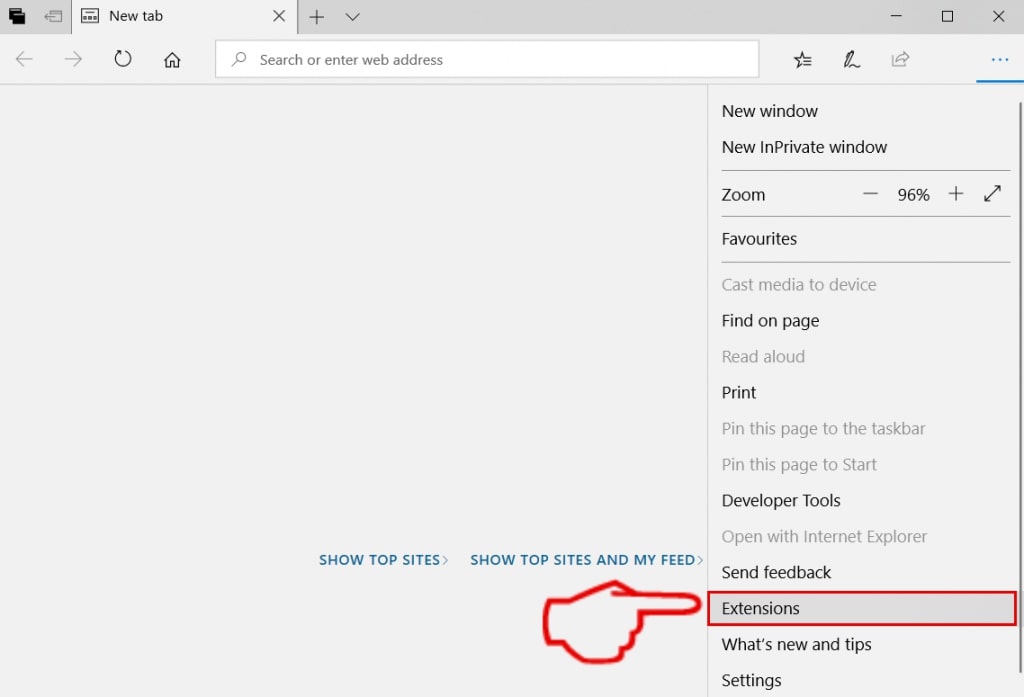
Step 4: Choose the suspected malicious extension you want to remove and then click on the gear icon.
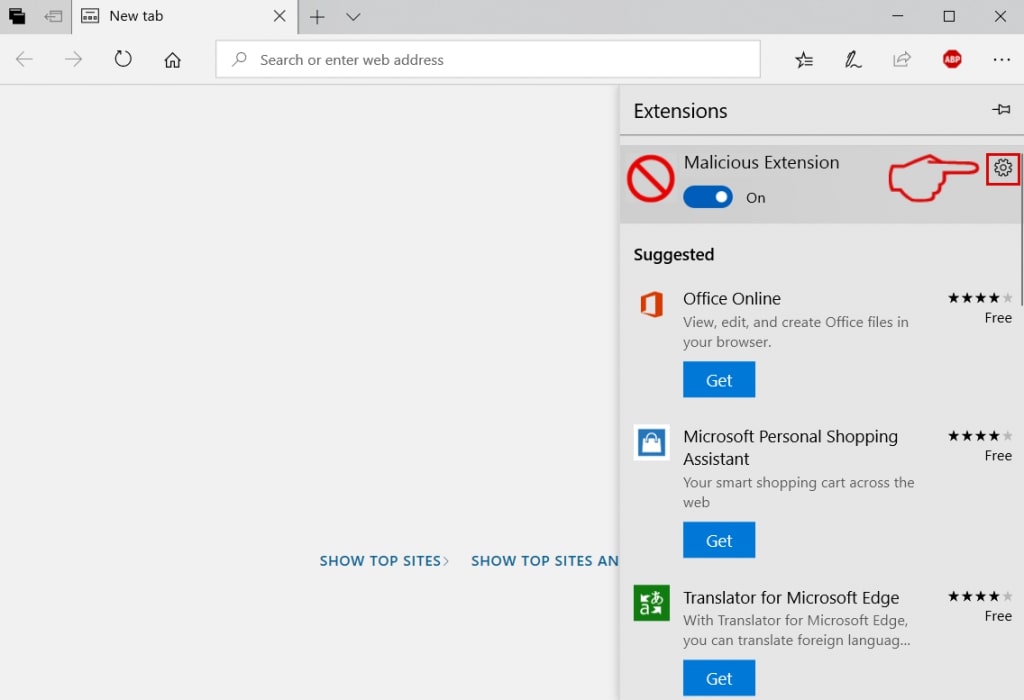
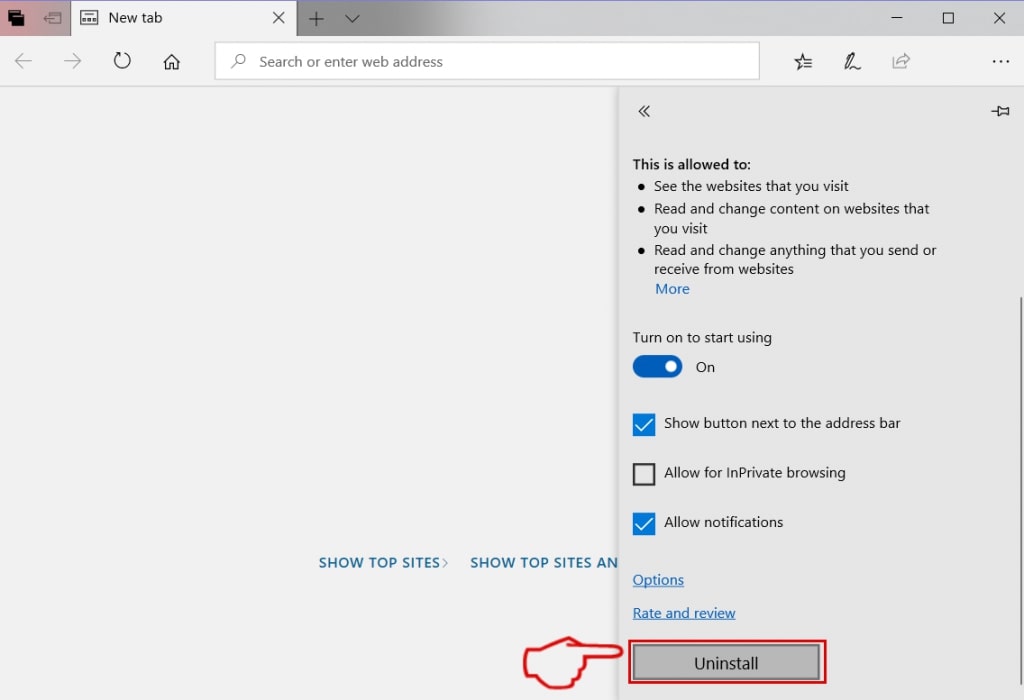
Step 5: Remove the malicious extension by scrolling down and then clicking on Uninstall.
Remove Tai Chi Walking from Safari
Step 1: Start the Safari app.
Step 2: After hovering your mouse cursor to the top of the screen, click on the Safari text to open its drop down menu.
Step 3: From the menu, click on "Preferences".

Step 4: After that, select the 'Extensions' Tab.

Step 5: Click once on the extension you want to remove.
Step 6: Click 'Uninstall'.
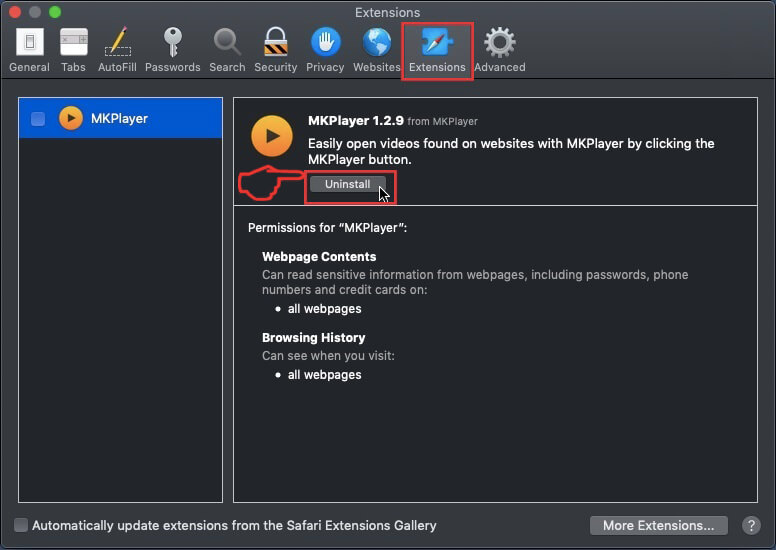
A pop-up window will appear asking for confirmation to uninstall the extension. Select 'Uninstall' again, and the Tai Chi Walking will be removed.
Eliminate Tai Chi Walking from Internet Explorer.
Step 1: Start Internet Explorer.
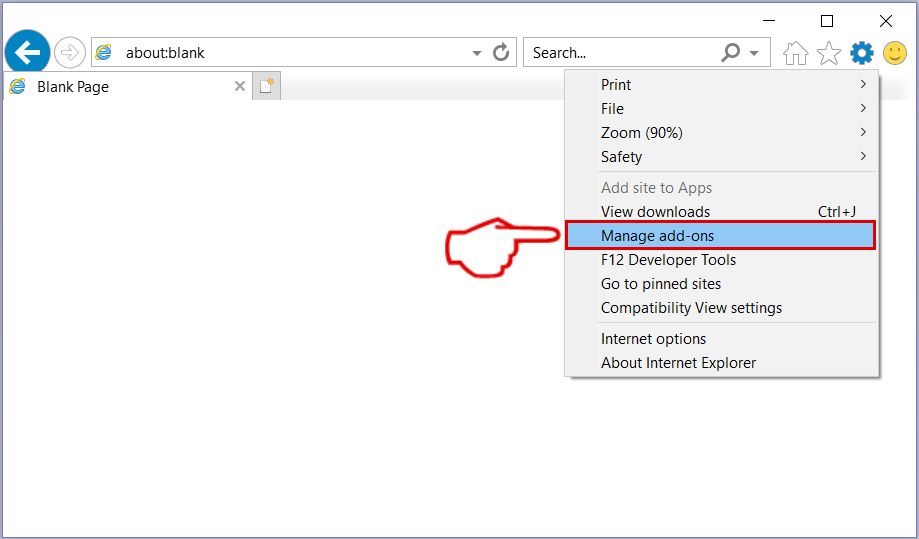
Step 2: Click on the gear icon labeled 'Tools' to open the drop menu and select 'Manage Add-ons'

Step 3: In the 'Manage Add-ons' window.
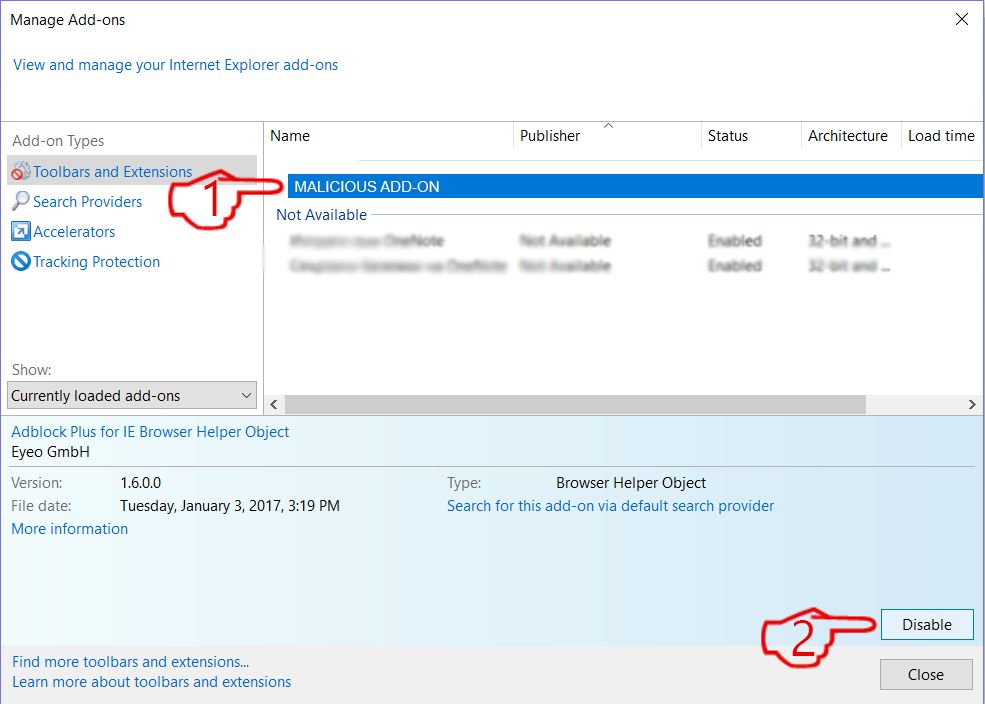
Step 4: Select the extension you want to remove and then click 'Disable'. A pop-up window will appear to inform you that you are about to disable the selected extension, and some more add-ons might be disabled as well. Leave all the boxes checked, and click 'Disable'.
Step 5: After the unwanted extension has been removed, restart Internet Explorer by closing it from the red 'X' button located at the top right corner and start it again.
Remove Push Notifications from Your Browsers
Turn Off Push Notifications from Google Chrome
To disable any Push Notices from Google Chrome browser, please follow the steps below:
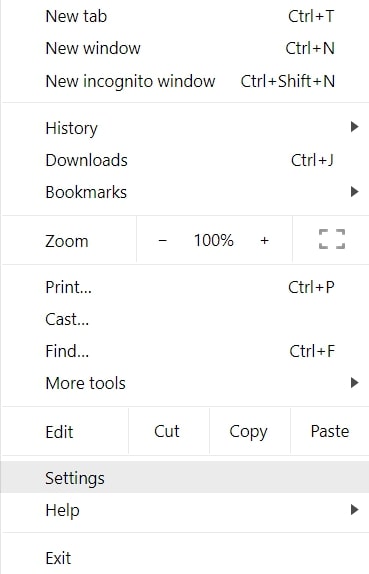
Step 1: Go to Settings in Chrome.
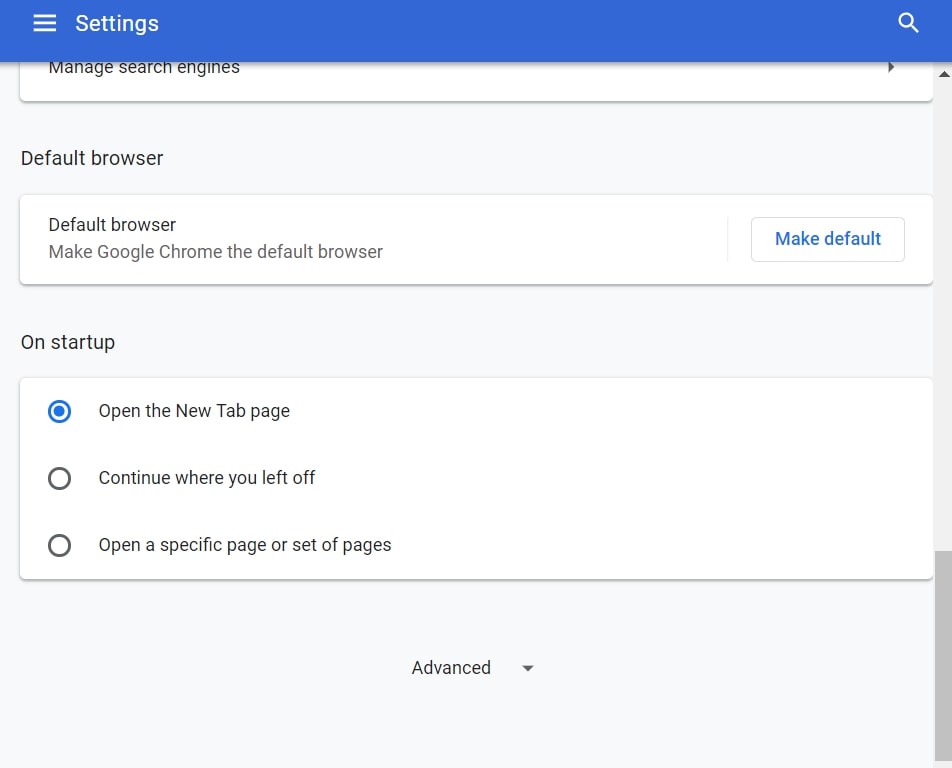
Step 2: In Settings, select “Advanced Settings”:
Step 3: Click “Content Settings”:

Step 4: Open “Notifications”:

Step 5: Click the three dots and choose Block, Edit or Remove options:

Remove Push Notifications on Firefox
Step 1: Go to Firefox Options.

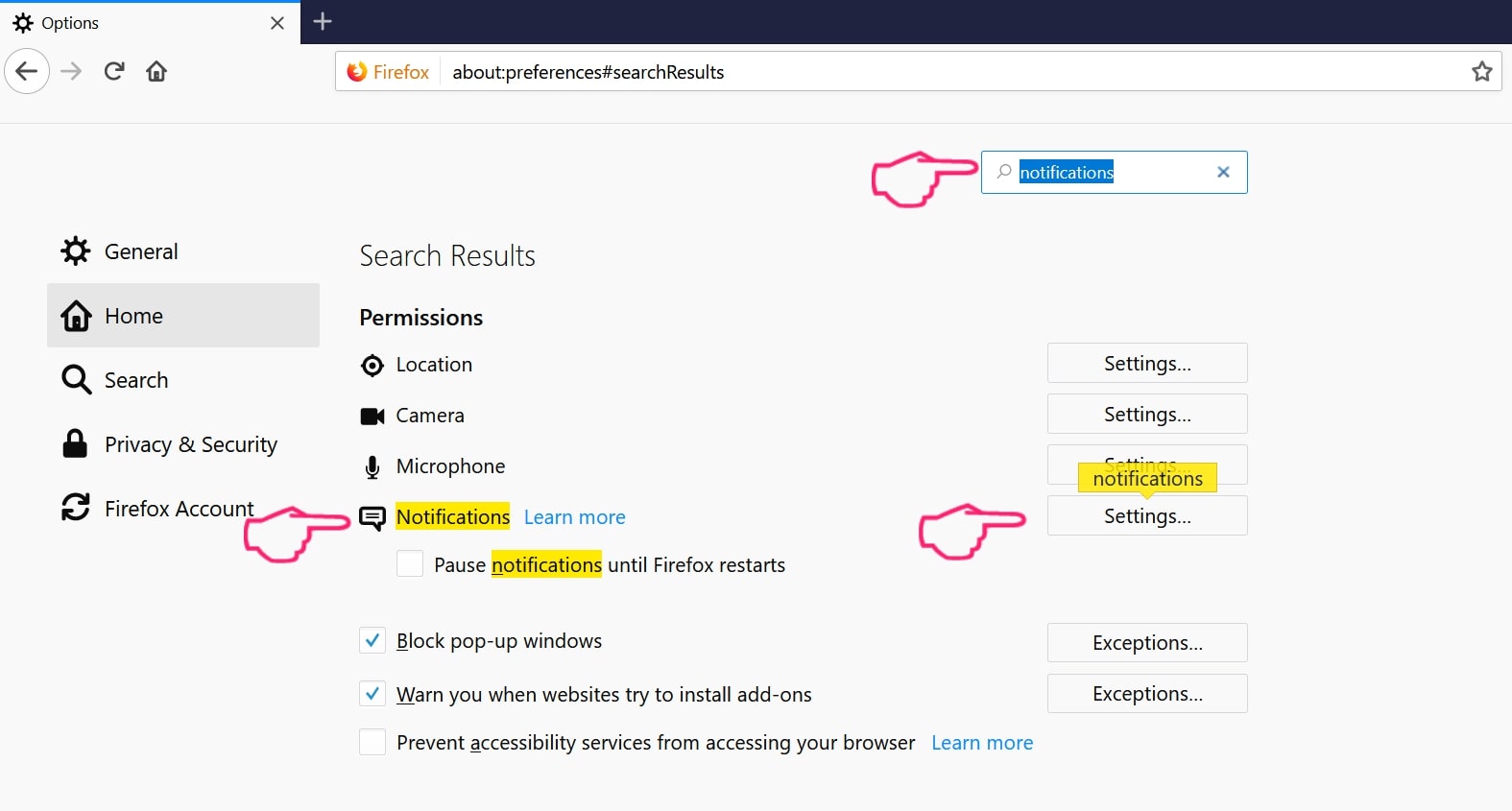
Step 2: Go to “Settings”, type “notifications” in the search bar and click "Settings":
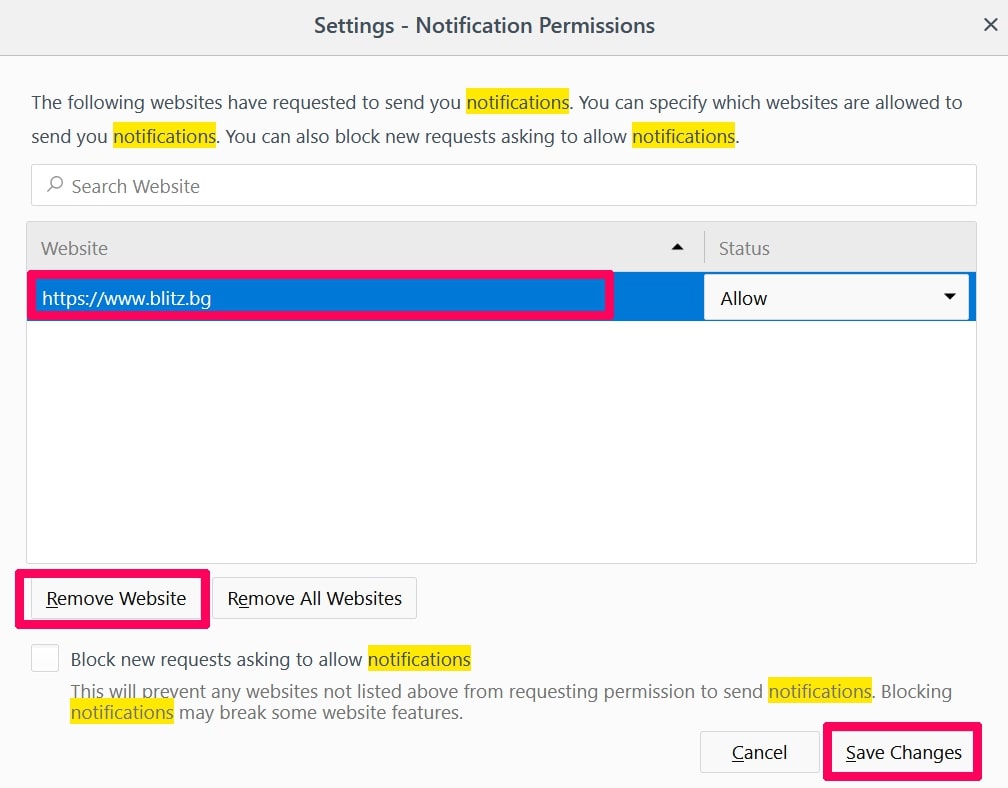
Step 3: Click “Remove” on any site you wish notifications gone and click “Save Changes”
Stop Push Notifications on Opera
Step 1: In Opera, press ALT+P to go to Settings.

Step 2: In Setting search, type “Content” to go to Content Settings.
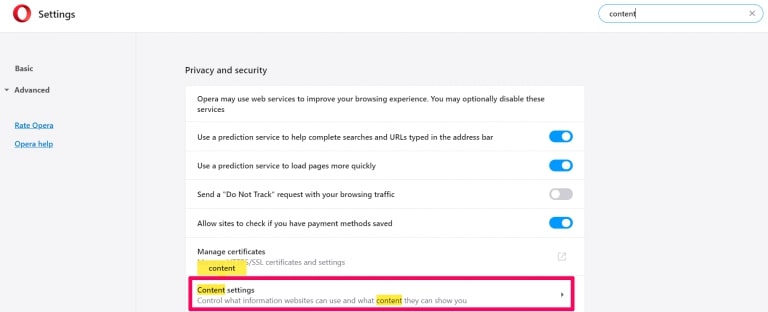
Step 3: Open Notifications:
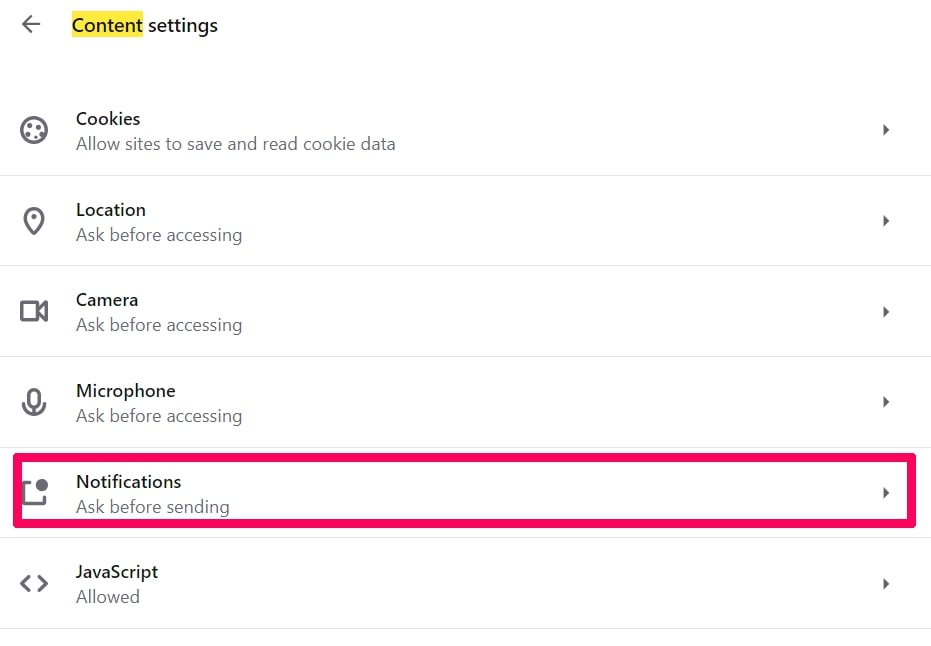
Step 4: Do the same as you did with Google Chrome (explained below):

Eliminate Push Notifications on Safari
Step 1: Open Safari Preferences.
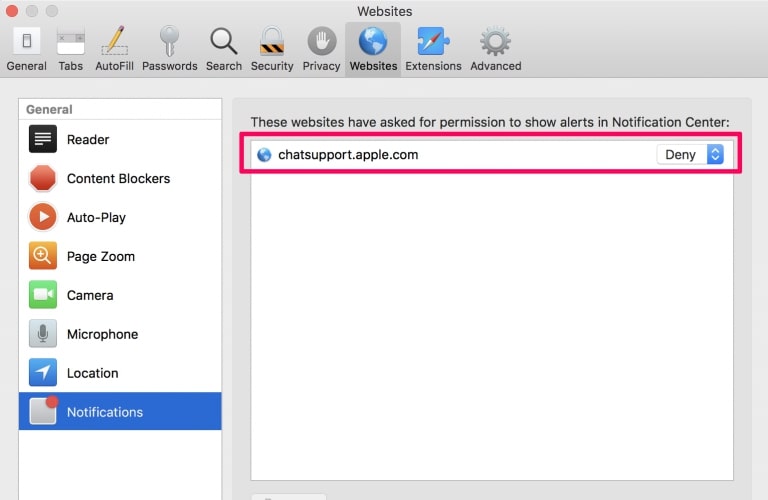
Step 2: Choose the domain from where you like push pop-ups gone and change to "Deny" from "Allow".
Tai Chi Walking-FAQ
What Is Tai Chi Walking?
The Tai Chi Walking threat is adware or browser redirect virus.
It may slow your computer down significantly and display advertisements. The main idea is for your information to likely get stolen or more ads to appear on your device.
The creators of such unwanted apps work with pay-per-click schemes to get your computer to visit risky or different types of websites that may generate them funds. This is why they do not even care what types of websites show up on the ads. This makes their unwanted software indirectly risky for your OS.
What Are the Symptoms of Tai Chi Walking?
There are several symptoms to look for when this particular threat and also unwanted apps in general are active:
Symptom #1: Your computer may become slow and have poor performance in general.
Symptom #2: You have toolbars, add-ons or extensions on your web browsers that you don't remember adding.
Symptom #3: You see all types of ads, like ad-supported search results, pop-ups and redirects to randomly appear.
Symptom #4: You see installed apps on your Mac running automatically and you do not remember installing them.
Symptom #5: You see suspicious processes running in your Task Manager.
If you see one or more of those symptoms, then security experts recommend that you check your computer for viruses.
What Types of Unwanted Programs Are There?
According to most malware researchers and cyber-security experts, the threats that can currently affect your device can be rogue antivirus software, adware, browser hijackers, clickers, fake optimizers and any forms of PUPs.
What to Do If I Have a "virus" like Tai Chi Walking?
With few simple actions. First and foremost, it is imperative that you follow these steps:
Step 1: Find a safe computer and connect it to another network, not the one that your Mac was infected in.
Step 2: Change all of your passwords, starting from your email passwords.
Step 3: Enable two-factor authentication for protection of your important accounts.
Step 4: Call your bank to change your credit card details (secret code, etc.) if you have saved your credit card for online shopping or have done online activities with your card.
Step 5: Make sure to call your ISP (Internet provider or carrier) and ask them to change your IP address.
Step 6: Change your Wi-Fi password.
Step 7: (Optional): Make sure to scan all of the devices connected to your network for viruses and repeat these steps for them if they are affected.
Step 8: Install anti-malware software with real-time protection on every device you have.
Step 9: Try not to download software from sites you know nothing about and stay away from low-reputation websites in general.
If you follow these recommendations, your network and all devices will become significantly more secure against any threats or information invasive software and be virus free and protected in the future too.
How Does Tai Chi Walking Work?
Once installed, Tai Chi Walking can collect data using trackers. This data is about your web browsing habits, such as the websites you visit and the search terms you use. It is then used to target you with ads or to sell your information to third parties.
Tai Chi Walking can also download other malicious software onto your computer, such as viruses and spyware, which can be used to steal your personal information and show risky ads, that may redirect to virus sites or scams.
Is Tai Chi Walking Malware?
The truth is that PUPs (adware, browser hijackers) are not viruses, but may be just as dangerous since they may show you and redirect you to malware websites and scam pages.
Many security experts classify potentially unwanted programs as malware. This is because of the unwanted effects that PUPs can cause, such as displaying intrusive ads and collecting user data without the user’s knowledge or consent.
About the Tai Chi Walking Research
The content we publish on SensorsTechForum.com, this Tai Chi Walking how-to removal guide included, is the outcome of extensive research, hard work and our team’s devotion to help you remove the specific, adware-related problem, and restore your browser and computer system.
How did we conduct the research on Tai Chi Walking?
Please note that our research is based on independent investigation. We are in contact with independent security researchers, thanks to which we receive daily updates on the latest malware, adware, and browser hijacker definitions.
Furthermore, the research behind the Tai Chi Walking threat is backed with VirusTotal.
To better understand this online threat, please refer to the following articles which provide knowledgeable details.