

Cendrava.site is a push notification abuse domain operating through fake CAPTCHA and robot-verification prompts. The site presents visitors with a page mimicking a standard CAPTCHA verification – an image of a robot, a checkbox, or a “Verify you are human” instruction – where the verification step is to click the Allow button on the browser’s notification permission dialog. Users who complete this fake verification believing it to be a standard security check grant Cendrava.site permission to send persistent desktop notifications, enrolling in a spam network that delivers fake virus alerts, gambling promotions, subscription trap links, and further phishing content to the device.
The fake CAPTCHA notification harvesting technique used by Cendrava.site is a widely documented category of browser notification abuse. The .site top-level domain and the invented name “Cendrava” are consistent with the naming and domain registration patterns of coordinated push notification abuse networks that cycle through large numbers of similar domains. Users encountering Cendrava.site are redirected there through advertising on low-quality sites, through existing notification spam, or through adware installed on the system.

Cendrava.site Short Overview
| Type | Push Notification Hijacker / Fake CAPTCHA Redirect / Browser Notification Abuse Domain. Cendrava.site uses fake robot-check and CAPTCHA prompts to harvest browser notification permissions and deliver persistent desktop spam linking to scam and phishing destinations. |
| Detection Names | PUA:Win32/Cendrava; Adware.FakeCaptcha.Cendrava; BrowserModifier:Win32/NotificationAbuse; Trojan.FakeVerify (various AV vendors) |
| Symptoms | Pop-up windows opening automatically to Cendrava.site displaying a fake CAPTCHA or robot-check prompt; browser notification permission dialog appearing from Cendrava.site framed as a CAPTCHA completion step; persistent desktop notifications from Cendrava.site or affiliated domains after any Allow click, promoting fake virus warnings, prize pages, and adult content; browser repeatedly redirecting to Cendrava.site during navigation without deliberate user action; antivirus blocking a redirect destination reached through Cendrava.site advertising |
| Removal Time | Approximately 15 minutes for a full-system scan |
| Removal Tool | See If Your System Has Been Affected by malware
Download
Malware Removal Tool
|
How Did Cendrava.site Pop-ups Start?
- Fake CAPTCHA redirect pages in advertising chains – advertising on streaming sites, download portals, and content farms routes through redirect chains that land on Cendrava.site, presenting the fake CAPTCHA before the user reaches any intended destination.
- Adware generating repeated redirects – adware installed through freeware bundles injects Cendrava.site into browser navigation, ensuring the fake CAPTCHA prompt is encountered repeatedly until a permission grant occurs.
- Existing notification spam from related domains – notifications from other compromised permissions link to Cendrava.site as a cross-promotion within the same abuse network.
What Does Cendrava.site Do?
- Fake CAPTCHA notification permission harvesting – the site frames the browser’s notification Allow button as the final step of a robot verification, exploiting users’ familiarity with legitimate CAPTCHA flows to lower resistance to granting permission.
- Persistent desktop notification spam – permissions enable Cendrava.site and affiliated domains to deliver ongoing desktop notifications promoting scam content, arriving even when the browser is closed.
- Device fingerprinting and behavioral tracking – the redirect chain through Cendrava.site accumulates device fingerprint data used to target subsequent notification content.
How to Delete Cendrava.site Pop-ups
- Revoke notification permissions from Cendrava.site:
- Chrome: Settings – Privacy and Security – Site Settings – Notifications – remove Cendrava.site from the Allow list.
- Firefox: Settings – Privacy and Security – Permissions – Notifications – Settings – block Cendrava.site.
- Edge: Settings – Cookies and Site Permissions – Notifications – remove Cendrava.site.
- Android Chrome: Chrome – Settings – Site Settings – Notifications – block Cendrava.site.
- Reset browser notification settings entirely if multiple unknown domains appear in the Allow list – this removes all granted notification permissions at once.
- Check for and remove adware generating the redirects – uninstall unfamiliar programs from Control Panel and remove unrecognized browser extensions.
- Scan with SpyHunter to detect and remove adware responsible for Cendrava.site redirects.

Ventsislav Krastev
Ventsislav is a cybersecurity expert at SensorsTechForum since 2015. He has been researching, covering, helping victims with the latest malware infections plus testing and reviewing software and the newest tech developments. Having graduated Marketing as well, Ventsislav also has passion for learning new shifts and innovations in cybersecurity that become game changers. After studying Value Chain Management, Network Administration and Computer Administration of System Applications, he found his true calling within the cybersecrurity industry and is a strong believer in the education of every user towards online safety and security.
Follow Me:
- Windows
- Mac OS X
- Google Chrome
- Mozilla Firefox
- Microsoft Edge
- Safari
- Internet Explorer
- Stop Push Pop-ups
How to Remove Cendrava.site from Windows.
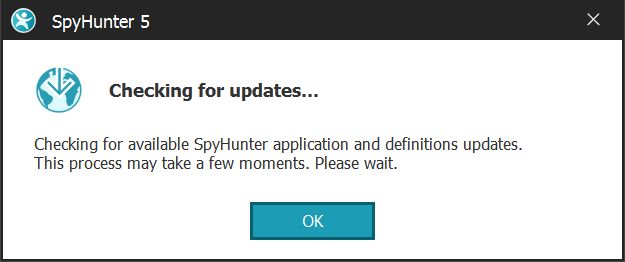
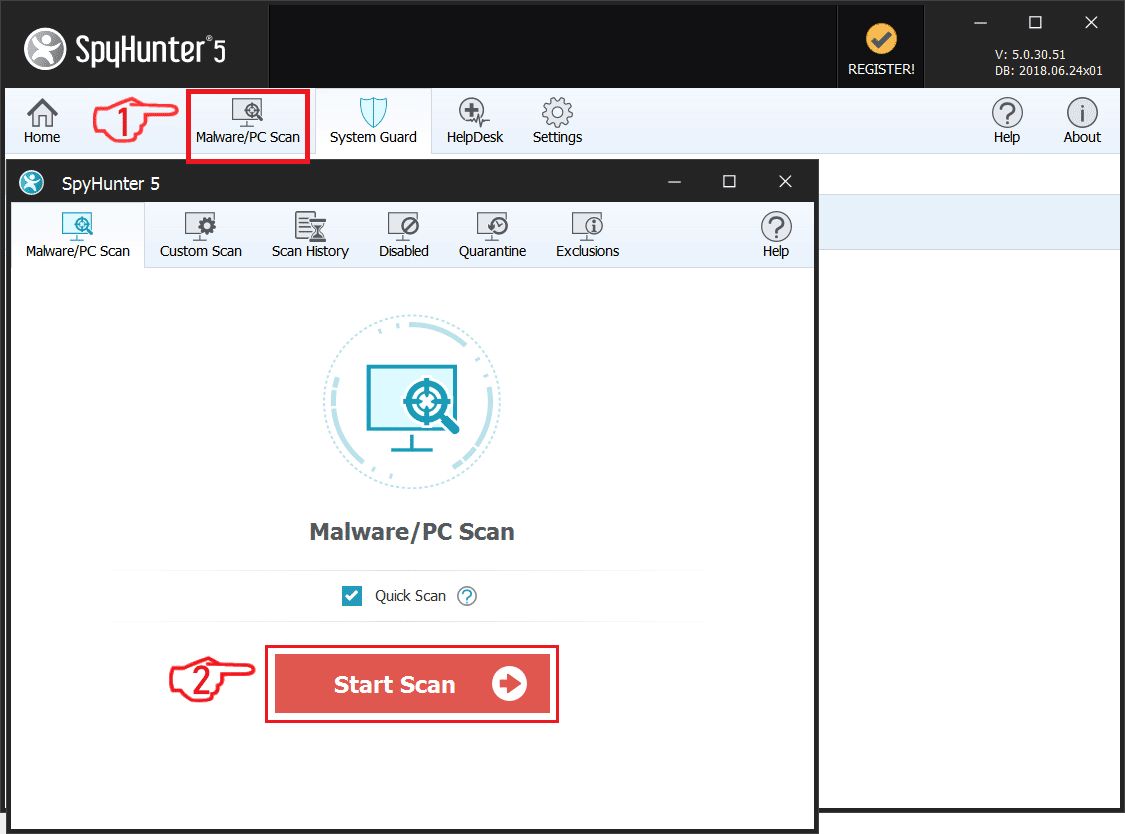
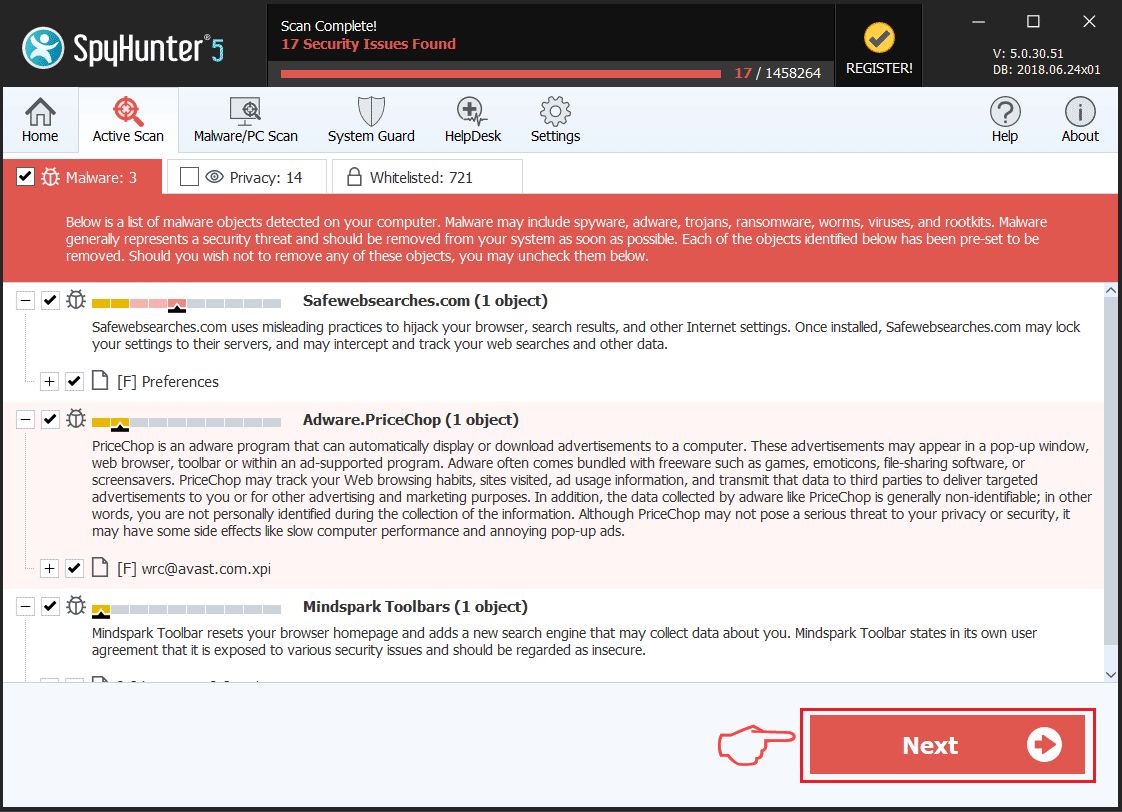
Step 1: Scan for Cendrava.site with SpyHunter Anti-Malware Tool
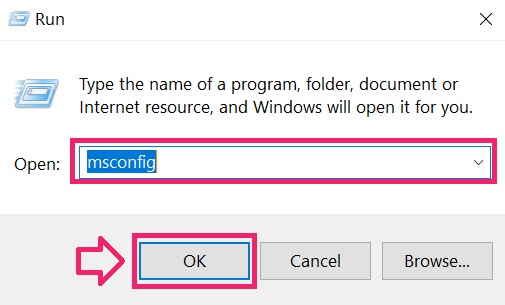
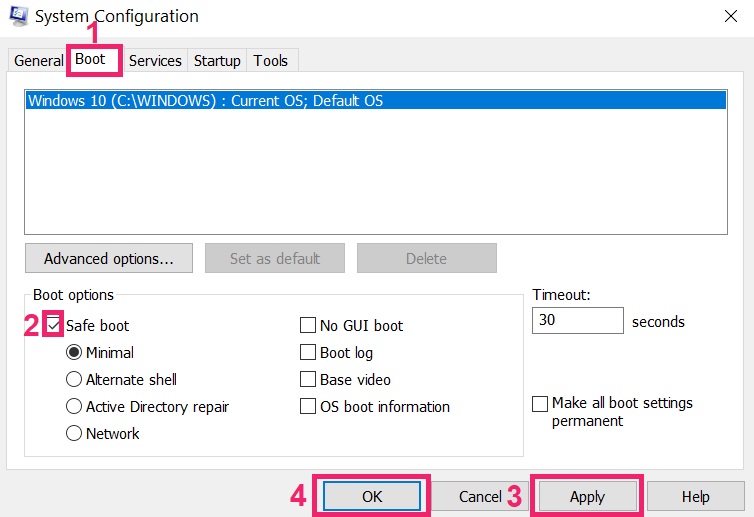
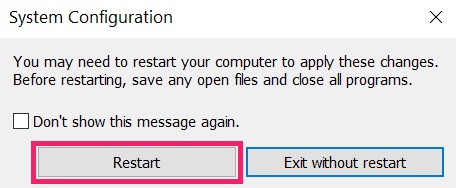
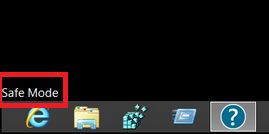
Step 2: Boot Your PC In Safe Mode
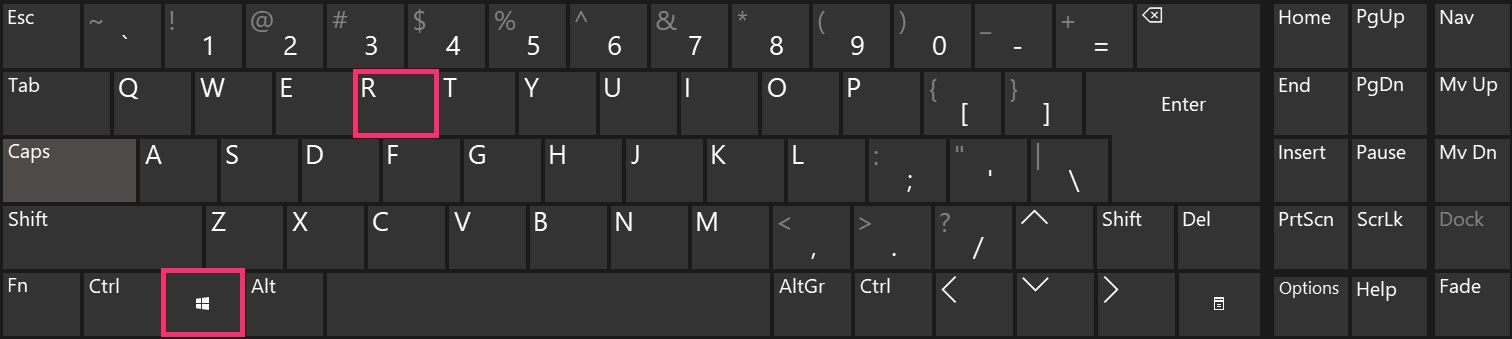
Step 3: Uninstall Cendrava.site and related software from Windows
Uninstall Steps for Windows 11
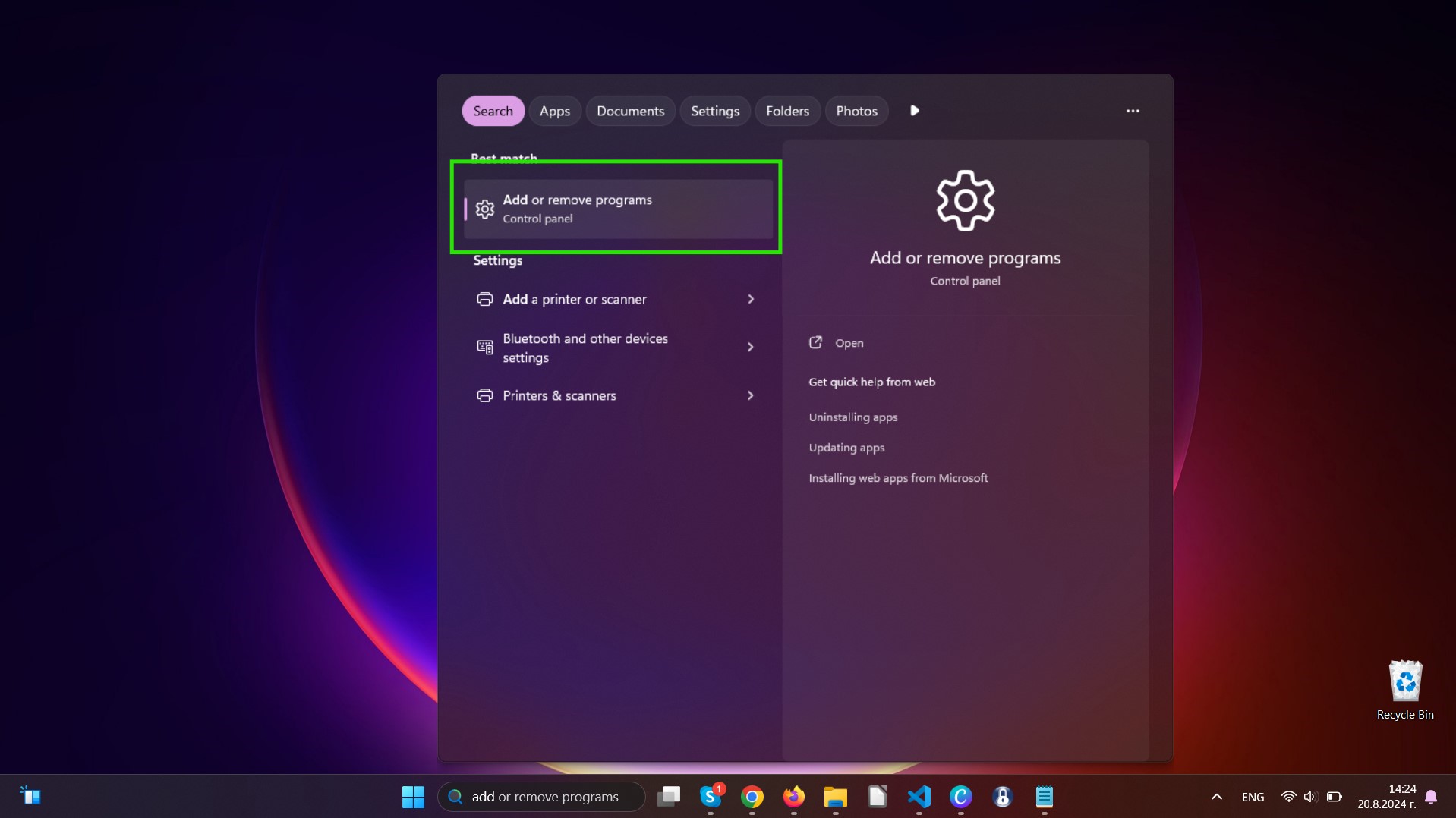
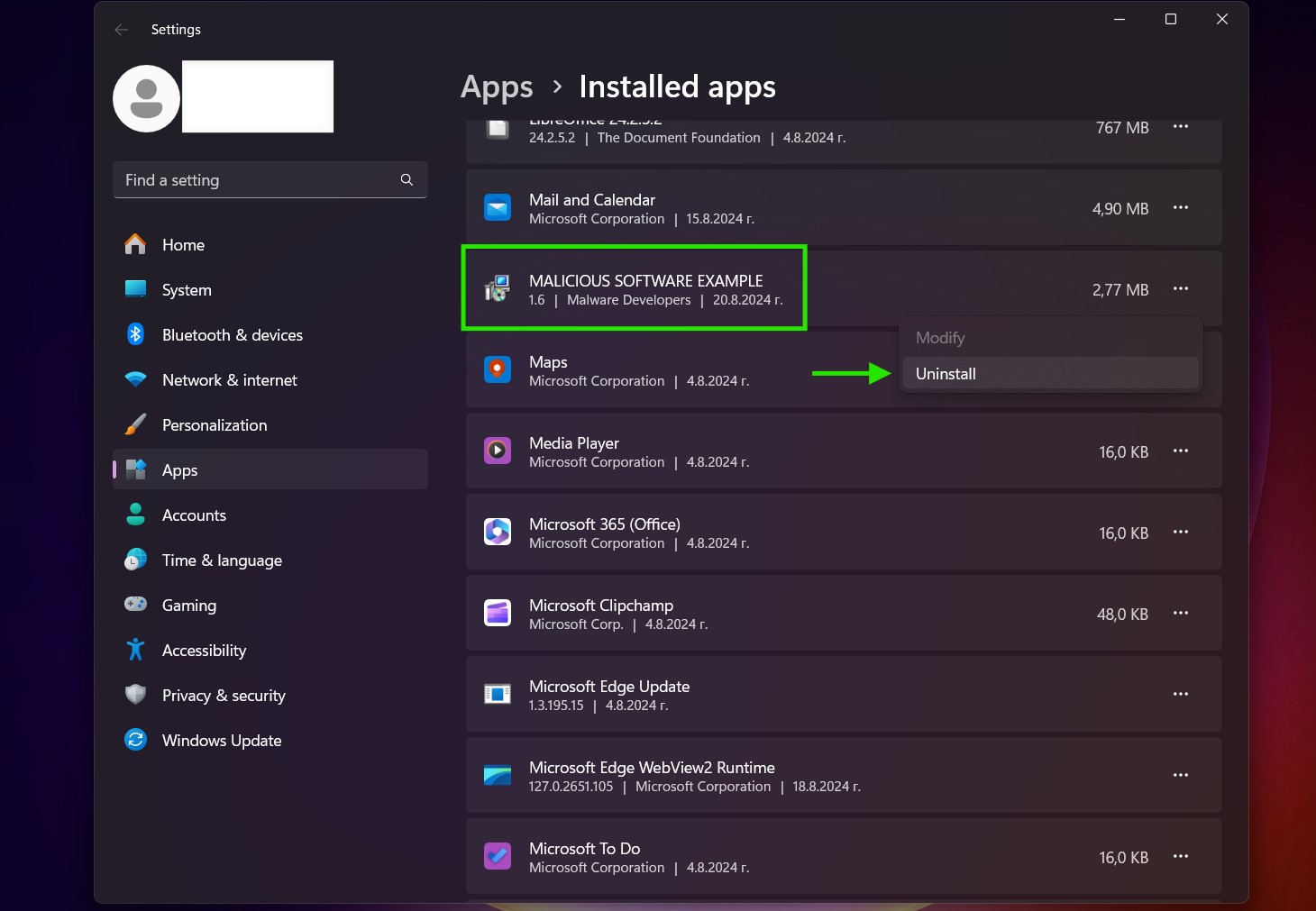
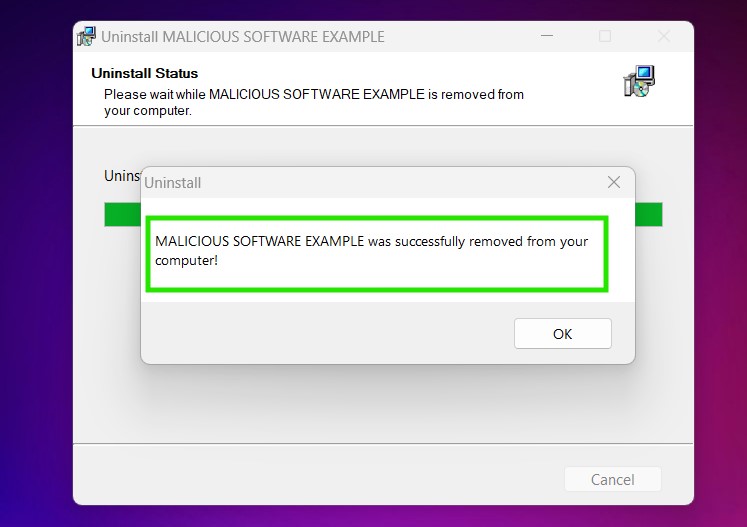
Uninstall Steps for Windows 10 and Older Versions
Here is a method in few easy steps that should be able to uninstall most programs. No matter if you are using Windows 10, 8, 7, Vista or XP, those steps will get the job done. Dragging the program or its folder to the recycle bin can be a very bad decision. If you do that, bits and pieces of the program are left behind, and that can lead to unstable work of your PC, errors with the file type associations and other unpleasant activities. The proper way to get a program off your computer is to Uninstall it. To do that:
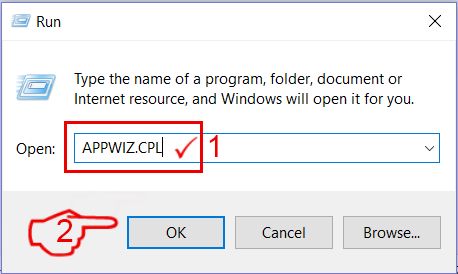
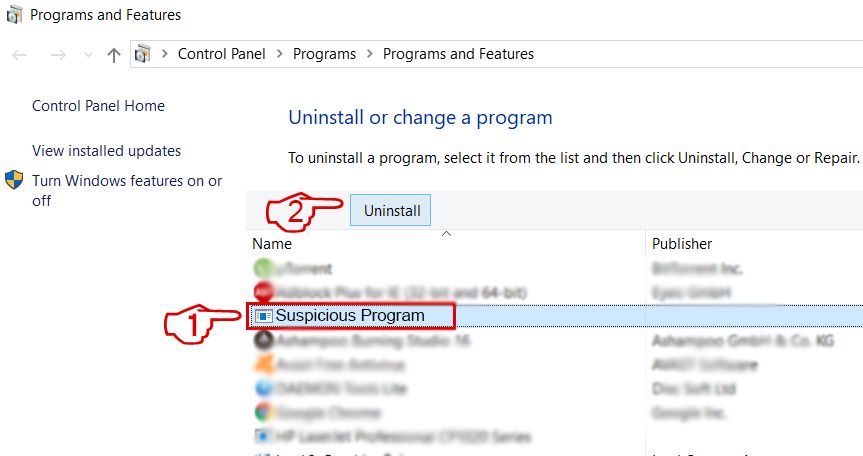 Follow the instructions above and you will successfully uninstall most programs.
Step 4: Clean Any registries, Created by Cendrava.site on Your PC.
The usually targeted registries of Windows machines are the following:
- HKEY_LOCAL_MACHINE\Software\Microsoft\Windows\CurrentVersion\Run
- HKEY_CURRENT_USER\Software\Microsoft\Windows\CurrentVersion\Run
- HKEY_LOCAL_MACHINE\Software\Microsoft\Windows\CurrentVersion\RunOnce
- HKEY_CURRENT_USER\Software\Microsoft\Windows\CurrentVersion\RunOnce
You can access them by opening the Windows registry editor and deleting any values, created by Cendrava.site there. This can happen by following the steps underneath:
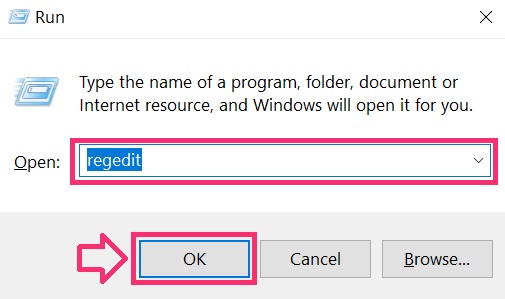
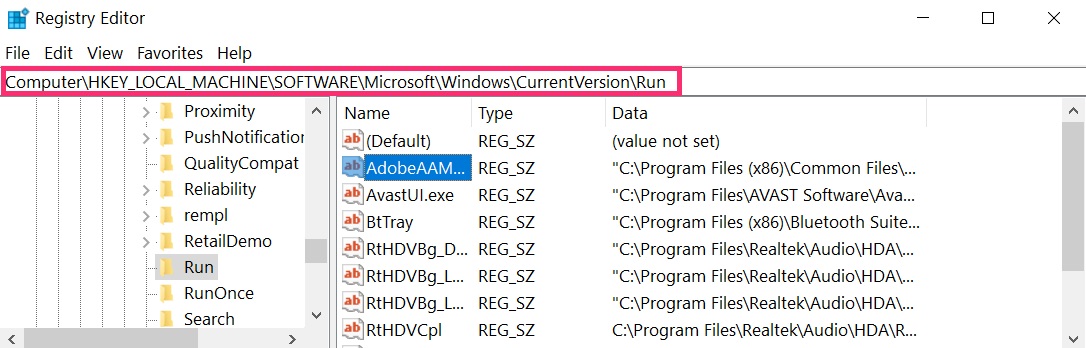
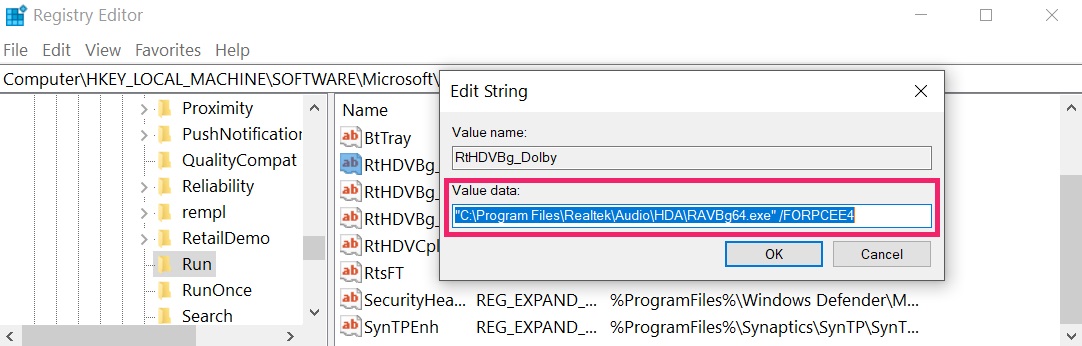 Tip: To find a virus-created value, you can right-click on it and click "Modify" to see which file it is set to run. If this is the virus file location, remove the value.
Video Removal Guide for Cendrava.site (Windows).
Get rid of Cendrava.site from Mac OS X.
Step 1: Uninstall Cendrava.site and remove related files and objects
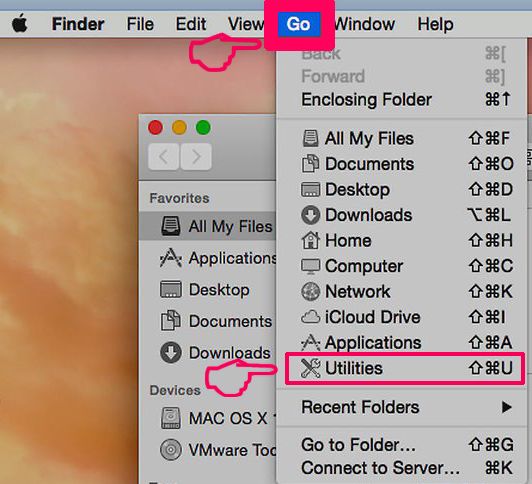
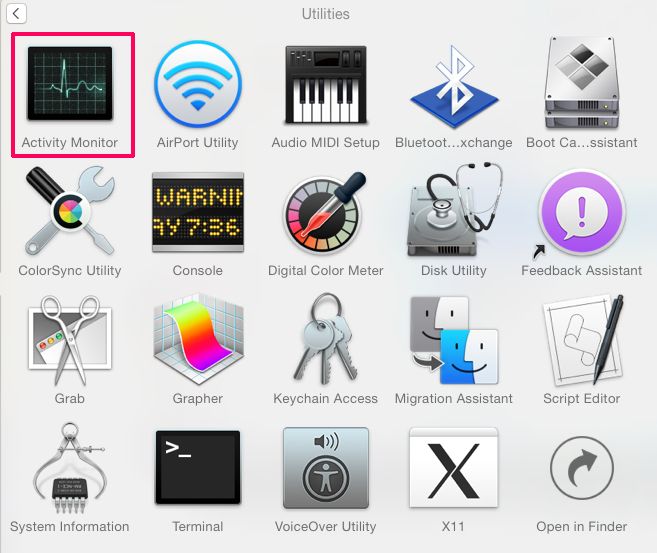
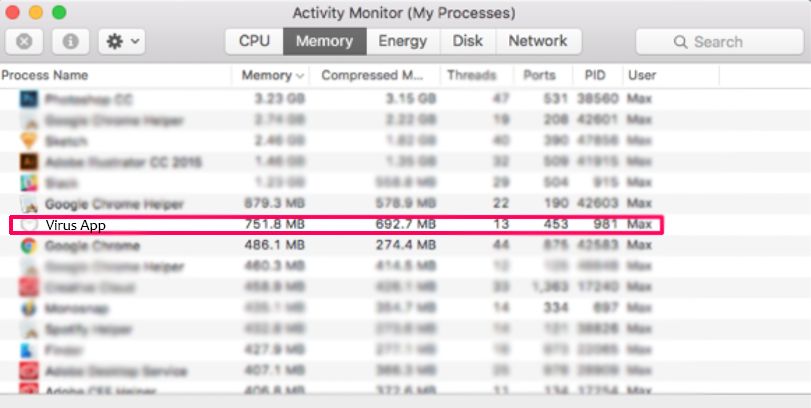
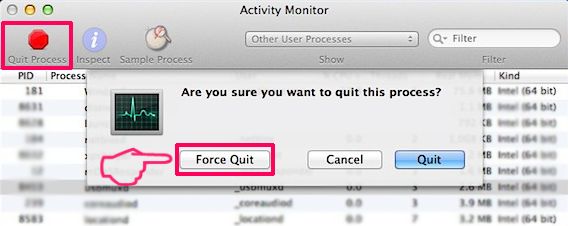
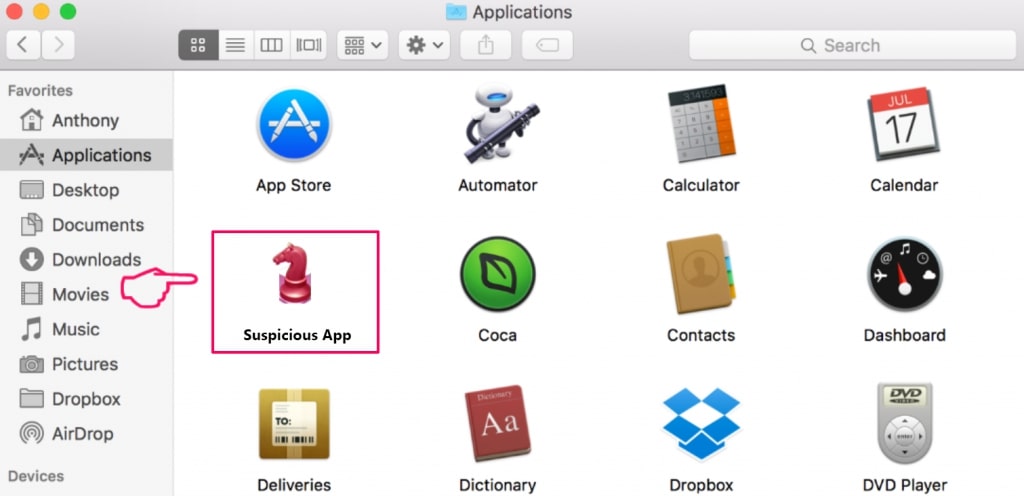
Your Mac will then show you a list of items that start automatically when you log in. Look for any suspicious apps identical or similar to Cendrava.site. Check the app you want to stop from running automatically and then select on the Minus (“-“) icon to hide it.
- Go to Finder.
- In the search bar type the name of the app that you want to remove.
- Above the search bar change the two drop down menus to “System Files” and “Are Included” so that you can see all of the files associated with the application you want to remove. Bear in mind that some of the files may not be related to the app so be very careful which files you delete.
- If all of the files are related, hold the ⌘+A buttons to select them and then drive them to “Trash”.
In case you cannot remove Cendrava.site via Step 1 above:
In case you cannot find the virus files and objects in your Applications or other places we have shown above, you can manually look for them in the Libraries of your Mac. But before doing this, please read the disclaimer below:
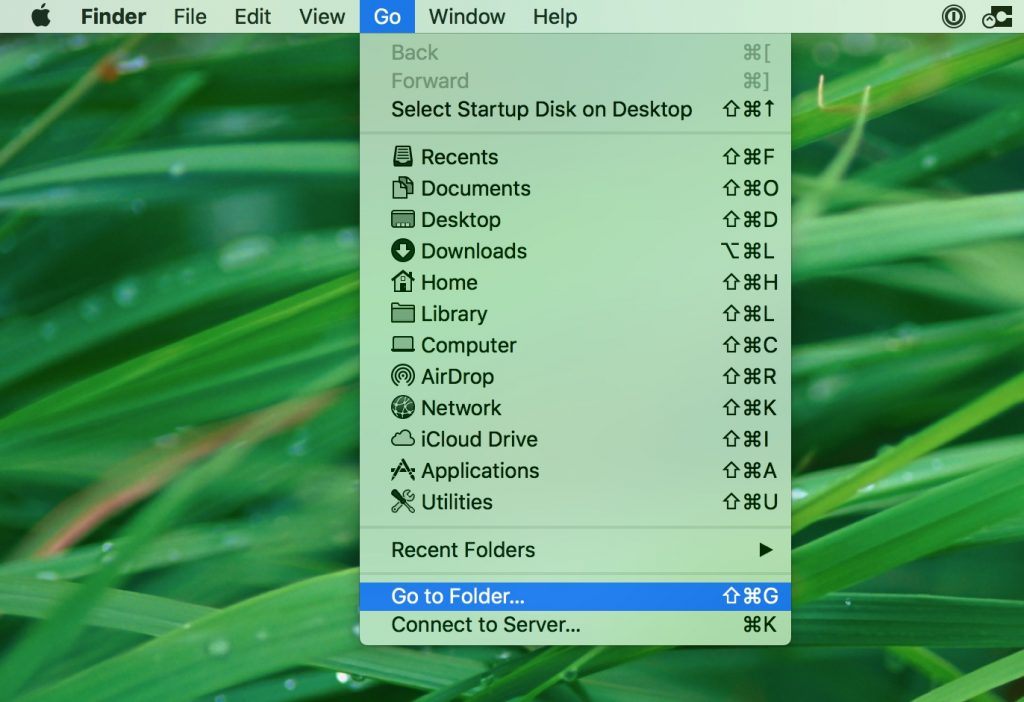
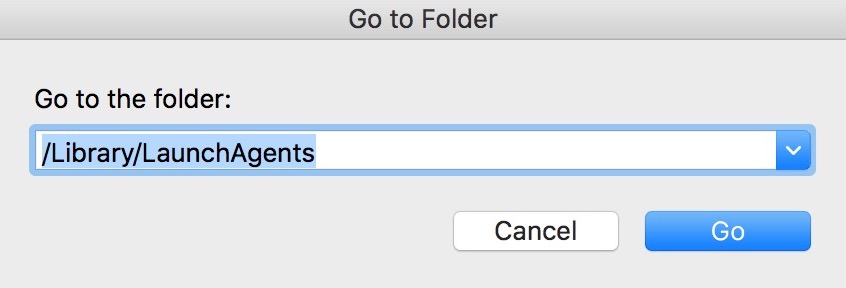
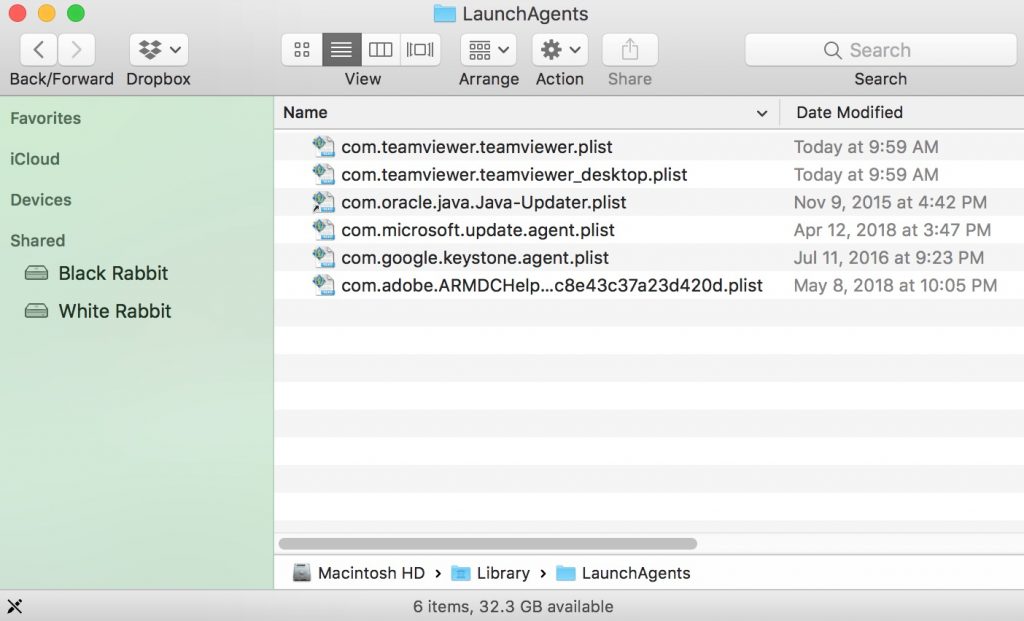
You can repeat the same procedure with the following other Library directories:
→ ~/Library/LaunchAgents
/Library/LaunchDaemons
Tip: ~ is there on purpose, because it leads to more LaunchAgents.
Step 2: Scan for and remove Cendrava.site files from your Mac
When you are facing problems on your Mac as a result of unwanted scripts and programs such as Cendrava.site, the recommended way of eliminating the threat is by using an anti-malware program. SpyHunter for Mac offers advanced security features along with other modules that will improve your Mac’s security and protect it in the future.
Video Removal Guide for Cendrava.site (Mac)
Remove Cendrava.site from Google Chrome.
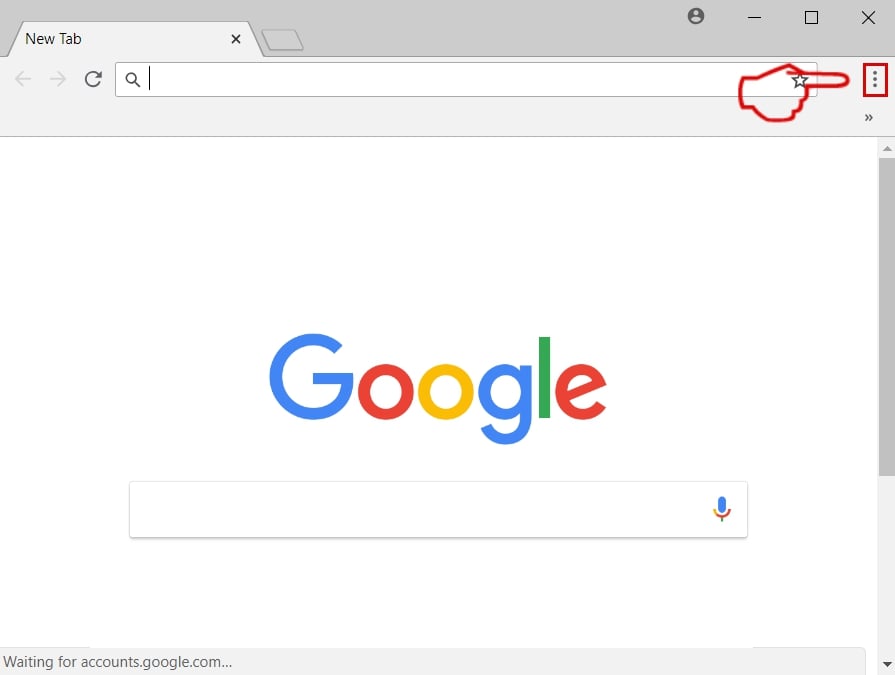
Step 1: Start Google Chrome and open the drop menu
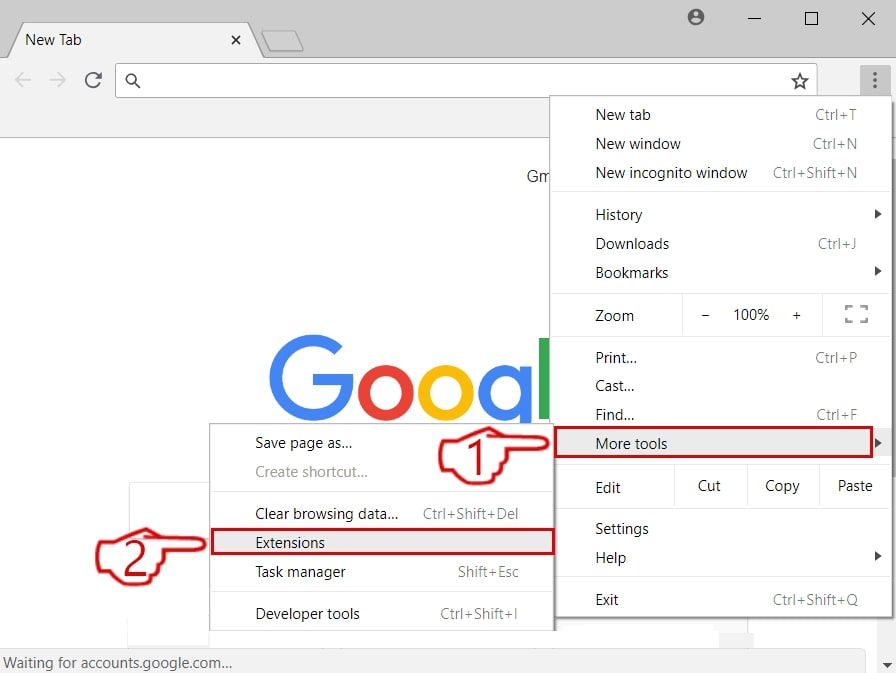
Step 2: Move the cursor over "Tools" and then from the extended menu choose "Extensions"
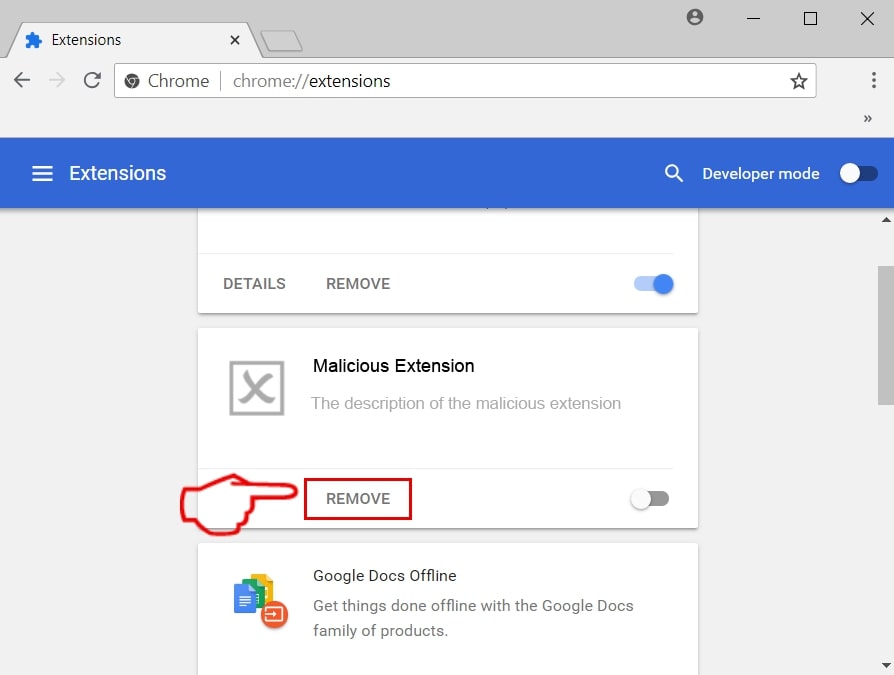
Step 3: From the opened "Extensions" menu locate the unwanted extension and click on its "Remove" button.
Step 4: After the extension is removed, restart Google Chrome by closing it from the red "X" button at the top right corner and start it again.
Erase Cendrava.site from Mozilla Firefox.
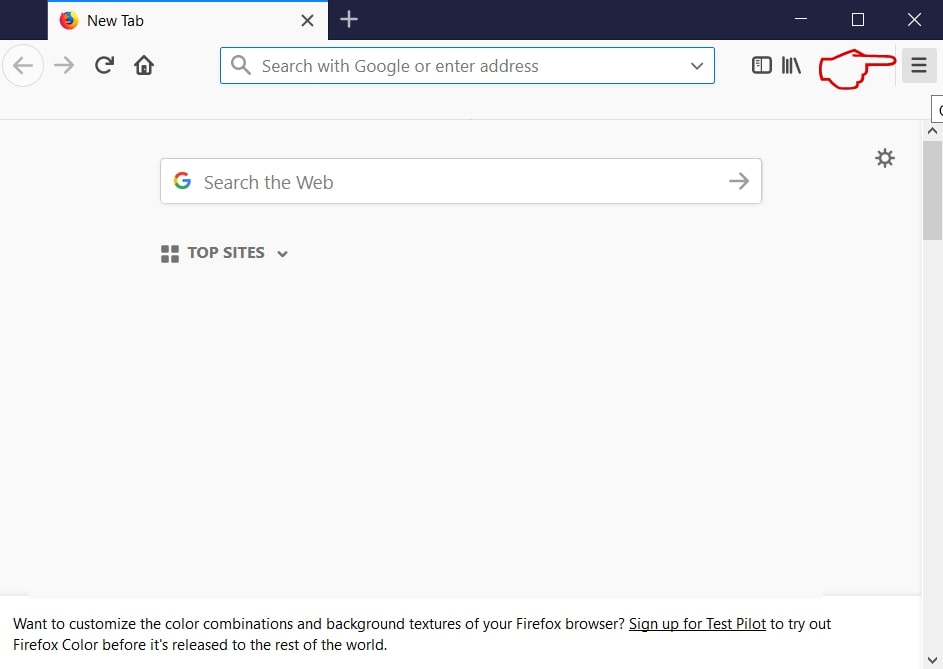
Step 1: Start Mozilla Firefox. Open the menu window:
Step 2: Select the "Add-ons" icon from the menu.
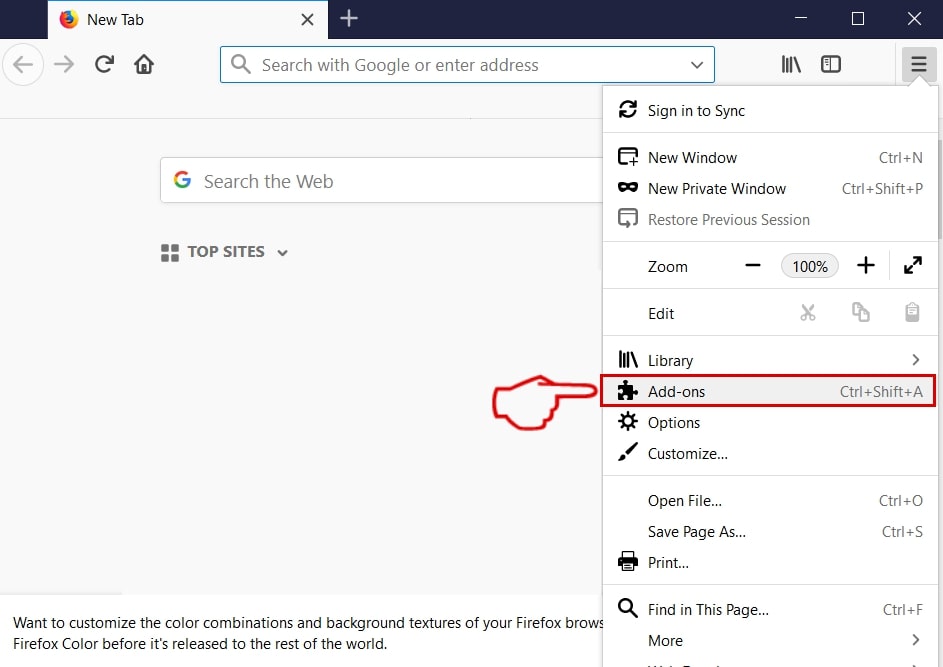
Step 3: Select the unwanted extension and click "Remove"

Step 4: After the extension is removed, restart Mozilla Firefox by closing it from the red "X" button at the top right corner and start it again.
Uninstall Cendrava.site from Microsoft Edge.
Step 1: Start Edge browser.
Step 2: Open the drop menu by clicking on the icon at the top right corner.
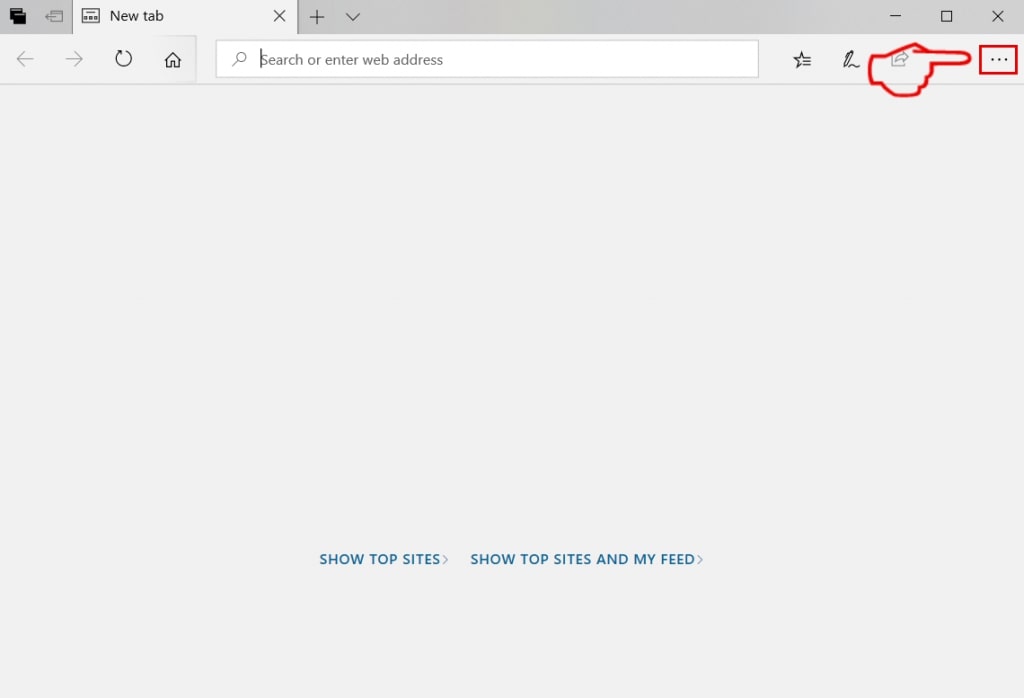
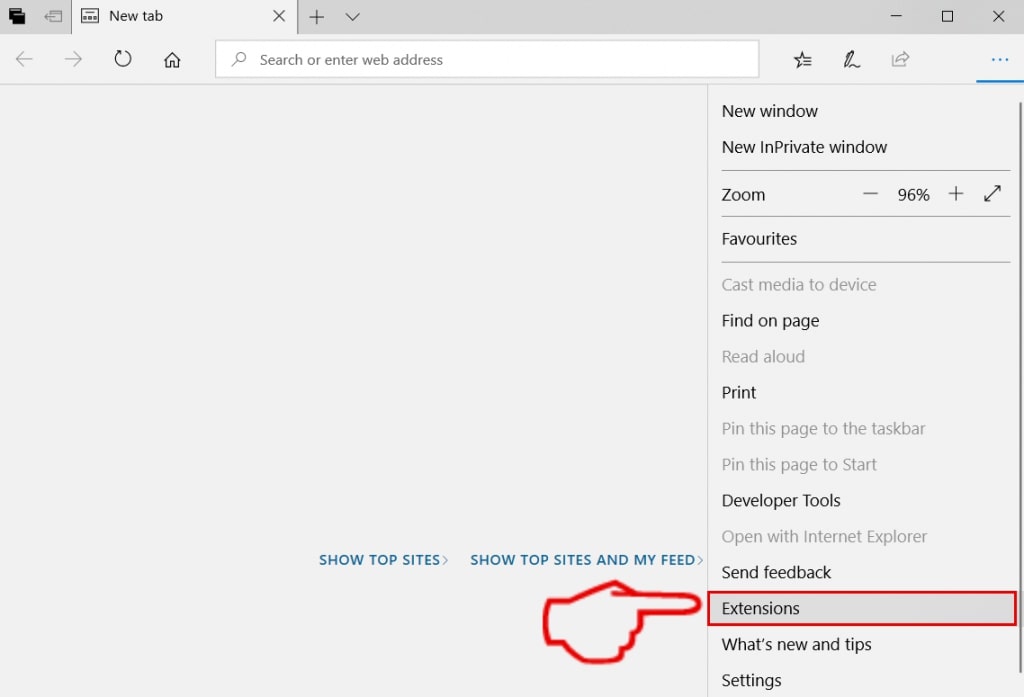
Step 3: From the drop menu select "Extensions".
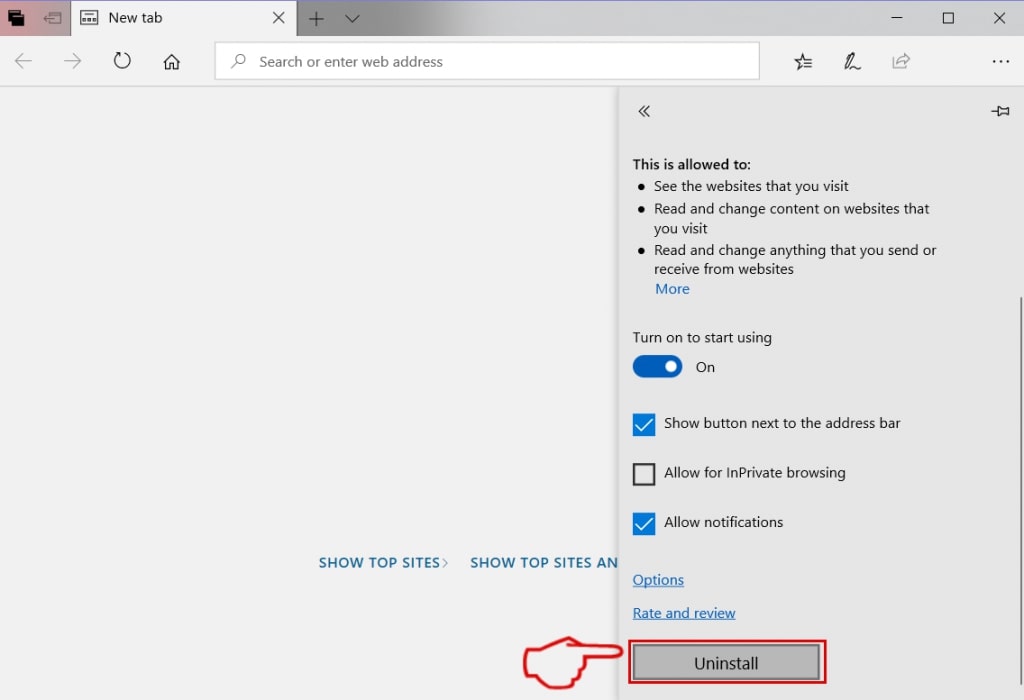
Step 4: Choose the suspected malicious extension you want to remove and then click on the gear icon.
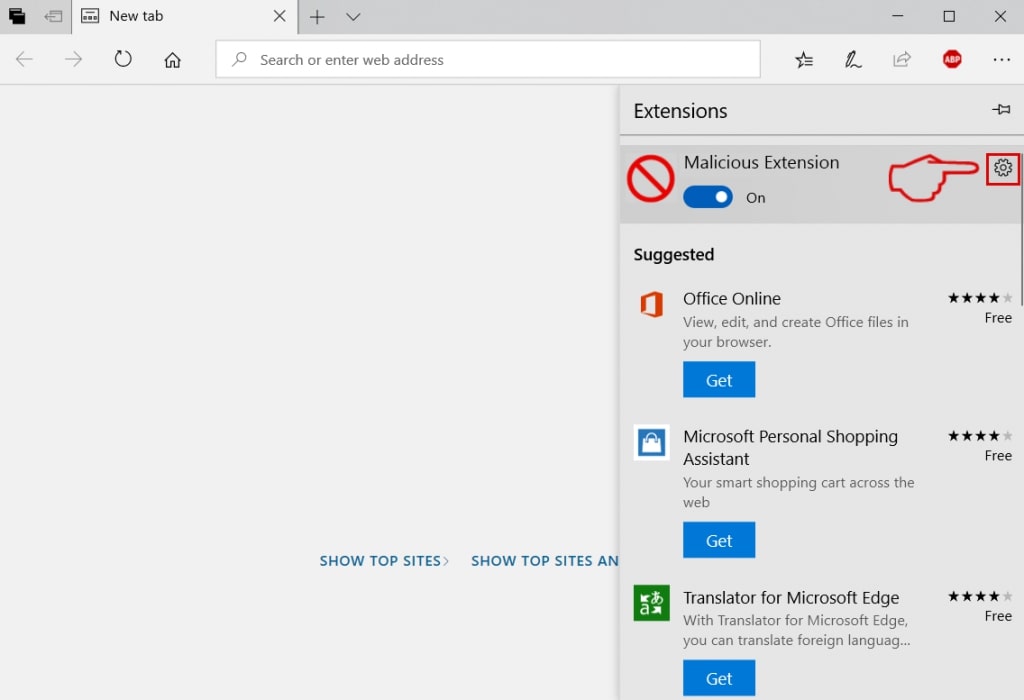
Step 5: Remove the malicious extension by scrolling down and then clicking on Uninstall.
Remove Cendrava.site from Safari
Step 1: Start the Safari app.
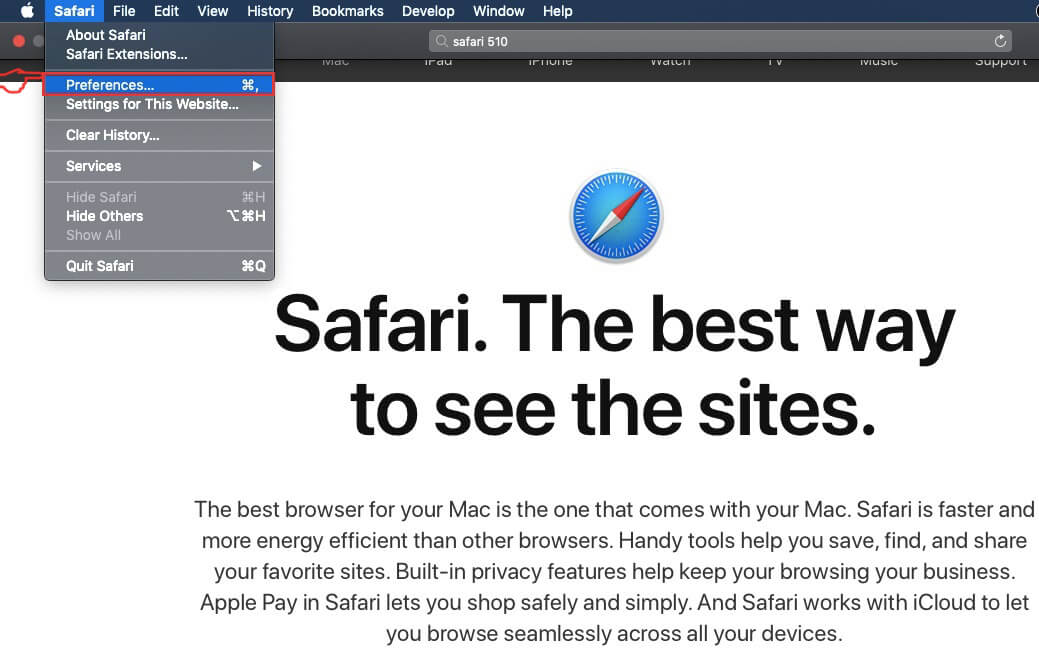
Step 2: After hovering your mouse cursor to the top of the screen, click on the Safari text to open its drop down menu.
Step 3: From the menu, click on "Preferences".
Step 4: After that, select the 'Extensions' Tab.

Step 5: Click once on the extension you want to remove.
Step 6: Click 'Uninstall'.
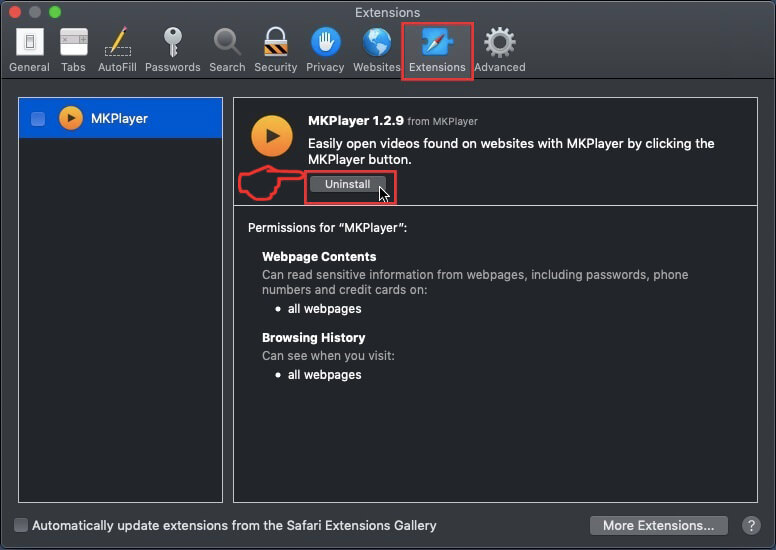
A pop-up window will appear asking for confirmation to uninstall the extension. Select 'Uninstall' again, and the Cendrava.site will be removed.
Eliminate Cendrava.site from Internet Explorer.
Step 1: Start Internet Explorer.
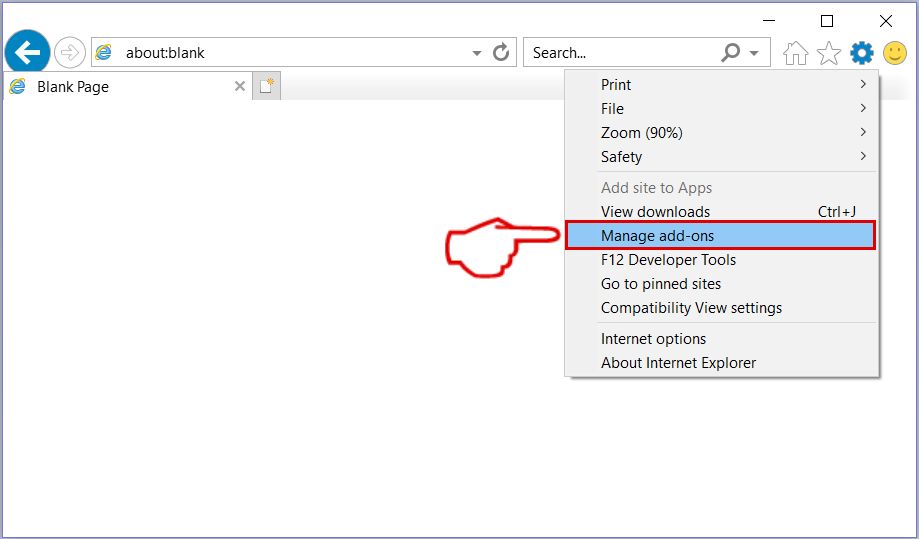
Step 2: Click on the gear icon labeled 'Tools' to open the drop menu and select 'Manage Add-ons'
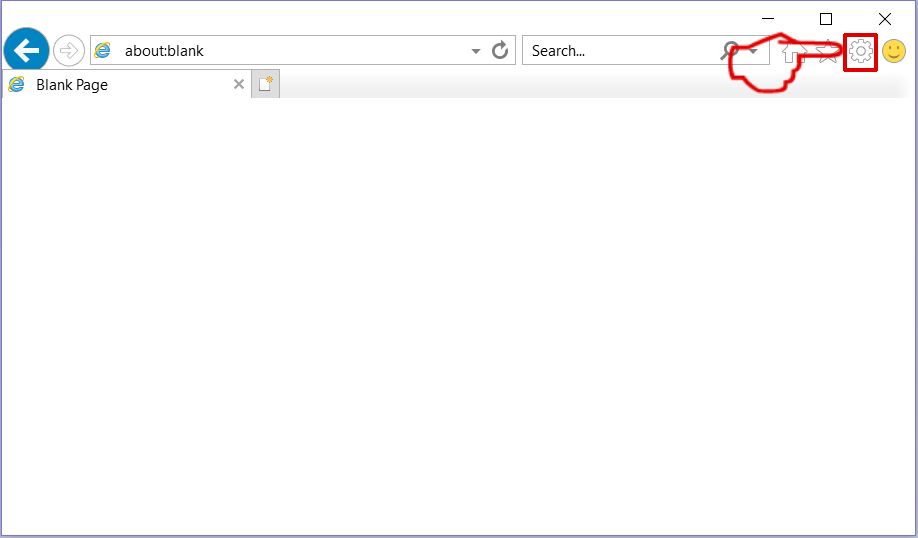
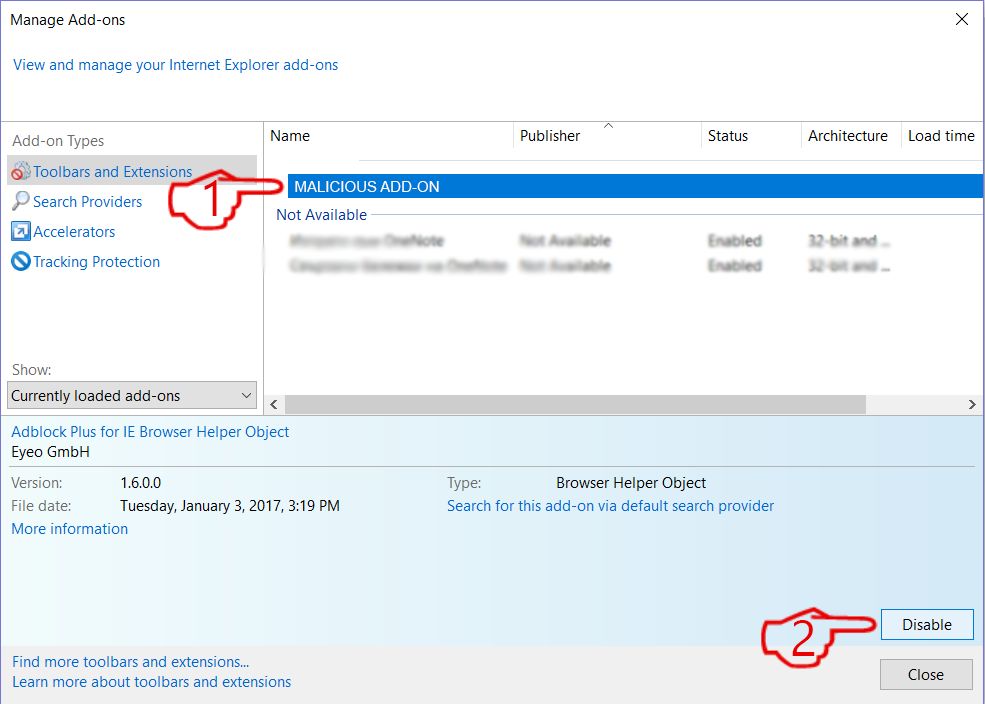
Step 3: In the 'Manage Add-ons' window.
Step 4: Select the extension you want to remove and then click 'Disable'. A pop-up window will appear to inform you that you are about to disable the selected extension, and some more add-ons might be disabled as well. Leave all the boxes checked, and click 'Disable'.
Step 5: After the unwanted extension has been removed, restart Internet Explorer by closing it from the red 'X' button located at the top right corner and start it again.
Remove Push Notifications from Your Browsers
Turn Off Push Notifications from Google Chrome
To disable any Push Notices from Google Chrome browser, please follow the steps below:
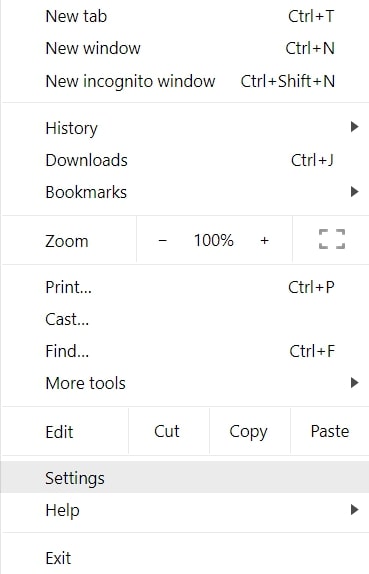
Step 1: Go to Settings in Chrome.
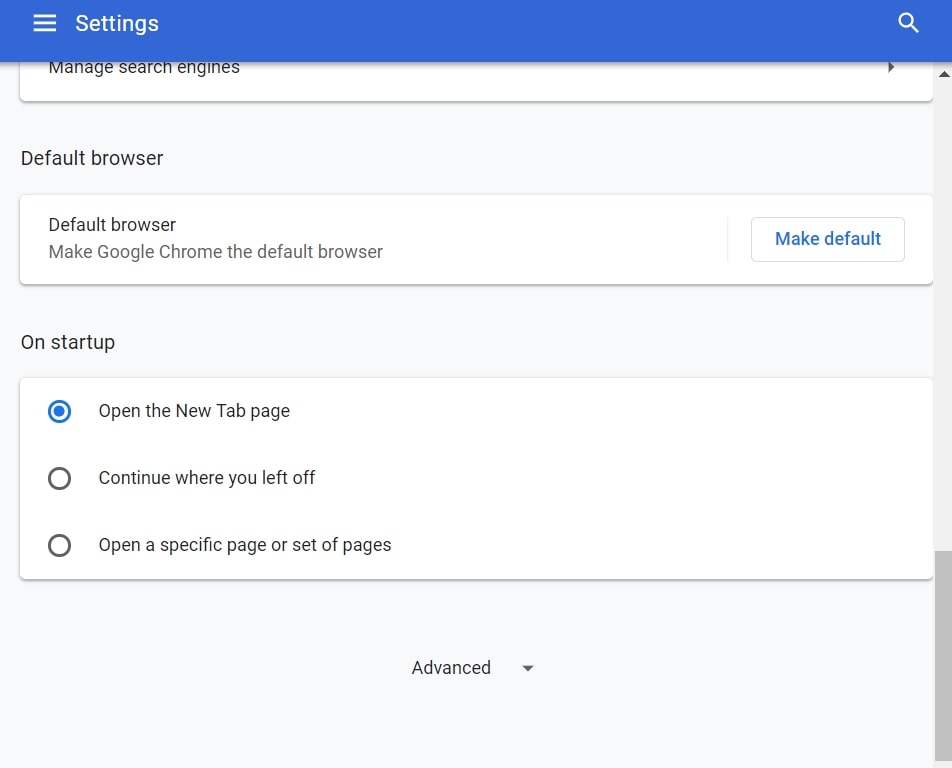
Step 2: In Settings, select “Advanced Settings”:
Step 3: Click “Content Settings”:
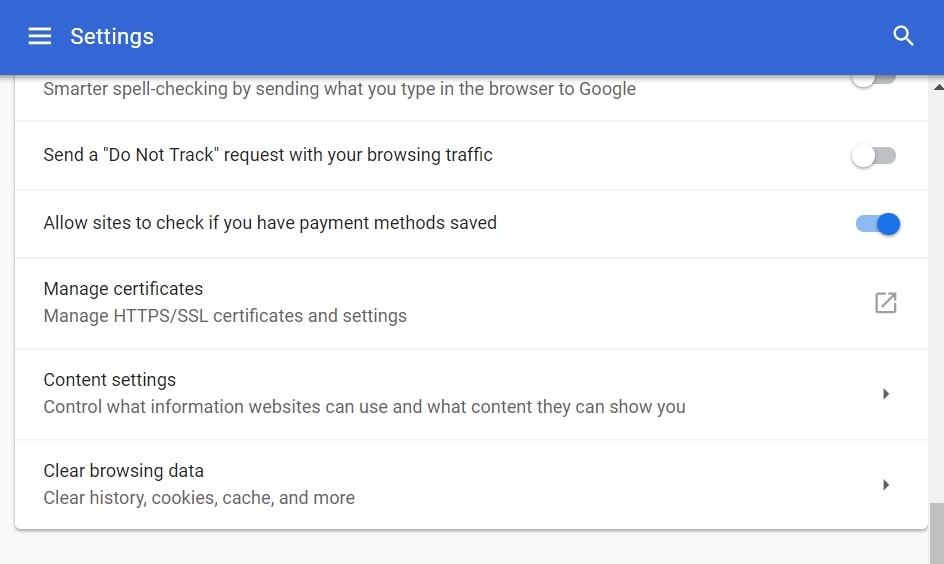
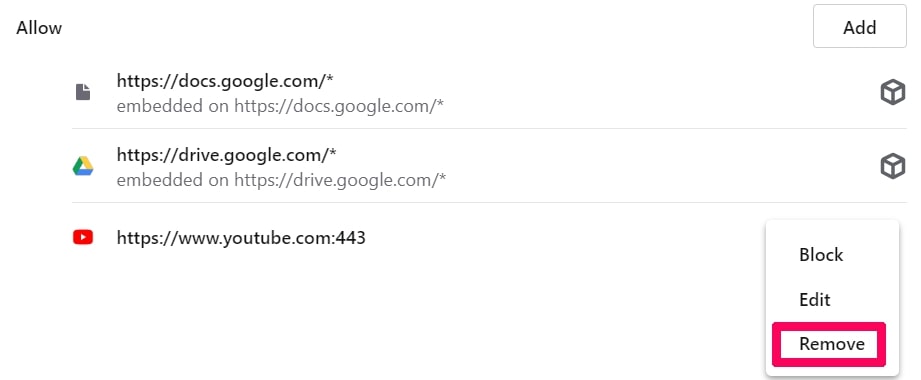
Step 4: Open “Notifications”:
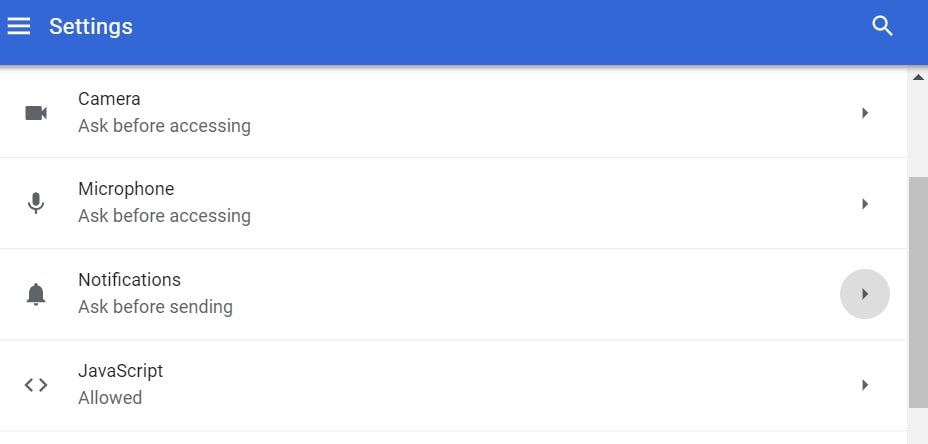
Step 5: Click the three dots and choose Block, Edit or Remove options:

Remove Push Notifications on Firefox
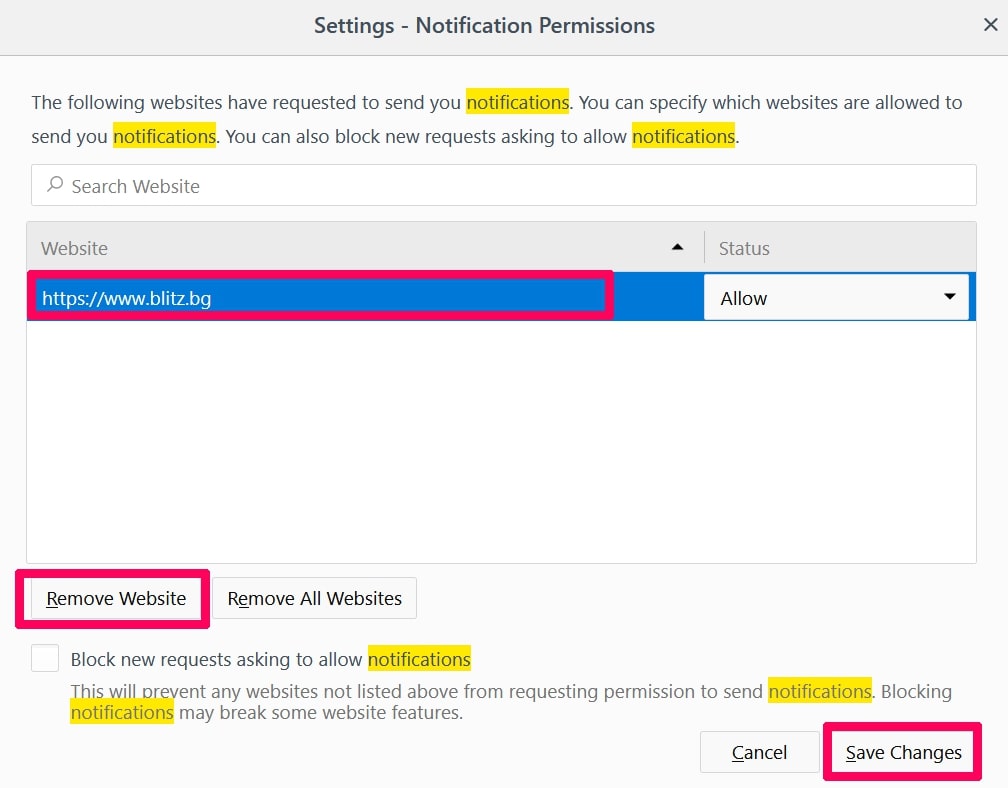
Step 1: Go to Firefox Options.
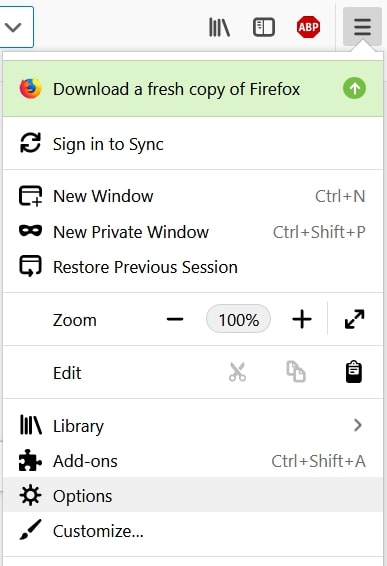
Step 2: Go to “Settings”, type “notifications” in the search bar and click "Settings":
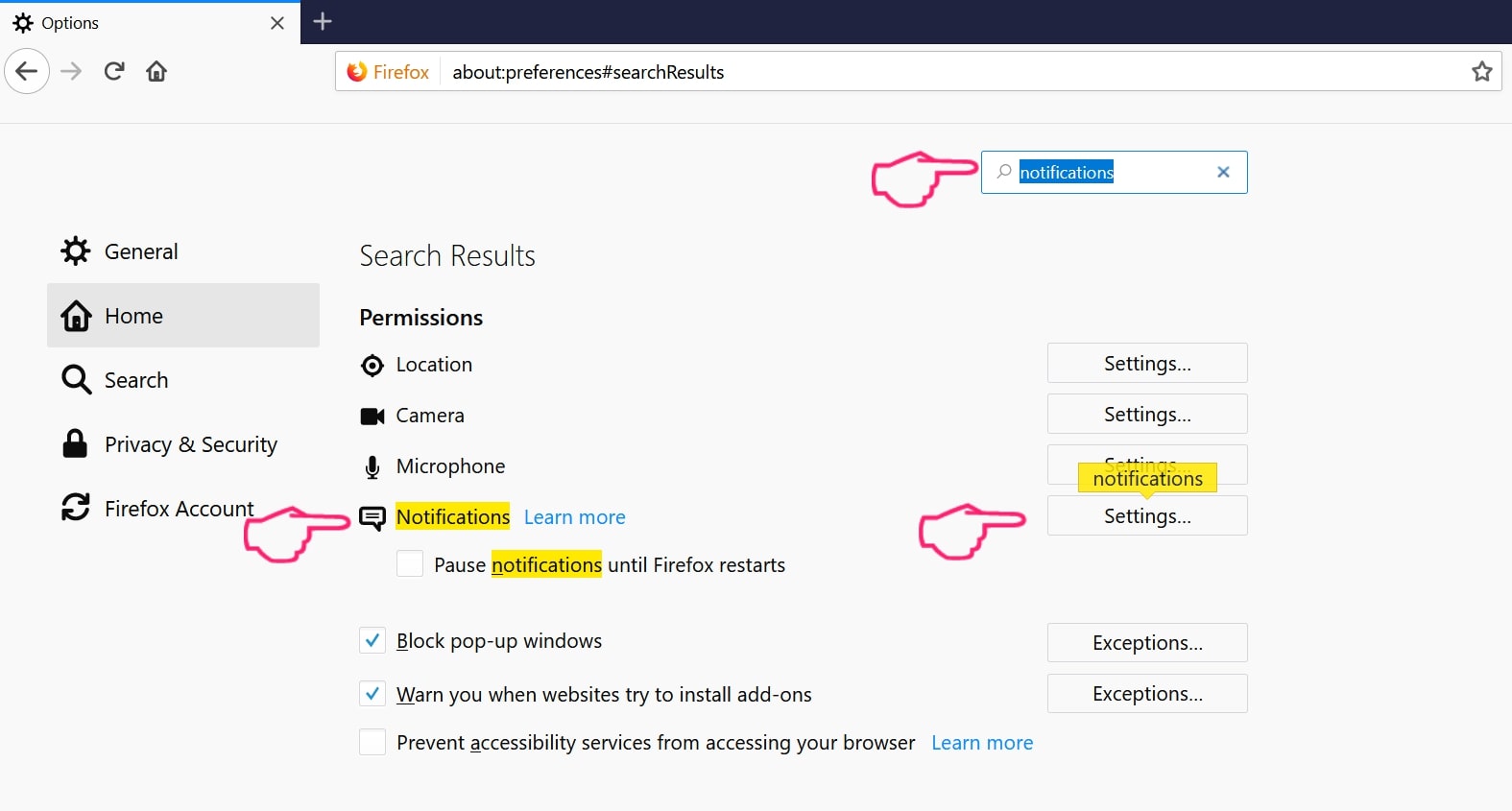
Step 3: Click “Remove” on any site you wish notifications gone and click “Save Changes”
Stop Push Notifications on Opera
Step 1: In Opera, press ALT+P to go to Settings.
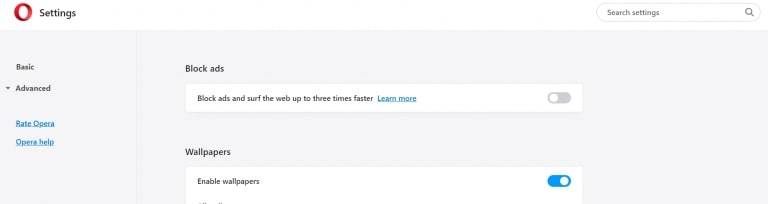
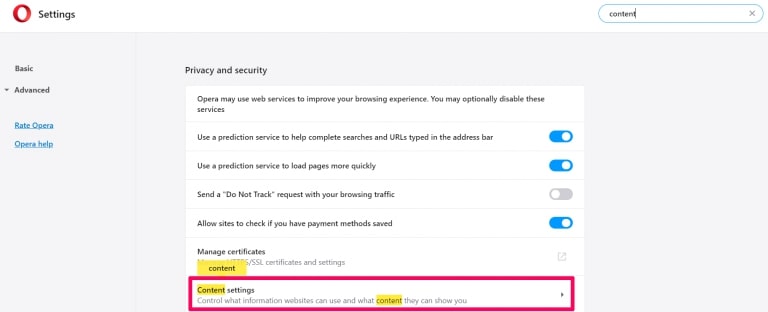
Step 2: In Setting search, type “Content” to go to Content Settings.
Step 3: Open Notifications:
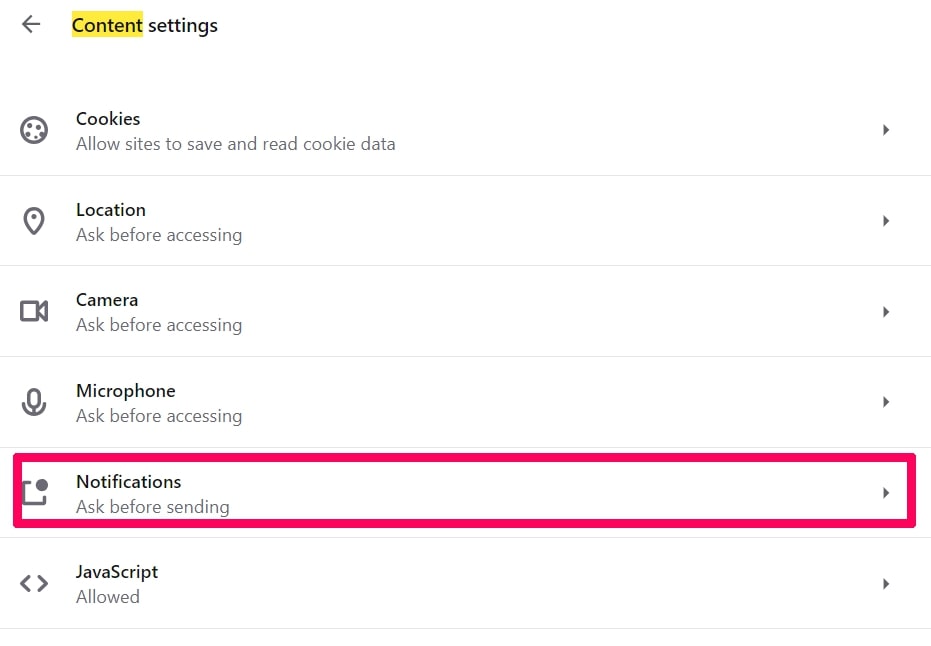
Step 4: Do the same as you did with Google Chrome (explained below):
Eliminate Push Notifications on Safari
Step 1: Open Safari Preferences.
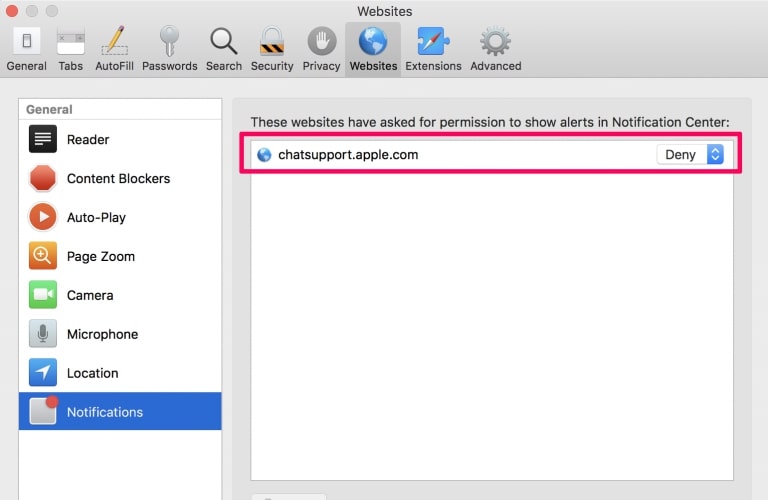
Step 2: Choose the domain from where you like push pop-ups gone and change to "Deny" from "Allow".
Cendrava.site-FAQ
What Is Cendrava.site?
The Cendrava.site threat is adware or browser redirect virus.
It may slow your computer down significantly and display advertisements. The main idea is for your information to likely get stolen or more ads to appear on your device.
The creators of such unwanted apps work with pay-per-click schemes to get your computer to visit risky or different types of websites that may generate them funds. This is why they do not even care what types of websites show up on the ads. This makes their unwanted software indirectly risky for your OS.
What Are the Symptoms of Cendrava.site?
There are several symptoms to look for when this particular threat and also unwanted apps in general are active:
Symptom #1: Your computer may become slow and have poor performance in general.
Symptom #2: You have toolbars, add-ons or extensions on your web browsers that you don't remember adding.
Symptom #3: You see all types of ads, like ad-supported search results, pop-ups and redirects to randomly appear.
Symptom #4: You see installed apps on your Mac running automatically and you do not remember installing them.
Symptom #5: You see suspicious processes running in your Task Manager.
If you see one or more of those symptoms, then security experts recommend that you check your computer for viruses.
What Types of Unwanted Programs Are There?
According to most malware researchers and cyber-security experts, the threats that can currently affect your device can be rogue antivirus software, adware, browser hijackers, clickers, fake optimizers and any forms of PUPs.
What to Do If I Have a "virus" like Cendrava.site?
With few simple actions. First and foremost, it is imperative that you follow these steps:
Step 1: Find a safe computer and connect it to another network, not the one that your Mac was infected in.
Step 2: Change all of your passwords, starting from your email passwords.
Step 3: Enable two-factor authentication for protection of your important accounts.
Step 4: Call your bank to change your credit card details (secret code, etc.) if you have saved your credit card for online shopping or have done online activities with your card.
Step 5: Make sure to call your ISP (Internet provider or carrier) and ask them to change your IP address.
Step 6: Change your Wi-Fi password.
Step 7: (Optional): Make sure to scan all of the devices connected to your network for viruses and repeat these steps for them if they are affected.
Step 8: Install anti-malware software with real-time protection on every device you have.
Step 9: Try not to download software from sites you know nothing about and stay away from low-reputation websites in general.
If you follow these recommendations, your network and all devices will become significantly more secure against any threats or information invasive software and be virus free and protected in the future too.
How Does Cendrava.site Work?
Once installed, Cendrava.site can collect data using trackers. This data is about your web browsing habits, such as the websites you visit and the search terms you use. It is then used to target you with ads or to sell your information to third parties.
Cendrava.site can also download other malicious software onto your computer, such as viruses and spyware, which can be used to steal your personal information and show risky ads, that may redirect to virus sites or scams.
Is Cendrava.site Malware?
The truth is that PUPs (adware, browser hijackers) are not viruses, but may be just as dangerous since they may show you and redirect you to malware websites and scam pages.
Many security experts classify potentially unwanted programs as malware. This is because of the unwanted effects that PUPs can cause, such as displaying intrusive ads and collecting user data without the user’s knowledge or consent.
About the Cendrava.site Research
The content we publish on SensorsTechForum.com, this Cendrava.site how-to removal guide included, is the outcome of extensive research, hard work and our team’s devotion to help you remove the specific, adware-related problem, and restore your browser and computer system.
How did we conduct the research on Cendrava.site?
Please note that our research is based on independent investigation. We are in contact with independent security researchers, thanks to which we receive daily updates on the latest malware, adware, and browser hijacker definitions.
Furthermore, the research behind the Cendrava.site threat is backed with VirusTotal.
To better understand this online threat, please refer to the following articles which provide knowledgeable details.