

“Running the environment check. Please wait… License OK” Virus – What Is It?
If you are seeing the message “Running the environment check. Please wait… License OK” on your screen, you may be dealing with a serious malware infection. This message is often associated with stealthy malicious activity that occurs in the background without your knowledge. Read this article to find out what this threat is, how it infiltrates systems, what it does once inside, and how you can protect your device from further harm.
What is “Running the environment check. Please wait… License OK” Virus?
The “Running the environment check. Please wait… License OK” virus is not a legitimate system message. Instead, it is typically linked to a class of malware that performs environment verification routines before executing its malicious payload. This behavior is commonly observed in advanced threats such as trojans, loaders, and ransomware droppers.
The purpose of this message is often to disguise the malware’s internal processes. In many cases, it appears briefly in a command-line interface (CLI) window or as part of a fake installation or activation process. The “environment check” refers to the malware scanning the infected system to determine whether it is running in a virtual machine, sandbox, or analysis environment.
Running the environment check Short Overview
| Type | Trojan Horse, Malware |
| Short Description | A suspicious screen that steals data and causes issues. |
| Symptoms | Causes a lot of problems for your computer and may lead to computer reset. |
| Removal Time | Approximately 15 minutes for a full-system scan |
| Removal Tool |
See If Your System Has Been Affected by malware
Download
Malware Removal Tool
|
This type of behavior is characteristic of sophisticated malware strains that attempt to evade detection by security researchers. If the malware determines that it is being analyzed, it may terminate itself to avoid exposure.
Key characteristics of this threat include:
- Execution of hidden scripts or command-line processes
- System reconnaissance and environment fingerprinting
- Use of misleading or fake system messages
- Potential deployment of secondary payloads
In many cases, the message is just a visible artifact of a much larger infection chain that may already be in progress.
How Did I Get It?
Infections associated with the “Running the environment check. Please wait… License OK” virus are typically the result of user interaction with malicious or compromised content. These threats are often distributed through social engineering techniques designed to trick users into executing harmful files.
Common infection vectors include:
- Downloading cracked software or illegal activators (keygens)
- Opening malicious email attachments or links
- Clicking on fake update prompts or pop-ups
- Installing software bundles from untrusted sources
- Visiting compromised websites that exploit browser vulnerabilities
One of the most prevalent distribution methods involves fake software activation tools. Users attempting to bypass licensing restrictions may unknowingly execute malware disguised as a “license activator.” The message “License OK” is often used to reinforce the illusion that the software has been successfully activated.
Additionally, cybercriminals frequently use obfuscation techniques to hide malicious code within seemingly harmless files. Once executed, these files initiate a sequence of actions that may include downloading additional malware components from remote servers.
It is important to note that even a single interaction with such a file can compromise your entire system.
What Does “Running the environment check. Please wait… License OK” Virus Do?
This malware is typically part of a multi-stage attack. The initial execution triggers a reconnaissance phase, during which the malware gathers information about the system. This may include hardware details, operating system version, installed software, and security configurations.
Once the environment check is complete, the malware proceeds with its primary objectives, which can vary depending on the specific strain. However, most variants are designed to establish persistence and enable further malicious activity.
Common payload actions include:
- Trojan Deployment: Installing backdoors that allow remote attackers to control the system
- Credential Theft: Extracting saved passwords, browser data, and authentication tokens
- Ransomware Execution: Encrypting files and demanding payment for decryption
- Cryptomining: Using system resources to mine cryptocurrency without user consent
- Data Exfiltration: Sending sensitive information to command-and-control (C2) servers
In some cases, the malware may also disable security software or modify system settings to avoid detection. It can create scheduled tasks, registry entries, or startup items to ensure it runs every time the system boots.
Another dangerous capability is lateral movement within networks. If the infected device is connected to a corporate or shared network, the malware may attempt to spread to other systems, increasing the scope of the attack.
The presence of the “environment check” message indicates that the malware is actively evaluating its surroundings, which is a hallmark of targeted and adaptive threats.
How to Remove “Running the environment check. Please wait… License OK” Virus
Removing this type of malware requires a thorough approach, as it may involve multiple components and persistence mechanisms. Simply deleting a visible file is unlikely to fully eliminate the threat.
Start by isolating the infected system from any networks to prevent further communication with malicious servers. This helps contain the threat and reduces the risk of data exfiltration.
Next, perform a comprehensive system inspection. Look for unusual processes, recently installed programs, and unfamiliar startup entries. Pay close attention to anything that coincides with the appearance of the suspicious message.
It is strongly recommended to use a professional anti-malware solution capable of detecting advanced threats. These tools can identify hidden files, registry modifications, and malicious scripts that are not easily visible.
Additional actions you should consider include:
- Resetting browser settings and removing suspicious extensions
- Clearing temporary files and cached data
- Reviewing scheduled tasks and system services
- Checking for unauthorized user accounts
After cleaning the system, change all passwords associated with the device, especially those related to banking, email, and work accounts. Enable multi-factor authentication wherever possible to enhance security.
If the infection persists or if critical data has been compromised, a full system reset or operating system reinstallation may be necessary to ensure complete removal.
What should you do?
The “Running the environment check. Please wait… License OK” virus is a clear indicator of a potentially serious malware infection. Ignoring it can lead to data loss, financial damage, and unauthorized access to your system.
Take immediate action to secure your device, remove any malicious components, and strengthen your defenses. Avoid downloading software from unverified sources and remain cautious of any unexpected system messages.
Staying informed and proactive is essential in protecting yourself against evolving cyber threats. Follow the removal recommendations carefully and maintain a robust cybersecurity posture to prevent future infections.

Ventsislav Krastev
Ventsislav is a cybersecurity expert at SensorsTechForum since 2015. He has been researching, covering, helping victims with the latest malware infections plus testing and reviewing software and the newest tech developments. Having graduated Marketing as well, Ventsislav also has passion for learning new shifts and innovations in cybersecurity that become game changers. After studying Value Chain Management, Network Administration and Computer Administration of System Applications, he found his true calling within the cybersecrurity industry and is a strong believer in the education of every user towards online safety and security.
Follow Me:
Preparation before removing Running the environment check.
Before starting the actual removal process, we recommend that you do the following preparation steps.
- Make sure you have these instructions always open and in front of your eyes.
- Do a backup of all of your files, even if they could be damaged. You should back up your data with a cloud backup solution and insure your files against any type of loss, even from the most severe threats.
- Be patient as this could take a while.
- Scan for Malware
- Fix Registries
- Remove Virus Files
Step 1: Scan for Running the environment check with SpyHunter Anti-Malware Tool
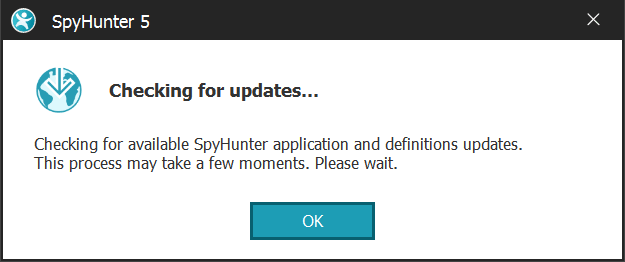
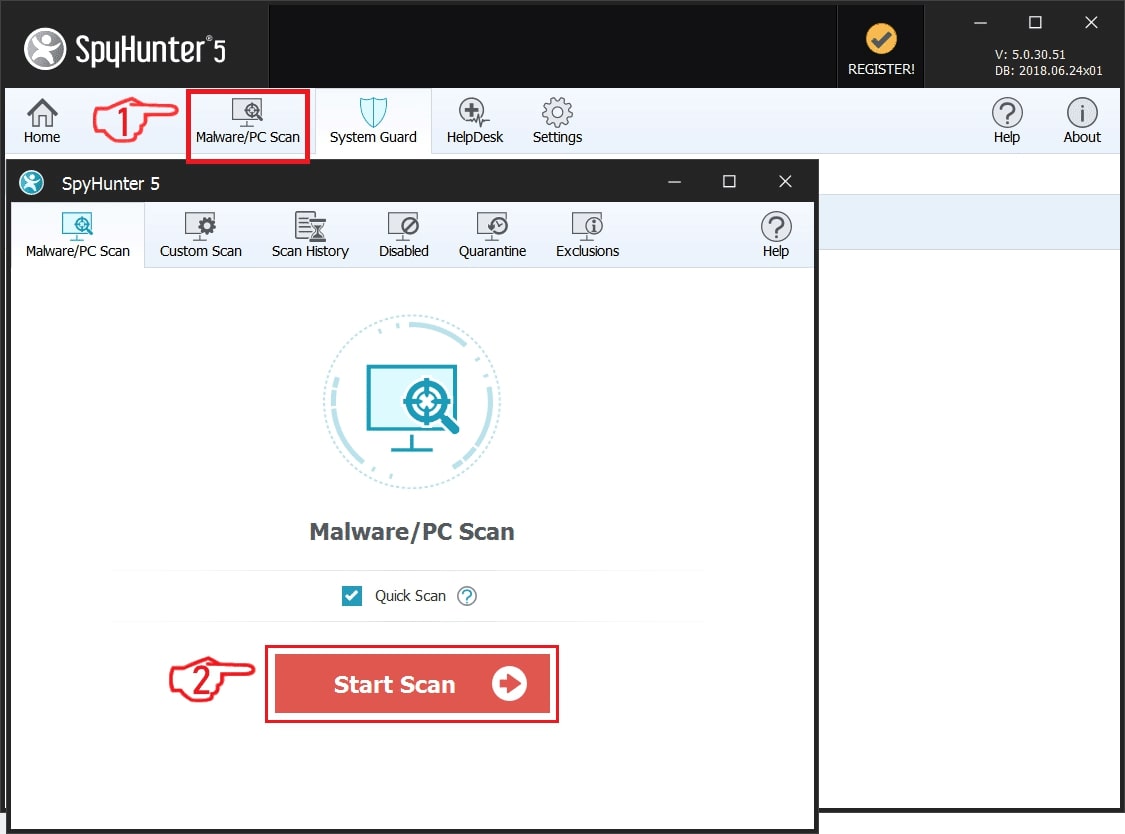
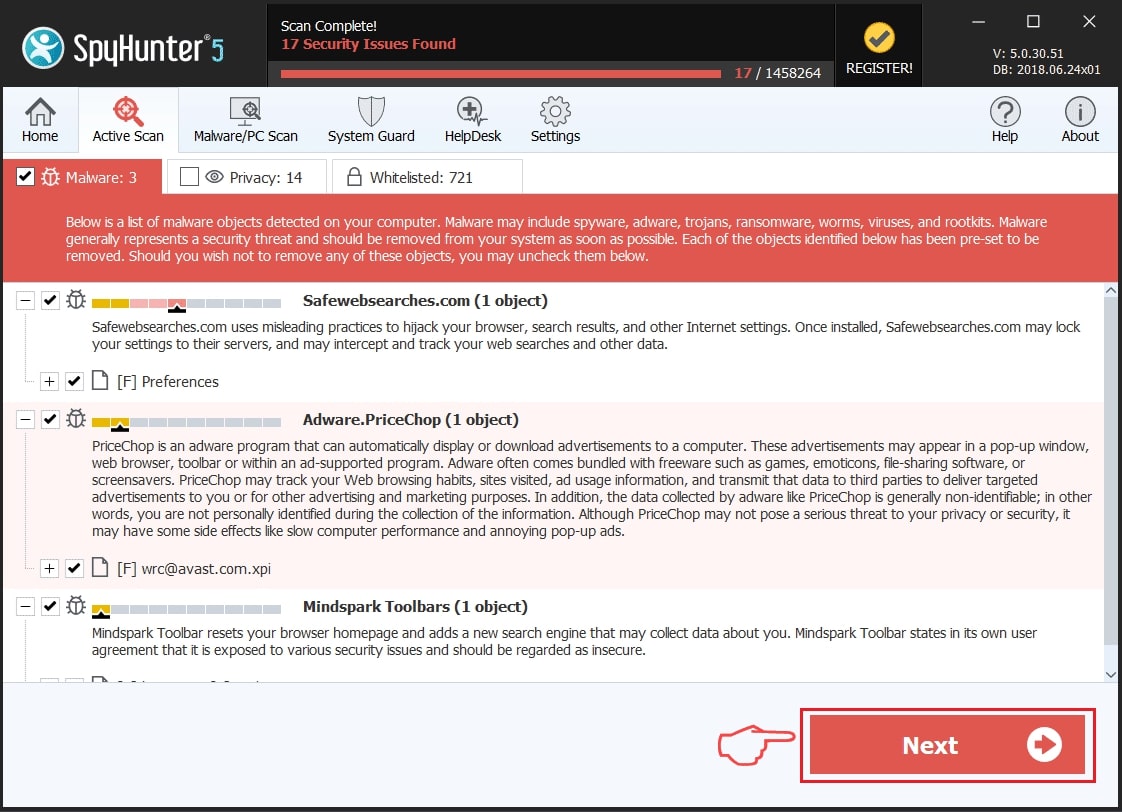
Step 2: Clean any registries, created by Running the environment check on your computer.
The usually targeted registries of Windows machines are the following:
- HKEY_LOCAL_MACHINE\Software\Microsoft\Windows\CurrentVersion\Run
- HKEY_CURRENT_USER\Software\Microsoft\Windows\CurrentVersion\Run
- HKEY_LOCAL_MACHINE\Software\Microsoft\Windows\CurrentVersion\RunOnce
- HKEY_CURRENT_USER\Software\Microsoft\Windows\CurrentVersion\RunOnce
You can access them by opening the Windows registry editor and deleting any values, created by Running the environment check there. This can happen by following the steps underneath:
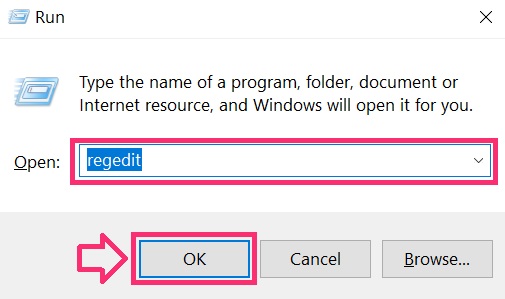
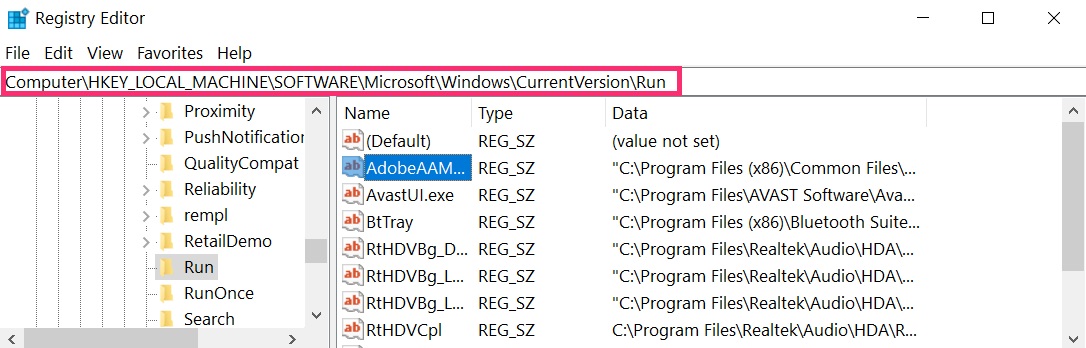
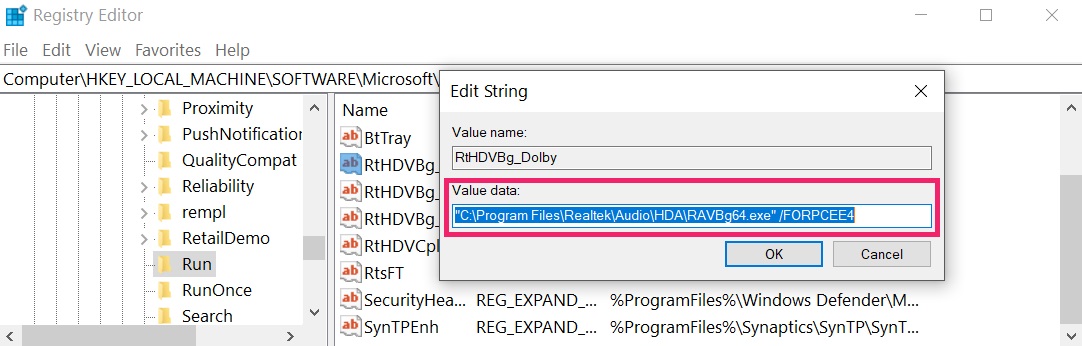 Tip: To find a virus-created value, you can right-click on it and click "Modify" to see which file it is set to run. If this is the virus file location, remove the value.
Step 3: Find virus files created by Running the environment check on your PC.
1.For Windows 8, 8.1 and 10.
For Newer Windows Operating Systems
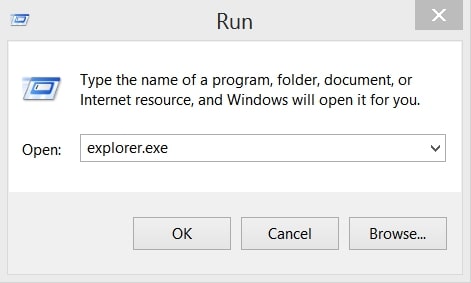
1: On your keyboard press + R and write explorer.exe in the Run text box and then click on the Ok button.
2: Click on your PC from the quick access bar. This is usually an icon with a monitor and its name is either “My Computer”, “My PC” or “This PC” or whatever you have named it.
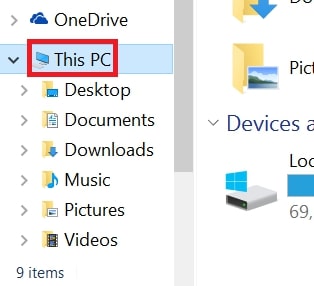
3: Navigate to the search box in the top-right of your PC's screen and type “fileextension:” and after which type the file extension. If you are looking for malicious executables, an example may be "fileextension:exe". After doing that, leave a space and type the file name you believe the malware has created. Here is how it may appear if your file has been found:
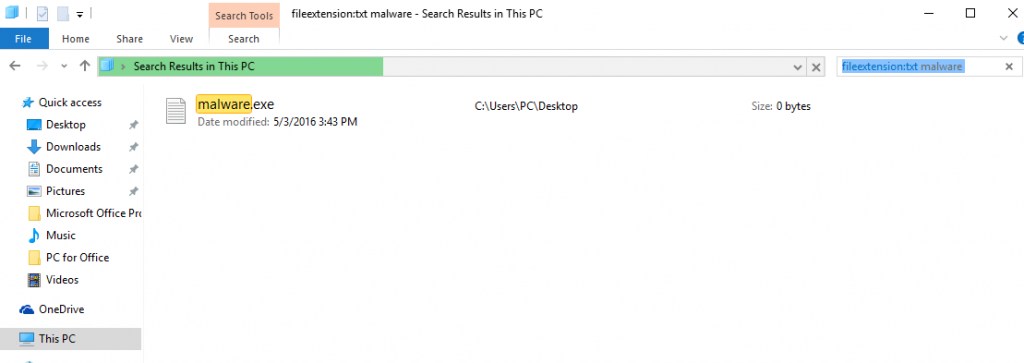
N.B. We recommend to wait for the green loading bar in the navigation box to fill up in case the PC is looking for the file and hasn't found it yet.
2.For Windows XP, Vista, and 7.
For Older Windows Operating Systems
In older Windows OS's the conventional approach should be the effective one:
1: Click on the Start Menu icon (usually on your bottom-left) and then choose the Search preference.
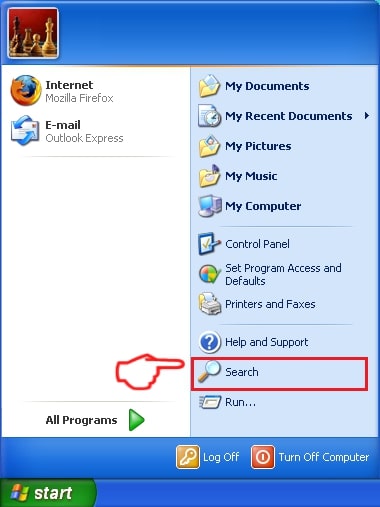
2: After the search window appears, choose More Advanced Options from the search assistant box. Another way is by clicking on All Files and Folders.
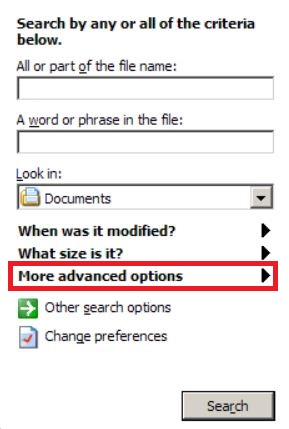
3: After that type the name of the file you are looking for and click on the Search button. This might take some time after which results will appear. If you have found the malicious file, you may copy or open its location by right-clicking on it.
Now you should be able to discover any file on Windows as long as it is on your hard drive and is not concealed via special software.
Running the environment check FAQ
What Does Running the environment check Trojan Do?
The Running the environment check Trojan is a malicious computer program designed to disrupt, damage, or gain unauthorized access to a computer system. It can be used to steal sensitive data, gain control over a system, or launch other malicious activities.
Can Trojans Steal Passwords?
Yes, Trojans, like Running the environment check, can steal passwords. These malicious programs are designed to gain access to a user's computer, spy on victims and steal sensitive information such as banking details and passwords.
Can Running the environment check Trojan Hide Itself?
Yes, it can. A Trojan can use various techniques to mask itself, including rootkits, encryption, and obfuscation, to hide from security scanners and evade detection.
Can a Trojan be Removed by Factory Reset?
Yes, a Trojan can be removed by factory resetting your device. This is because it will restore the device to its original state, eliminating any malicious software that may have been installed. Bear in mind that there are more sophisticated Trojans that leave backdoors and reinfect even after a factory reset.
Can Running the environment check Trojan Infect WiFi?
Yes, it is possible for a Trojan to infect WiFi networks. When a user connects to the infected network, the Trojan can spread to other connected devices and can access sensitive information on the network.
Can Trojans Be Deleted?
Yes, Trojans can be deleted. This is typically done by running a powerful anti-virus or anti-malware program that is designed to detect and remove malicious files. In some cases, manual deletion of the Trojan may also be necessary.
Can Trojans Steal Files?
Yes, Trojans can steal files if they are installed on a computer. This is done by allowing the malware author or user to gain access to the computer and then steal the files stored on it.
Which Anti-Malware Can Remove Trojans?
Anti-malware programs such as SpyHunter are capable of scanning for and removing Trojans from your computer. It is important to keep your anti-malware up to date and regularly scan your system for any malicious software.
Can Trojans Infect USB?
Yes, Trojans can infect USB devices. USB Trojans typically spread through malicious files downloaded from the internet or shared via email, allowing the hacker to gain access to a user's confidential data.
About the Running the environment check Research
The content we publish on SensorsTechForum.com, this Running the environment check how-to removal guide included, is the outcome of extensive research, hard work and our team’s devotion to help you remove the specific trojan problem.
How did we conduct the research on Running the environment check?
Please note that our research is based on an independent investigation. We are in contact with independent security researchers, thanks to which we receive daily updates on the latest malware definitions, including the various types of trojans (backdoor, downloader, infostealer, ransom, etc.)
Furthermore, the research behind the Running the environment check threat is backed with VirusTotal.
To better understand the threat posed by trojans, please refer to the following articles which provide knowledgeable details.