

What is Apple Could Not Verify is Free of Malware – How to Fix It
If you are seeing the warning message “Apple could not verify that this app is free of malware,” you are likely dealing with a macOS security feature that is preventing an application from running. Read this article to find out what this warning means, why it appears, and how you can fix it safely without putting your system at risk.
This message is generated by Apple’s built-in security technology known as Gatekeeper. Its purpose is to ensure that only trusted and verified software runs on your Mac. When an application is not signed by an identified developer or has not been notarized by Apple, the system blocks it by default to protect users from potential malware infections.
While in many cases the app may be legitimate, this warning should not be ignored, as it may also indicate that the software could pose a real security risk. Cybercriminals often disguise malicious programs as legitimate apps, attempting to bypass macOS protections and trick users into allowing execution of a malicious payload.
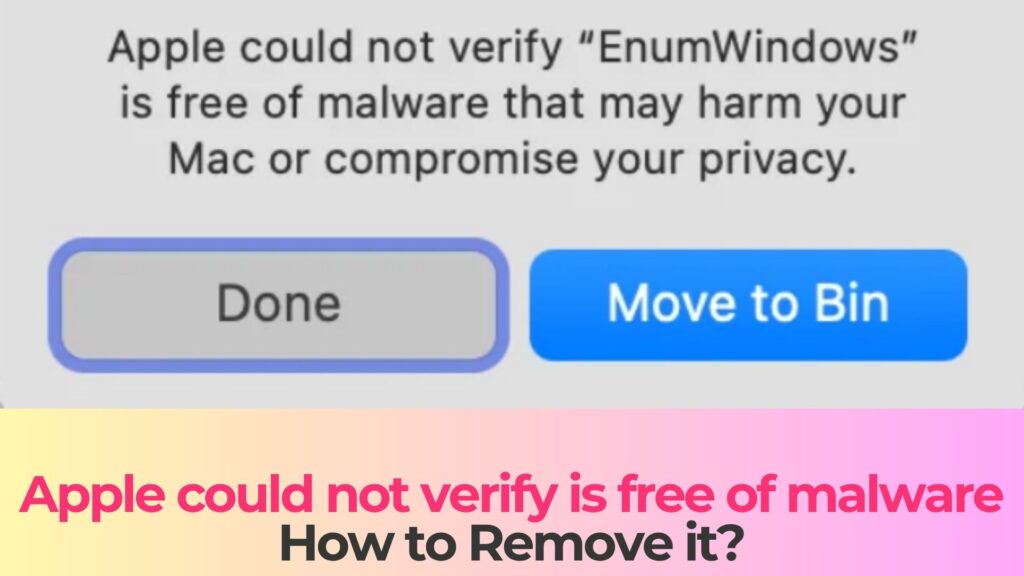
Apple could not verify is free of malware Details
| Type | Trojan for Mac, Malware, Backdoor |
| Removal Time | Around 5 Minutes |
| Removal Tool |
See If Your System Has Been Affected by malware
Download
Malware Removal Tool
|
How Did I Get the Apple Could Not Verify Malware Warning?
This warning usually appears when you attempt to open an application that macOS does not recognize as safe. It is not necessarily an infection itself, but rather a preventive security notification triggered by the operating system against potential malware.
There are several common scenarios in which this message may appear:
- Downloading applications from third-party websites instead of the official App Store.
- Using older software that has not been updated or notarized by Apple.
- Opening apps distributed via disk images (.dmg files) from unknown sources.
- Running custom-built or unsigned applications.
- Attempting to install cracked or pirated software.
In some cases, users encounter this warning after downloading software from legitimate developers who have not completed Apple’s notarization process. However, it is also a common tactic used by malware distributors who rely on users bypassing security prompts to install malware.
It is important to assess the source of the application before proceeding. If the file was obtained from an untrusted or suspicious website, there is a higher likelihood that it may be unsafe or contain a hidden malicious attachment.
What Does the Apple Malware Warning Mean?
The “Apple could not verify that this app is free of malware” message indicates that macOS cannot confirm the safety of the application. This typically means one of the following situations related to malware risks:
- The app is not signed with a valid Apple Developer ID.
- The app has not been notarized by Apple’s automated security scanning system.
- The app has been modified after signing, invalidating its verification.
- The app originates from an unidentified or potentially unsafe source.
Gatekeeper performs multiple checks when an application is launched. If any of these checks fail, macOS blocks execution and displays the warning message. This helps prevent threats such as trojans, spyware, and adware from running without user awareness.
However, users should be cautious when deciding to override this warning. While macOS allows manual bypassing of Gatekeeper restrictions, doing so can expose the system to real threats if the application is malicious or linked to a malicious payload.
Advanced malware campaigns often rely on social engineering to convince users that bypassing this warning is safe. Once the app is allowed to run, it may install additional payloads, steal data, or establish persistence on the system, sometimes connecting to a C&C server.
How to Remove It
If you encountered this warning because of a suspicious or unknown application, it is strongly recommended to remove the file immediately rather than attempting to bypass macOS security protections against malware.
Proper handling includes identifying whether the file is legitimate or potentially harmful. If there is any doubt, the safest approach is to delete the application and scan your system for malware.
Key actions to consider include:
- Deleting the application file and emptying the Trash.
- Scanning your Mac with a trusted anti-malware tool to detect hidden threats.
- Checking for unknown login items or background processes.
- Removing suspicious browser extensions or profiles, including any unknown browser extension.
- Ensuring macOS is fully updated with the latest security patches.
If you are certain the app is safe and from a trusted developer, macOS provides an option to manually allow it through System Settings. However, this should only be done after verifying the authenticity of the software source and ensuring it is free from malware.
Additionally, avoid disabling Gatekeeper entirely, as this removes a critical layer of protection against malware and increases exposure to malware.
What Should You Do?
When you see the “Apple could not verify that this app is free of malware” warning, treat it as a serious security alert rather than a minor inconvenience. This message exists to protect your system from potentially harmful software that could compromise your data and privacy through malware.
Always verify the source of any application before attempting to open it. If the software is not essential or comes from an unknown origin, it is best to avoid running it altogether. Practicing safe downloading habits and relying on trusted sources can significantly reduce your exposure to malware.
Take immediate action by removing suspicious files, scanning your system, and strengthening your overall security posture. Follow the removal instructions provided below to ensure your Mac remains protected and free from potential malware threats.

Ventsislav Krastev
Ventsislav is a cybersecurity expert at SensorsTechForum since 2015. He has been researching, covering, helping victims with the latest malware infections plus testing and reviewing software and the newest tech developments. Having graduated Marketing as well, Ventsislav also has passion for learning new shifts and innovations in cybersecurity that become game changers. After studying Value Chain Management, Network Administration and Computer Administration of System Applications, he found his true calling within the cybersecrurity industry and is a strong believer in the education of every user towards online safety and security.
Follow Me:
Steps to Prepare Before Removal:
Before starting to follow the steps below, be advised that you should first do the following preparations:
- Backup your files in case the worst happens.
- Make sure to have a device with these instructions on standy.
- Arm yourself with patience.
- 1. Scan for Mac Malware
- 2. Uninstall Risky Apps
- 3. Clean Your Browsers
Step 1: Scan for and remove Apple could not verify is free of malware files from your Mac
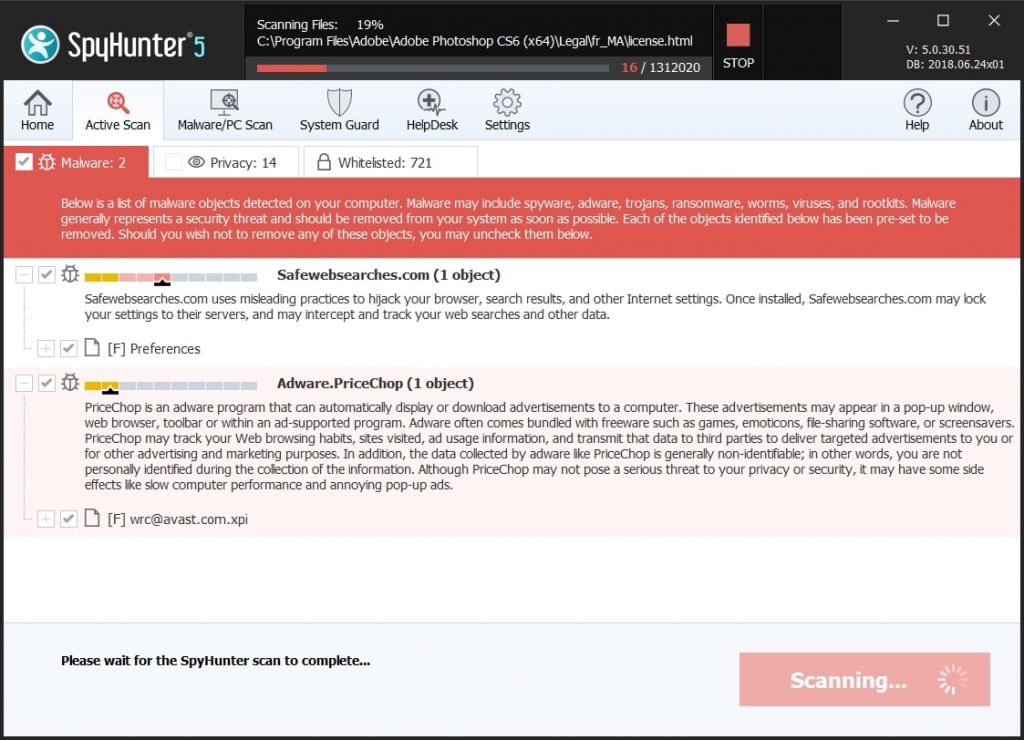
When you are facing problems on your Mac as a result of unwanted scripts and programs such as Apple could not verify is free of malware, the recommended way of eliminating the threat is by using an anti-malware program. SpyHunter for Mac offers advanced security features along with other modules that will improve your Mac’s security and protect it in the future.
Quick and Easy Mac Malware Video Removal Guide
Bonus Step: How to Make Your Mac Run Faster?
Mac machines maintain probably the fastest operating system out there. Still, Macs do become slow and sluggish sometimes. The video guide below examines all of the possible problems that may lead to your Mac being slower than usual as well as all of the steps that can help you to speed up your Mac.
Step 2: Uninstall Apple could not verify is free of malware and remove related files and objects
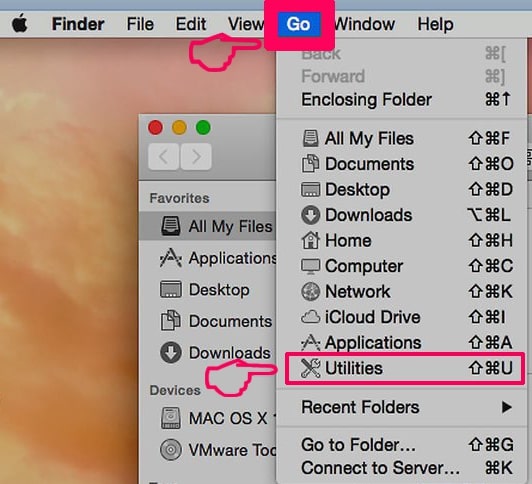
1. Hit the ⇧+⌘+U keys to open Utilities. Another way is to click on “Go” and then click “Utilities”, like the image below shows:
2. Find Activity Monitor and double-click it:
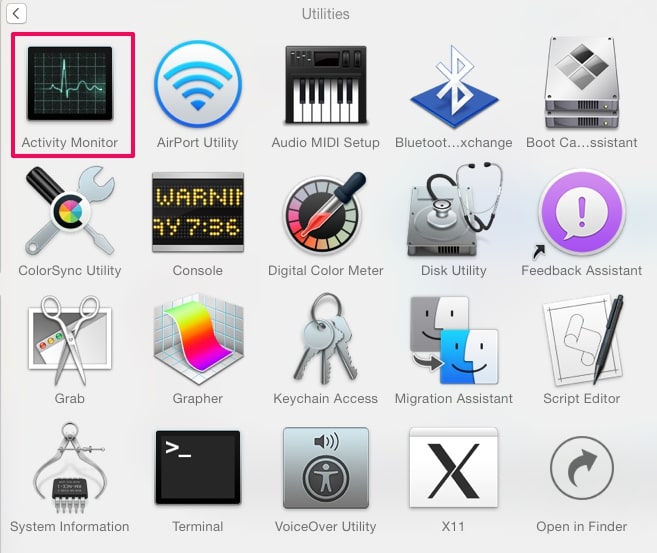
3. In the Activity Monitor look for any suspicious processes, belonging or related to Apple could not verify is free of malware:
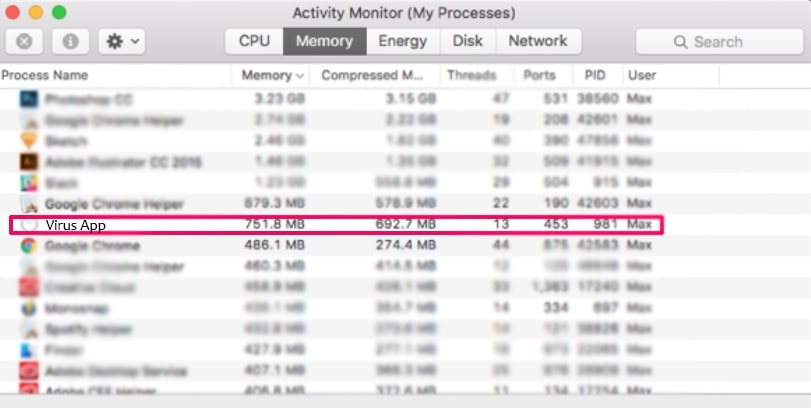
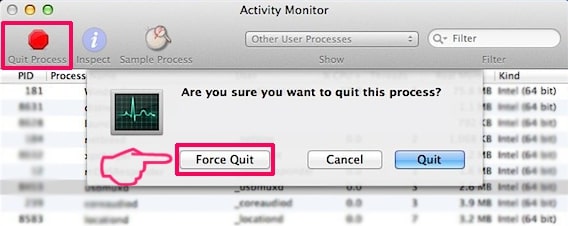
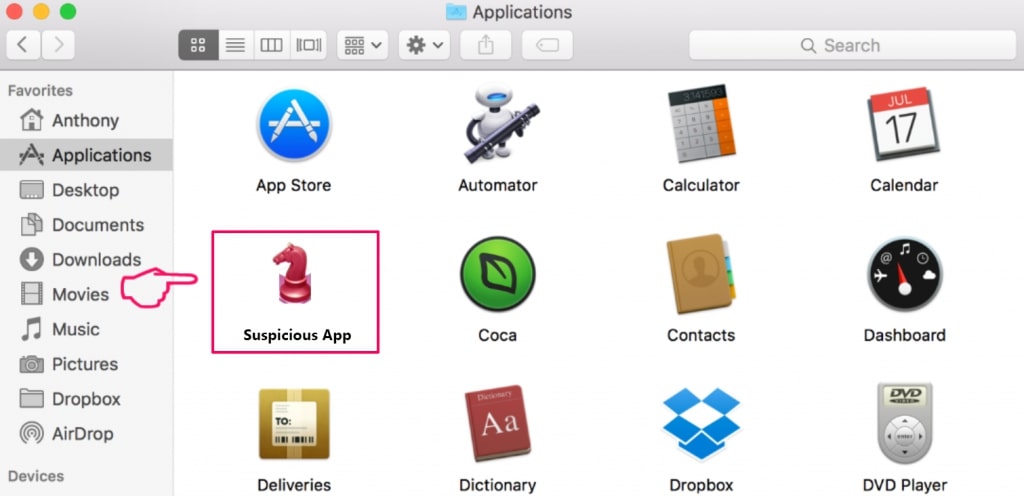
4. Click on the "Go" button again, but this time select Applications. Another way is with the ⇧+⌘+A buttons.
5. In the Applications menu, look for any suspicious app or an app with a name, similar or identical to Apple could not verify is free of malware. If you find it, right-click on the app and select “Move to Trash”.
6. Select Accounts, after which click on the Login Items preference. Your Mac will then show you a list of items that start automatically when you log in. Look for any suspicious apps identical or similar to Apple could not verify is free of malware. Check the app you want to stop from running automatically and then select on the Minus (“-“) icon to hide it.
7. Remove any leftover files that might be related to this threat manually by following the sub-steps below:
- Go to Finder.
- In the search bar type the name of the app that you want to remove.
- Above the search bar change the two drop down menus to “System Files” and “Are Included” so that you can see all of the files associated with the application you want to remove. Bear in mind that some of the files may not be related to the app so be very careful which files you delete.
- If all of the files are related, hold the ⌘+A buttons to select them and then drive them to “Trash”.
In case you cannot remove Apple could not verify is free of malware via Step 1 above:
In case you cannot find the virus files and objects in your Applications or other places we have shown above, you can manually look for them in the Libraries of your Mac. But before doing this, please read the disclaimer below:
1. Click on "Go" and Then "Go to Folder" as shown underneath:
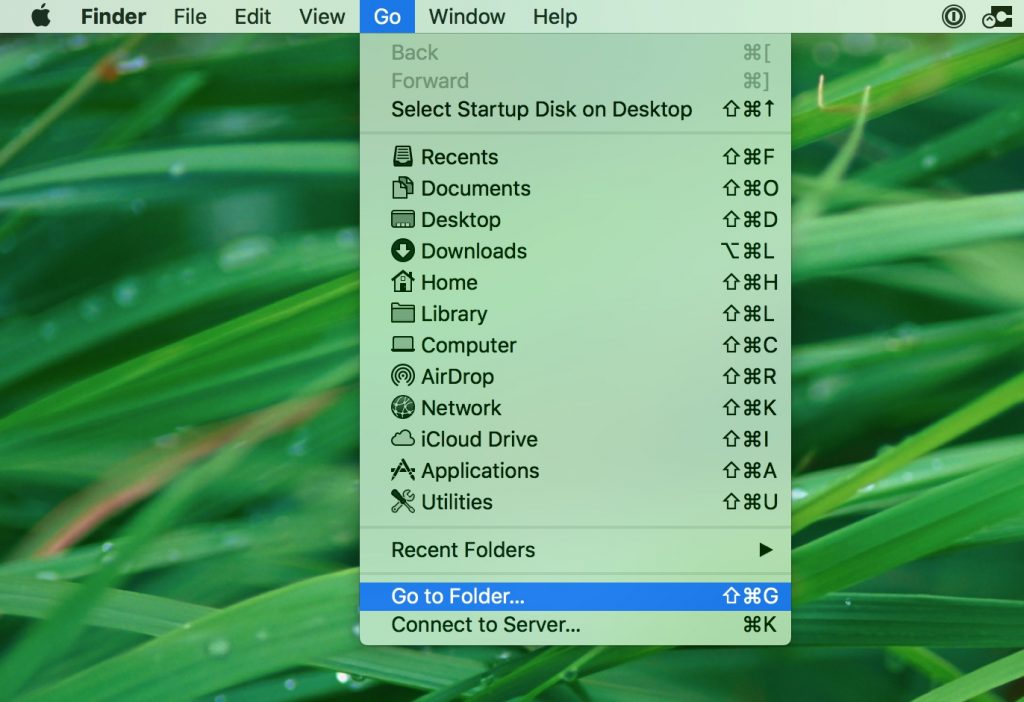
2. Type in "/Library/LauchAgents/" and click Ok:
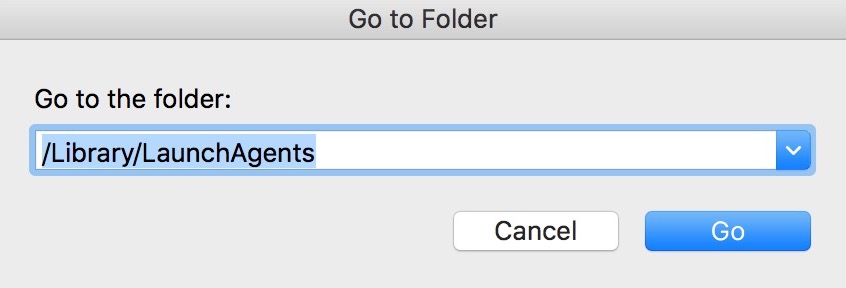
3. Delete all of the virus files that have similar or the same name as Apple could not verify is free of malware. If you believe there is no such file, do not delete anything.
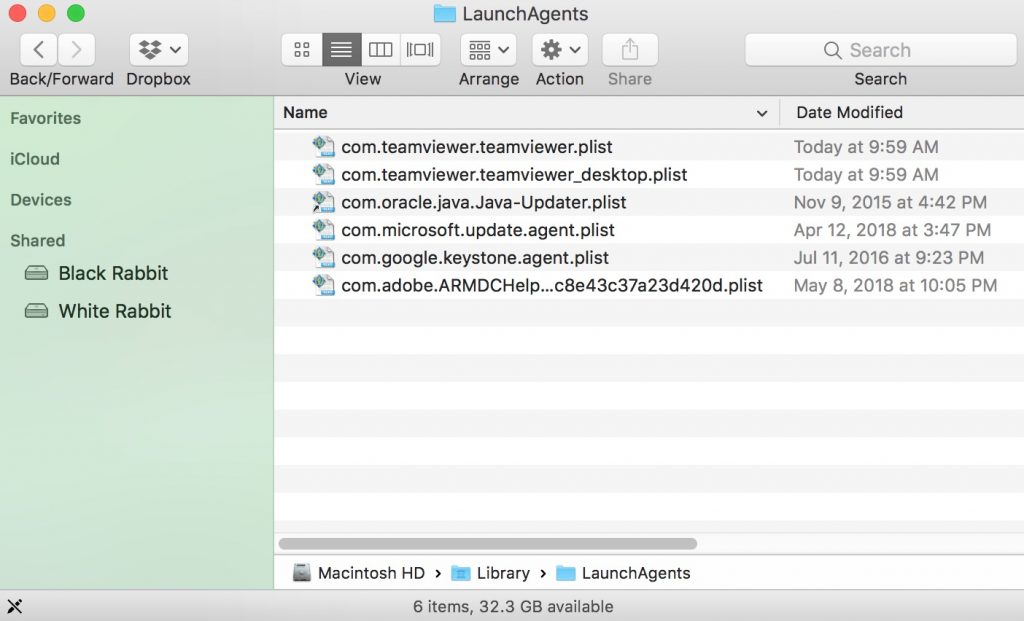
You can repeat the same procedure with the following other Library directories:
→ ~/Library/LaunchAgents
/Library/LaunchDaemons
Tip: ~ is there on purpose, because it leads to more LaunchAgents.
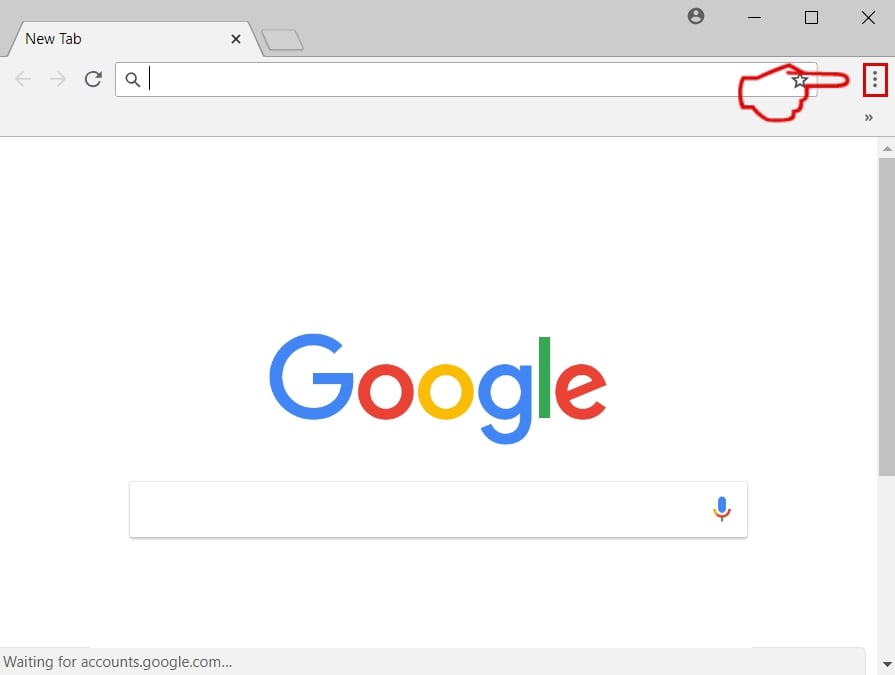
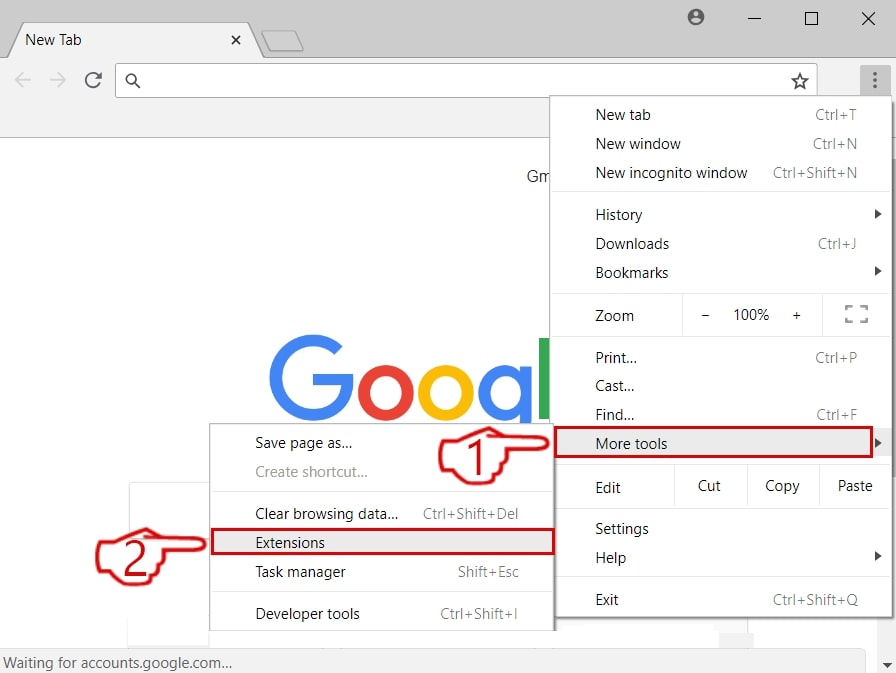
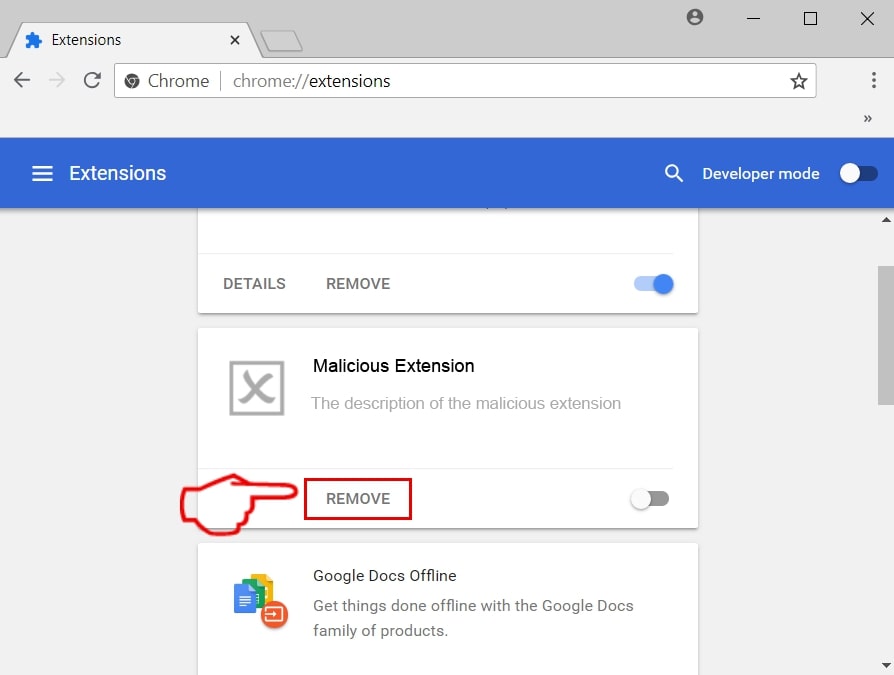
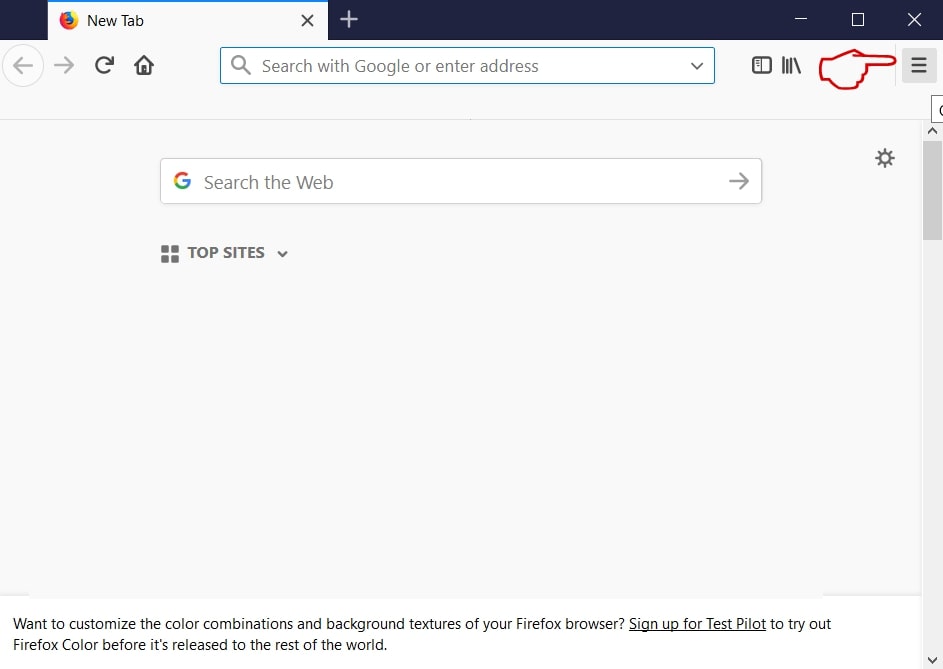
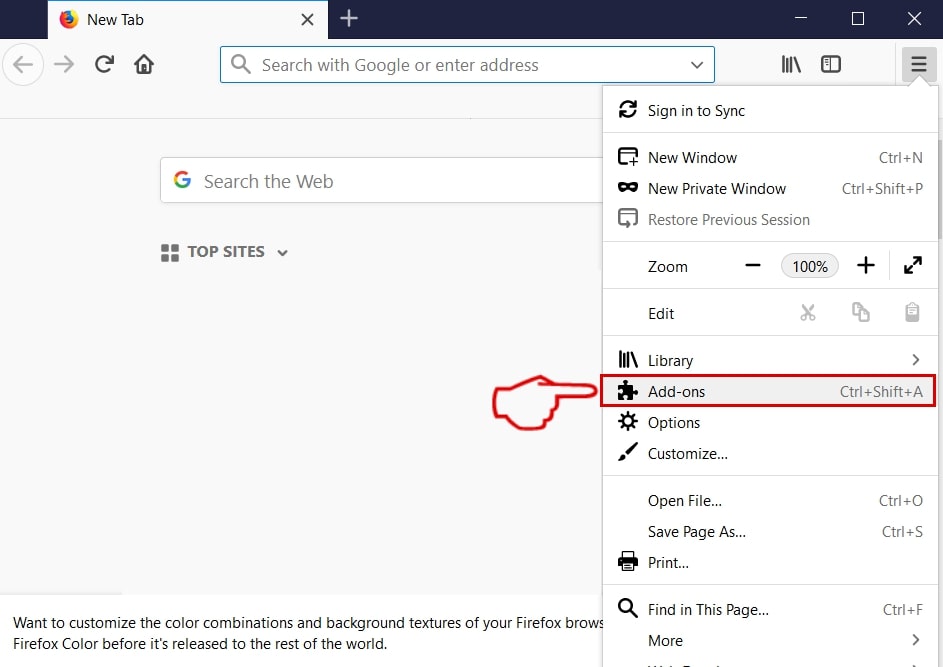
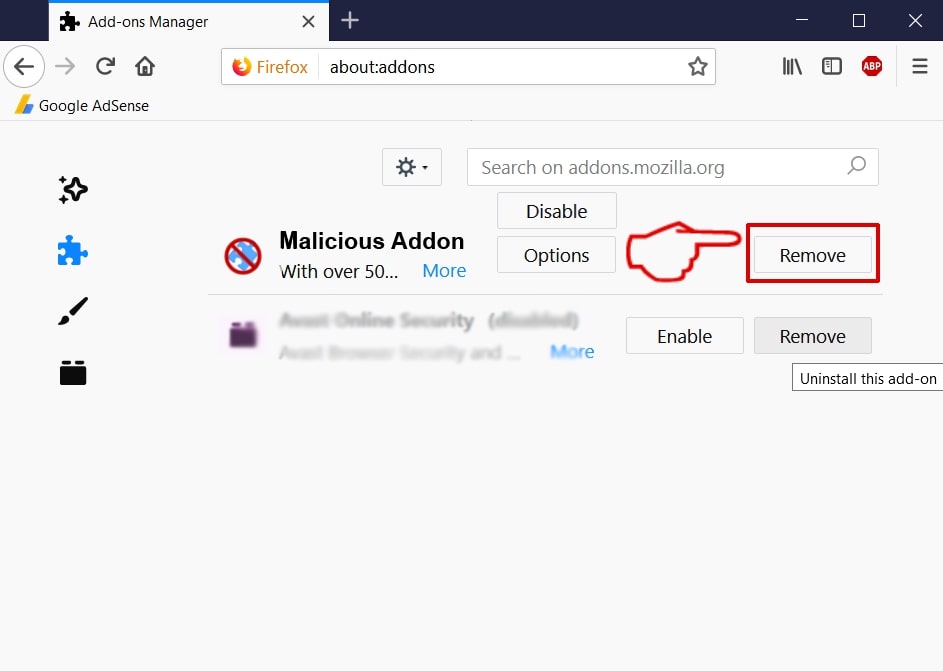
Step 3: Remove Apple could not verify is free of malware – related extensions from Safari / Chrome / Firefox
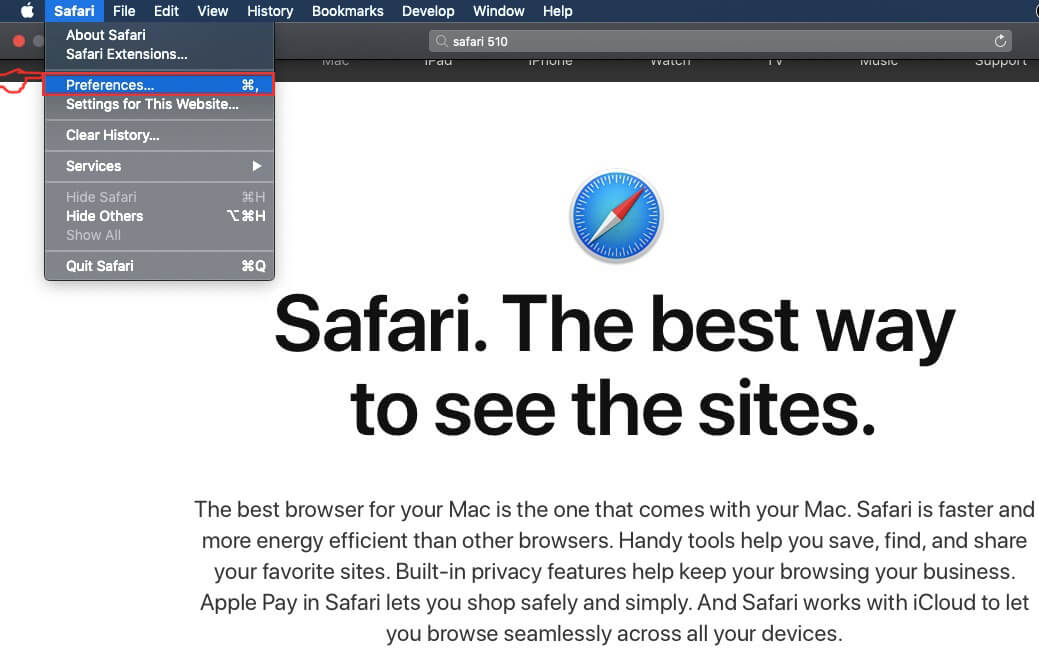

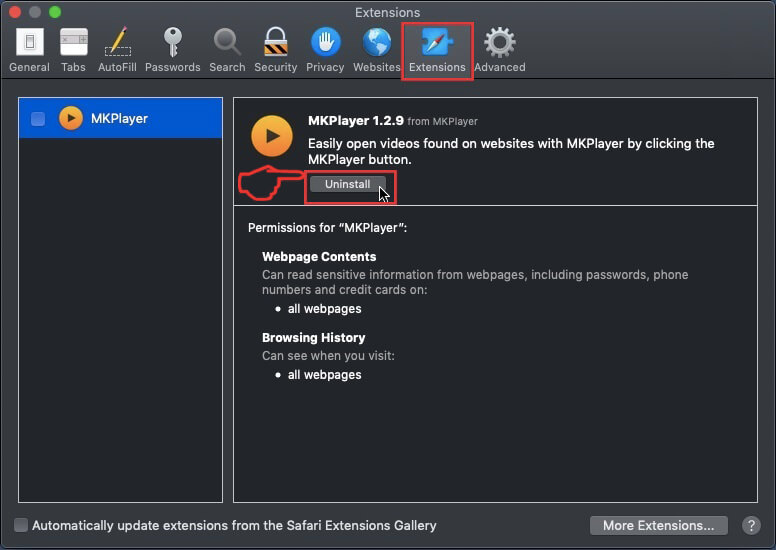
Apple could not verify is free of malware-FAQ
What is Apple could not verify is free of malware on your Mac?
The Apple could not verify is free of malware threat is probably a potentially unwanted app. There is also a chance it could be related to Mac malware. If so, such apps tend to slow your Mac down significantly and display advertisements. They could also use cookies and other trackers to obtain browsing information from the installed web browsers on your Mac.
Can Macs Get Viruses?
Yes. As much as any other device, Apple computers do get malware. Apple devices may not be a frequent target by malware authors, but rest assured that almost all of the Apple devices can become infected with a threat.
What Types of Mac Threats Are There?
According to most malware researchers and cyber-security experts, the types of threats that can currently infect your Mac can be rogue antivirus programs, adware or hijackers (PUPs), Trojan horses, ransomware and crypto-miner malware.
What To Do If I Have a Mac Virus, Like Apple could not verify is free of malware?
Do not panic! You can easily get rid of most Mac threats by firstly isolating them and then removing them. One recommended way to do that is by using a reputable malware removal software that can take care of the removal automatically for you.
There are many Mac anti-malware apps out there that you can choose from. SpyHunter for Mac is one of the reccomended Mac anti-malware apps, that can scan for free and detect any viruses. This saves time for manual removal that you would otherwise have to do.
How to Secure My Data from Apple could not verify is free of malware?
With few simple actions. First and foremost, it is imperative that you follow these steps:
Step 1: Find a safe computer and connect it to another network, not the one that your Mac was infected in.
Step 2: Change all of your passwords, starting from your e-mail passwords.
Step 3: Enable two-factor authentication for protection of your important accounts.
Step 4: Call your bank to change your credit card details (secret code, etc.) if you have saved your credit card for online shopping or have done online activiites with your card.
Step 5: Make sure to call your ISP (Internet provider or carrier) and ask them to change your IP address.
Step 6: Change your Wi-Fi password.
Step 7: (Optional): Make sure to scan all of the devices connected to your network for viruses and repeat these steps for them if they are affected.
Step 8: Install anti-malware software with real-time protection on every device you have.
Step 9: Try not to download software from sites you know nothing about and stay away from low-reputation websites in general.
If you follow these reccomendations, your network and Apple devices will become significantly more safe against any threats or information invasive software and be virus free and protected in the future too.
More tips you can find on our MacOS Virus section, where you can also ask any questions and comment about your Mac problems.
About the Apple could not verify is free of malware Research
The content we publish on SensorsTechForum.com, this Apple could not verify is free of malware how-to removal guide included, is the outcome of extensive research, hard work and our team’s devotion to help you remove the specific macOS issue.
How did we conduct the research on Apple could not verify is free of malware?
Please note that our research is based on an independent investigation. We are in contact with independent security researchers, thanks to which we receive daily updates on the latest malware definitions, including the various types of Mac threats, especially adware and potentially unwanted apps (PUAs).
Furthermore, the research behind the Apple could not verify is free of malware threat is backed with VirusTotal.
To better understand the threat posed by Mac malware, please refer to the following articles which provide knowledgeable details.