

Your antivirus just flagged something called Trojan.HTML/Phish connected to a *.malware.com domain, and now you’re wondering whether your Mac is actually compromised. Short answer: it probably isn’t deeply infected, but you shouldn’t ignore it either.
This detection typically means your Mac encountered a malicious HTML file designed to phish your credentials. It’s not a traditional virus that burrows into your system files. Instead, it’s a social engineering trap disguised as a login page, payment form, or account verification prompt. The real danger isn’t the file itself, but what you might have typed into it.
Last reviewed: April 2026. Detection names and removal steps verified against current macOS Sequoia.
What Exactly Is the Trojan.HTML/Phish Detection?
Trojan.HTML/Phish is a generic detection name used by multiple antivirus engines for malicious HTML files that run phishing attacks. According to F-Secure’s threat database, these files “silently redirect the web browser to a fraudulent web page or site” where victims unknowingly hand over sensitive data.
Here’s what makes this threat different from typical Mac malware: it doesn’t install anything. There’s no persistent process, no background daemon, no modified system file. The HTML file itself is the attack. Open it in a browser, and it renders a convincing fake login page for Microsoft 365, Google, your bank, or whatever service the attacker chose to impersonate. Type your password, and it gets sent straight to the attacker’s server.
The *.malware.com domain connection means your browser either tried to load resources from that domain or the phishing file was configured to report stolen data there. Your antivirus caught it before (or during) that connection.
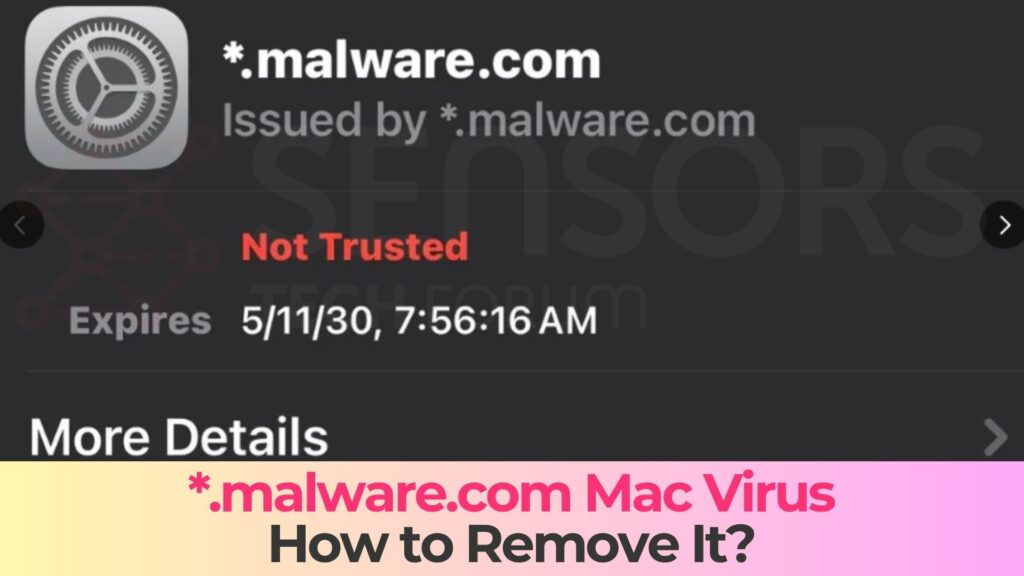
*.malware.com Details
| Type | Trojan for Mac, Malware, Backdoor |
| Removal Time | Around 5 Minutes |
| Removal Tool |
See If Your System Has Been Affected by malware
Download
Malware Removal Tool
|
How Different Antivirus Engines Detect This Threat
Different security products flag the same threat under various names. If you’ve seen any of these detections, you’re dealing with the same category of HTML-based phishing trojan:
- Avast / AVG: JS:Phishing-DA [Phish]
- Kaspersky: HEUR:Hoax.HTML.Phish.gen
- ESET-NOD32: HTML/Phishing.Agent
- Trend Micro: Trojan.HTML.PHISH.SMA (and variants like .FC, .HZ, .NLJ)
- Bitdefender: Trojan.HTML.Phishing
- Microsoft Defender: Trojan:Script/Phish
- Combo Cleaner: Trojan.HTML.Phishing
Seeing different names doesn’t mean you have multiple infections. These are just different labels for the same type of threat.
How This Threat Reached Your Mac
HTML phishing files don’t need software exploits. They rely entirely on tricking you into opening them. Here are the most common delivery methods, ranked by frequency:
1. Email Attachments (Most Common)
You receive an email that looks like it’s from your bank, a shipping company, or a cloud service provider. Attached is an HTML file, sometimes named “invoice.html”, “document-review.html”, or “account-verification.html”. Opening it loads a fake login page.
2. Malicious Links in Messages
Links shared through iMessage, WhatsApp, social media DMs, or SMS can redirect to phishing pages. Clicking opens your browser and loads the fake page directly.
3. Compromised Websites and Malvertising
Legitimate websites or ads can redirect your browser to phishing pages without clear interaction. This is often called a “drive-by” attack.
4. Bundled Downloads
Less common, but HTML files may come packaged with pirated software or unofficial downloads.
Signs Your Mac May Be Affected
- Unexpected browser redirects to login pages
- Unfamiliar HTML files in Downloads, Desktop, or /tmp
- Password reset emails you didn’t request
- Repeated antivirus phishing detections
- Unknown browser extensions
- Unusual outbound network activity
- Login alerts from unfamiliar locations
Seeing only the detection is usually a good sign—it means it was caught. The real concern is entering credentials before detection.
What Damage Can This Threat Cause?
If You Didn’t Enter Any Information
You’re likely fine. The file can’t install persistent malware. Delete it and move on.
If You Entered Credentials or Personal Data
- Account takeover: Access to reused passwords
- Financial fraud: Unauthorized transactions
- Identity theft: Opening accounts in your name
- Secondary phishing: Attacks sent from your email
- Session hijacking: Possible bypass of 2FA
The key issue: stolen credentials remain valid until you change them.
How to Remove *.malware.com / Trojan.HTML/Phish From Your Mac
Step 1: Delete the Malicious Files
- Check Downloads for unknown .html/.htm files
- Check Desktop and email attachment folders
- Use Finder (Cmd+Shift+G) → ~/Library/Caches/
- Check /tmp/ and /private/var/folders/
- Empty Trash (Cmd+Shift+Delete)
If quarantined, ensure the file is deleted permanently.
Step 2: Check Activity Monitor
- Sort by CPU usage
- Check Network tab for unusual activity
- Inspect process paths (avoid /tmp or random paths)
- Force Quit suspicious processes
Step 3: Clean Your Browsers
Safari
- Remove unknown extensions
- Clear website data
- Verify homepage
- Clear all history
Google Chrome
- Remove unknown extensions
- Clear all browsing data
- Reset settings if needed
- Check search engine settings
Firefox
- Remove unknown add-ons
- Clear cookies and data
- Refresh browser if needed
Step 4: Secure Your Accounts (Critical)
- Change passwords immediately
- Enable 2FA (prefer authenticator apps)
- Check email forwarding rules
- Review login activity
- Contact bank if card info exposed
- Change Wi-Fi password if applicable
Step 5: Run a Full System Scan
- Update antivirus definitions
- Run full disk scan
- Follow removal prompts
- Reboot and rescan
Step 6: Check Login Items and Profiles
- Remove unknown login items
- Delete suspicious configuration profiles
How to Prevent Future HTML Phishing Attacks on Mac
- Never open HTML attachments from emails
- Verify URLs before entering credentials
- Use a password manager
- Keep macOS and browsers updated
- Use unique passwords
- Keep Gatekeeper and XProtect enabled
- Use real-time security tools
- Be skeptical of urgent emails
Frequently Asked Questions
Is Trojan.HTML/Phish an actual Mac virus?
No. It’s a phishing attack, not a traditional virus. It doesn’t persist or infect system files.
Can Macs actually get malware?
Yes. While this threat is low severity, Macs are not immune to malware.
Why does the detection keep coming back?
Possible causes include browser cache, extensions, or repeated phishing emails.
Should I worry about identity theft?
Only if you entered data. If so, act quickly—change passwords and monitor accounts.
Summary and Next Steps
The *.malware.com / Trojan.HTML/Phish detection is a phishing attack, not a system infection. If you didn’t interact with it, you’re safe. If you did, your credentials may be compromised.
Priority actions:
- Delete the file
- Clean browsers
- Change passwords
- Run a full system scan
Going forward, avoid HTML attachments, use a password manager, and keep macOS protections enabled.
If issues persist, you may be dealing with adware or a browser hijacker requiring deeper cleanup.

Ventsislav Krastev
Ventsislav is a cybersecurity expert at SensorsTechForum since 2015. He has been researching, covering, helping victims with the latest malware infections plus testing and reviewing software and the newest tech developments. Having graduated Marketing as well, Ventsislav also has passion for learning new shifts and innovations in cybersecurity that become game changers. After studying Value Chain Management, Network Administration and Computer Administration of System Applications, he found his true calling within the cybersecrurity industry and is a strong believer in the education of every user towards online safety and security.
Follow Me:
Steps to Prepare Before Removal:
Before starting to follow the steps below, be advised that you should first do the following preparations:
- Backup your files in case the worst happens.
- Make sure to have a device with these instructions on standy.
- Arm yourself with patience.
- 1. Scan for Mac Malware
- 2. Uninstall Risky Apps
- 3. Clean Your Browsers
Step 1: Scan for and remove *.malware.com files from your Mac
When you are facing problems on your Mac as a result of unwanted scripts and programs such as *.malware.com, the recommended way of eliminating the threat is by using an anti-malware program. SpyHunter for Mac offers advanced security features along with other modules that will improve your Mac’s security and protect it in the future.
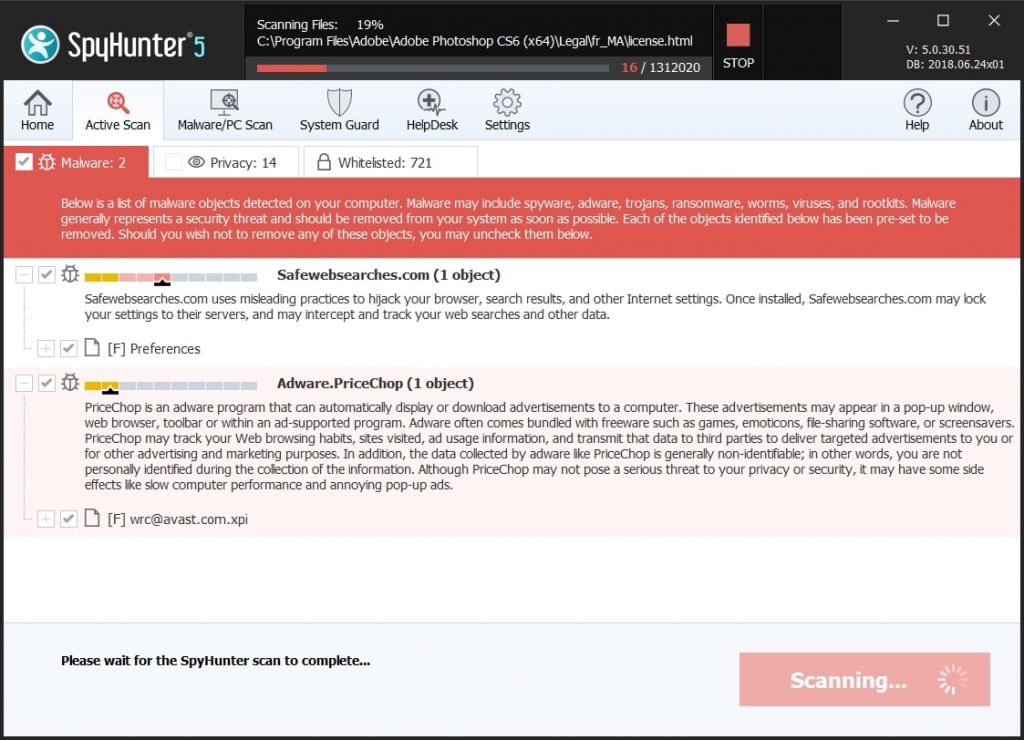
Quick and Easy Mac Malware Video Removal Guide
Bonus Step: How to Make Your Mac Run Faster?
Mac machines maintain probably the fastest operating system out there. Still, Macs do become slow and sluggish sometimes. The video guide below examines all of the possible problems that may lead to your Mac being slower than usual as well as all of the steps that can help you to speed up your Mac.
Step 2: Uninstall *.malware.com and remove related files and objects
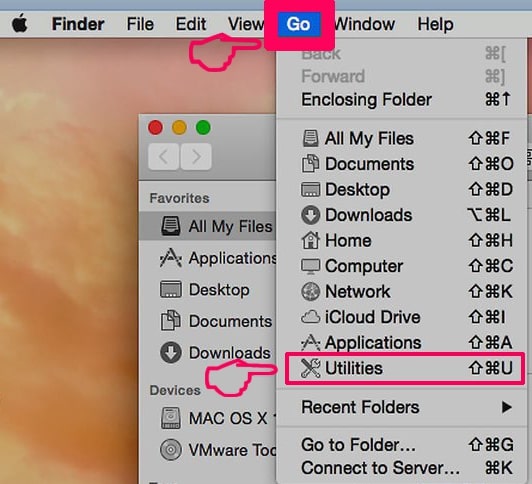
1. Hit the ⇧+⌘+U keys to open Utilities. Another way is to click on “Go” and then click “Utilities”, like the image below shows:
2. Find Activity Monitor and double-click it:
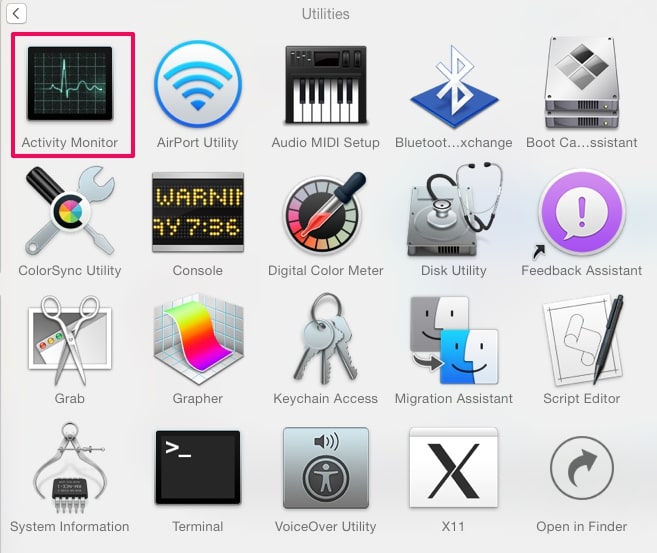
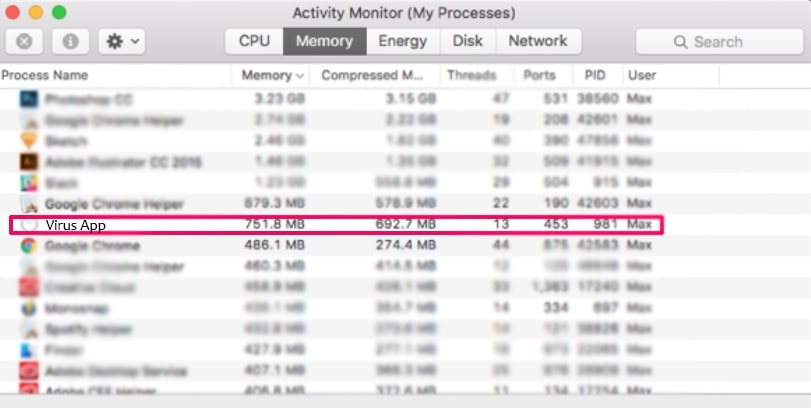
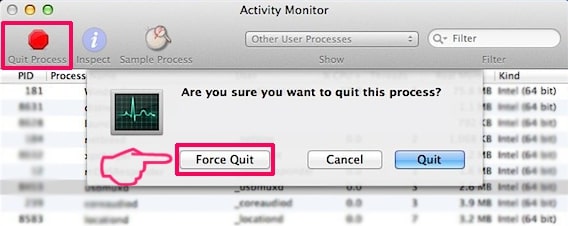
3. In the Activity Monitor look for any suspicious processes, belonging or related to *.malware.com:
4. Click on the "Go" button again, but this time select Applications. Another way is with the ⇧+⌘+A buttons.
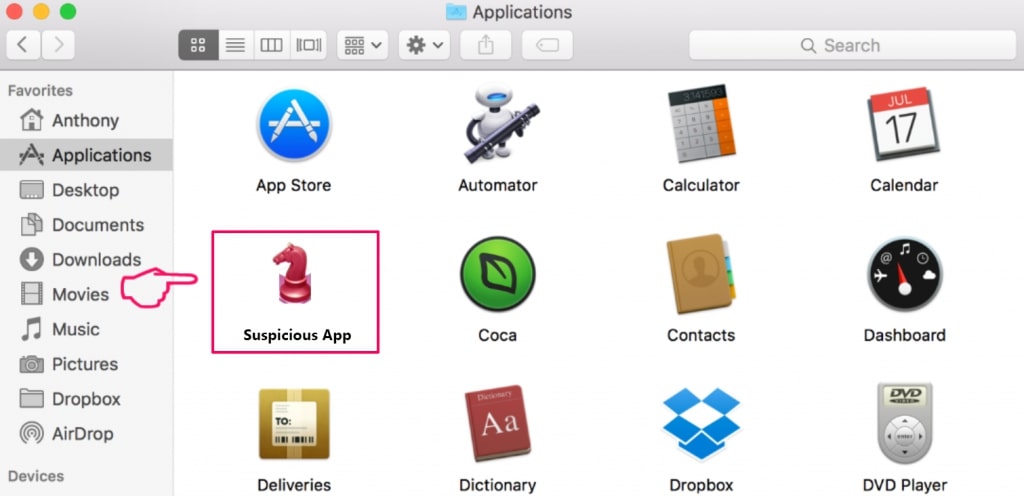
5. In the Applications menu, look for any suspicious app or an app with a name, similar or identical to *.malware.com. If you find it, right-click on the app and select “Move to Trash”.
6. Select Accounts, after which click on the Login Items preference. Your Mac will then show you a list of items that start automatically when you log in. Look for any suspicious apps identical or similar to *.malware.com. Check the app you want to stop from running automatically and then select on the Minus (“-“) icon to hide it.
7. Remove any leftover files that might be related to this threat manually by following the sub-steps below:
- Go to Finder.
- In the search bar type the name of the app that you want to remove.
- Above the search bar change the two drop down menus to “System Files” and “Are Included” so that you can see all of the files associated with the application you want to remove. Bear in mind that some of the files may not be related to the app so be very careful which files you delete.
- If all of the files are related, hold the ⌘+A buttons to select them and then drive them to “Trash”.
In case you cannot remove *.malware.com via Step 1 above:
In case you cannot find the virus files and objects in your Applications or other places we have shown above, you can manually look for them in the Libraries of your Mac. But before doing this, please read the disclaimer below:
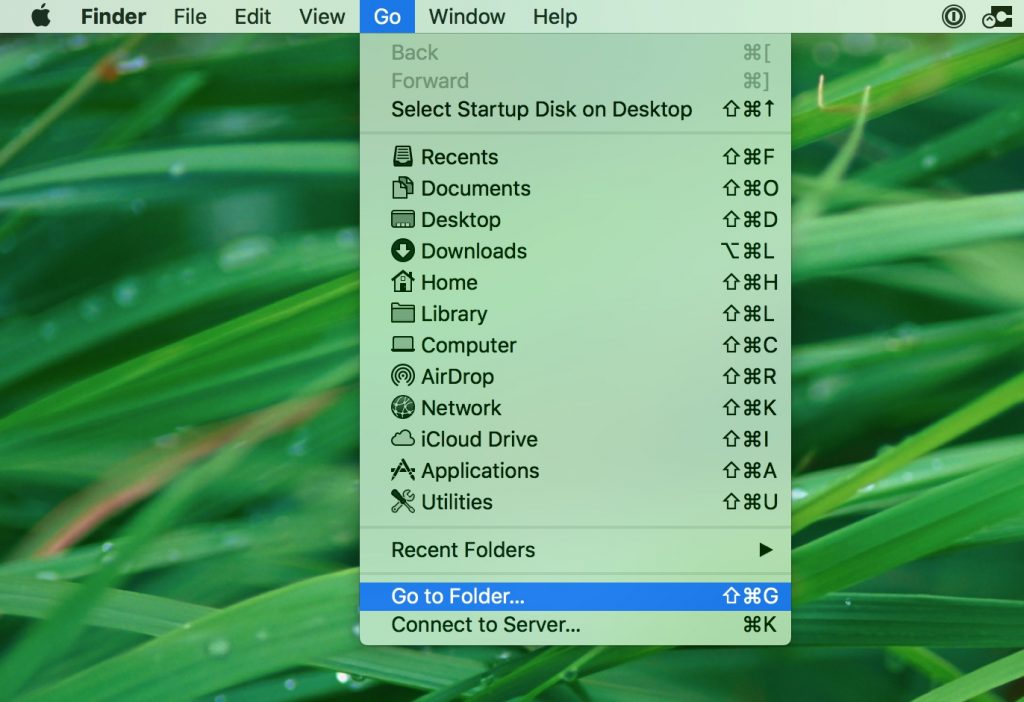
1. Click on "Go" and Then "Go to Folder" as shown underneath:
2. Type in "/Library/LauchAgents/" and click Ok:
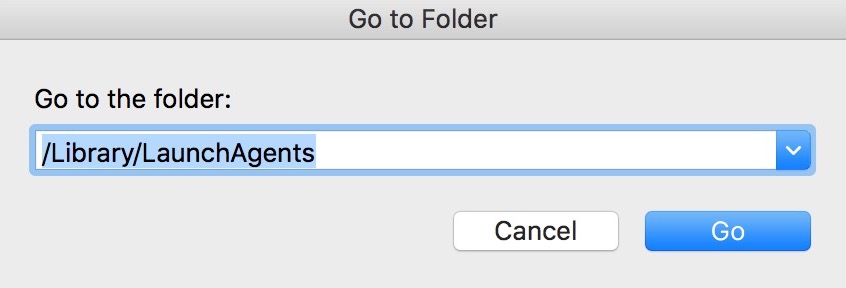
3. Delete all of the virus files that have similar or the same name as *.malware.com. If you believe there is no such file, do not delete anything.
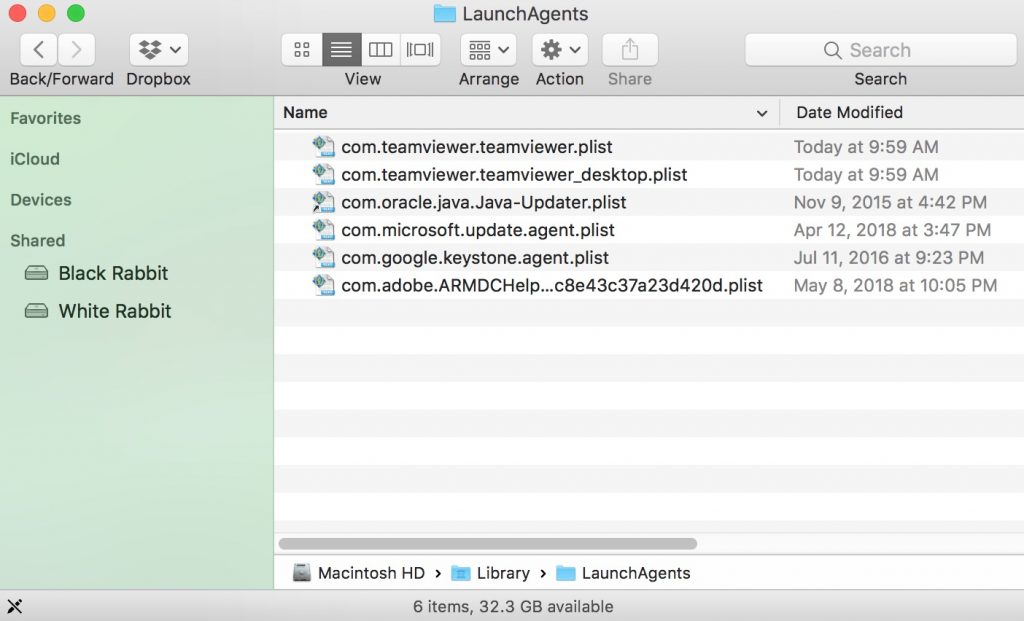
You can repeat the same procedure with the following other Library directories:
→ ~/Library/LaunchAgents
/Library/LaunchDaemons
Tip: ~ is there on purpose, because it leads to more LaunchAgents.
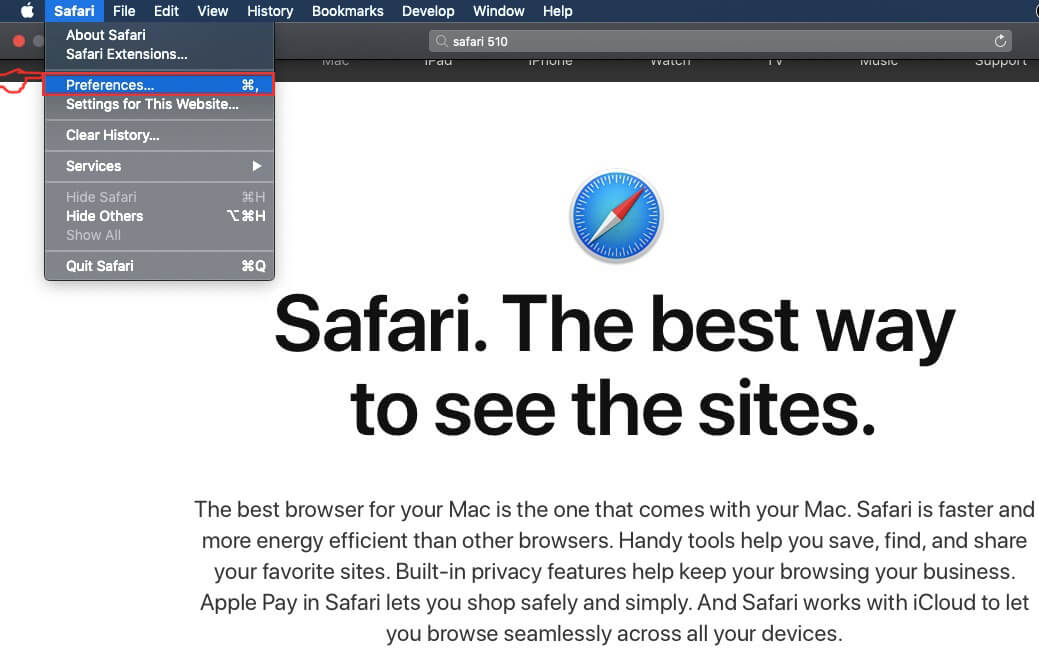
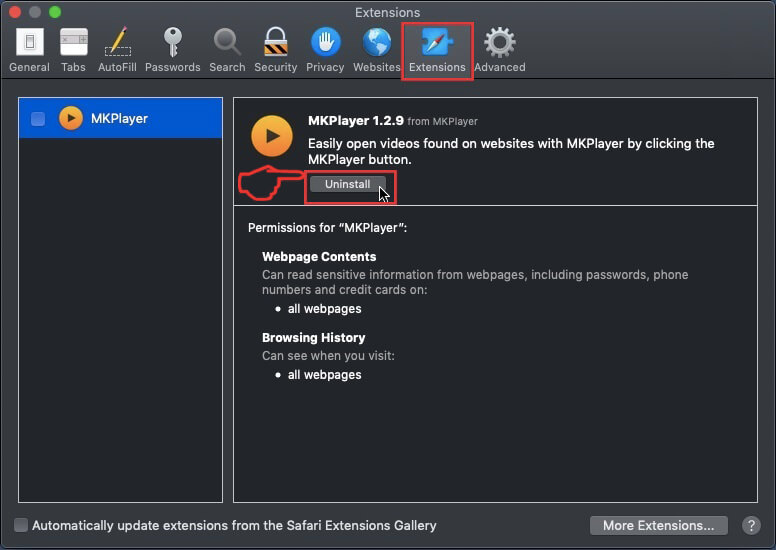
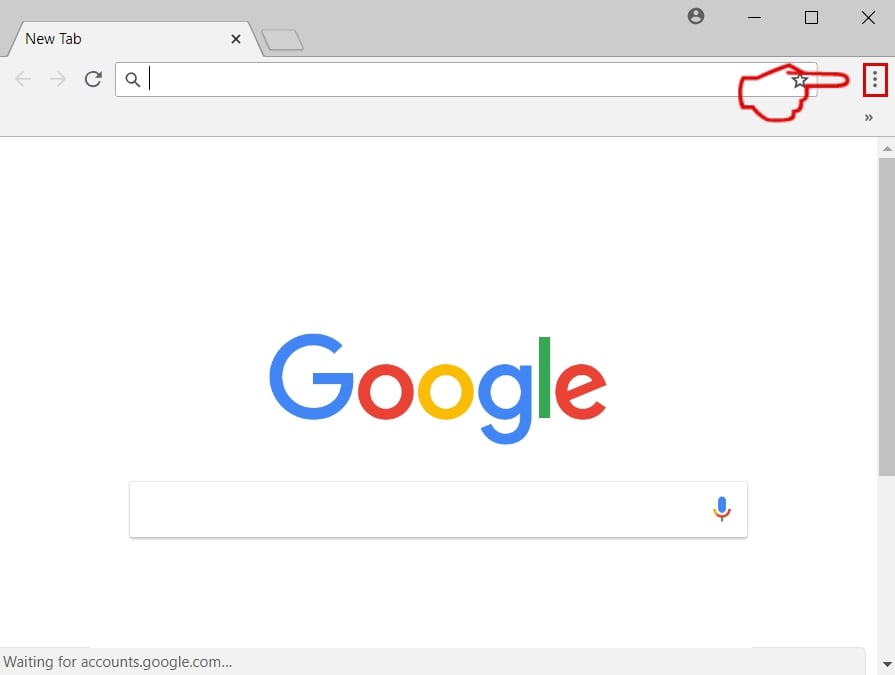
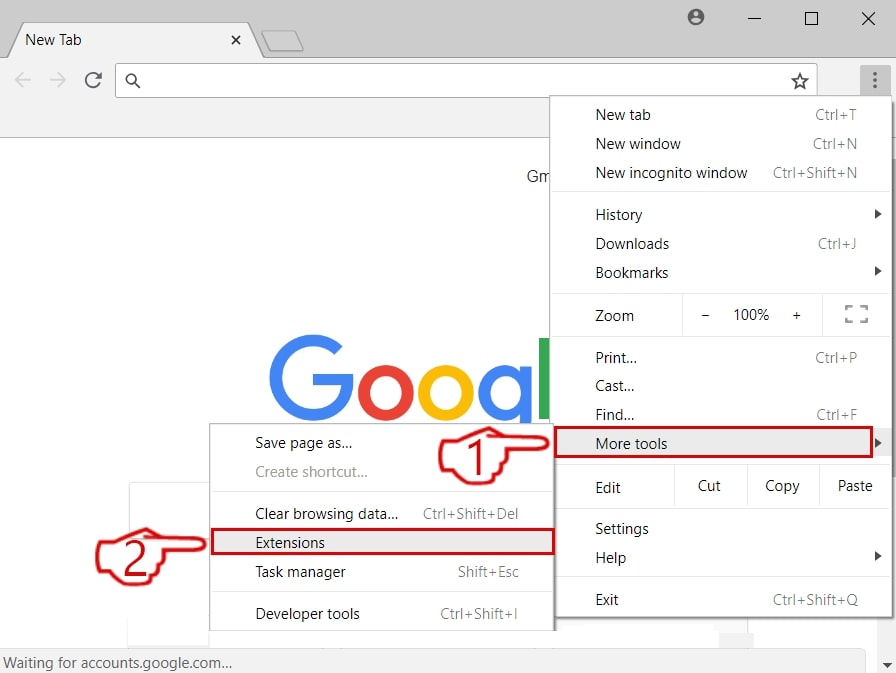
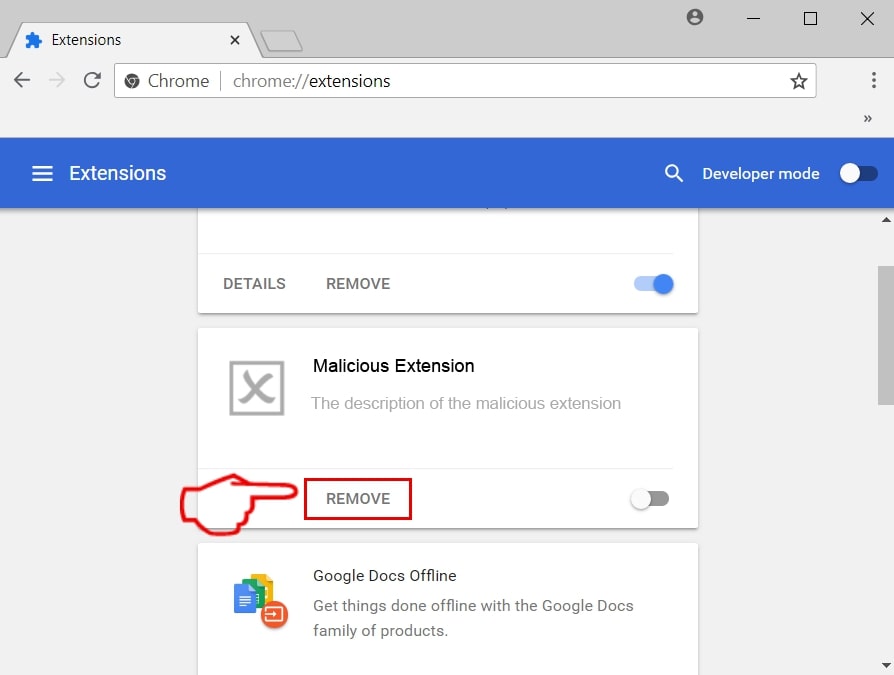
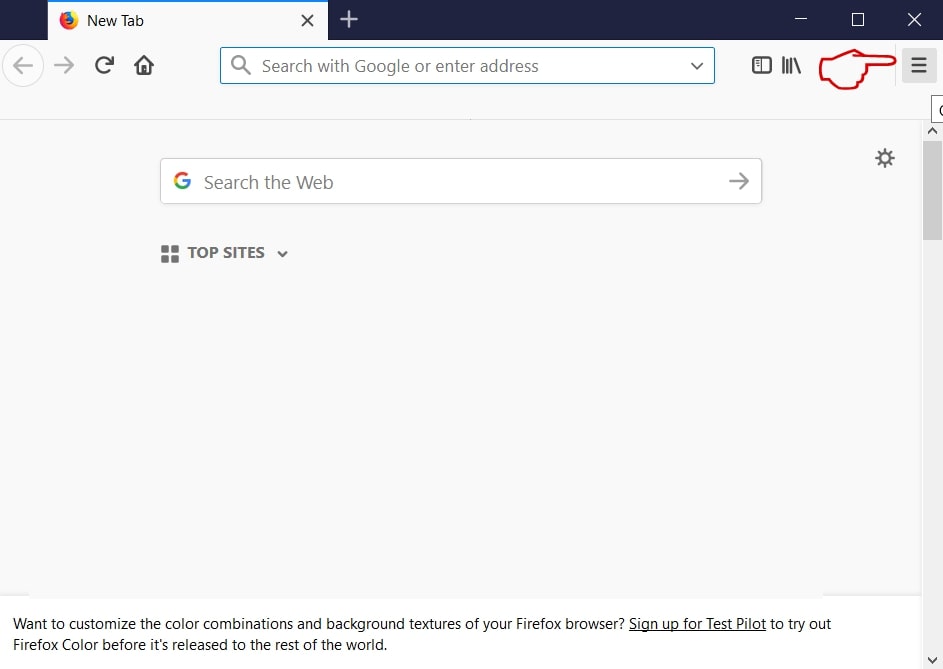
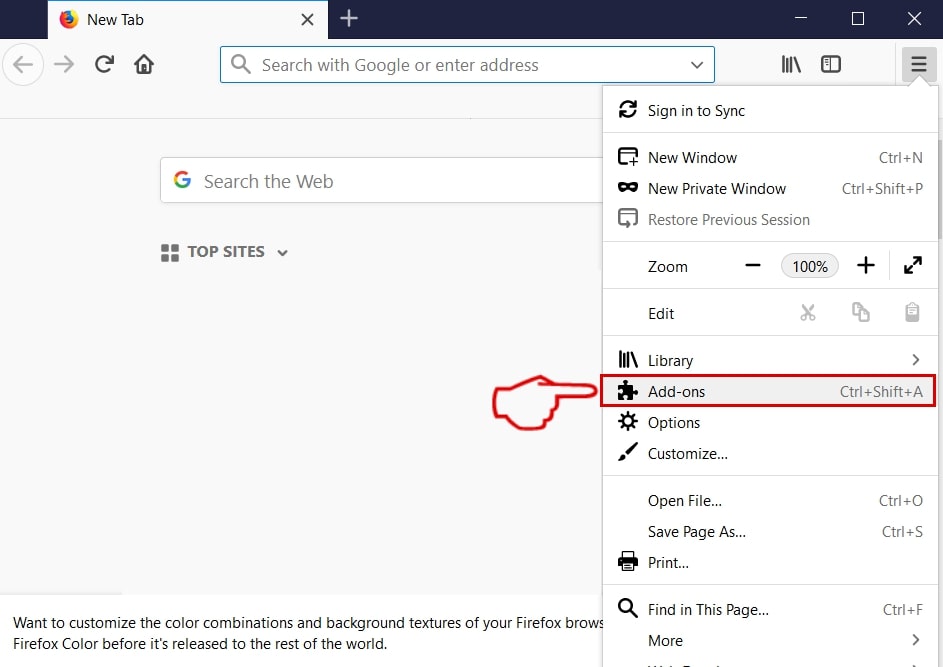
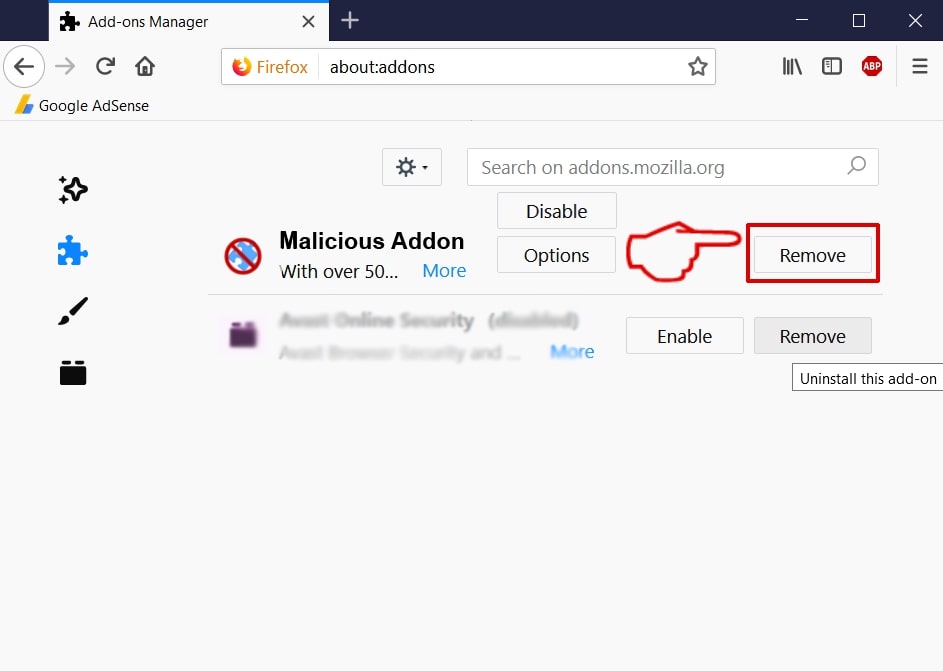
Step 3: Remove *.malware.com – related extensions from Safari / Chrome / Firefox

*.malware.com-FAQ
What is *.malware.com on your Mac?
The *.malware.com threat is probably a potentially unwanted app. There is also a chance it could be related to Mac malware. If so, such apps tend to slow your Mac down significantly and display advertisements. They could also use cookies and other trackers to obtain browsing information from the installed web browsers on your Mac.
Can Macs Get Viruses?
Yes. As much as any other device, Apple computers do get malware. Apple devices may not be a frequent target by malware authors, but rest assured that almost all of the Apple devices can become infected with a threat.
What Types of Mac Threats Are There?
According to most malware researchers and cyber-security experts, the types of threats that can currently infect your Mac can be rogue antivirus programs, adware or hijackers (PUPs), Trojan horses, ransomware and crypto-miner malware.
What To Do If I Have a Mac Virus, Like *.malware.com?
Do not panic! You can easily get rid of most Mac threats by firstly isolating them and then removing them. One recommended way to do that is by using a reputable malware removal software that can take care of the removal automatically for you.
There are many Mac anti-malware apps out there that you can choose from. SpyHunter for Mac is one of the reccomended Mac anti-malware apps, that can scan for free and detect any viruses. This saves time for manual removal that you would otherwise have to do.
How to Secure My Data from *.malware.com?
With few simple actions. First and foremost, it is imperative that you follow these steps:
Step 1: Find a safe computer and connect it to another network, not the one that your Mac was infected in.
Step 2: Change all of your passwords, starting from your e-mail passwords.
Step 3: Enable two-factor authentication for protection of your important accounts.
Step 4: Call your bank to change your credit card details (secret code, etc.) if you have saved your credit card for online shopping or have done online activiites with your card.
Step 5: Make sure to call your ISP (Internet provider or carrier) and ask them to change your IP address.
Step 6: Change your Wi-Fi password.
Step 7: (Optional): Make sure to scan all of the devices connected to your network for viruses and repeat these steps for them if they are affected.
Step 8: Install anti-malware software with real-time protection on every device you have.
Step 9: Try not to download software from sites you know nothing about and stay away from low-reputation websites in general.
If you follow these reccomendations, your network and Apple devices will become significantly more safe against any threats or information invasive software and be virus free and protected in the future too.
More tips you can find on our MacOS Virus section, where you can also ask any questions and comment about your Mac problems.
About the *.malware.com Research
The content we publish on SensorsTechForum.com, this *.malware.com how-to removal guide included, is the outcome of extensive research, hard work and our team’s devotion to help you remove the specific macOS issue.
How did we conduct the research on *.malware.com?
Please note that our research is based on an independent investigation. We are in contact with independent security researchers, thanks to which we receive daily updates on the latest malware definitions, including the various types of Mac threats, especially adware and potentially unwanted apps (PUAs).
Furthermore, the research behind the *.malware.com threat is backed with VirusTotal.
To better understand the threat posed by Mac malware, please refer to the following articles which provide knowledgeable details.