

What is Dailyrumour.co.nz Pop-ups Malware?
Dailyrumour.co.nz pop-ups Malware is a browser-based threat associated with a fake blog website that distributes clickbait content and redirects users to potentially dangerous domains. If you are seeing intrusive Dailyrumour.co.nz pop-ups, notifications, or unexpected redirects while browsing, your system or browser has likely been affected by adware, a potentially unwanted program (PUP), or a malicious push notification subscription. Read this article to find out how Dailyrumour.co.nz Pop-ups Malware operates, what risks it poses to your device and personal data, and how you can effectively remove it.
This threat is not a traditional file-infecting virus. Instead, Dailyrumour.co.nz Pop-ups Malware functions as a social engineering-driven browser hijacker and adware campaign. It abuses legitimate browser features such as push notifications and JavaScript-based redirects to deliver misleading content. The website presents itself as a legitimate news or blog platform, featuring sensational headlines designed to lure users into clicking on links that lead to risky third-party domains.

Dailyrumour.co.nz Short Overview
| Type | Fake blog, Browser Hijacker, Redirect, PUP |
| Short Description | A suspicious website and rogue search engine that hijacks your browsers and causes redirects. |
| Symptoms | Unwanted pop-ups may start appearing while you are browsing the web. A browser hijacker may be downloaded without your knowledge. |
| Removal Time | Approximately 15 minutes for a full-system scan |
| Removal Tool |
See If Your System Has Been Affected by malware
Download
Malware Removal Tool
|
Cybercriminals behind Dailyrumour.co.nz Pop-ups Malware leverage clickbait techniques to generate revenue through pay-per-click schemes, affiliate fraud, and traffic redirection. In many cases, users who interact with the site are exposed to additional malware, phishing pages, rogue software installers, and fake tech support scams.
How Did I Get Dailyrumour.co.nz Pop-ups Malware?
In most cases, users encounter Dailyrumour.co.nz Pop-ups Malware unintentionally. The infection vector typically involves deceptive distribution methods designed to trick users into granting permissions or installing unwanted software components. Understanding how this threat infiltrates systems is key to preventing future infections.
One of the most common techniques is browser push notification abuse. When visiting Dailyrumour.co.nz, users may be prompted with a message such as “Click Allow to confirm you are not a robot” or “Press Allow to continue.” By clicking “Allow,” users unknowingly subscribe to intrusive browser notifications that later deliver malicious advertisements and redirects directly to their desktop.
Other infection methods include:
- software bundling installers that include adware components alongside free applications.
- malicious advertising (malvertising) embedded in compromised websites.
- Redirect chains triggered by suspicious torrent, streaming, or file-sharing platforms.
- Fake software update prompts that claim your browser or media player is outdated.
Once installed or granted notification permissions, Dailyrumour.co.nz Pop-ups Malware begins generating intrusive advertisements and redirecting traffic without clear user consent. The adware component may modify browser settings, inject additional scripts into web sessions, and create scheduled tasks to maintain persistence.
It is important to note that even reputable browsers can be affected, including Google Chrome, Mozilla Firefox, Microsoft Edge, and Safari. The issue is not with the browser itself, but with malicious extensions, configuration changes, or granted notification permissions.
What Does Dailyrumour.co.nz Pop-ups Malware Do?
Dailyrumour.co.nz Pop-ups Malware primarily functions as a traffic monetization and malware distribution platform. However, its impact can extend beyond simple annoyance. Once active, the threat may perform several malicious or privacy-invasive actions.
The most visible symptom is a continuous stream of pop-ups, banners, and push notifications. These ads often promote:
- Fake prize giveaways and lottery scams.
- Rogue antivirus or system optimization tools.
- Cryptocurrency investment scams.
- Adult content and dating scams.
- Phishing pages impersonating legitimate services.
Beyond aggressive advertising, Dailyrumour.co.nz Pop-ups Malware may also trackers user behavior. Adware components frequently collect browsing-related data such as:
- Visited URLs and search queries.
- IP addresses and approximate geolocation.
- Browser type and version.
- Operating system details.
- Clicked advertisements and interaction patterns.
This data is often used for profiling purposes and may be shared with third-party advertisers or malicious actors. In more severe scenarios, redirects from Dailyrumour.co.nz may lead to exploit kits or malware-laden landing pages capable of deploying trojans, ransomware, spyware, or credential stealers.
Another serious risk involves phishing. Users redirected to counterfeit login pages may unknowingly submit sensitive information such as usernames, passwords, credit card numbers, or other personally identifiable information. This significantly increases the risk of identity theft and financial fraud.
From a technical perspective, the adware linked to Dailyrumour.co.nz Pop-ups Malware may create registry entries, modify browser shortcuts, inject scripts into browser processes, or install rogue extensions. These persistence mechanisms ensure that the pop-ups continue appearing even after a simple browser restart.
How to Remove Dailyrumour.co.nz Pop-ups Malware
Removing Dailyrumour.co.nz Pop-ups Malware requires addressing both the visible symptoms and the underlying cause. Simply closing the pop-ups will not resolve the issue if adware or malicious permissions remain active on the system.
Effective removal typically involves cleaning browser notification permissions, uninstalling suspicious programs, and scanning the system for potentially unwanted programs and malware components. Security experts recommend performing a comprehensive system scan with a reputable anti-malware solution capable of detecting adware, browser hijackers, and PUPs.
It is also essential to review installed browser extensions and remove any unfamiliar or suspicious add-ons. Resetting browser settings to their default configuration can help eliminate unauthorized changes made by Dailyrumour.co.nz Pop-ups Malware.
For persistent infections, advanced malware removal tools may be required to eliminate hidden components, scheduled tasks, or registry modifications. Keeping your operating system and security software updated significantly reduces the risk of reinfection.
To prevent similar threats in the future, users should avoid interacting with suspicious pop-ups, refrain from downloading software from unverified sources, and carefully review permission requests before clicking “Allow.” Maintaining strong cybersecurity hygiene is critical in today’s evolving threat landscape.
What should you do?
If you are experiencing intrusive redirects, suspicious push notifications, or continuous pop-ups from Dailyrumour.co.nz, immediate action is strongly recommended. Ignoring the issue may expose your device to further malware infections, phishing attempts, and data privacy risks. Follow the detailed removal instructions below to completely eliminate Dailyrumour.co.nz Pop-ups Malware from your system and restore your browser security.

Ventsislav Krastev
Ventsislav is a cybersecurity expert at SensorsTechForum since 2015. He has been researching, covering, helping victims with the latest malware infections plus testing and reviewing software and the newest tech developments. Having graduated Marketing as well, Ventsislav also has passion for learning new shifts and innovations in cybersecurity that become game changers. After studying Value Chain Management, Network Administration and Computer Administration of System Applications, he found his true calling within the cybersecrurity industry and is a strong believer in the education of every user towards online safety and security.
Follow Me:
- Windows
- Mac OS X
- Google Chrome
- Mozilla Firefox
- Microsoft Edge
- Safari
- Internet Explorer
- Stop Push Pop-ups
How to Remove Dailyrumour.co.nz from Windows.
Step 1: Scan for Dailyrumour.co.nz with SpyHunter Anti-Malware Tool
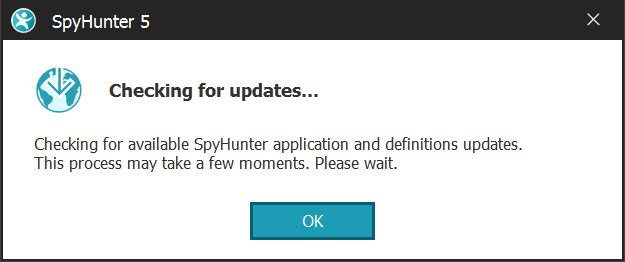
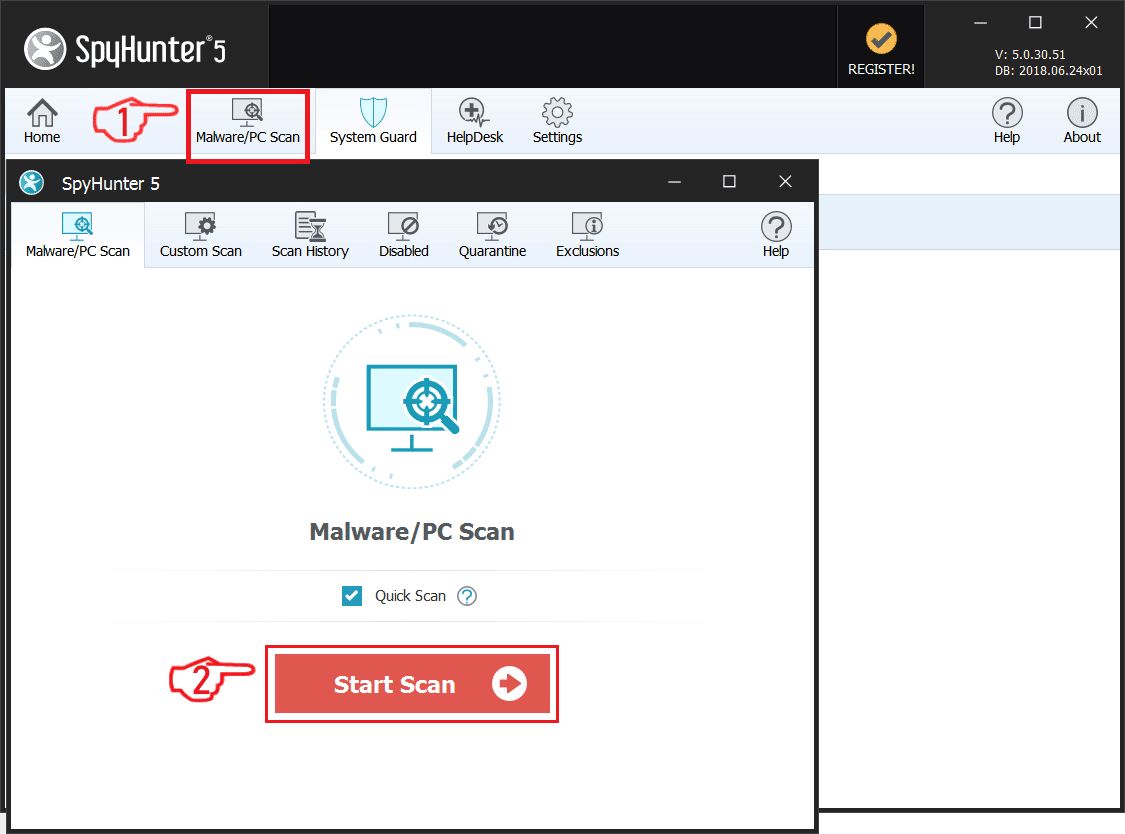
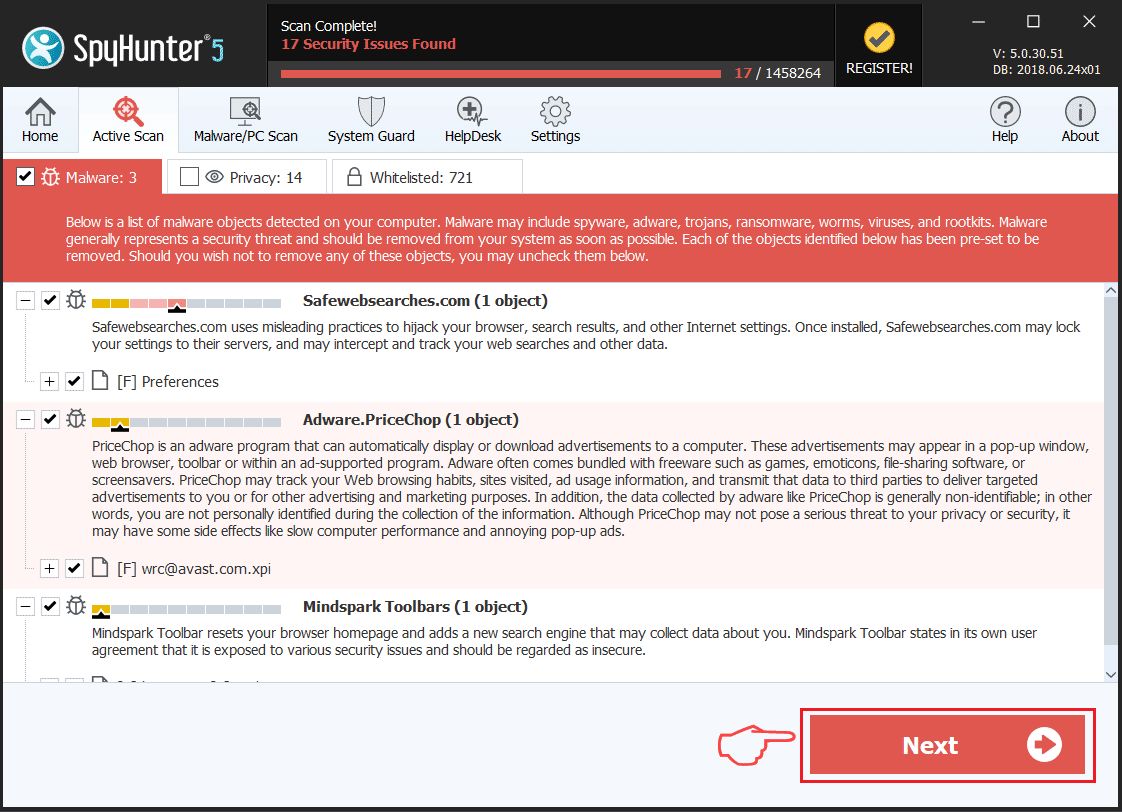
Step 2: Boot Your PC In Safe Mode
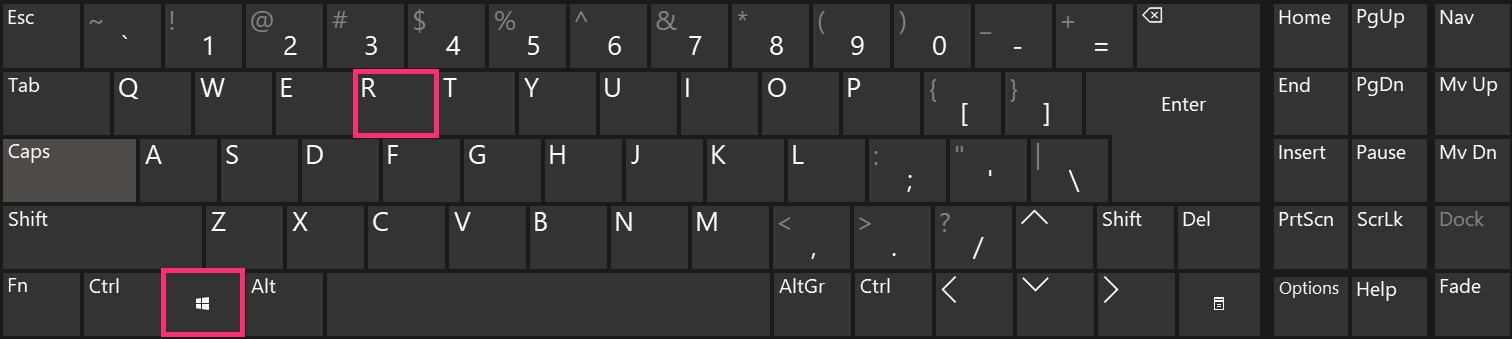
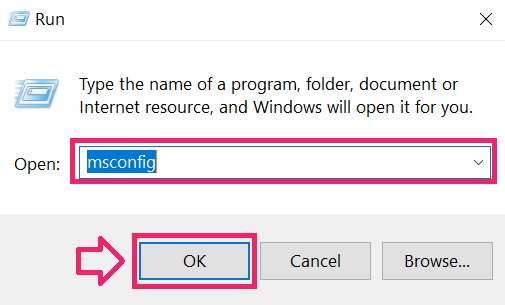
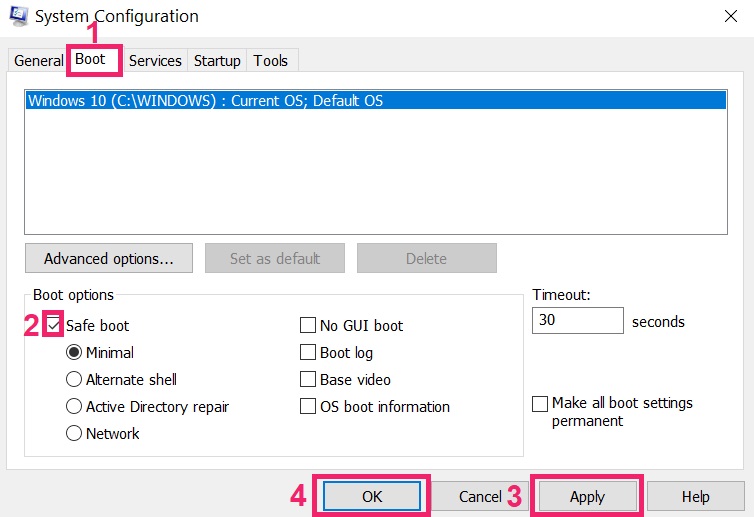
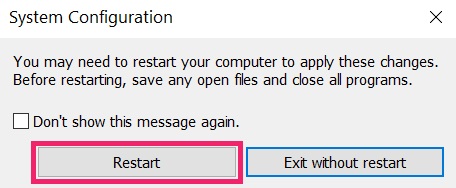
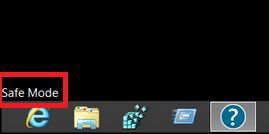
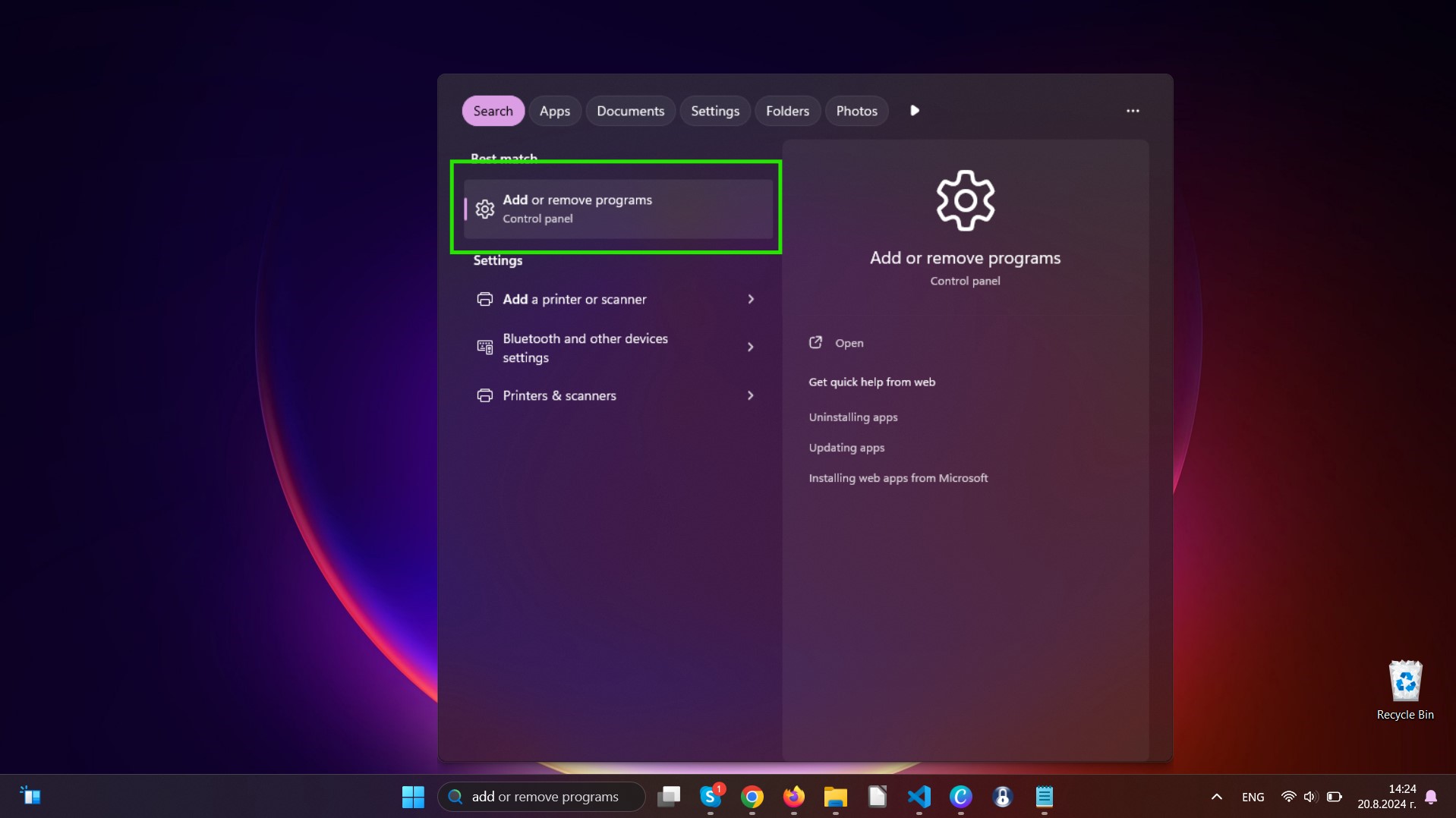
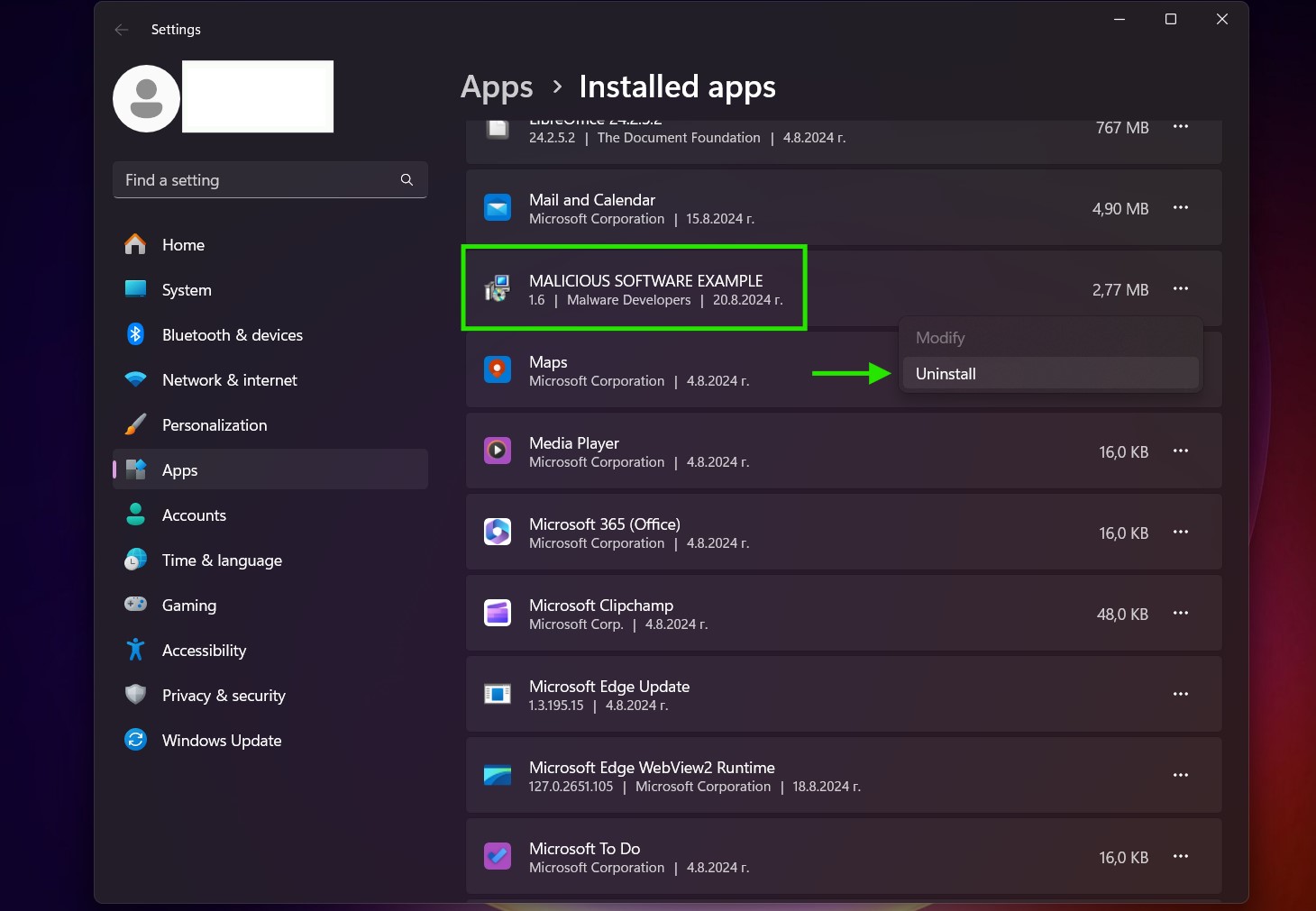
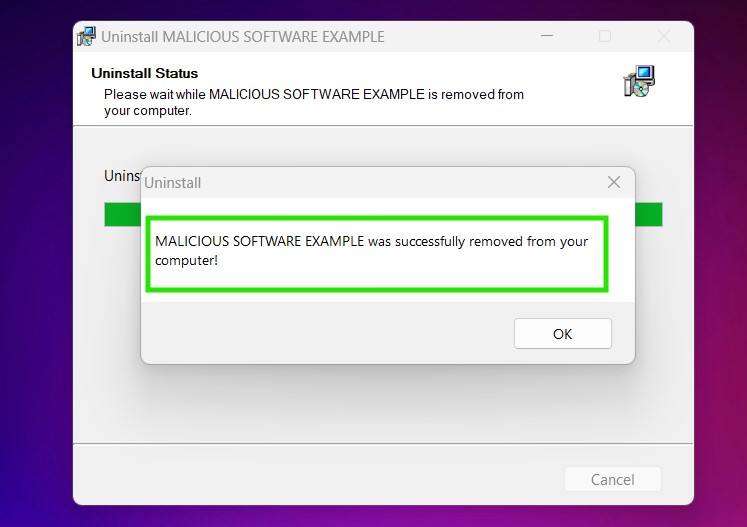
Step 3: Uninstall Dailyrumour.co.nz and related software from Windows
Uninstall Steps for Windows 11
Uninstall Steps for Windows 10 and Older Versions
Here is a method in few easy steps that should be able to uninstall most programs. No matter if you are using Windows 10, 8, 7, Vista or XP, those steps will get the job done. Dragging the program or its folder to the recycle bin can be a very bad decision. If you do that, bits and pieces of the program are left behind, and that can lead to unstable work of your PC, errors with the file type associations and other unpleasant activities. The proper way to get a program off your computer is to Uninstall it. To do that:
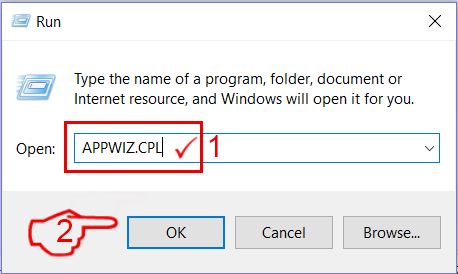
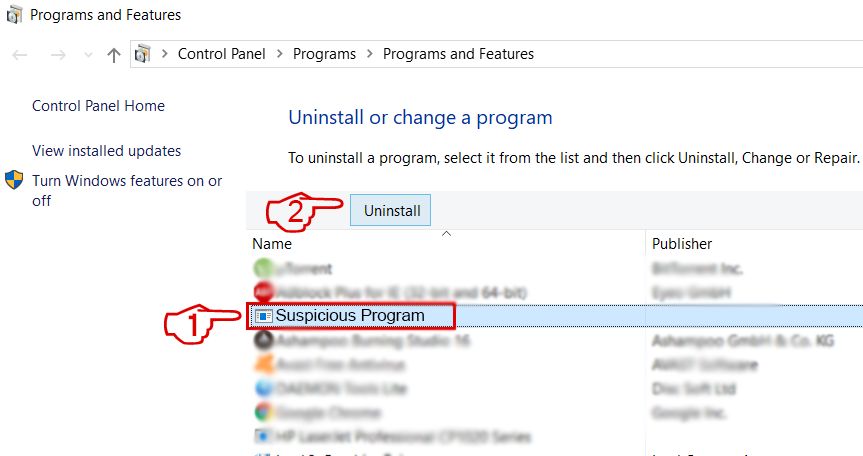 Follow the instructions above and you will successfully uninstall most programs.
Step 4: Clean Any registries, Created by Dailyrumour.co.nz on Your PC.
The usually targeted registries of Windows machines are the following:
- HKEY_LOCAL_MACHINE\Software\Microsoft\Windows\CurrentVersion\Run
- HKEY_CURRENT_USER\Software\Microsoft\Windows\CurrentVersion\Run
- HKEY_LOCAL_MACHINE\Software\Microsoft\Windows\CurrentVersion\RunOnce
- HKEY_CURRENT_USER\Software\Microsoft\Windows\CurrentVersion\RunOnce
You can access them by opening the Windows registry editor and deleting any values, created by Dailyrumour.co.nz there. This can happen by following the steps underneath:
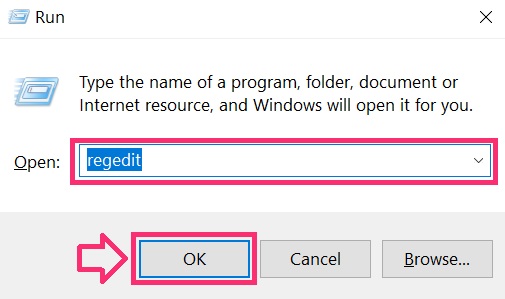
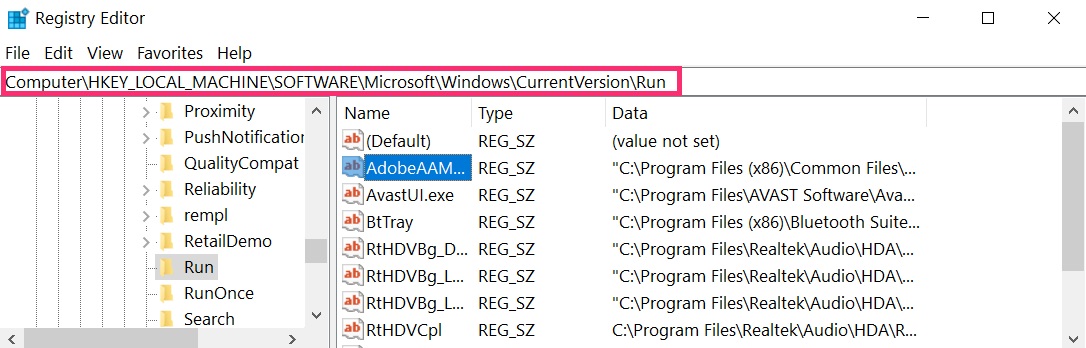
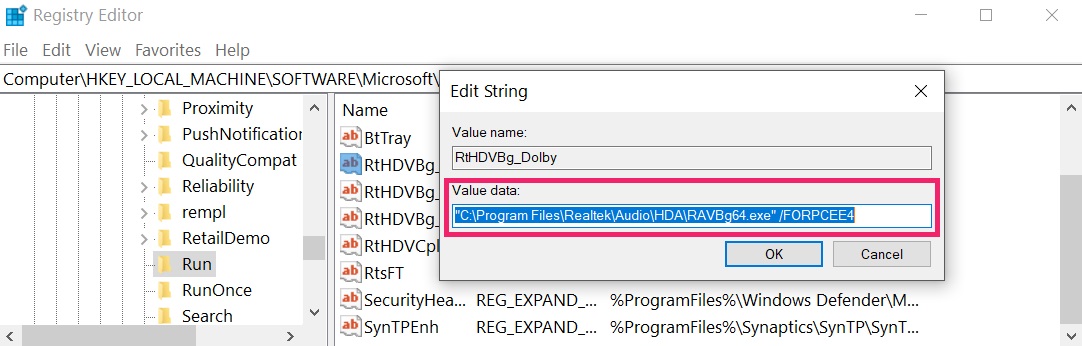 Tip: To find a virus-created value, you can right-click on it and click "Modify" to see which file it is set to run. If this is the virus file location, remove the value.
Video Removal Guide for Dailyrumour.co.nz (Windows).
Get rid of Dailyrumour.co.nz from Mac OS X.
Step 1: Uninstall Dailyrumour.co.nz and remove related files and objects
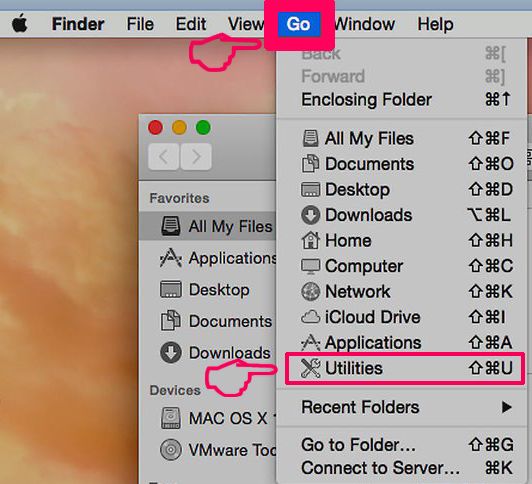
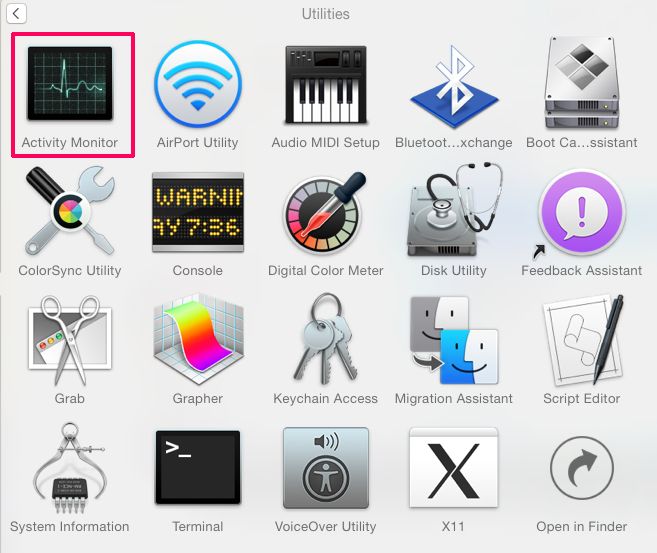
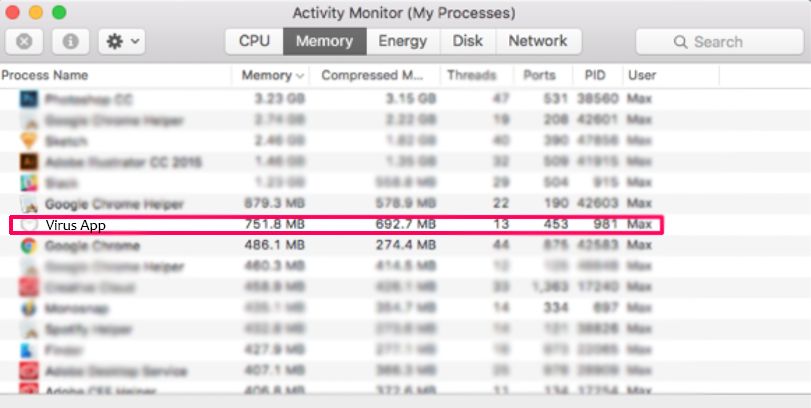
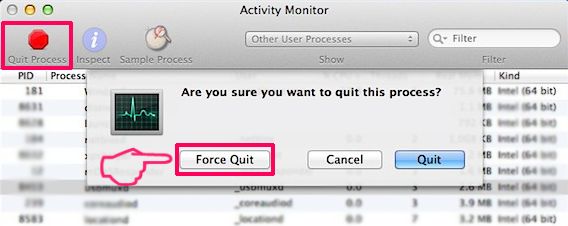
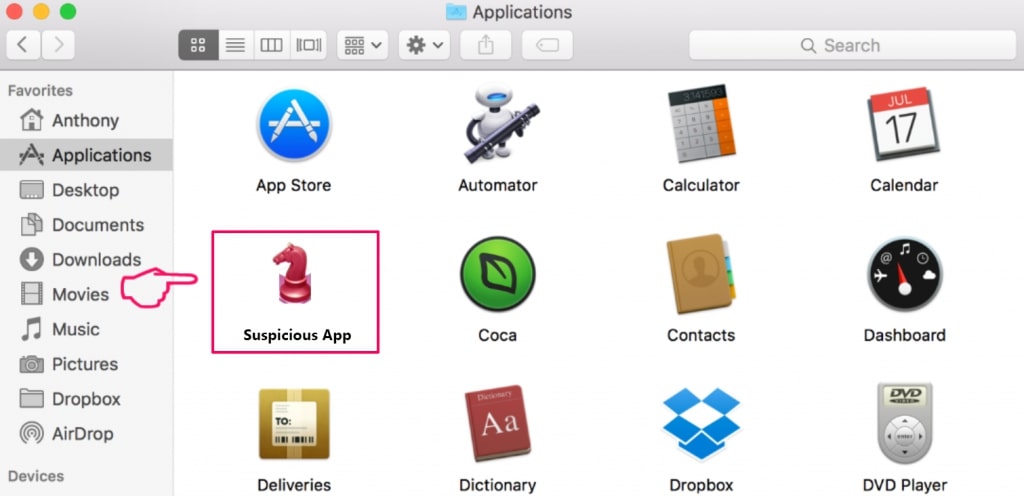
Your Mac will then show you a list of items that start automatically when you log in. Look for any suspicious apps identical or similar to Dailyrumour.co.nz. Check the app you want to stop from running automatically and then select on the Minus (“-“) icon to hide it.
- Go to Finder.
- In the search bar type the name of the app that you want to remove.
- Above the search bar change the two drop down menus to “System Files” and “Are Included” so that you can see all of the files associated with the application you want to remove. Bear in mind that some of the files may not be related to the app so be very careful which files you delete.
- If all of the files are related, hold the ⌘+A buttons to select them and then drive them to “Trash”.
In case you cannot remove Dailyrumour.co.nz via Step 1 above:
In case you cannot find the virus files and objects in your Applications or other places we have shown above, you can manually look for them in the Libraries of your Mac. But before doing this, please read the disclaimer below:
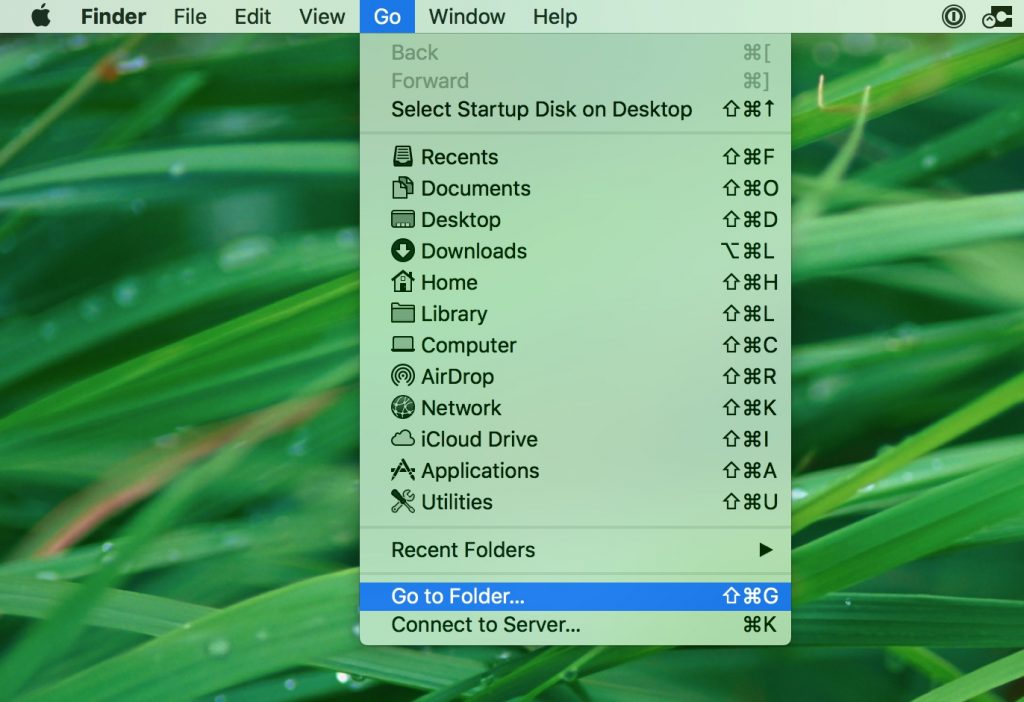
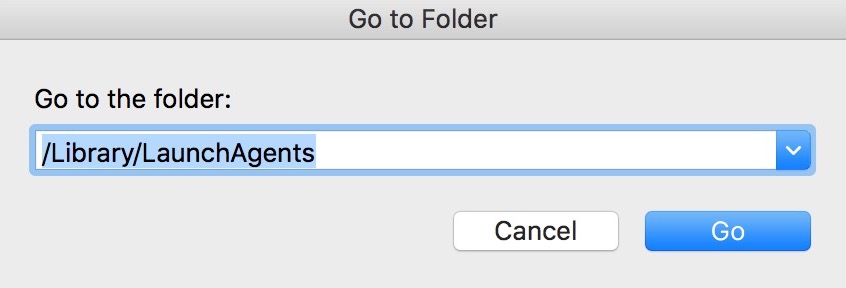
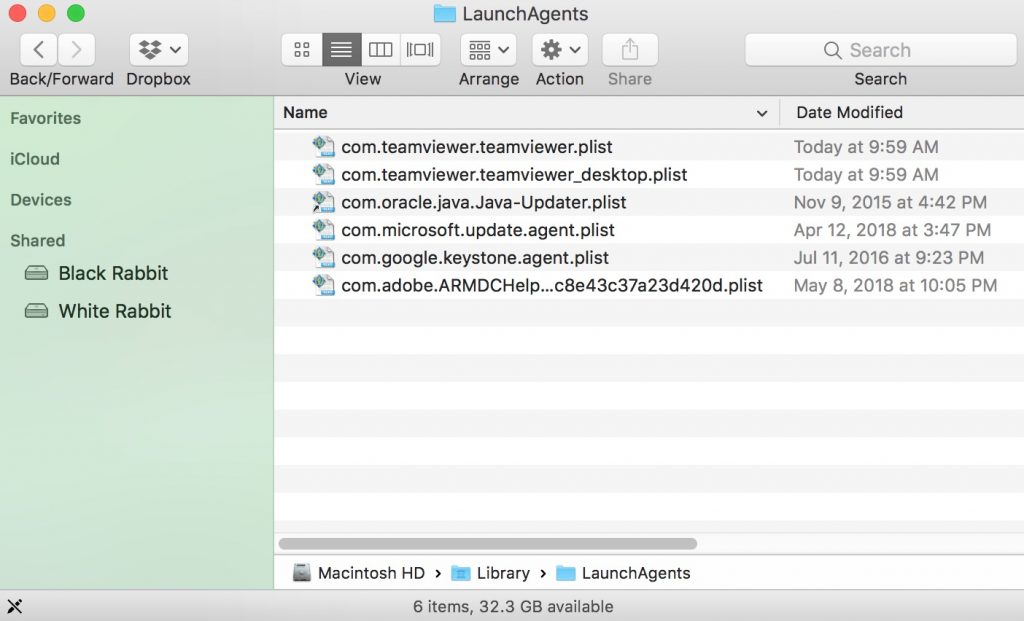
You can repeat the same procedure with the following other Library directories:
→ ~/Library/LaunchAgents
/Library/LaunchDaemons
Tip: ~ is there on purpose, because it leads to more LaunchAgents.
Step 2: Scan for and remove Dailyrumour.co.nz files from your Mac
When you are facing problems on your Mac as a result of unwanted scripts and programs such as Dailyrumour.co.nz, the recommended way of eliminating the threat is by using an anti-malware program. SpyHunter for Mac offers advanced security features along with other modules that will improve your Mac’s security and protect it in the future.
Video Removal Guide for Dailyrumour.co.nz (Mac)
Remove Dailyrumour.co.nz from Google Chrome.
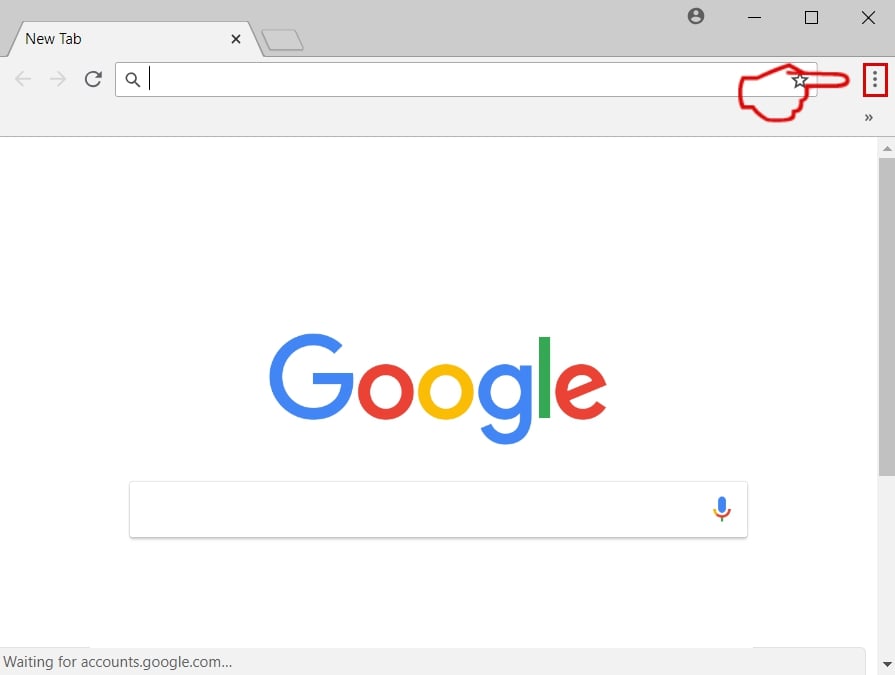
Step 1: Start Google Chrome and open the drop menu
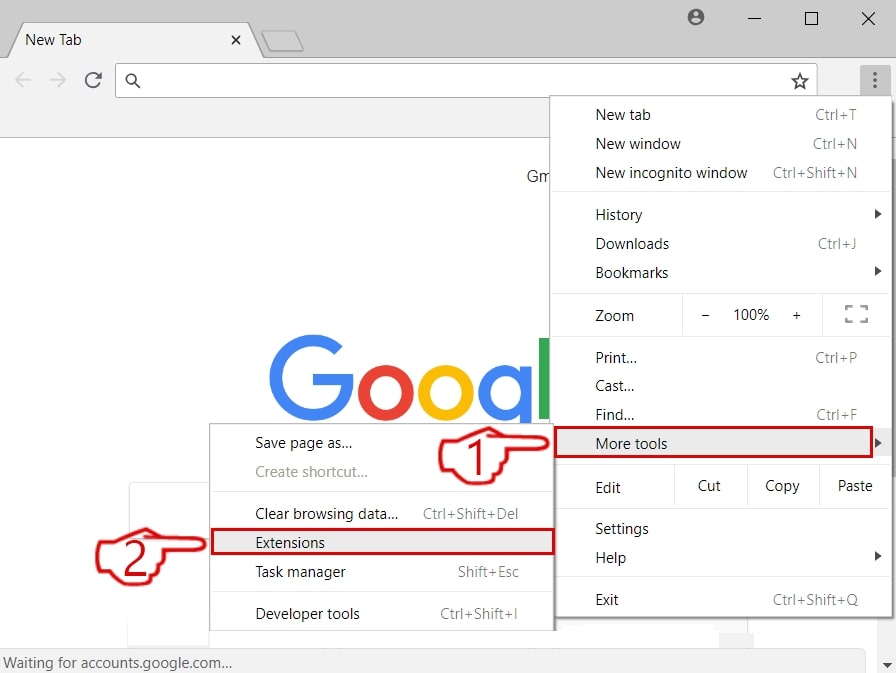
Step 2: Move the cursor over "Tools" and then from the extended menu choose "Extensions"
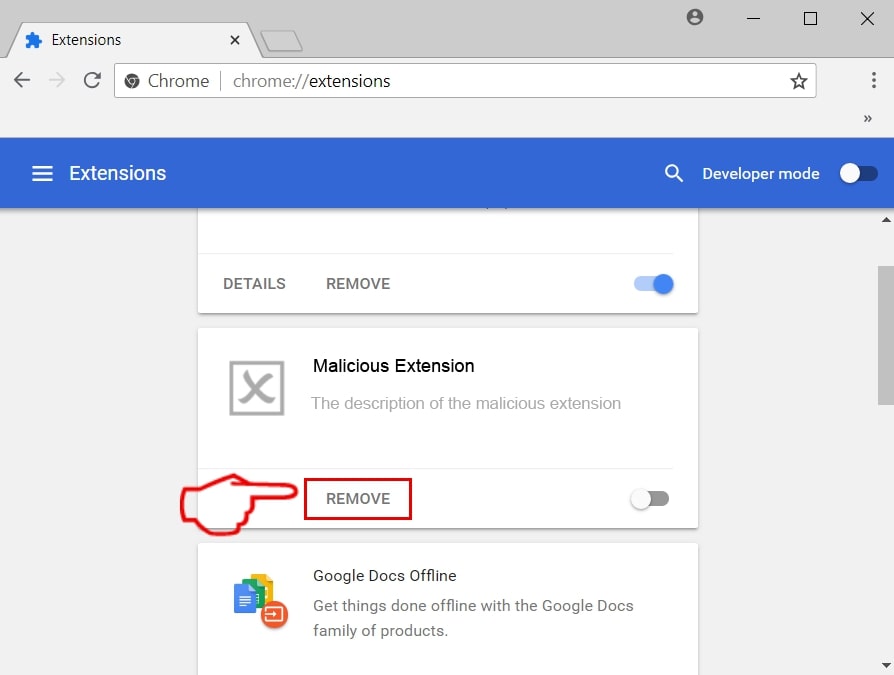
Step 3: From the opened "Extensions" menu locate the unwanted extension and click on its "Remove" button.
Step 4: After the extension is removed, restart Google Chrome by closing it from the red "X" button at the top right corner and start it again.
Erase Dailyrumour.co.nz from Mozilla Firefox.
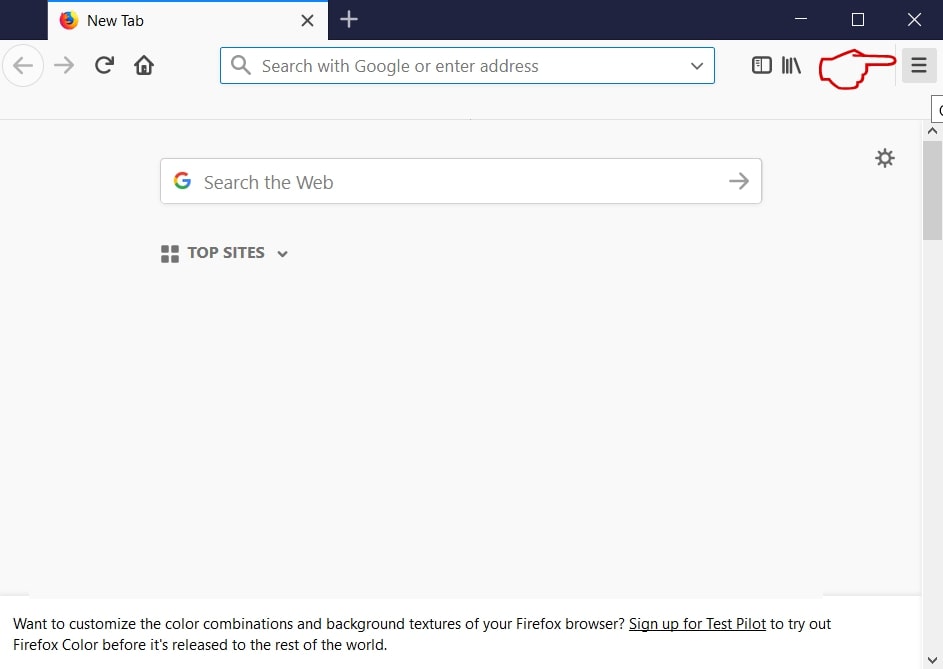
Step 1: Start Mozilla Firefox. Open the menu window:
Step 2: Select the "Add-ons" icon from the menu.
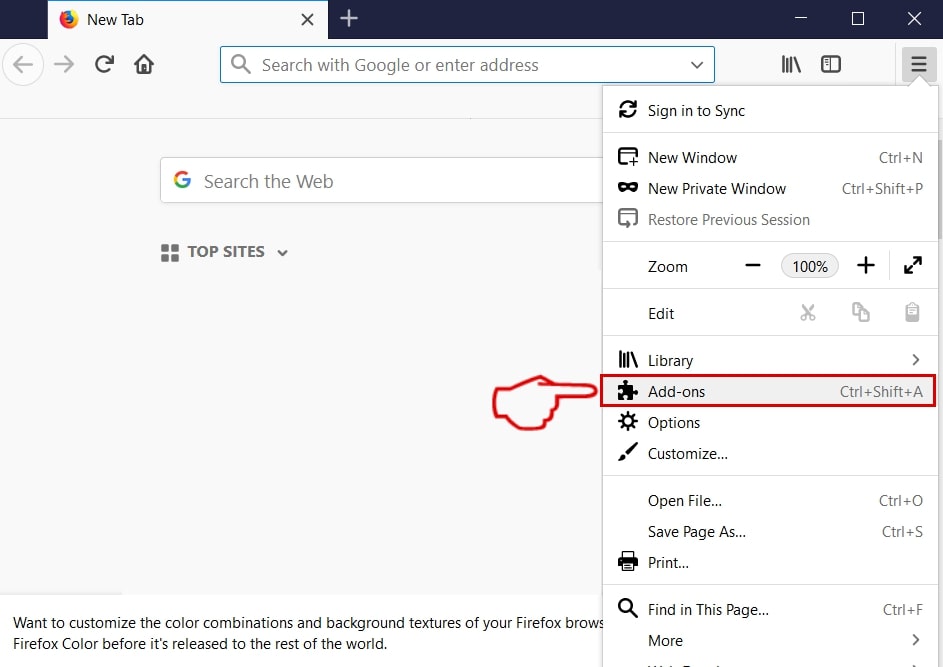
Step 3: Select the unwanted extension and click "Remove"

Step 4: After the extension is removed, restart Mozilla Firefox by closing it from the red "X" button at the top right corner and start it again.
Uninstall Dailyrumour.co.nz from Microsoft Edge.
Step 1: Start Edge browser.
Step 2: Open the drop menu by clicking on the icon at the top right corner.
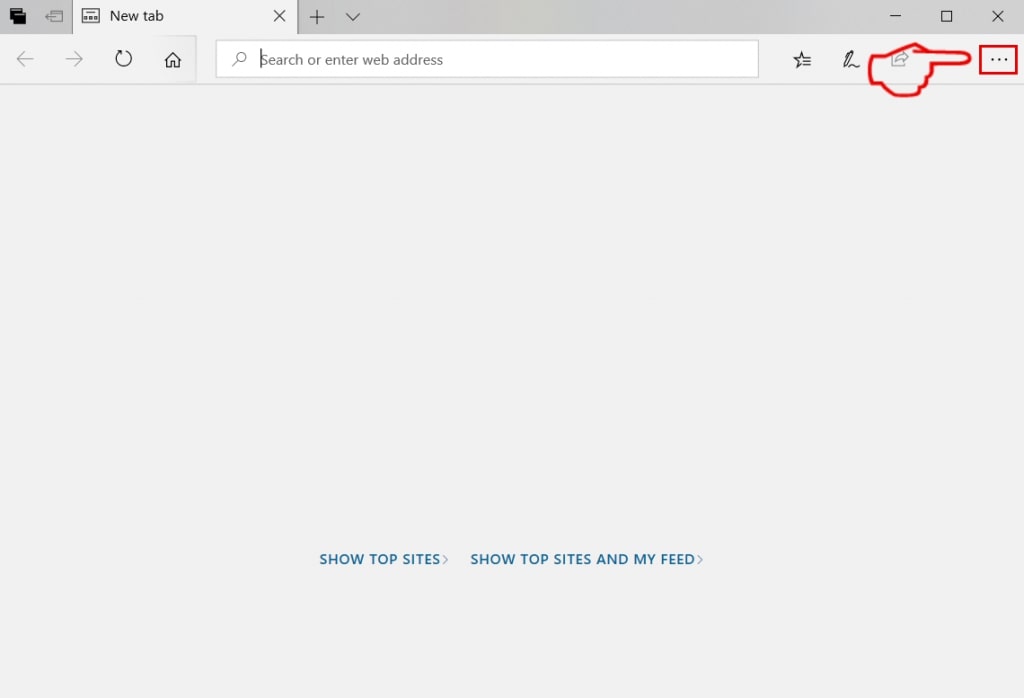
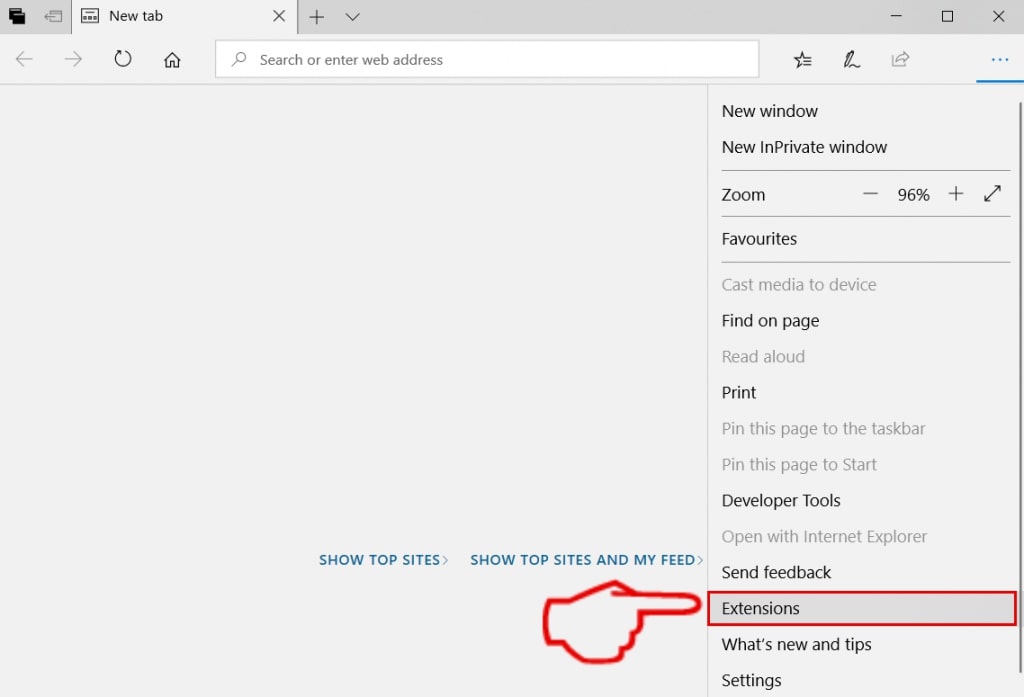
Step 3: From the drop menu select "Extensions".
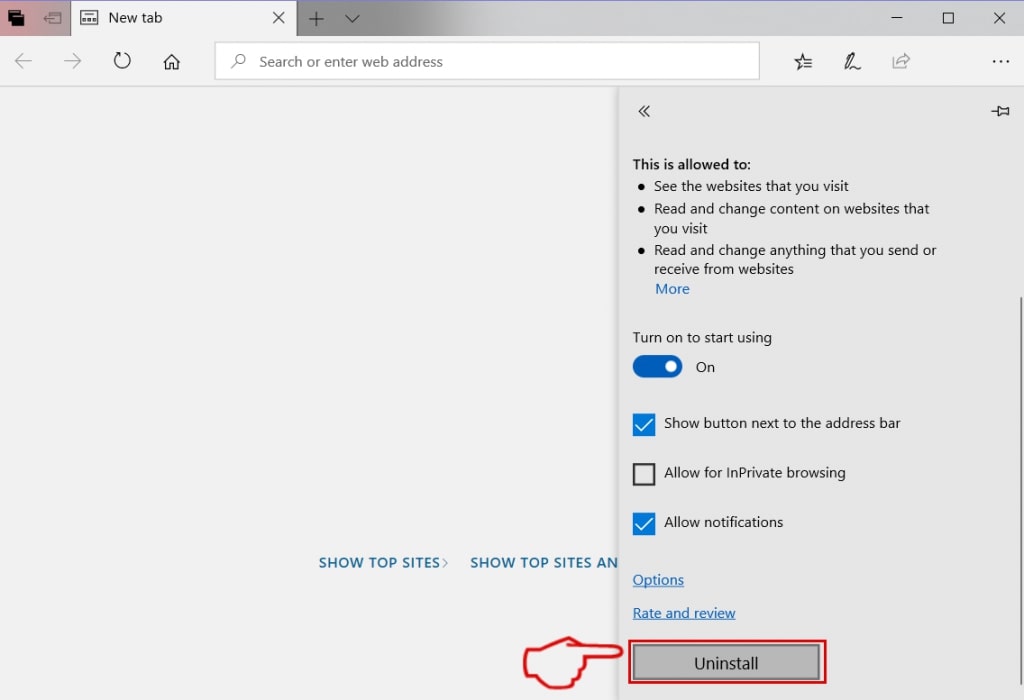
Step 4: Choose the suspected malicious extension you want to remove and then click on the gear icon.
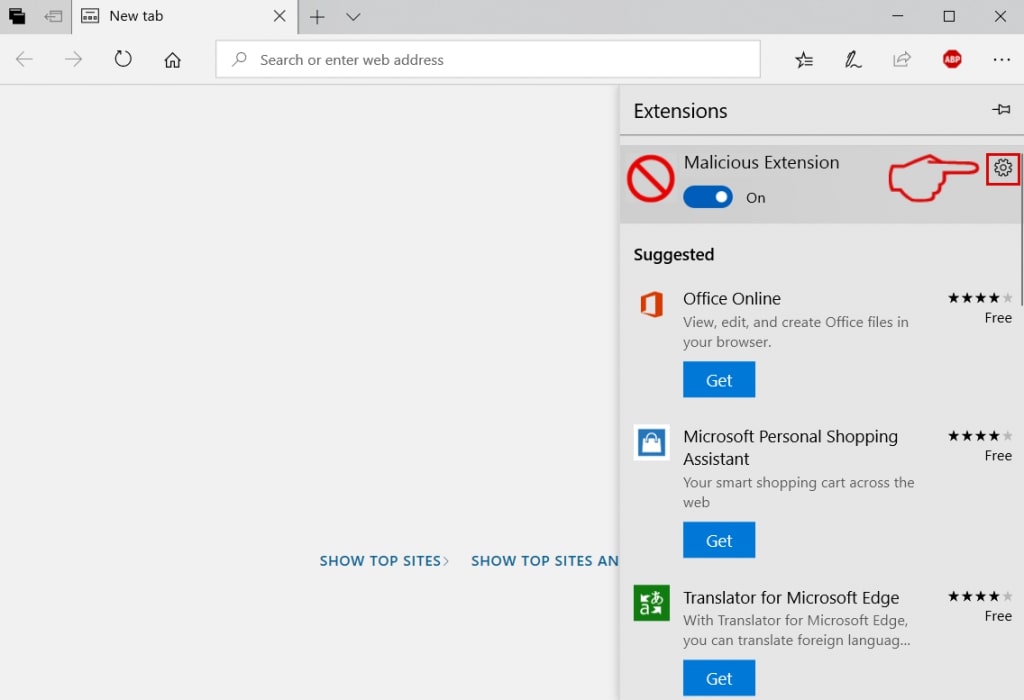
Step 5: Remove the malicious extension by scrolling down and then clicking on Uninstall.
Remove Dailyrumour.co.nz from Safari
Step 1: Start the Safari app.
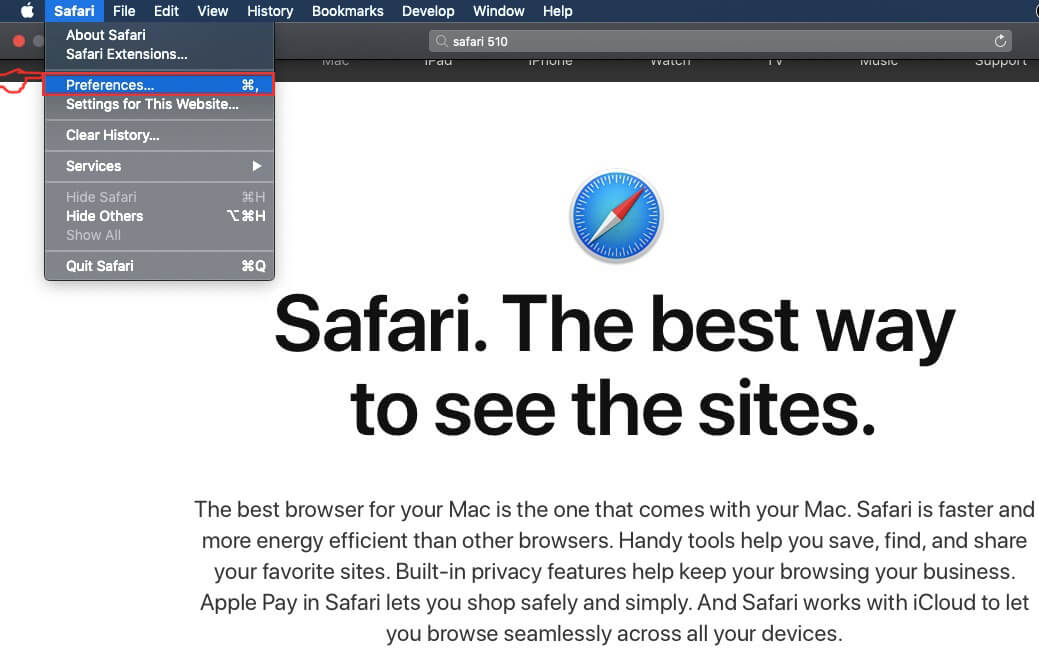
Step 2: After hovering your mouse cursor to the top of the screen, click on the Safari text to open its drop down menu.
Step 3: From the menu, click on "Preferences".
Step 4: After that, select the 'Extensions' Tab.

Step 5: Click once on the extension you want to remove.
Step 6: Click 'Uninstall'.
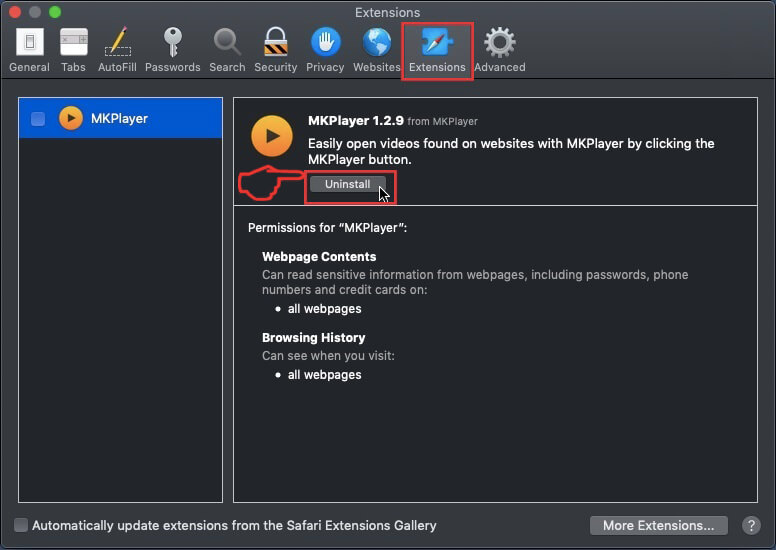
A pop-up window will appear asking for confirmation to uninstall the extension. Select 'Uninstall' again, and the Dailyrumour.co.nz will be removed.
Eliminate Dailyrumour.co.nz from Internet Explorer.
Step 1: Start Internet Explorer.
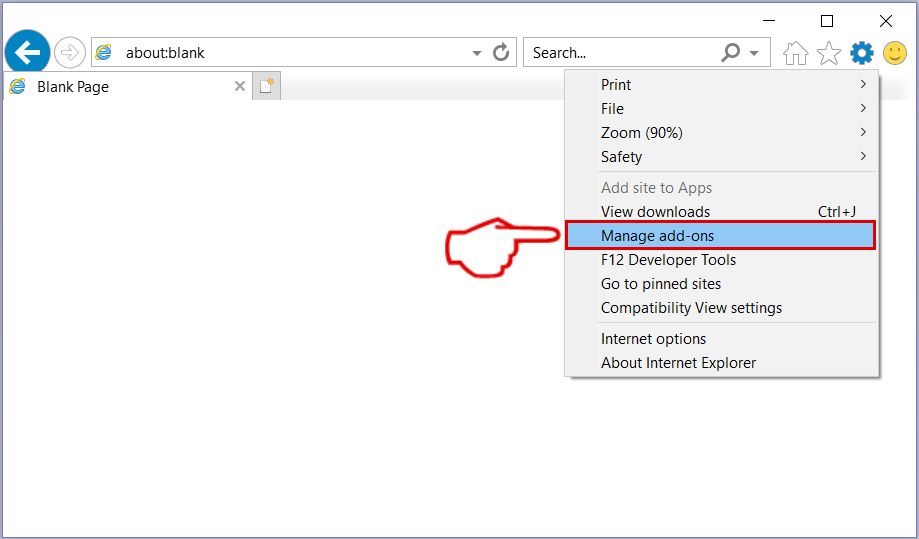
Step 2: Click on the gear icon labeled 'Tools' to open the drop menu and select 'Manage Add-ons'
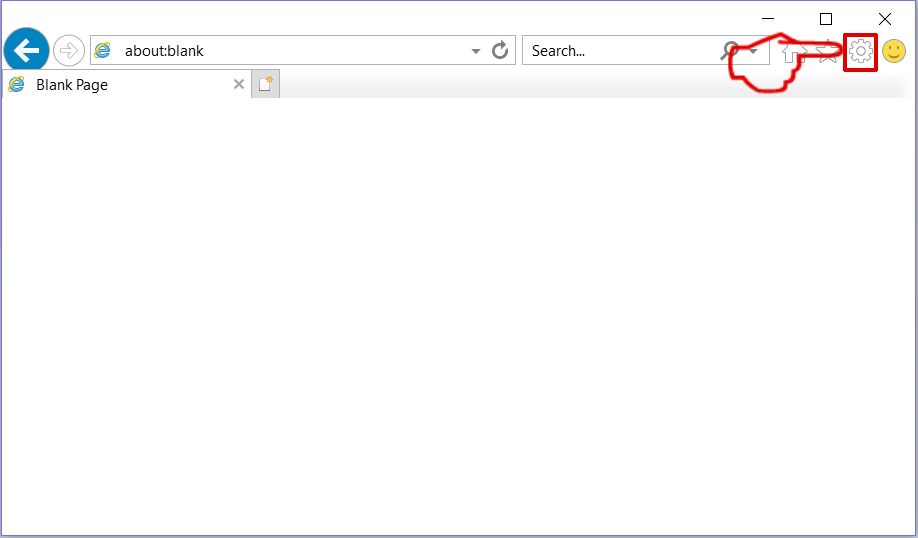
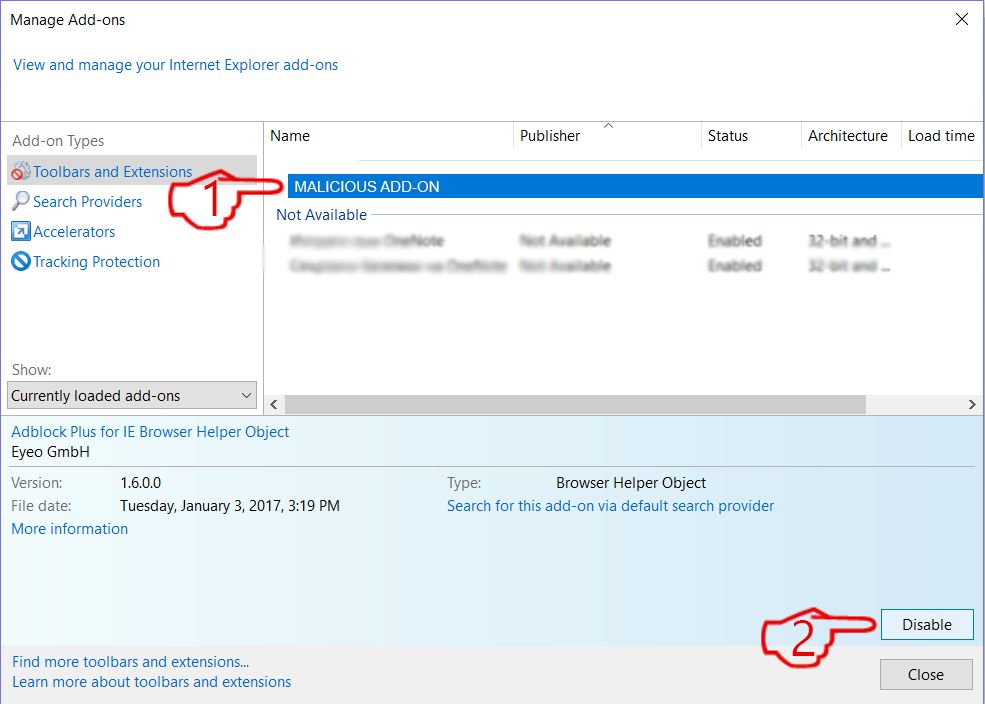
Step 3: In the 'Manage Add-ons' window.
Step 4: Select the extension you want to remove and then click 'Disable'. A pop-up window will appear to inform you that you are about to disable the selected extension, and some more add-ons might be disabled as well. Leave all the boxes checked, and click 'Disable'.
Step 5: After the unwanted extension has been removed, restart Internet Explorer by closing it from the red 'X' button located at the top right corner and start it again.
Remove Push Notifications from Your Browsers
Turn Off Push Notifications from Google Chrome
To disable any Push Notices from Google Chrome browser, please follow the steps below:
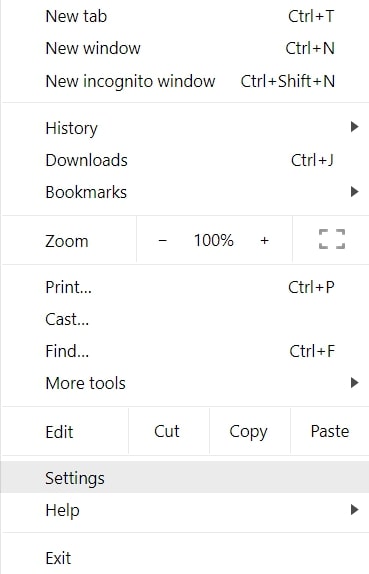
Step 1: Go to Settings in Chrome.
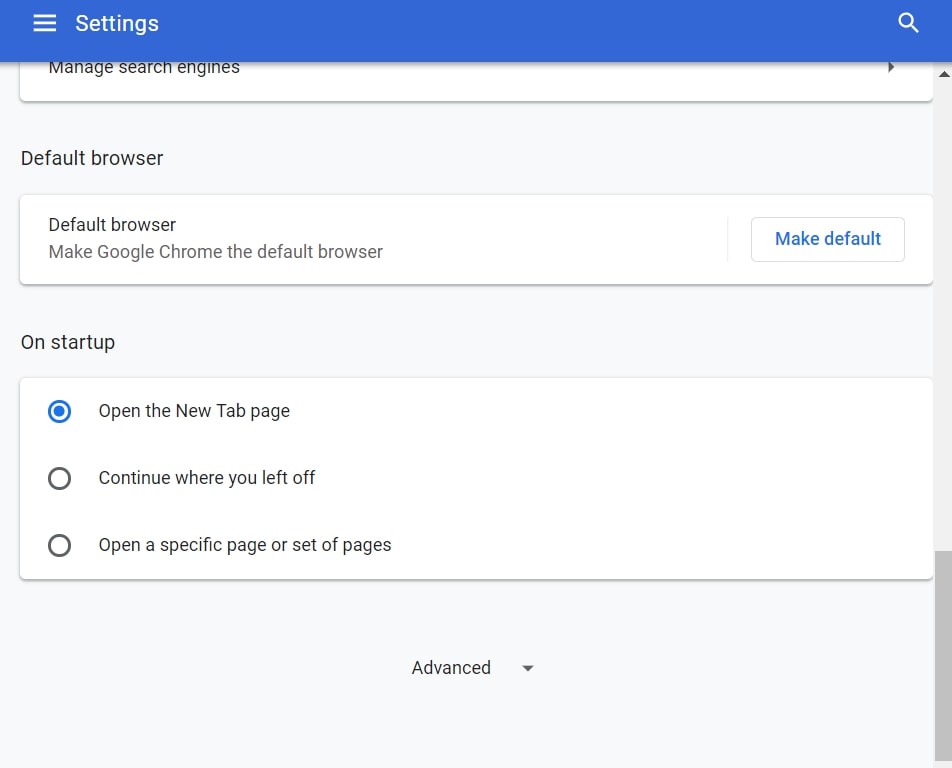
Step 2: In Settings, select “Advanced Settings”:
Step 3: Click “Content Settings”:
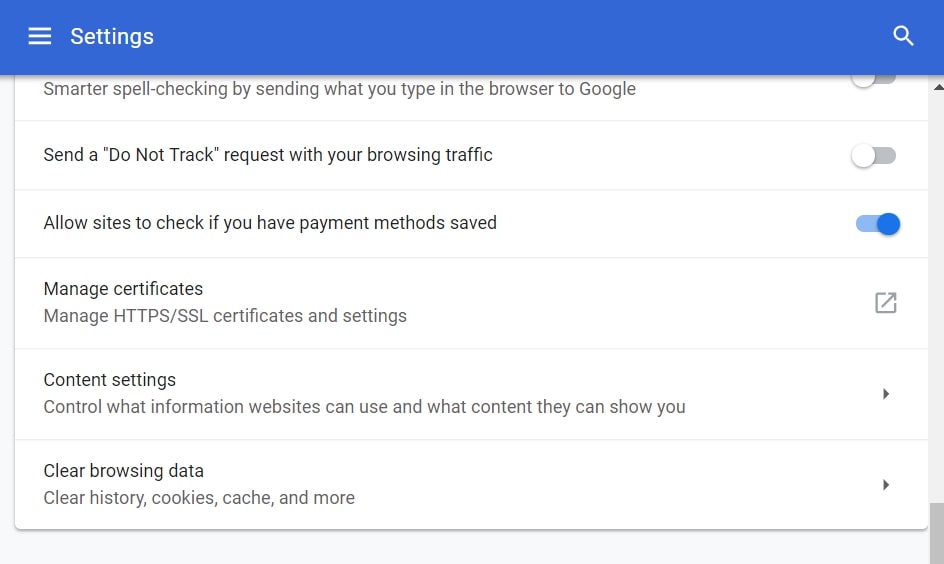
Step 4: Open “Notifications”:
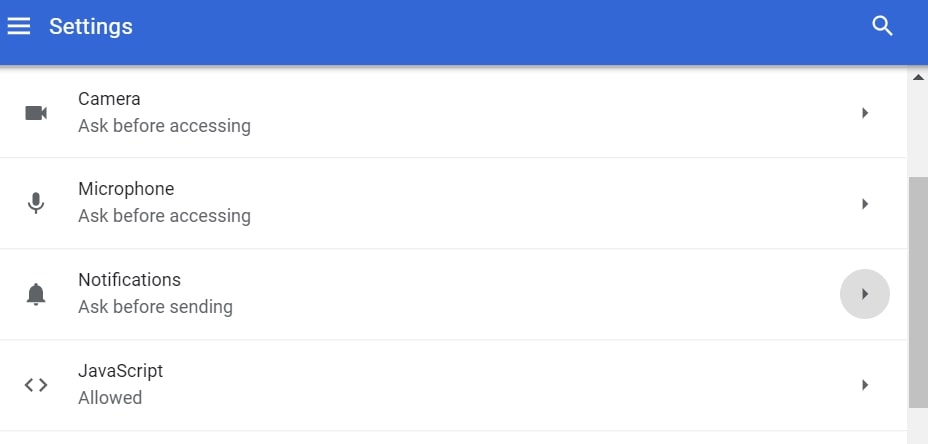
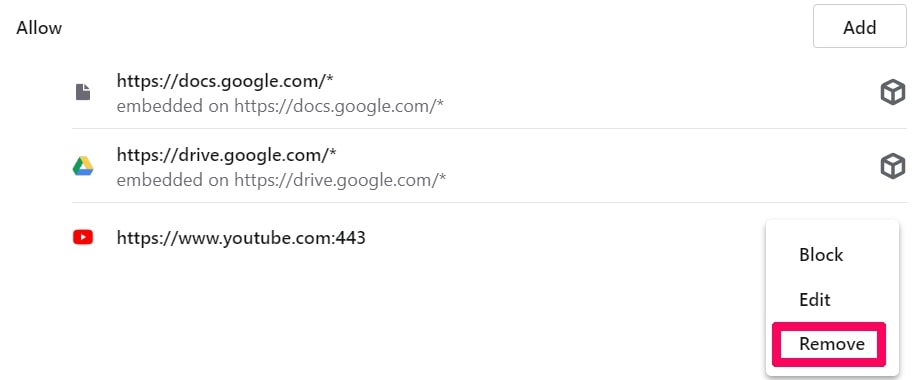
Step 5: Click the three dots and choose Block, Edit or Remove options:

Remove Push Notifications on Firefox
Step 1: Go to Firefox Options.
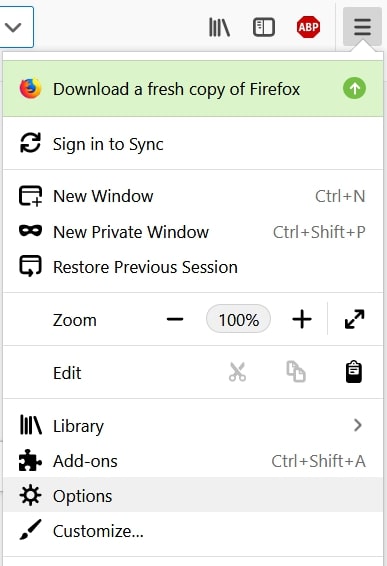
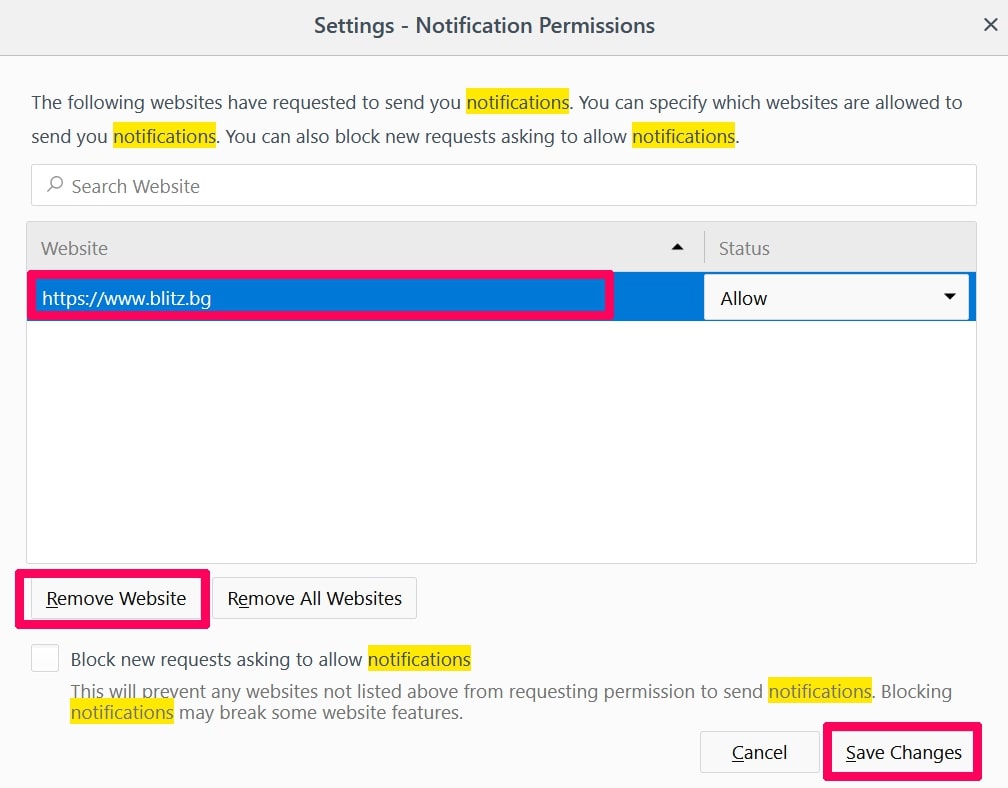
Step 2: Go to “Settings”, type “notifications” in the search bar and click "Settings":
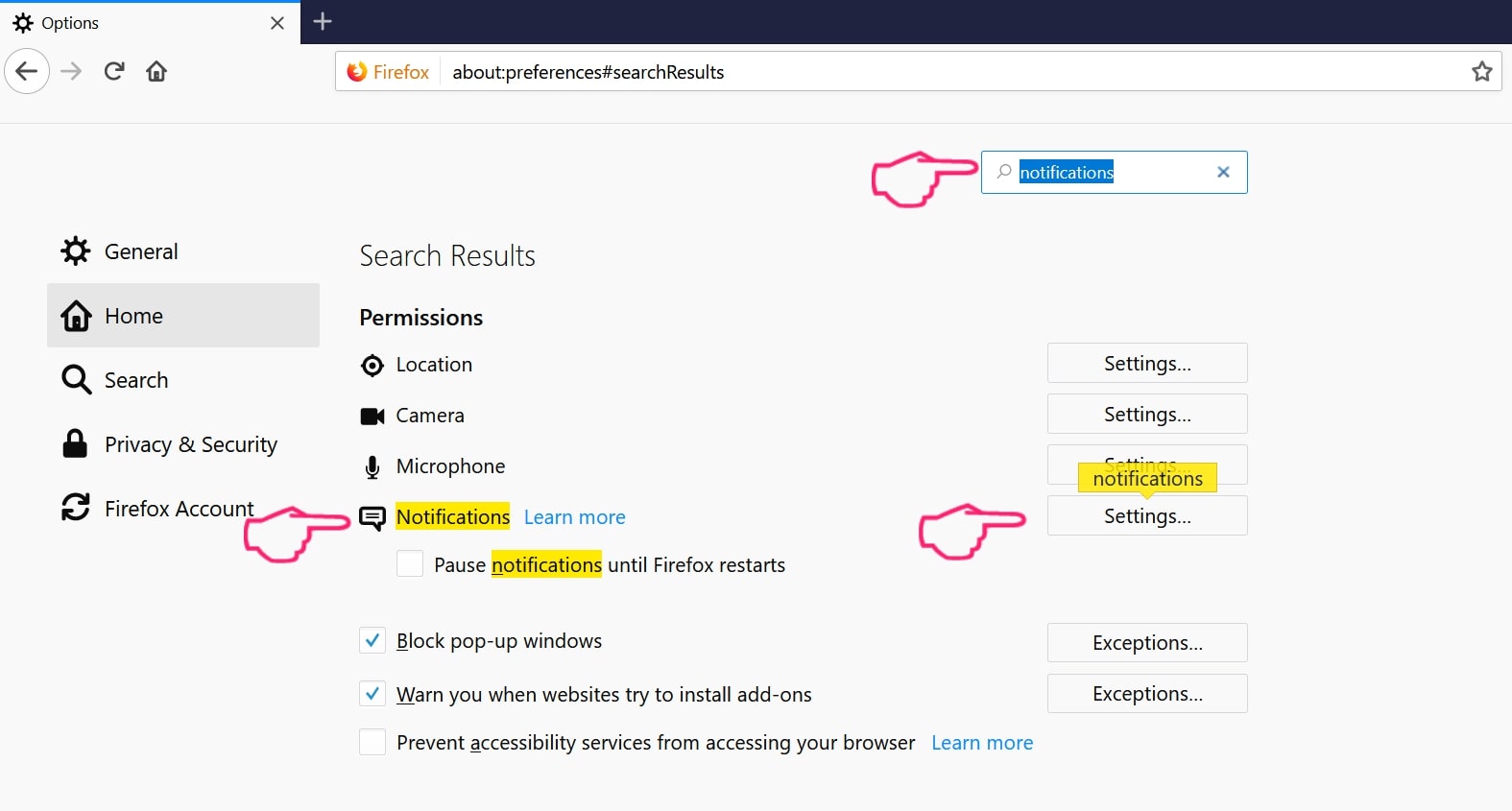
Step 3: Click “Remove” on any site you wish notifications gone and click “Save Changes”
Stop Push Notifications on Opera
Step 1: In Opera, press ALT+P to go to Settings.
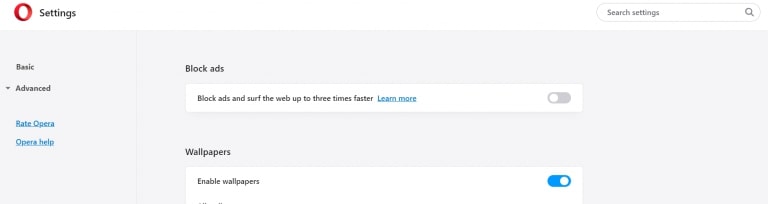
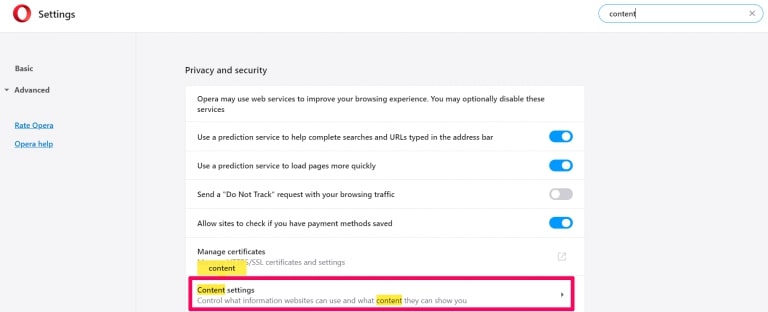
Step 2: In Setting search, type “Content” to go to Content Settings.
Step 3: Open Notifications:
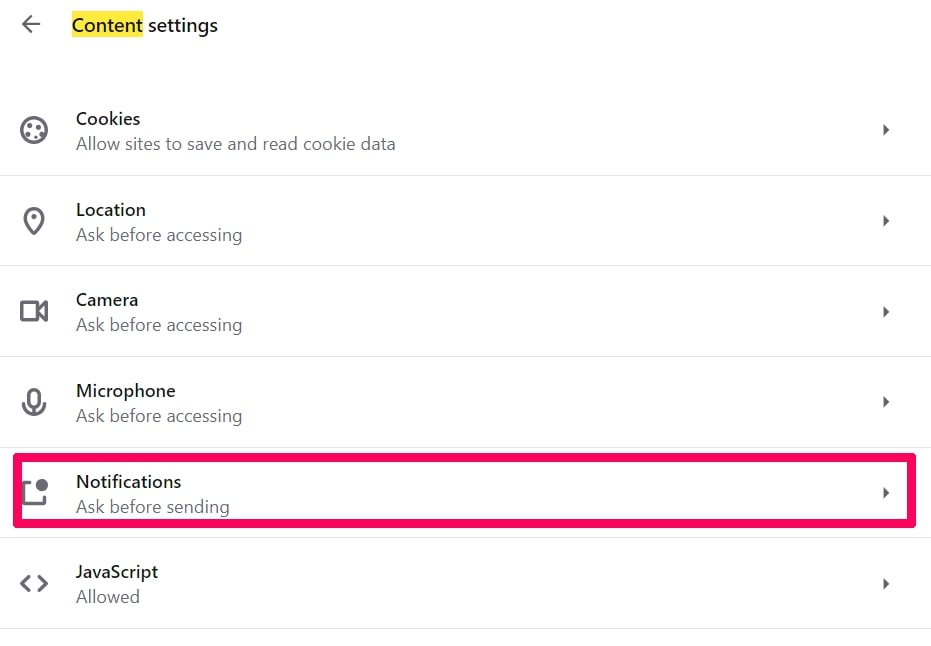
Step 4: Do the same as you did with Google Chrome (explained below):
Eliminate Push Notifications on Safari
Step 1: Open Safari Preferences.
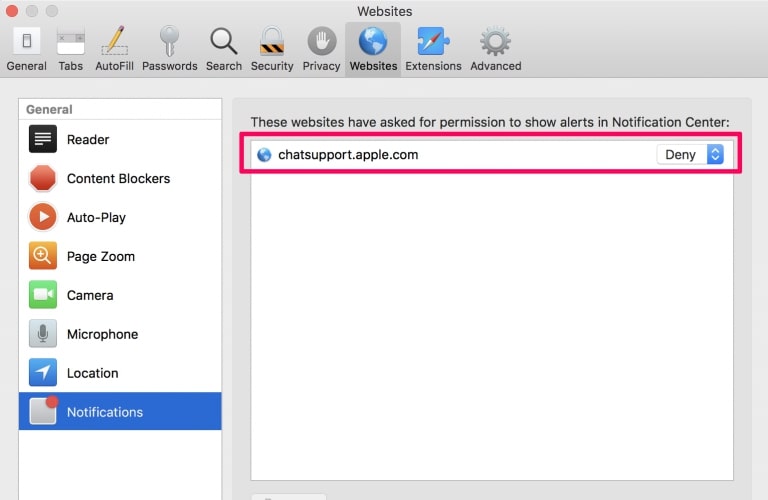
Step 2: Choose the domain from where you like push pop-ups gone and change to "Deny" from "Allow".
Dailyrumour.co.nz-FAQ
What Is Dailyrumour.co.nz?
The Dailyrumour.co.nz threat is adware or browser redirect virus.
It may slow your computer down significantly and display advertisements. The main idea is for your information to likely get stolen or more ads to appear on your device.
The creators of such unwanted apps work with pay-per-click schemes to get your computer to visit risky or different types of websites that may generate them funds. This is why they do not even care what types of websites show up on the ads. This makes their unwanted software indirectly risky for your OS.
What Are the Symptoms of Dailyrumour.co.nz?
There are several symptoms to look for when this particular threat and also unwanted apps in general are active:
Symptom #1: Your computer may become slow and have poor performance in general.
Symptom #2: You have toolbars, add-ons or extensions on your web browsers that you don't remember adding.
Symptom #3: You see all types of ads, like ad-supported search results, pop-ups and redirects to randomly appear.
Symptom #4: You see installed apps on your Mac running automatically and you do not remember installing them.
Symptom #5: You see suspicious processes running in your Task Manager.
If you see one or more of those symptoms, then security experts recommend that you check your computer for viruses.
What Types of Unwanted Programs Are There?
According to most malware researchers and cyber-security experts, the threats that can currently affect your device can be rogue antivirus software, adware, browser hijackers, clickers, fake optimizers and any forms of PUPs.
What to Do If I Have a "virus" like Dailyrumour.co.nz?
With few simple actions. First and foremost, it is imperative that you follow these steps:
Step 1: Find a safe computer and connect it to another network, not the one that your Mac was infected in.
Step 2: Change all of your passwords, starting from your email passwords.
Step 3: Enable two-factor authentication for protection of your important accounts.
Step 4: Call your bank to change your credit card details (secret code, etc.) if you have saved your credit card for online shopping or have done online activities with your card.
Step 5: Make sure to call your ISP (Internet provider or carrier) and ask them to change your IP address.
Step 6: Change your Wi-Fi password.
Step 7: (Optional): Make sure to scan all of the devices connected to your network for viruses and repeat these steps for them if they are affected.
Step 8: Install anti-malware software with real-time protection on every device you have.
Step 9: Try not to download software from sites you know nothing about and stay away from low-reputation websites in general.
If you follow these recommendations, your network and all devices will become significantly more secure against any threats or information invasive software and be virus free and protected in the future too.
How Does Dailyrumour.co.nz Work?
Once installed, Dailyrumour.co.nz can collect data using trackers. This data is about your web browsing habits, such as the websites you visit and the search terms you use. It is then used to target you with ads or to sell your information to third parties.
Dailyrumour.co.nz can also download other malicious software onto your computer, such as viruses and spyware, which can be used to steal your personal information and show risky ads, that may redirect to virus sites or scams.
Is Dailyrumour.co.nz Malware?
The truth is that PUPs (adware, browser hijackers) are not viruses, but may be just as dangerous since they may show you and redirect you to malware websites and scam pages.
Many security experts classify potentially unwanted programs as malware. This is because of the unwanted effects that PUPs can cause, such as displaying intrusive ads and collecting user data without the user’s knowledge or consent.
About the Dailyrumour.co.nz Research
The content we publish on SensorsTechForum.com, this Dailyrumour.co.nz how-to removal guide included, is the outcome of extensive research, hard work and our team’s devotion to help you remove the specific, adware-related problem, and restore your browser and computer system.
How did we conduct the research on Dailyrumour.co.nz?
Please note that our research is based on independent investigation. We are in contact with independent security researchers, thanks to which we receive daily updates on the latest malware, adware, and browser hijacker definitions.
Furthermore, the research behind the Dailyrumour.co.nz threat is backed with VirusTotal.
To better understand this online threat, please refer to the following articles which provide knowledgeable details.