

What is the “This App is Preventing You from Restarting” Message?
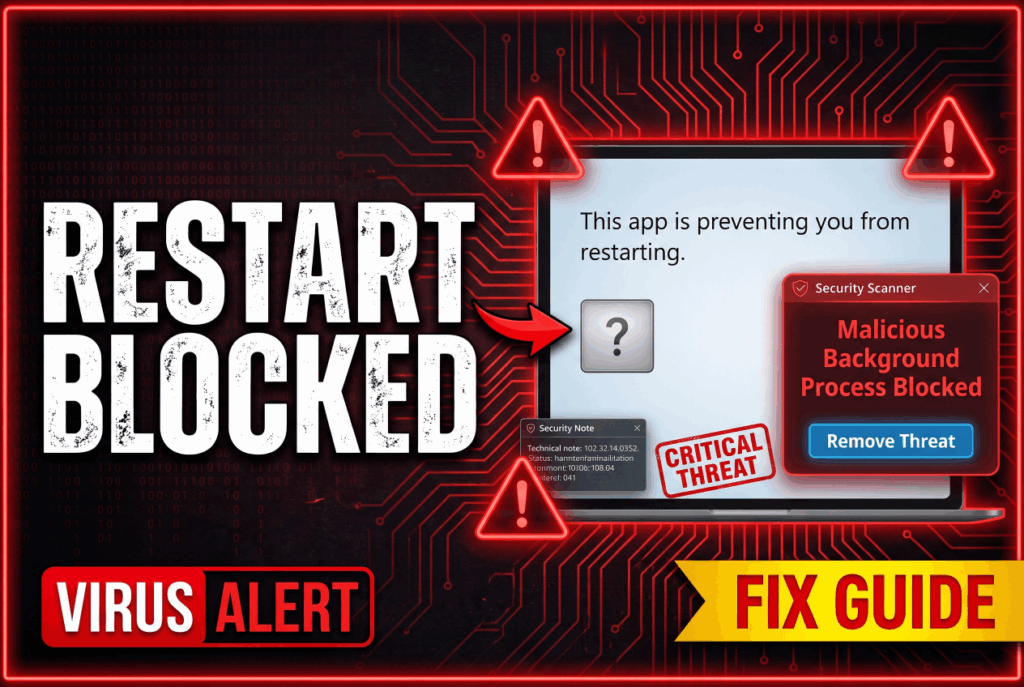
Windows is showing “This app is preventing you from restarting” or “This app is preventing you from shutting down” every time you try to restart, and the blocking app has no name or shows a generic Windows icon. Read this article carefully – in some cases this is a legitimate behavior, but in others it is a documented sign of an active malware infection.
Windows shows this message in two very different situations. The first is legitimate: Microsoft veteran engineer Raymond Chen has documented that programs often create background windows that were never meant to be visible to the user – when these programs fail to call the proper shutdown function, Windows defaults to the generic “This app is preventing you from restarting” message with a blank title. Legitimate software including update services, security tools, and even Windows Update itself can trigger this message through that mechanism. The second situation is genuinely malicious: documented community reports confirm that a file named Recycle.exe in the ProgramDataServices folder actively blocks Windows shutdown and restart to prevent the malware from being terminated, and Microsoft Defender flags this same component as Trojan:Win64/Lazy.PGLI!MTB. The diagnostic steps below will tell you which situation you are in.
Trojan:Win64/Lazy.PGLI!MTB Short Overview
| Type | Windows shutdown/restart message that can indicate either a legitimate background process behavior or active malware. Documented malicious cause: Recycle.exe in ProgramDataServices, flagged by Microsoft Defender as Trojan:Win64/Lazy.PGLI!MTB, which hooks into the Windows shutdown sequence to prevent termination. Recurring daily alerts on startup confirm the malicious scenario. |
| Symptoms | Windows showing “This app is preventing you from restarting” with a blank app name or generic Windows icon on every restart attempt. Recycle.exe present in C:ProgramDataServices on a system that should not have it. Microsoft Defender flagging Trojan:Win64/Lazy.PGLI!MTB repeatedly, including a companion error saying Windows cannot find ProgramDataServicesRecycle.exe. The shutdown block appearing every day at startup for multiple days in a row. |
| Removal Time | Approximately 15 minutes for a full-system scan |
| Removal Tool | See If Your System Has Been Affected by malware
Download
Malware Removal Tool
|
How Did I Get This Problem?
The message itself is a Windows feature, not something that gets “installed.” The question is what is triggering it. Here are the scenarios:
- A legitimate background process from an installed application – A security tool, a system update service, or an application that failed during installation may be running a background process that holds up the restart. This is the most common non-malicious cause and requires only identifying and closing the specific process.
- Malware installed through software bundling or a cracked application – The documented malicious version involves Recycle.exe in ProgramDataServices, which arrives through software bundling, pirated software installers, or malicious downloads, and actively hooks into the Windows shutdown sequence to prevent itself from being terminated.
- A partially failed software installation leaving a hanging process – A software update or installer that failed mid-process can leave a component running in the background that Windows cannot cleanly close at shutdown time, producing the blocking message without any malicious intent.
- A malicious email attachment or drive-by download – In the malicious scenario, the Trojan component responsible for the shutdown block arrived through a spam email attachment or a silent download from a compromised or ad-heavy page.
Is This a Virus – and What Should You Check?
The message itself does not confirm or rule out malware. Here is how to determine which scenario you are in:
- Check which process is blocking the restart – Before clicking “Restart Anyway,” note the name of the blocking app displayed in the message window. If a recognizable application name appears – an antivirus tool, a backup program, or a known update service – it is most likely legitimate. If the name is blank, shows a generic Windows icon, shows “t” as a single letter, or shows an unfamiliar process name, proceed with the malware investigation steps below.
- Check for Recycle.exe in ProgramDataServices – Open File Explorer, navigate to C:ProgramDataServices, and check whether Recycle.exe is present. This file should not be there on a clean Windows installation. Its presence in this location is a documented indicator of the Trojan:Win64/Lazy.PGLI!MTB infection responsible for the shutdown block.
- Check Microsoft Defender Protection History – Open Windows Security, go to Virus and Threat Protection, then Protection History, and check for any recent Trojan:Win64/Lazy.PGLI!MTB detections. If that detection is present and recurs after each removal attempt, the malware is restarting itself through a scheduled task or startup entry.
- Check for repeated daily shutdown blocks on startup – Community reports of the malicious version describe the Defender alert appearing every day at startup for days or weeks consecutively. A one-time block from a named, recognized application is almost certainly legitimate. A daily recurrence with an unnamed blocker is not.
What Should You Do?
If the blocking process is a named, recognized application: right-click it in the shutdown dialog and click End Task, then restart. If the block keeps happening, update or reinstall the responsible application. If Recycle.exe was found in ProgramDataServices, or if Defender is flagging Trojan:Win64/Lazy.PGLI!MTB repeatedly: do not delete Recycle.exe manually and stop there. Open Task Scheduler (taskschd.msc) and look for any scheduled task pointing to ProgramDataServicesRecycle.exe or any unfamiliar script in that folder, and delete it. Then delete Recycle.exe and the Services folder contents. Run a full scan with a dedicated anti-malware tool to remove any remaining components. If Defender continues to flag the threat after these steps, use the Farbar Recovery Scan Tool (FRST) to generate a scan log and post it on the MalwareTips or Malwarebytes forums for community-assisted cleanup, as stubborn variants may require a customized fix script. Follow the complete virus fix guide below this article for the full step-by-step process.

Ventsislav Krastev
Ventsislav is a cybersecurity expert at SensorsTechForum since 2015. He has been researching, covering, helping victims with the latest malware infections plus testing and reviewing software and the newest tech developments. Having graduated Marketing as well, Ventsislav also has passion for learning new shifts and innovations in cybersecurity that become game changers. After studying Value Chain Management, Network Administration and Computer Administration of System Applications, he found his true calling within the cybersecrurity industry and is a strong believer in the education of every user towards online safety and security.
Follow Me:
Preparation before removing Trojan:Win64/Lazy.PGLI!MTB.
Before starting the actual removal process, we recommend that you do the following preparation steps.
- Make sure you have these instructions always open and in front of your eyes.
- Do a backup of all of your files, even if they could be damaged. You should back up your data with a cloud backup solution and insure your files against any type of loss, even from the most severe threats.
- Be patient as this could take a while.
- Scan for Malware
- Fix Registries
- Remove Virus Files
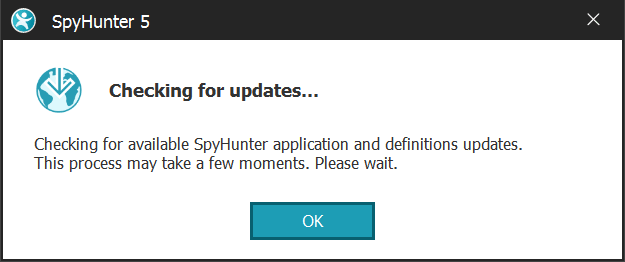
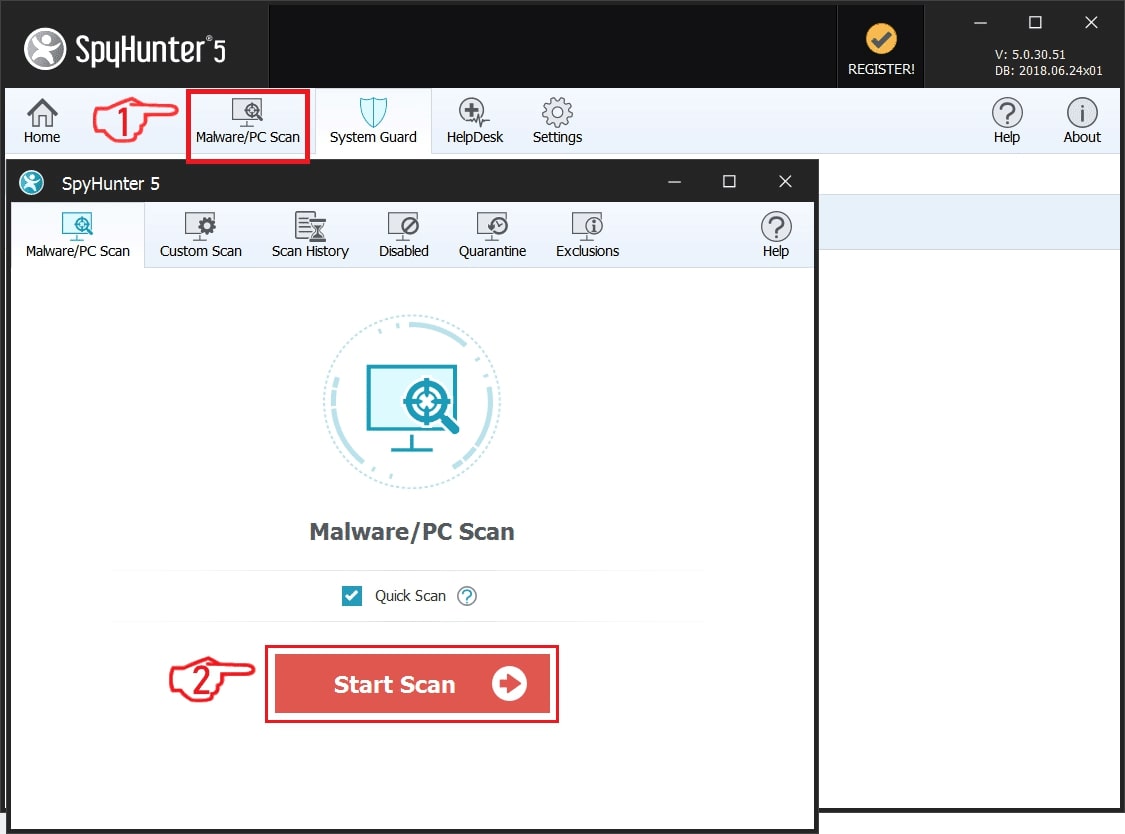
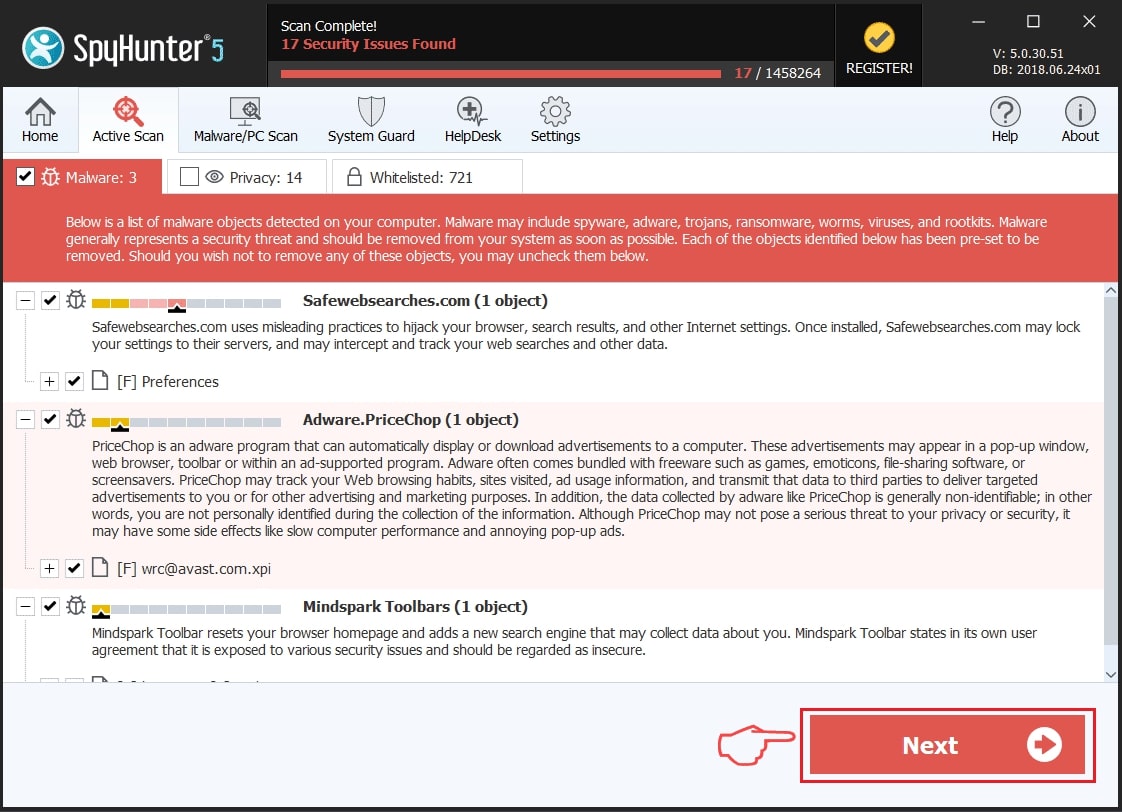
Step 1: Scan for Trojan:Win64/Lazy.PGLI!MTB with SpyHunter Anti-Malware Tool
Step 2: Clean any registries, created by Trojan:Win64/Lazy.PGLI!MTB on your computer.
The usually targeted registries of Windows machines are the following:
- HKEY_LOCAL_MACHINE\Software\Microsoft\Windows\CurrentVersion\Run
- HKEY_CURRENT_USER\Software\Microsoft\Windows\CurrentVersion\Run
- HKEY_LOCAL_MACHINE\Software\Microsoft\Windows\CurrentVersion\RunOnce
- HKEY_CURRENT_USER\Software\Microsoft\Windows\CurrentVersion\RunOnce
You can access them by opening the Windows registry editor and deleting any values, created by Trojan:Win64/Lazy.PGLI!MTB there. This can happen by following the steps underneath:
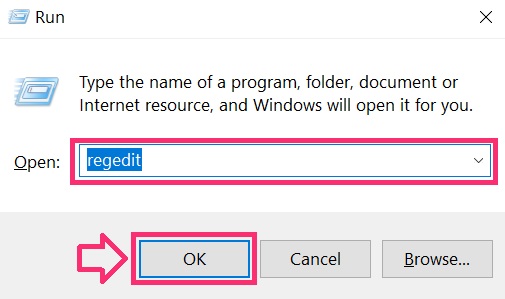
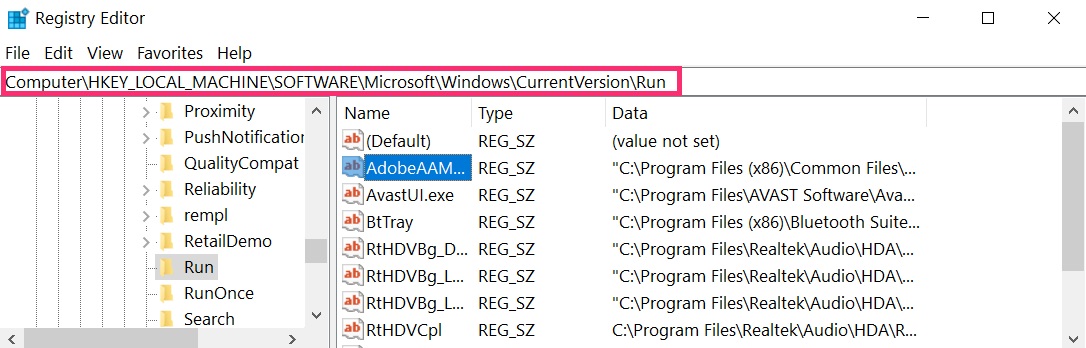
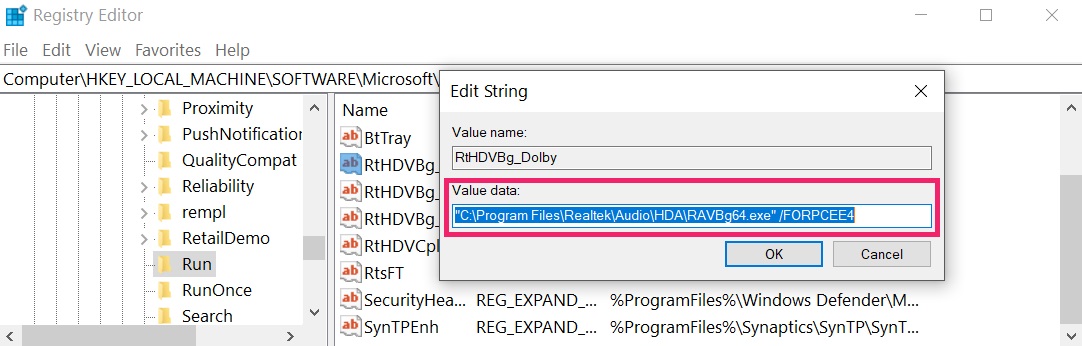 Tip: To find a virus-created value, you can right-click on it and click "Modify" to see which file it is set to run. If this is the virus file location, remove the value.
Step 3: Find virus files created by Trojan:Win64/Lazy.PGLI!MTB on your PC.
1.For Windows 8, 8.1 and 10.
For Newer Windows Operating Systems
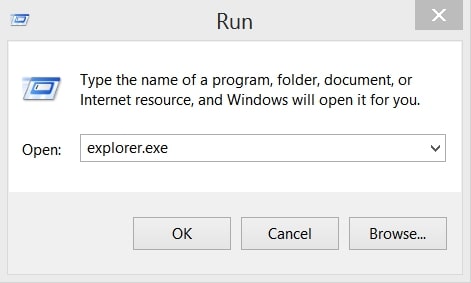
1: On your keyboard press + R and write explorer.exe in the Run text box and then click on the Ok button.
2: Click on your PC from the quick access bar. This is usually an icon with a monitor and its name is either “My Computer”, “My PC” or “This PC” or whatever you have named it.
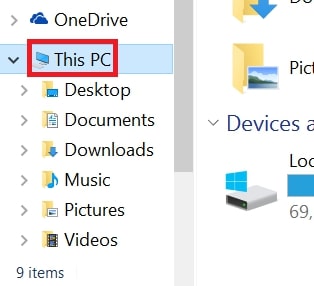
3: Navigate to the search box in the top-right of your PC's screen and type “fileextension:” and after which type the file extension. If you are looking for malicious executables, an example may be "fileextension:exe". After doing that, leave a space and type the file name you believe the malware has created. Here is how it may appear if your file has been found:
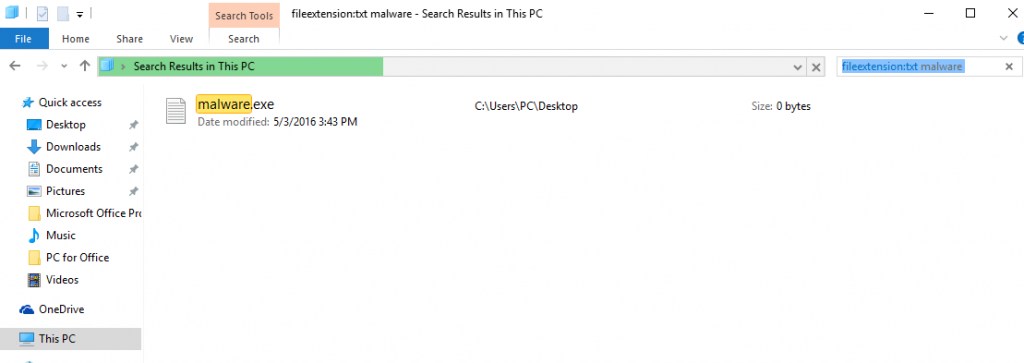
N.B. We recommend to wait for the green loading bar in the navigation box to fill up in case the PC is looking for the file and hasn't found it yet.
2.For Windows XP, Vista, and 7.
For Older Windows Operating Systems
In older Windows OS's the conventional approach should be the effective one:
1: Click on the Start Menu icon (usually on your bottom-left) and then choose the Search preference.
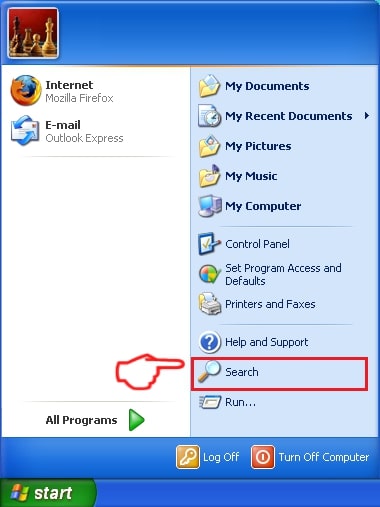
2: After the search window appears, choose More Advanced Options from the search assistant box. Another way is by clicking on All Files and Folders.
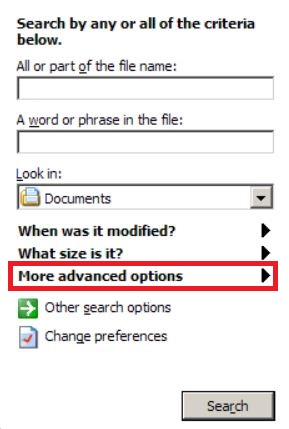
3: After that type the name of the file you are looking for and click on the Search button. This might take some time after which results will appear. If you have found the malicious file, you may copy or open its location by right-clicking on it.
Now you should be able to discover any file on Windows as long as it is on your hard drive and is not concealed via special software.
Trojan:Win64/Lazy.PGLI!MTB FAQ
What Does Trojan:Win64/Lazy.PGLI!MTB Trojan Do?
The Trojan:Win64/Lazy.PGLI!MTB Trojan is a malicious computer program designed to disrupt, damage, or gain unauthorized access to a computer system. It can be used to steal sensitive data, gain control over a system, or launch other malicious activities.
Can Trojans Steal Passwords?
Yes, Trojans, like Trojan:Win64/Lazy.PGLI!MTB, can steal passwords. These malicious programs are designed to gain access to a user's computer, spy on victims and steal sensitive information such as banking details and passwords.
Can Trojan:Win64/Lazy.PGLI!MTB Trojan Hide Itself?
Yes, it can. A Trojan can use various techniques to mask itself, including rootkits, encryption, and obfuscation, to hide from security scanners and evade detection.
Can a Trojan be Removed by Factory Reset?
Yes, a Trojan can be removed by factory resetting your device. This is because it will restore the device to its original state, eliminating any malicious software that may have been installed. Bear in mind that there are more sophisticated Trojans that leave backdoors and reinfect even after a factory reset.
Can Trojan:Win64/Lazy.PGLI!MTB Trojan Infect WiFi?
Yes, it is possible for a Trojan to infect WiFi networks. When a user connects to the infected network, the Trojan can spread to other connected devices and can access sensitive information on the network.
Can Trojans Be Deleted?
Yes, Trojans can be deleted. This is typically done by running a powerful anti-virus or anti-malware program that is designed to detect and remove malicious files. In some cases, manual deletion of the Trojan may also be necessary.
Can Trojans Steal Files?
Yes, Trojans can steal files if they are installed on a computer. This is done by allowing the malware author or user to gain access to the computer and then steal the files stored on it.
Which Anti-Malware Can Remove Trojans?
Anti-malware programs such as SpyHunter are capable of scanning for and removing Trojans from your computer. It is important to keep your anti-malware up to date and regularly scan your system for any malicious software.
Can Trojans Infect USB?
Yes, Trojans can infect USB devices. USB Trojans typically spread through malicious files downloaded from the internet or shared via email, allowing the hacker to gain access to a user's confidential data.
About the Trojan:Win64/Lazy.PGLI!MTB Research
The content we publish on SensorsTechForum.com, this Trojan:Win64/Lazy.PGLI!MTB how-to removal guide included, is the outcome of extensive research, hard work and our team’s devotion to help you remove the specific trojan problem.
How did we conduct the research on Trojan:Win64/Lazy.PGLI!MTB?
Please note that our research is based on an independent investigation. We are in contact with independent security researchers, thanks to which we receive daily updates on the latest malware definitions, including the various types of trojans (backdoor, downloader, infostealer, ransom, etc.)
Furthermore, the research behind the Trojan:Win64/Lazy.PGLI!MTB threat is backed with VirusTotal.
To better understand the threat posed by trojans, please refer to the following articles which provide knowledgeable details.