

What is Lockbox Ransomware?
Your files have been renamed with the .lockbox extension and are no longer accessible, and a ransom note has appeared demanding payment for a decryption key. Read this article right now before taking any action, then follow the removal and recovery guide at the bottom.
Lockbox is a ransomware Trojan that encrypts victim files using the AES-256 algorithm and appends a .lockbox extension to every file it processes, making photos, videos, music, documents, and files associated with Microsoft Office, Adobe Photoshop, and similar software completely inaccessible without the decryption key held by the attackers. The ransom demand is approximately $1,000 USD. The ransom note, which may be named How_to_Decrypt_Files, Instruction, or a similar variant, directs victims to contact the attackers by email and provide their Personal Key to receive decryption instructions. One technically distinctive feature is that Lockbox contacts its command-and-control servers, located on the dark web, through an open-source application called mORMot — an unusual choice that helped identify the malware family. No free decryption tool is currently publicly available for Lockbox files, which means the primary realistic path to file recovery is through backups created before the infection.
![Lockbox Ransomware [.lockbox Files] Removal & File Recovery](https://cdn.sensorstechforum.com/wp-content/uploads/2026/08/lockbox_ransomware_removal_recovery_guide.jpg-1024x687.png)
Lockbox Short Overview
| Type | Ransomware Trojan that encrypts files using AES-256 and appends the .lockbox extension, making all targeted files inaccessible. Demands approximately $1,000 USD ransom paid to the attacker’s email address. Uses the open-source mORMot library to communicate with dark web command-and-control servers. Delivered primarily through malicious email attachments with macro scripts. |
| Symptoms | Files renamed with the .lockbox extension and no longer openable. A ransom note (How_to_Decrypt_Files or similar) appearing in folders with affected files. Desktop wallpaper changed to a ransom demand. All photos, videos, documents, and application files in targeted directories inaccessible. Antivirus or anti-malware tool detecting and quarantining ransomware components. |
| Removal Time | Approximately 15 minutes for a full-system scan |
| Removal Tool | See If Your System Has Been Affected by malware
Download
Malware Removal Tool
|
How Did I Get Lockbox Ransomware?
Lockbox uses the same delivery routes documented across most ransomware families. Here is how it typically arrives:
- Malicious email attachments with macro scripts — The most consistently documented delivery route: a spam email carries a Microsoft Word attachment that, when opened, prompts the victim to enable macros. Enabling macros executes a script that downloads and installs the Lockbox ransomware in the background.
- Fake software installers, cracks, and patches from unofficial sites — A fake installer, keygen, or crack downloaded from a low-reputation site delivers the ransomware alongside or instead of the claimed software.
- Malicious links in emails and messages — A link in a spam email, forum post, or messaging platform connects to a page that silently downloads the ransomware through a drive-by download.
- Torrent downloads — Multiple victims report encountering Lockbox after downloading content through torrent platforms, where the ransomware is embedded in the distributed package.
What Does Lockbox Ransomware Do?
The infection follows a consistent and destructive sequence. Here is the full picture:
- Scans and encrypts files using AES-256 — Lockbox systematically scans all accessible drives and network shares for user-generated files — photos, videos, music, documents, spreadsheets, and files from popular applications — and encrypts every one using AES-256, appending the .lockbox extension. The original files are deleted after encryption.
- Delivers a ransom note with payment instructions — A ransom note is dropped in affected folders containing the attacker’s email address, the victim’s unique Personal Key, and instructions to pay approximately $1,000 for a decryption tool. Do not pay: payment does not guarantee any decryption key will be delivered.
- Communicates with dark web command-and-control servers via mORMot — Lockbox uses the open-source mORMot library to communicate with C2 servers on the dark web, transmitting the victim’s unique encryption key and system information to the attackers.
- Attempts to delete Volume Shadow Copies — Like most ransomware, Lockbox attempts to delete Windows Volume Shadow Copies to eliminate the most common built-in file recovery option, though this does not always succeed on every system configuration.
What Should You Do?
Do not pay the ransom — payment does not guarantee decryption and directly funds criminal activity. Disconnect the infected machine from the network immediately to prevent the ransomware from spreading to other connected devices and network shares. Do not delete the .lockbox files — back them up to an external drive before attempting any recovery steps in case a free decryptor becomes available in the future. Run a full scan with a dedicated anti-malware tool to remove the ransomware from the system — removal stops further encryption but does not recover already encrypted files. For file recovery, try the following in order: check for any backup copies (external drives, cloud backups, or network backups made before the infection); use Shadow Explorer to check whether Volume Shadow Copies survived; and check the No More Ransom project at nomoreransom.org for any newly released decryptor. If identity documents or financial credentials were stored on the affected machine, monitor for misuse. Follow the complete removal and recovery guide below this article for the full step-by-step process.

Ventsislav Krastev
Ventsislav is a cybersecurity expert at SensorsTechForum since 2015. He has been researching, covering, helping victims with the latest malware infections plus testing and reviewing software and the newest tech developments. Having graduated Marketing as well, Ventsislav also has passion for learning new shifts and innovations in cybersecurity that become game changers. After studying Value Chain Management, Network Administration and Computer Administration of System Applications, he found his true calling within the cybersecrurity industry and is a strong believer in the education of every user towards online safety and security.
Follow Me:
- Step 1
- Step 2
- Step 3
- Step 4
- Step 5
Step 1: Scan for Lockbox with SpyHunter Anti-Malware Tool
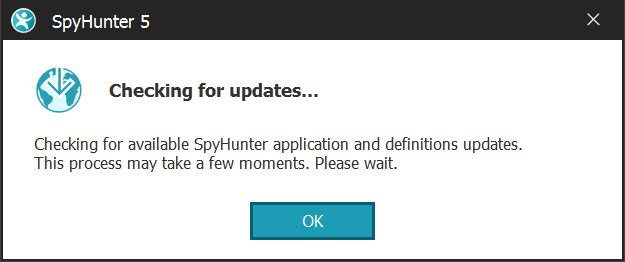
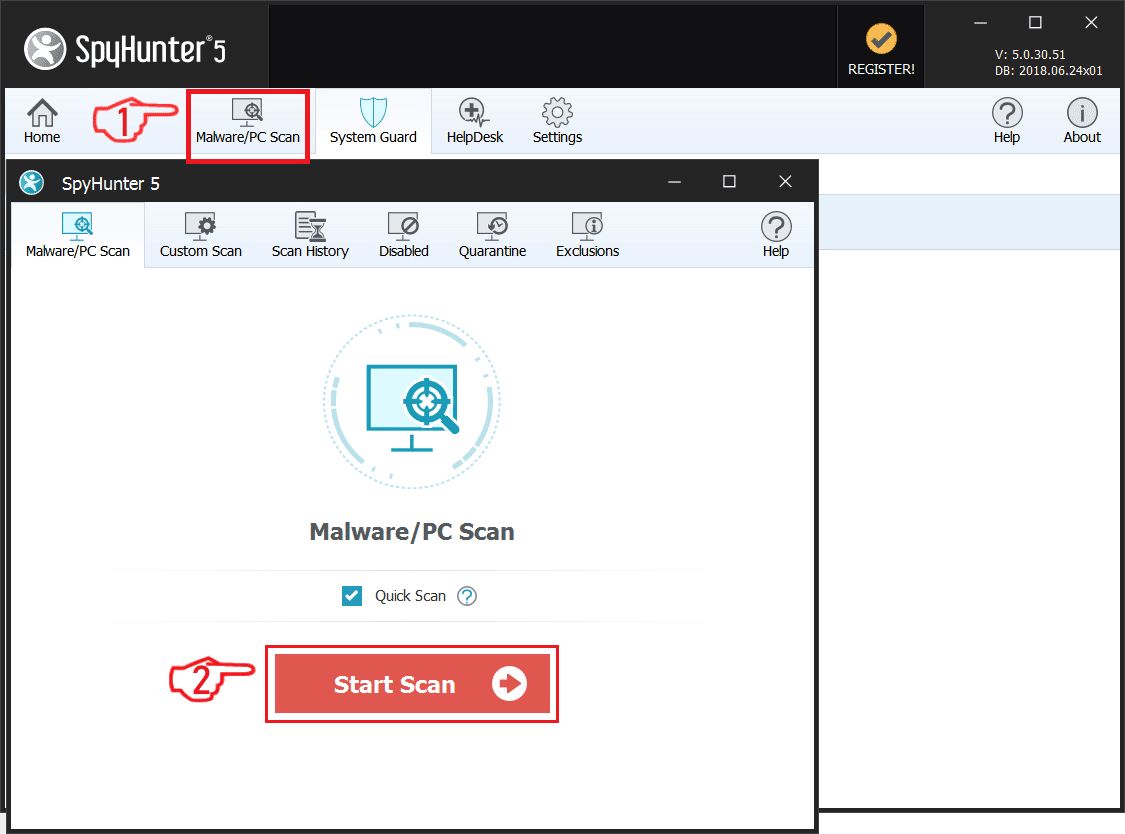
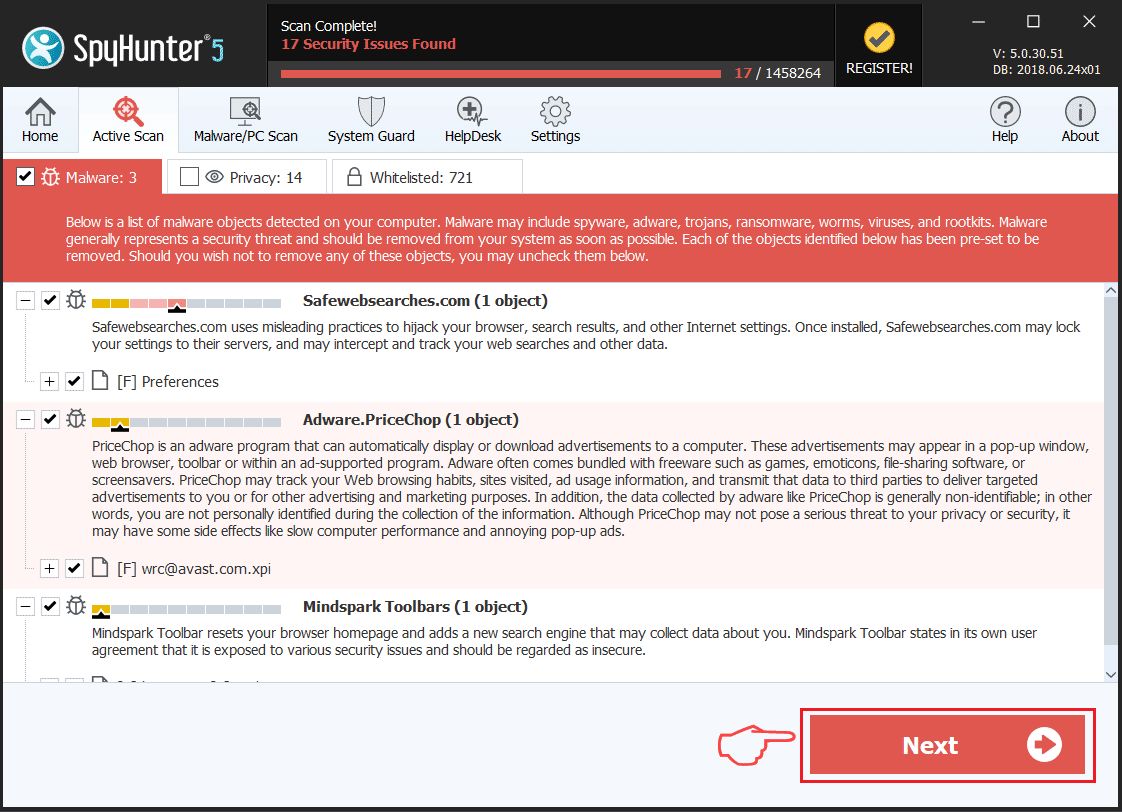
Ransomware Automatic Removal - Video Guide
Step 2: Uninstall Lockbox and related malware from Windows
Here is a method in few easy steps that should be able to uninstall most programs. No matter if you are using Windows 10, 8, 7, Vista or XP, those steps will get the job done. Dragging the program or its folder to the recycle bin can be a very bad decision. If you do that, bits and pieces of the program are left behind, and that can lead to unstable work of your PC, errors with the file type associations and other unpleasant activities. The proper way to get a program off your computer is to Uninstall it. To do that:
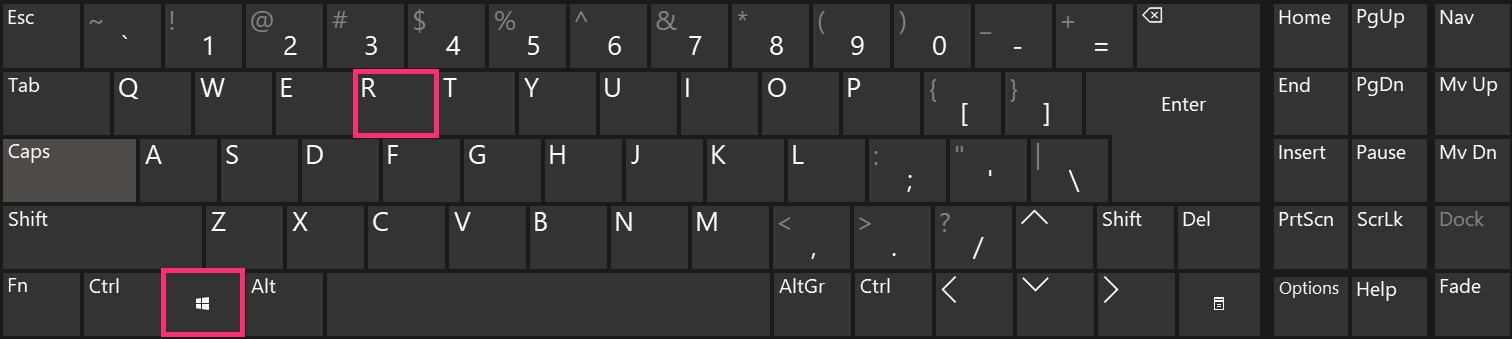
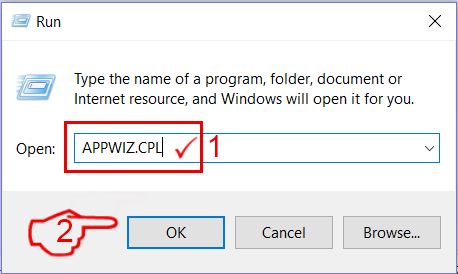
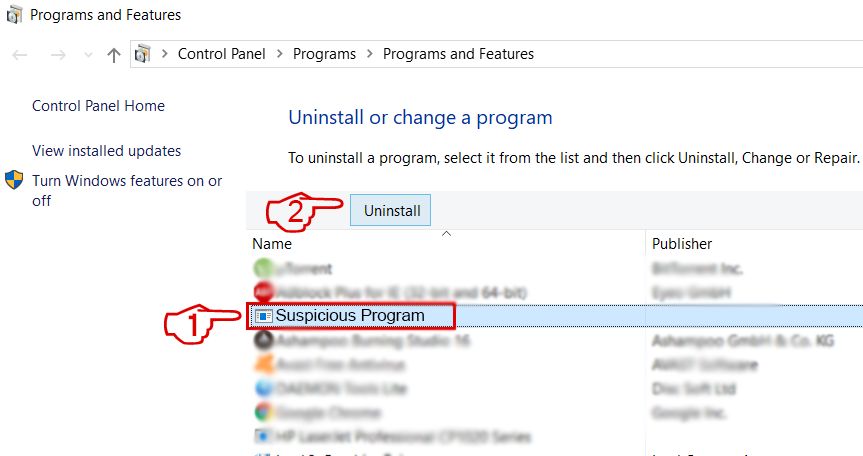 Follow the instructions above and you will successfully delete most unwanted and malicious programs.
Step 3: Clean any registries, created by Lockbox on your computer.
The usually targeted registries of Windows machines are the following:
- HKEY_LOCAL_MACHINE\Software\Microsoft\Windows\CurrentVersion\Run
- HKEY_CURRENT_USER\Software\Microsoft\Windows\CurrentVersion\Run
- HKEY_LOCAL_MACHINE\Software\Microsoft\Windows\CurrentVersion\RunOnce
- HKEY_CURRENT_USER\Software\Microsoft\Windows\CurrentVersion\RunOnce
You can access them by opening the Windows registry editor and deleting any values, created by Lockbox there. This can happen by following the steps underneath:
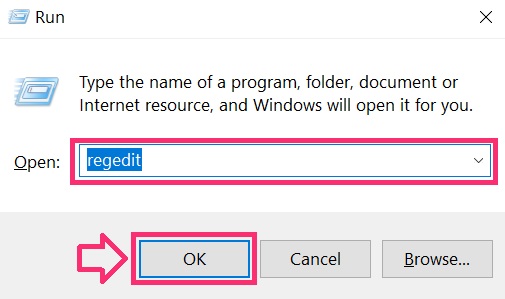
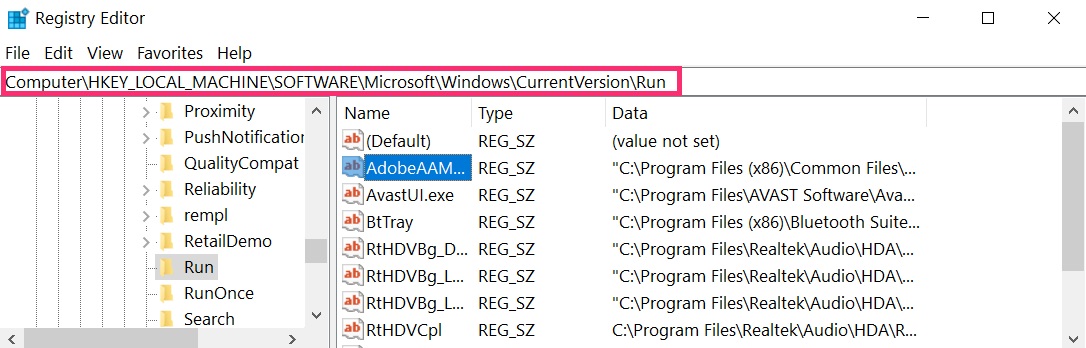
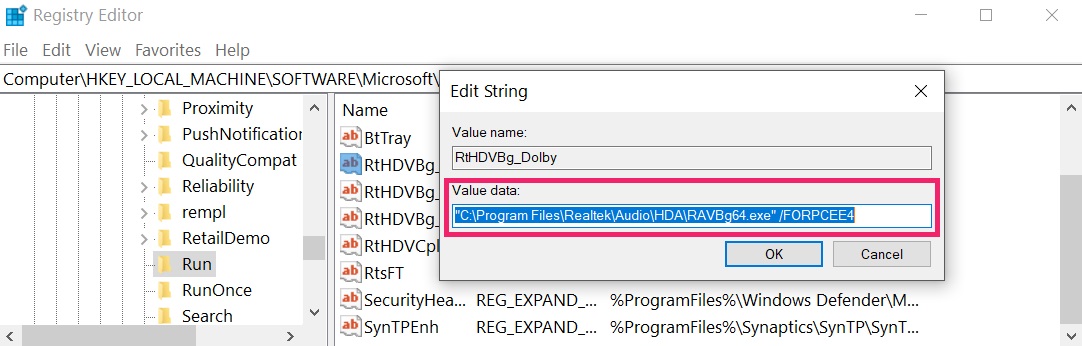 Tip: To find a virus-created value, you can right-click on it and click "Modify" to see which file it is set to run. If this is the virus file location, remove the value.
Before starting "Step 4", please boot back into Normal mode, in case you are currently in Safe Mode.
This will enable you to install and use SpyHunter 5 successfully.
Step 4: Boot Your PC In Safe Mode to isolate and remove Lockbox
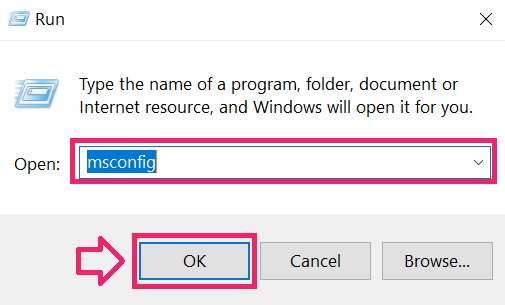
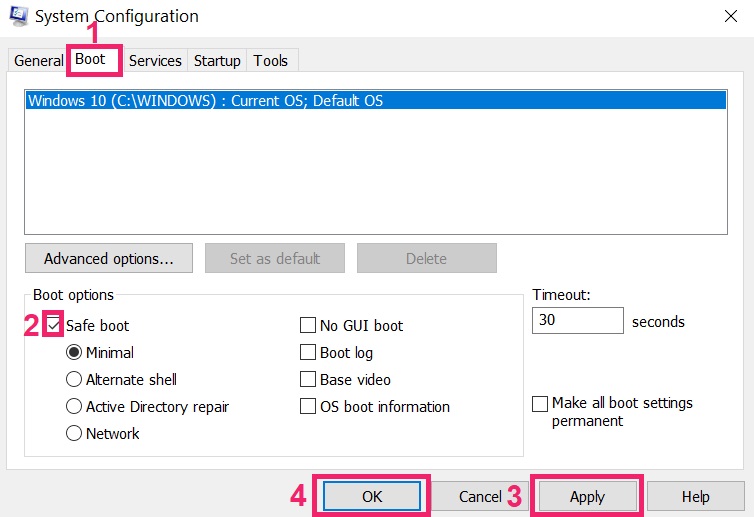
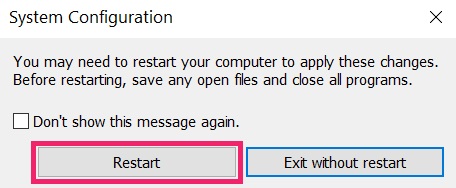
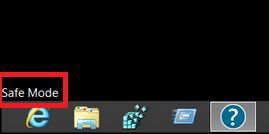
Step 5: Try to Restore Files Encrypted by Lockbox.
Method 1: Use STOP Decrypter by Emsisoft.
Not all variants of this ransomware can be decrypted for free, but we have added the decryptor used by researchers that is often updated with the variants which become eventually decrypted. You can try and decrypt your files using the instructions below, but if they do not work, then unfortunately your variant of the ransomware virus is not decryptable.
Follow the instructions below to use the Emsisoft decrypter and decrypt your files for free. You can download the Emsisoft decryption tool linked here and then follow the steps provided below:
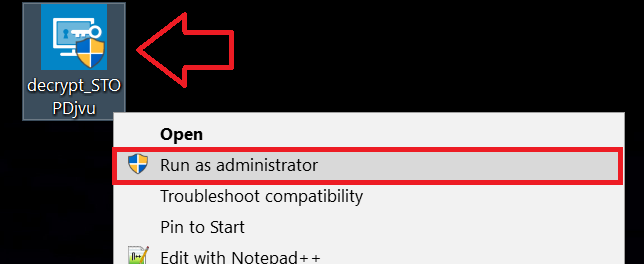
1 Right-click on the decrypter and click on Run as Administrator as shown below:
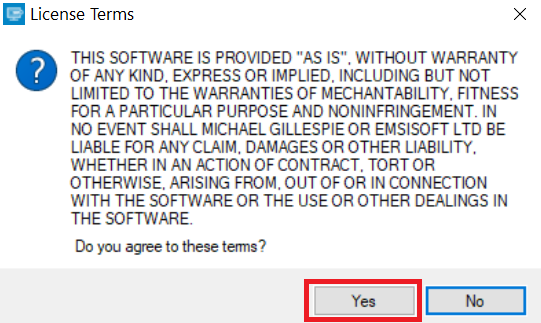
2. Agree with the license terms:
3. Click on "Add Folder" and then add the folders where you want files decrypted as shown underneath:
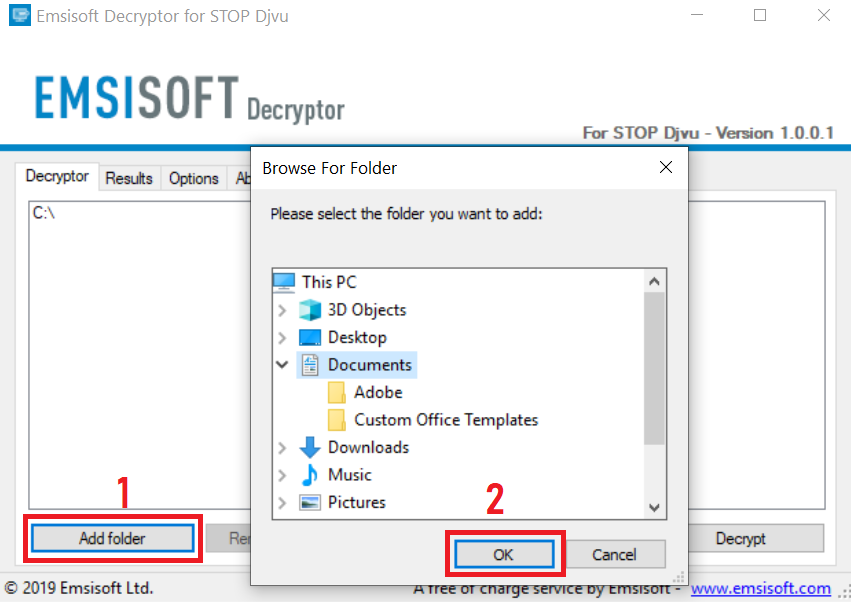
4. Click on "Decrypt" and wait for your files to be decoded.
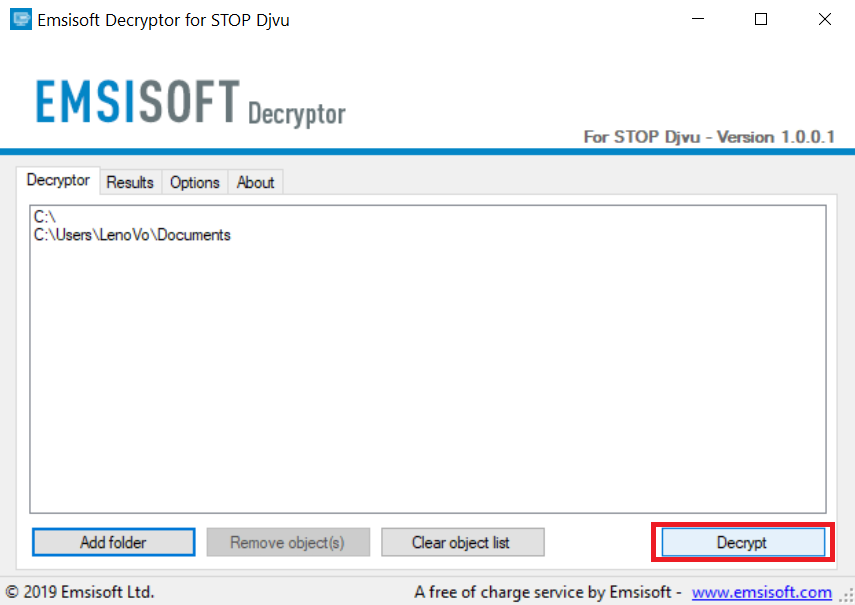
Note: Credit for the decryptor goes to Emsisoft researchers who have made the breakthrough with this virus.
Method 2: Use data recovery software
Ransomware infections and Lockbox aim to encrypt your files using an encryption algorithm which may be very difficult to decrypt. This is why we have suggested a data recovery method that may help you go around direct decryption and try to restore your files. Bear in mind that this method may not be 100% effective but may also help you a little or a lot in different situations.
Simply click on the link and on the website menus on the top, choose Data Recovery - Data Recovery Wizard for Windows or Mac (depending on your OS), and then download and run the tool.
Lockbox-FAQ
What is Lockbox Ransomware?
Lockbox is a ransomware infection - the malicious software that enters your computer silently and blocks either access to the computer itself or encrypt your files.
Many ransomware viruses use sophisticated encryption algorithms to make your files inaccessible. The goal of ransomware infections is to demand that you pay a ransom payment to get access to your files back.
What Does Lockbox Ransomware Do?
Ransomware in general is a malicious software that is designed to block access to your computer or files until a ransom is paid.
Ransomware viruses can also damage your system, corrupt data and delete files, resulting in the permanent loss of important files.
How Does Lockbox Infect?
Via several ways.Lockbox Ransomware infects computers by being sent via phishing emails, containing virus attachment. This attachment is usually masked as an important document, like an invoice, bank document or even a plane ticket and it looks very convincing to users.
Another way you may become a victim of Lockbox is if you download a fake installer, crack or patch from a low reputation website or if you click on a virus link. Many users report getting a ransomware infection by downloading torrents.
How to Open .Lockbox files?
You can't without a decryptor. At this point, the .Lockbox files are encrypted. You can only open them once they are decrypted using a specific decryption key for the particular algorithm.
What to Do If a Decryptor Does Not Work?
Do not panic, and backup the files. If a decryptor did not decrypt your .Lockbox files successfully, then do not despair, because this virus is still new.
Can I Restore ".Lockbox" Files?
Yes, sometimes files can be restored. We have suggested several file recovery methods that could work if you want to restore .Lockbox files.
These methods are in no way 100% guaranteed that you will be able to get your files back. But if you have a backup, your chances of success are much greater.
How To Get Rid of Lockbox Virus?
The safest way and the most efficient one for the removal of this ransomware infection is the use a professional anti-malware program.
It will scan for and locate Lockbox ransomware and then remove it without causing any additional harm to your important .Lockbox files.
Can I Report Ransomware to Authorities?
In case your computer got infected with a ransomware infection, you can report it to the local Police departments. It can help authorities worldwide track and determine the perpetrators behind the virus that has infected your computer.
Below, we have prepared a list with government websites, where you can file a report in case you are a victim of a cybercrime:
Cyber-security authorities, responsible for handling ransomware attack reports in different regions all over the world:
Germany - Offizielles Portal der deutschen Polizei
United States - IC3 Internet Crime Complaint Centre
United Kingdom - Action Fraud Police
France - Ministère de l'Intérieur
Italy - Polizia Di Stato
Spain - Policía Nacional
Netherlands - Politie
Poland - Policja
Portugal - Polícia Judiciária
Greece - Cyber Crime Unit (Hellenic Police)
India - Mumbai Police - CyberCrime Investigation Cell
Australia - Australian High Tech Crime Center
Reports may be responded to in different timeframes, depending on your local authorities.
Can You Stop Ransomware from Encrypting Your Files?
Yes, you can prevent ransomware. The best way to do this is to ensure your computer system is updated with the latest security patches, use a reputable anti-malware program and firewall, backup your important files frequently, and avoid clicking on malicious links or downloading unknown files.
Can Lockbox Ransomware Steal Your Data?
Yes, in most cases ransomware will steal your information. It is a form of malware that steals data from a user's computer, encrypts it, and then demands a ransom in order to decrypt it.
In many cases, the malware authors or attackers will threaten to delete the data or publish it online unless the ransom is paid.
Can Ransomware Infect WiFi?
Yes, ransomware can infect WiFi networks, as malicious actors can use it to gain control of the network, steal confidential data, and lock out users. If a ransomware attack is successful, it could lead to a loss of service and/or data, and in some cases, financial losses.
Should I Pay Ransomware?
No, you should not pay ransomware extortionists. Paying them only encourages criminals and does not guarantee that the files or data will be restored. The better approach is to have a secure backup of important data and be vigilant about security in the first place.
What Happens If I Don't Pay Ransom?
If you don't pay the ransom, the hackers may still have access to your computer, data, or files and may continue to threaten to expose or delete them, or even use them to commit cybercrimes. In some cases, they may even continue to demand additional ransom payments.
Can a Ransomware Attack Be Detected?
Yes, ransomware can be detected. Anti-malware software and other advanced security tools can detect ransomware and alert the user when it is present on a machine.
It is important to stay up-to-date on the latest security measures and to keep security software updated to ensure ransomware can be detected and prevented.
Do Ransomware Criminals Get Caught?
Yes, ransomware criminals do get caught. Law enforcement agencies, such as the FBI, Interpol and others have been successful in tracking down and prosecuting ransomware criminals in the US and other countries. As ransomware threats continue to increase, so does the enforcement activity.
About the Lockbox Research
The content we publish on SensorsTechForum.com, this Lockbox how-to removal guide included, is the outcome of extensive research, hard work and our team’s devotion to help you remove the specific malware and restore your encrypted files.
How did we conduct the research on this ransomware?
Our research is based on an independent investigation. We are in contact with independent security researchers, and as such, we receive daily updates on the latest malware and ransomware definitions.
Furthermore, the research behind the Lockbox ransomware threat is backed with VirusTotal and the NoMoreRansom project.
To better understand the ransomware threat, please refer to the following articles which provide knowledgeable details.
As a site that has been dedicated to providing free removal instructions for ransomware and malware since 2014, SensorsTechForum’s recommendation is to only pay attention to trustworthy sources.
How to recognize trustworthy sources:
- Always check "About Us" web page.
- Profile of the content creator.
- Make sure that real people are behind the site and not fake names and profiles.
- Verify Facebook, LinkedIn and Twitter personal profiles.