

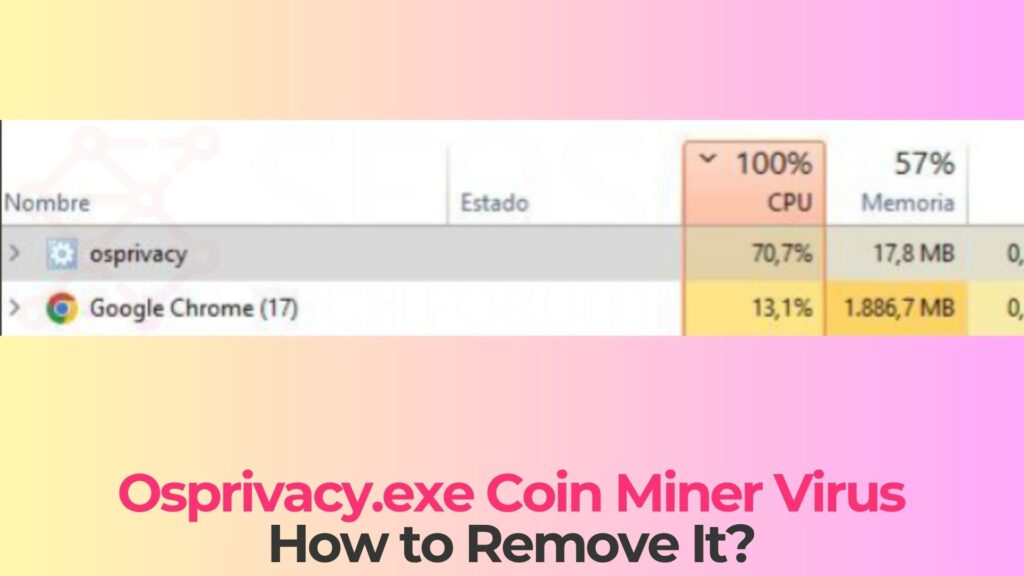
Your PC fans shouldn’t sound like a jet engine when you’re just browsing email. If they do, and Task Manager shows a process called osprivacy.exe eating 80-100% of your CPU, you’re likely dealing with a cryptojacking infection. This file disguises itself as a privacy-related utility. In reality, it’s mining Monero or similar cryptocurrencies for someone else, using your hardware and your electricity bill.
Quick answer: Osprivacy.exe is a coin miner trojan that hijacks your CPU/GPU to mine cryptocurrency without your knowledge. To remove it: boot into Safe Mode, run a full scan with an anti-malware tool, then clean leftover registry entries and scheduled tasks. The detailed steps are below.
Last reviewed: April 2026. Detection methods and removal steps verified against current Windows 11 and Windows 10 builds.
What is Osprivacy.exe Coin Miner Virus?
The Osprivacy.exe Coin Miner Virus is a type of malware categorized as a cryptocurrency miner, also known as a cryptominer or crypto-jacking threat. Unlike traditional viruses that aim to destroy files or lock systems, this threat is designed to exploit your hardware resources to mine digital currencies such as Monero, Bitcoin, or other altcoins.
This malware typically runs as a background process, often disguised as a legitimate system or application file. The name “Osprivacy.exe” may appear harmless or even related to system privacy components, but in reality, it can be a malicious executable planted within system directories or temporary folders. Once active, it continuously uses system resources to perform mining operations, sending the generated cryptocurrency to attackers’ wallets.
Cryptomining malware has become increasingly common due to the profitability of cryptocurrencies. Attackers no longer need to directly interact with victims or demand ransom payments. Instead, they silently exploit computing power over long periods. This makes threats like Osprivacy.exe particularly dangerous because they can remain undetected for extended durations.
Another concerning aspect is that such malware often does not act alone. It may be bundled with trojans, backdoors, or spyware components that further compromise the system. In some cases, Osprivacy.exe may serve as a loader that downloads additional malicious payload or modifies system settings to maintain persistence.
Osprivacy.exe Details
| Type | Cryptocurrency miner (cryptojacker) |
| Risk-level | Medium-High |
| Removal Difficulty | Moderate |
| Cryptocurrency targeted | Monero (XMR) |
| Main Symptoms | High CPU usage, overheating, slow performance, loud fans. |
| Removal Tool |
See If Your System Has Been Affected by malware
Download
Malware Removal Tool
|
What Is the Osprivacy.exe Coin Miner?
Osprivacy.exe belongs to a family of cryptojacking malware. These threats silently mine cryptocurrency on infected machines. Unlike ransomware, which announces itself immediately, coin miners try to stay hidden for as long as possible.
This variant typically mines Monero (XMR), chosen because its RandomX algorithm works efficiently on standard CPUs. That means attackers don’t need high-end GPUs—any modern PC will do.
The name “osprivacy” is deliberate social engineering. It sounds like a legitimate Windows component, encouraging users to ignore it.
More concerning: coin miners often come bundled with additional threats like Remote Access Trojans (RATs), keyloggers, or backdoors. While your CPU is being drained, other malware could be stealing data or opening remote access.
How Coin Miners Actually Work on Your PC
The Mining Process
Cryptocurrency mining involves solving mathematical problems to validate blockchain transactions. Legitimate miners use their own resources. Cryptojackers use yours.
Osprivacy.exe connects to a mining pool, processes calculations, and sends results back. Rewards go to the attacker’s wallet.
Evasion Techniques
- Process hollowing: Injects code into legitimate processes
- CPU throttling: Reduces usage when monitoring tools are open
- Scheduled tasks: Restarts after reboot
- Registry persistence: Runs at startup
- Defender tampering: Disables or bypasses antivirus
Signs Your PC Is Infected
- Constant high CPU usage (70–100%)
- Loud fans during simple tasks
- Sudden system slowdown
- Increased electricity usage
- Overheating or shutdowns
- Unusual network activity
- Disabled antivirus software
Some miners intensify activity when your PC is idle, especially overnight.
How Osprivacy.exe Gets on Your Computer
Pirated Software and Cracks
The most common infection vector. Cracks and keygens often bundle hidden miners.
Phishing Emails
Malicious attachments trigger scripts that install the miner.
Drive-by Downloads
Compromised websites exploit vulnerabilities and install malware automatically.
Fake Software Updates
Fake update pop-ups install malware instead of legitimate software.
Software Bundling
Free tools from shady sites may include hidden mining components.
How to Detect Osprivacy.exe on Your System
Step 1: Check Task Manager
Press Ctrl + Shift + Esc. Sort by CPU usage.
- Look for osprivacy.exe
- Check for unusual CPU usage
- Watch for unknown processes
Step 2: Use Resource Monitor
Run resmon. Check CPU and Network tabs for suspicious activity.
Step 3: Check Startup and Tasks
- Review Startup tab in Task Manager
- Check Task Scheduler for unknown entries
Step 4: Inspect File Locations
- C:\Users\[Name]\AppData\Local\Temp
- C:\Users\[Name]\AppData\Roaming
- C:\ProgramData
- C:\Windows\Temp
Step 5: Command-Line Check
Run:
netstat -abGet-Process | Sort-Object CPU -Descending
Step 6: Verify with VirusTotal
Upload suspicious files to VirusTotal for multi-engine scanning.
How to Remove Osprivacy.exe Coin Miner
Before You Start
- Back up files
- Keep instructions available
- Disconnect internet
Method 1: Safe Mode + Microsoft Defender
- Boot into Safe Mode with Networking
- Update Microsoft Defender
- Run Full Scan
- Run Defender Offline Scan
Method 2: Anti-Malware Tool
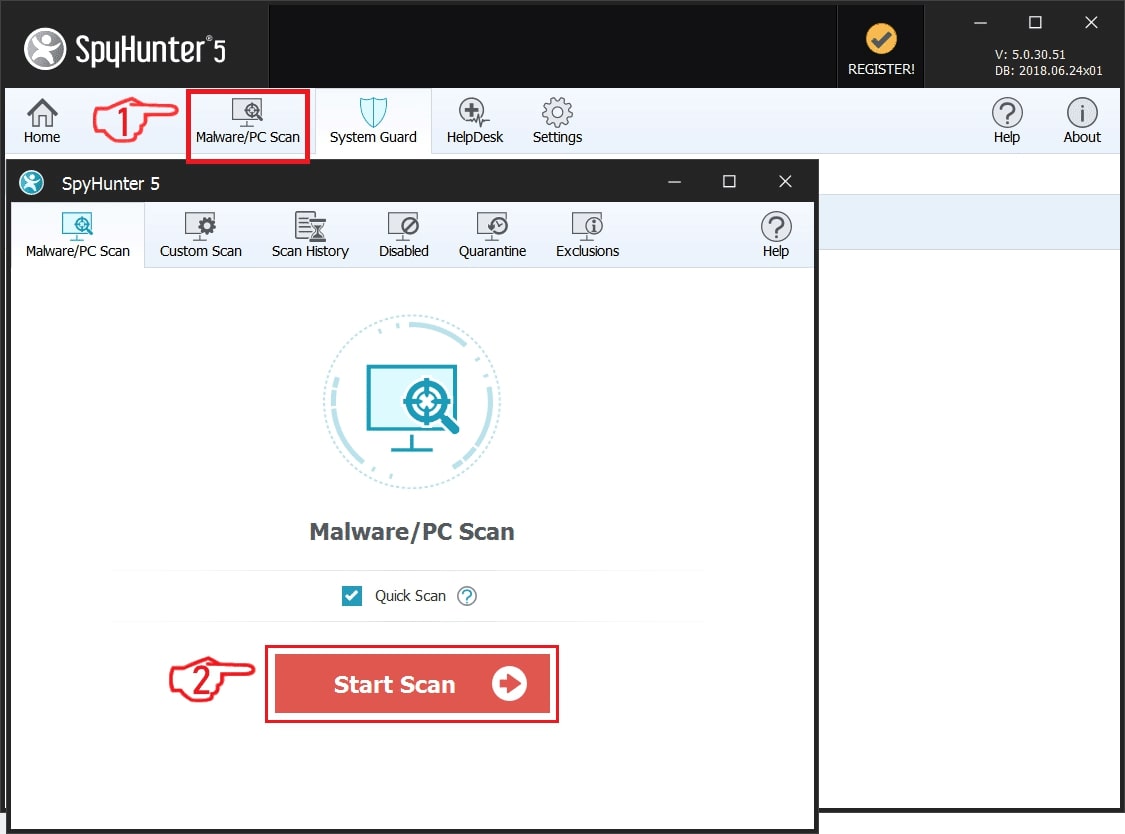
- Install tool (e.g., SpyHunter 5)
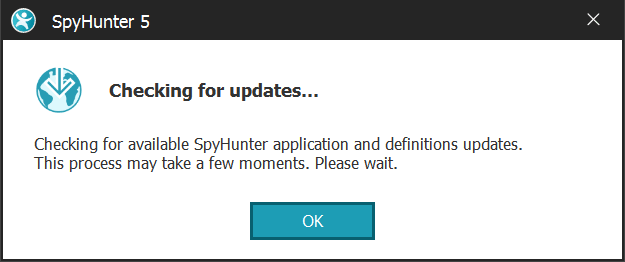
- Update definitions
- Run full scan
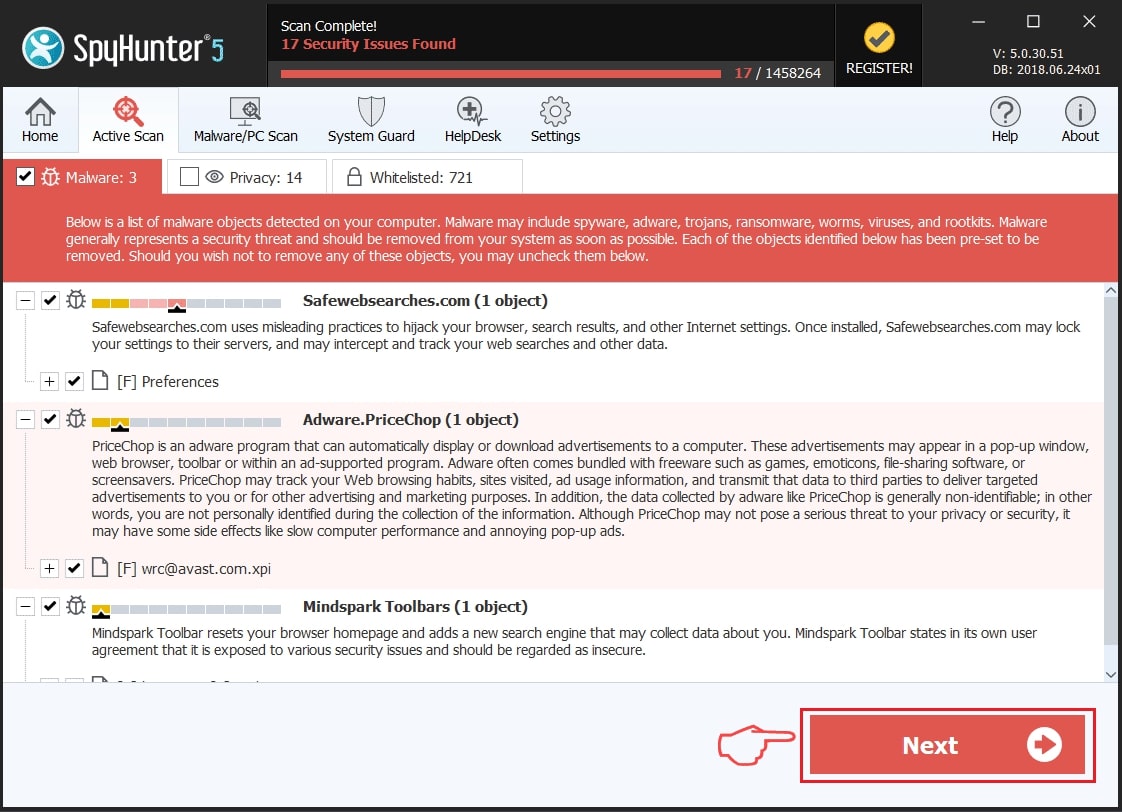
- Quarantine threats
Method 3: Manual Cleanup
Registry Cleanup
- Check Run and RunOnce keys
- Remove suspicious entries
Scheduled Tasks
- Delete unknown tasks
File Cleanup
- Remove malicious files from Temp/AppData
- Empty Recycle Bin
After Removal: Verify the Cleanup
- Monitor CPU usage (should be 1–5% idle)
- Ensure antivirus is active
- Check scheduled tasks
- Run another scan after 24 hours
If the miner returns, consider a full Windows reinstall.
What to Do After Removal
- Change passwords
- Enable 2FA
- Remove unknown browser extensions
- Review account activity
- Monitor system for two weeks
How to Prevent Coin Miner Infections
- Avoid pirated software
- Keep Windows updated
- Use an ad blocker
- Be cautious with email attachments
- Download from official sources
- Keep antivirus enabled
- Monitor Task Manager regularly
Frequently Asked Questions
Is osprivacy.exe legitimate?
No. It is not a real Windows file. It is malware.
Can it damage hardware?
Yes. Prolonged overheating can degrade components.
Will a reset remove it?
Usually yes, but not always if persistence mechanisms remain.
How to distinguish from normal CPU usage?
Normal spikes are temporary. Mining is constant.
Can it spread on a network?
Some variants can spread laterally across networks.
Final Verdict
The osprivacy.exe coin miner is a classic cryptojacking threat. It hides under a believable name, abuses your system resources, and persists through reboots.
The solution is straightforward: Safe Mode, full scans, cleanup, and monitoring.
Prevention is even simpler: avoid pirated software, keep systems updated, and monitor performance regularly.
If your CPU is working hard while you’re idle, investigate. That instinct will catch most infections early.

Ventsislav Krastev
Ventsislav is a cybersecurity expert at SensorsTechForum since 2015. He has been researching, covering, helping victims with the latest malware infections plus testing and reviewing software and the newest tech developments. Having graduated Marketing as well, Ventsislav also has passion for learning new shifts and innovations in cybersecurity that become game changers. After studying Value Chain Management, Network Administration and Computer Administration of System Applications, he found his true calling within the cybersecrurity industry and is a strong believer in the education of every user towards online safety and security.
Follow Me:
Preparation before removing Osprivacy.exe.
Before starting the actual removal process, we recommend that you do the following preparation steps.
- Make sure you have these instructions always open and in front of your eyes.
- Do a backup of all of your files, even if they could be damaged. You should back up your data with a cloud backup solution and insure your files against any type of loss, even from the most severe threats.
- Be patient as this could take a while.
- Scan for Malware
- Fix Registries
- Remove Virus Files
Step 1: Scan for Osprivacy.exe with SpyHunter Anti-Malware Tool
Step 2: Clean any registries, created by Osprivacy.exe on your computer.
The usually targeted registries of Windows machines are the following:
- HKEY_LOCAL_MACHINE\Software\Microsoft\Windows\CurrentVersion\Run
- HKEY_CURRENT_USER\Software\Microsoft\Windows\CurrentVersion\Run
- HKEY_LOCAL_MACHINE\Software\Microsoft\Windows\CurrentVersion\RunOnce
- HKEY_CURRENT_USER\Software\Microsoft\Windows\CurrentVersion\RunOnce
You can access them by opening the Windows registry editor and deleting any values, created by Osprivacy.exe there. This can happen by following the steps underneath:
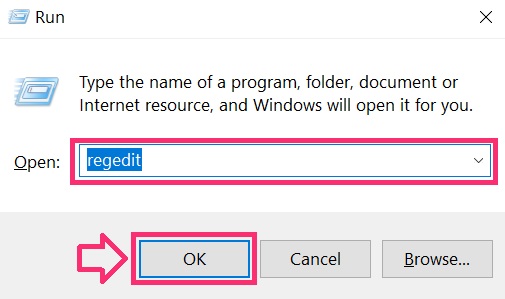
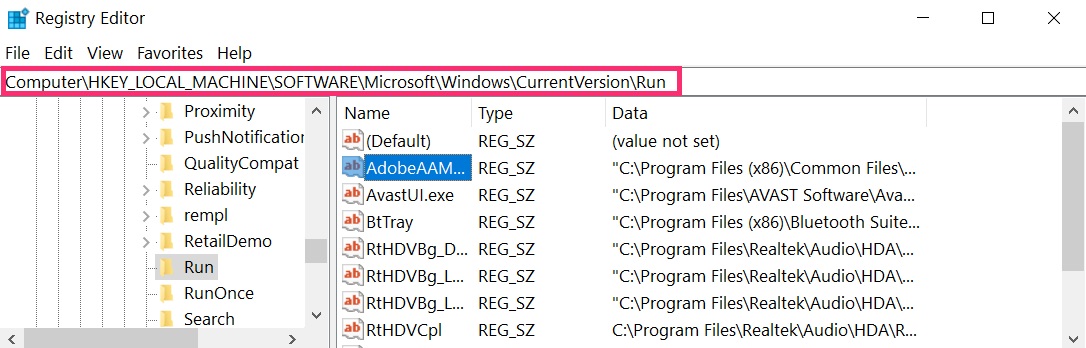
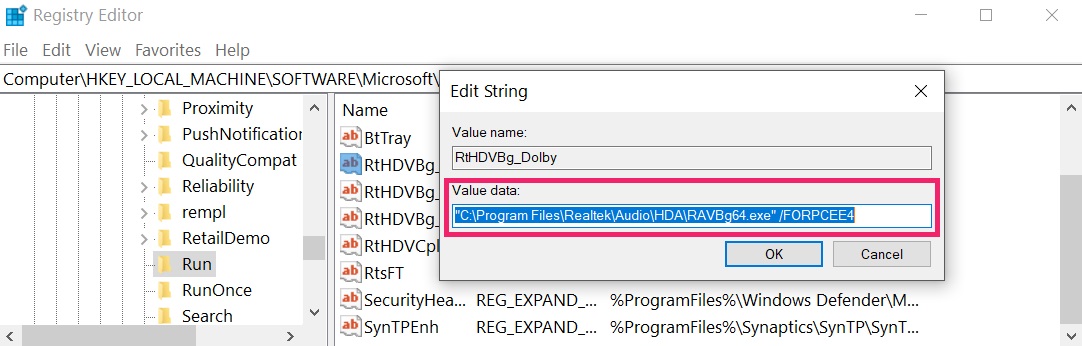 Tip: To find a virus-created value, you can right-click on it and click "Modify" to see which file it is set to run. If this is the virus file location, remove the value.
Step 3: Find virus files created by Osprivacy.exe on your PC.
1.For Windows 8, 8.1 and 10.
For Newer Windows Operating Systems
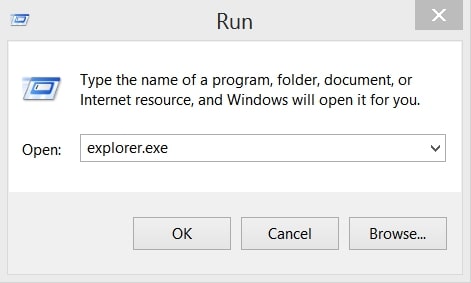
1: On your keyboard press + R and write explorer.exe in the Run text box and then click on the Ok button.
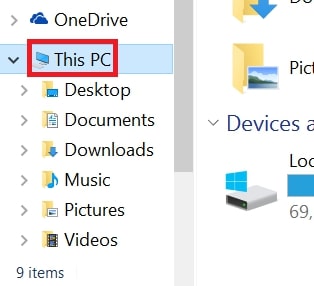
2: Click on your PC from the quick access bar. This is usually an icon with a monitor and its name is either “My Computer”, “My PC” or “This PC” or whatever you have named it.
3: Navigate to the search box in the top-right of your PC's screen and type “fileextension:” and after which type the file extension. If you are looking for malicious executables, an example may be "fileextension:exe". After doing that, leave a space and type the file name you believe the malware has created. Here is how it may appear if your file has been found:
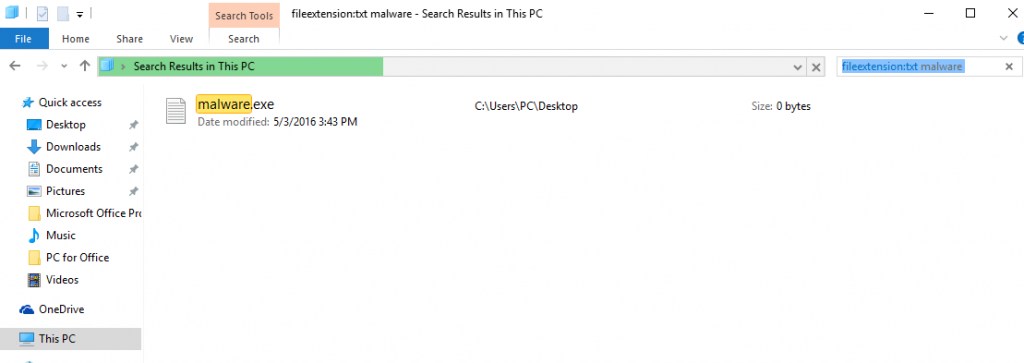
N.B. We recommend to wait for the green loading bar in the navigation box to fill up in case the PC is looking for the file and hasn't found it yet.
2.For Windows XP, Vista, and 7.
For Older Windows Operating Systems
In older Windows OS's the conventional approach should be the effective one:
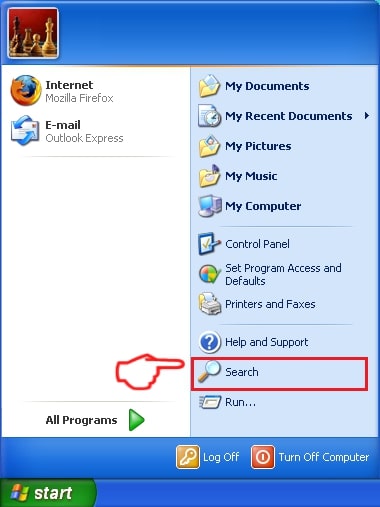
1: Click on the Start Menu icon (usually on your bottom-left) and then choose the Search preference.
2: After the search window appears, choose More Advanced Options from the search assistant box. Another way is by clicking on All Files and Folders.
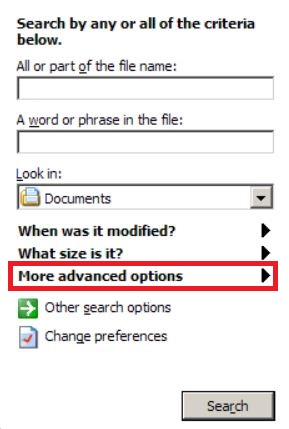
3: After that type the name of the file you are looking for and click on the Search button. This might take some time after which results will appear. If you have found the malicious file, you may copy or open its location by right-clicking on it.
Now you should be able to discover any file on Windows as long as it is on your hard drive and is not concealed via special software.
Osprivacy.exe FAQ
What Does Osprivacy.exe Trojan Do?
The Osprivacy.exe Trojan is a malicious computer program designed to disrupt, damage, or gain unauthorized access to a computer system. It can be used to steal sensitive data, gain control over a system, or launch other malicious activities.
Can Trojans Steal Passwords?
Yes, Trojans, like Osprivacy.exe, can steal passwords. These malicious programs are designed to gain access to a user's computer, spy on victims and steal sensitive information such as banking details and passwords.
Can Osprivacy.exe Trojan Hide Itself?
Yes, it can. A Trojan can use various techniques to mask itself, including rootkits, encryption, and obfuscation, to hide from security scanners and evade detection.
Can a Trojan be Removed by Factory Reset?
Yes, a Trojan can be removed by factory resetting your device. This is because it will restore the device to its original state, eliminating any malicious software that may have been installed. Bear in mind that there are more sophisticated Trojans that leave backdoors and reinfect even after a factory reset.
Can Osprivacy.exe Trojan Infect WiFi?
Yes, it is possible for a Trojan to infect WiFi networks. When a user connects to the infected network, the Trojan can spread to other connected devices and can access sensitive information on the network.
Can Trojans Be Deleted?
Yes, Trojans can be deleted. This is typically done by running a powerful anti-virus or anti-malware program that is designed to detect and remove malicious files. In some cases, manual deletion of the Trojan may also be necessary.
Can Trojans Steal Files?
Yes, Trojans can steal files if they are installed on a computer. This is done by allowing the malware author or user to gain access to the computer and then steal the files stored on it.
Which Anti-Malware Can Remove Trojans?
Anti-malware programs such as SpyHunter are capable of scanning for and removing Trojans from your computer. It is important to keep your anti-malware up to date and regularly scan your system for any malicious software.
Can Trojans Infect USB?
Yes, Trojans can infect USB devices. USB Trojans typically spread through malicious files downloaded from the internet or shared via email, allowing the hacker to gain access to a user's confidential data.
About the Osprivacy.exe Research
The content we publish on SensorsTechForum.com, this Osprivacy.exe how-to removal guide included, is the outcome of extensive research, hard work and our team’s devotion to help you remove the specific trojan problem.
How did we conduct the research on Osprivacy.exe?
Please note that our research is based on an independent investigation. We are in contact with independent security researchers, thanks to which we receive daily updates on the latest malware definitions, including the various types of trojans (backdoor, downloader, infostealer, ransom, etc.)
Furthermore, the research behind the Osprivacy.exe threat is backed with VirusTotal.
To better understand the threat posed by trojans, please refer to the following articles which provide knowledgeable details.