

What is Yoyoyo.cyou?
Your browser keeps getting dragged to Yoyoyo.cyou, you’re drowning in pop-ups and desktop notifications you never asked for, or your antivirus just flagged something related to this domain — and you want it gone. Read this article right now to understand what Yoyoyo.cyou actually is and what it’s doing on your system, then follow the removal guide at the bottom immediately.
Yoyoyo.cyou is a malicious website belonging to the well-documented .cyou push notification scam domain family — a category of sites specifically designed around browser notification abuse and adware behavior. The .cyou top-level domain has become a popular choice for scam notification operators because it’s cheap, easy to register anonymously, and generates fresh domains that take time for security blacklists to catch up with. Sites like Yoyoyo.cyou — along with confirmed malicious .cyou domains like Contentcloud.cyou, Freedevicespeedsmart.cyou, and Recommend-premium-install-smart.cyou — all follow the same playbook: trick you into granting browser notification permissions through a fake interaction prompt, then exploit those permissions to push an unrelenting stream of harmful ads and malicious redirects to your device around the clock. Security researchers at malware.guide and similar platforms have fully documented the .cyou notification abuse pattern that Yoyoyo.cyou belongs to.
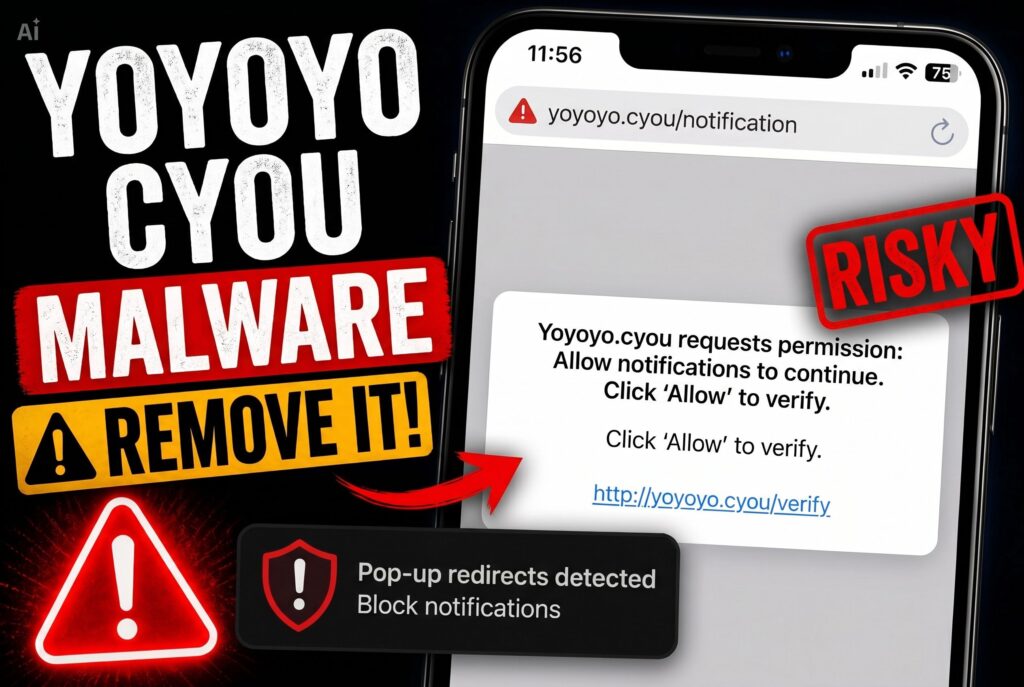
Yoyoyo.cyou Short Overview
| Type | Push notification spam / Adware / Malicious .cyou domain exploiting browser notification permissions to deliver harmful ads and redirects 24/7. |
| Symptoms | Persistent desktop pop-ups and banners from Yoyoyo.cyou even with the browser closed. Fake virus alerts, fake software updates, and scareware messages pushed to desktop. Browser redirects to dangerous pages when notifications are clicked. Yoyoyo.cyou listed in browser’s allowed notification settings. |
| Removal Time | Approximately 15 minutes for a full-system scan |
| Removal Tool |
See If Your System Has Been Affected by malware
Download
Malware Removal Tool
|
How Did I Get Yoyoyo.cyou?
Nobody visits Yoyoyo.cyou on purpose — it gets its notification permissions through deliberate deception. Here’s how it happens:
- Fake robot verification trick — The most documented route for all .cyou notification abusers. A redirect — triggered by a shady ad, a compromised site, or adware on your system — took you to a page displaying a prompt like “Click Allow to verify you are not a robot” or “Press Allow to watch the video.” The Allow button had nothing to do with any of that. It silently granted Yoyoyo.cyou permanent push notification permissions on your browser — and the spam started immediately.
- Adware-driven browser redirects — If you have adware or a PUP installed through software bundling, it is actively generating browser redirects to .cyou notification permission pages as part of a broader malicious advertising network. Simply revoking the Yoyoyo.cyou permission will not fix this — a new .cyou domain will appear within days.
- Malicious redirect chains from low-quality sites — Streaming sites, torrent platforms, and sites running rogue ad networks can trigger automatic malicious redirect chains landing you on Yoyoyo.cyou’s notification prompt without any deliberate navigation on your part.
- Phishing links — Some malspam and phishing messages include links that route through .cyou notification permission pages as a side effect of broader credential harvesting operations.
What Does Yoyoyo.cyou Do?
Once Yoyoyo.cyou has notification permission on your device, it immediately begins a multi-category ad spam operation. Here’s the full picture:
- 24/7 desktop notification spam — The site pushes notifications constantly across every harmful ad category: fake virus warnings using logos of legitimate security companies designed to mimic Windows system alerts, fake tech support scam messages, gambling promotions, prize winner notifications, fake software update warnings, and adult content spam. All of these appear even when your browser is completely closed — directly on your desktop.
- Redirects to malicious pages — Every Yoyoyo.cyou notification that gets clicked routes through a redirect chain to pages that may attempt to install malware, harvest credentials through phishing, push scareware, or deliver malicious payloads via drive-by downloads — particularly on unpatched browsers.
- Data tracking and profiling — The .cyou notification abuse network uses trackers to monitor which notifications you interact with, building a behavioral profile used for increasingly targeted and manipulative ad delivery. This is spyware-class data collection running silently in the background every time a notification is delivered.
- Pop-up blocker bypass — Because these are operating-system-level browser push notifications rather than traditional pop-ups, they completely bypass every built-in browser pop-up blocker — appearing identically to legitimate app notifications on Windows, Mac, and Android.
Yoyoyo.cyou affects Windows, Mac, and Android devices equally. On mobile, the notifications appear directly on the home screen and lock screen — making them impossible to ignore and difficult to trace back to a browser permission you granted weeks earlier.
What Should You Do?
Go to your browser notification settings right now and block Yoyoyo.cyou — in Chrome: Settings → Privacy and Security → Site Settings → Notifications. On Android, go to the browser’s site settings and revoke notification permissions. Then run a full system scan to find and remove any adware or PUP responsible for the original redirect. Follow the complete removal guide below this article for all browsers and all platforms — Windows, Mac, and Android — to fully stop these notifications and prevent them from returning through a different .cyou domain.

Ventsislav Krastev
Ventsislav is a cybersecurity expert at SensorsTechForum since 2015. He has been researching, covering, helping victims with the latest malware infections plus testing and reviewing software and the newest tech developments. Having graduated Marketing as well, Ventsislav also has passion for learning new shifts and innovations in cybersecurity that become game changers. After studying Value Chain Management, Network Administration and Computer Administration of System Applications, he found his true calling within the cybersecrurity industry and is a strong believer in the education of every user towards online safety and security.
Follow Me:
- Windows
- Mac OS X
- Google Chrome
- Mozilla Firefox
- Microsoft Edge
- Safari
- Internet Explorer
- Stop Push Pop-ups
How to Remove Yoyoyo.cyou from Windows.
Step 1: Scan for Yoyoyo.cyou with SpyHunter Anti-Malware Tool
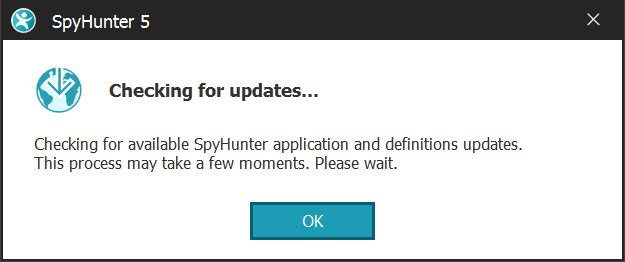
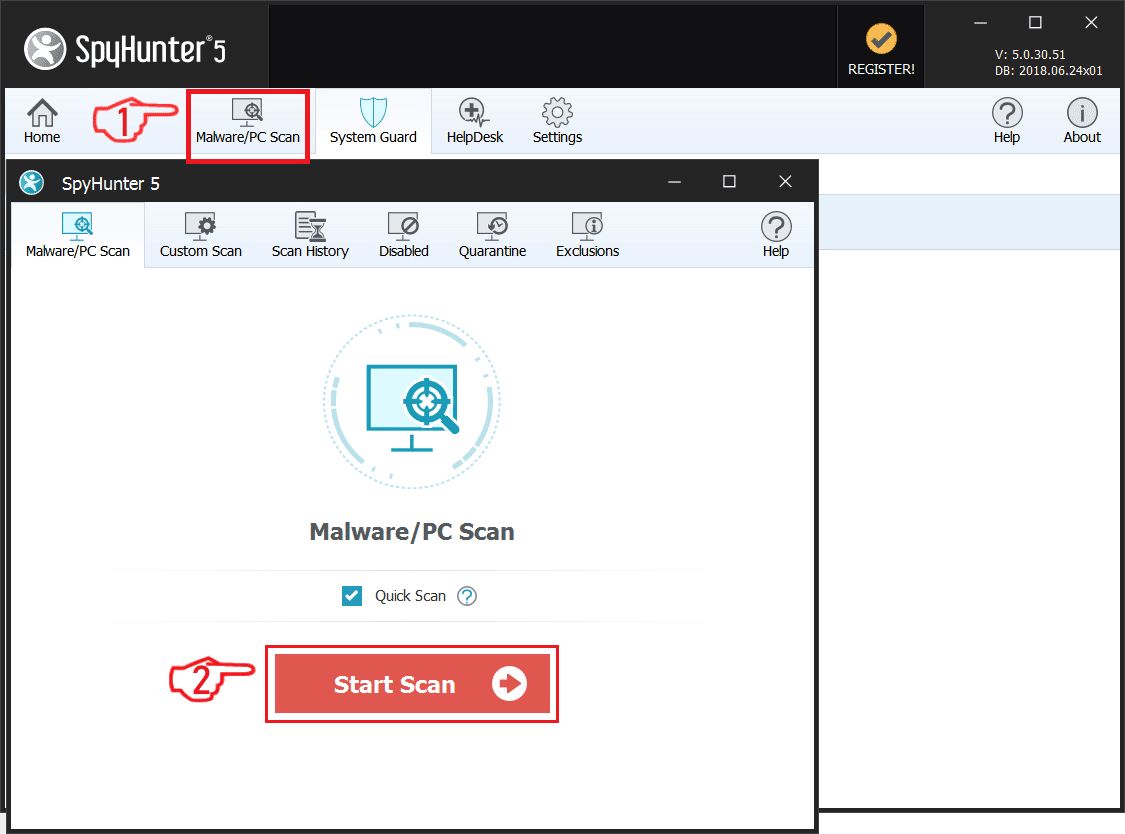
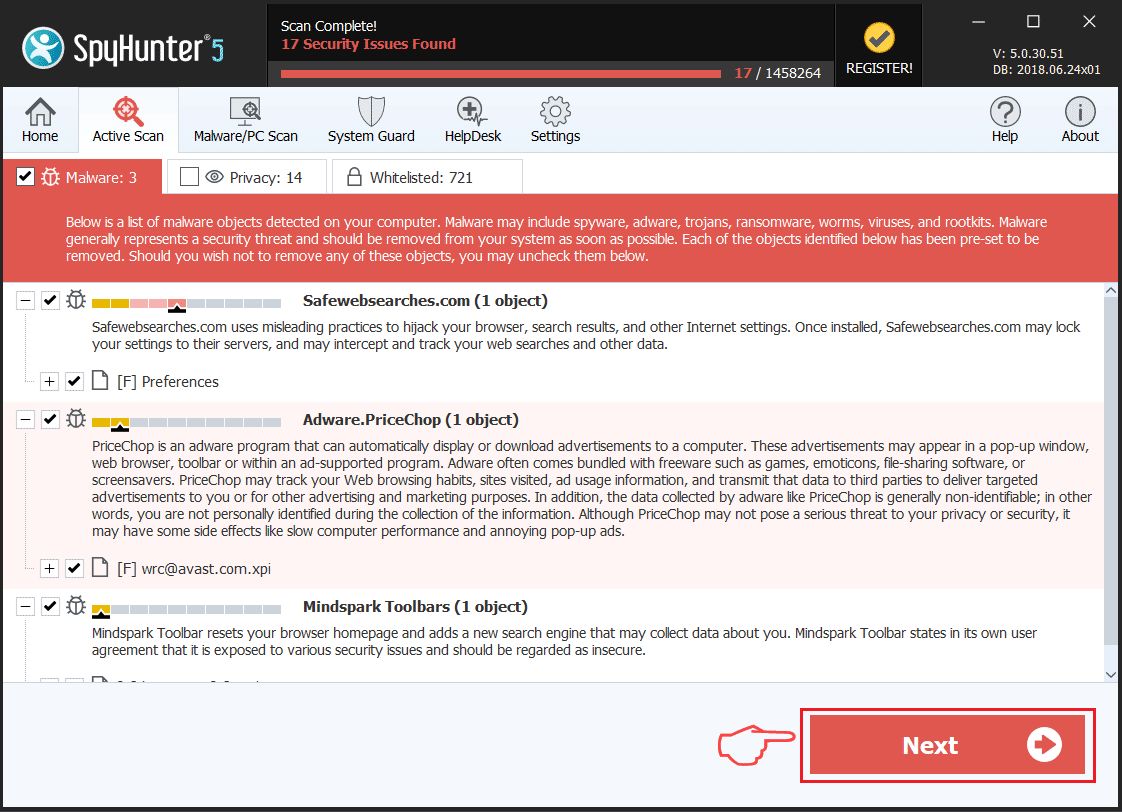
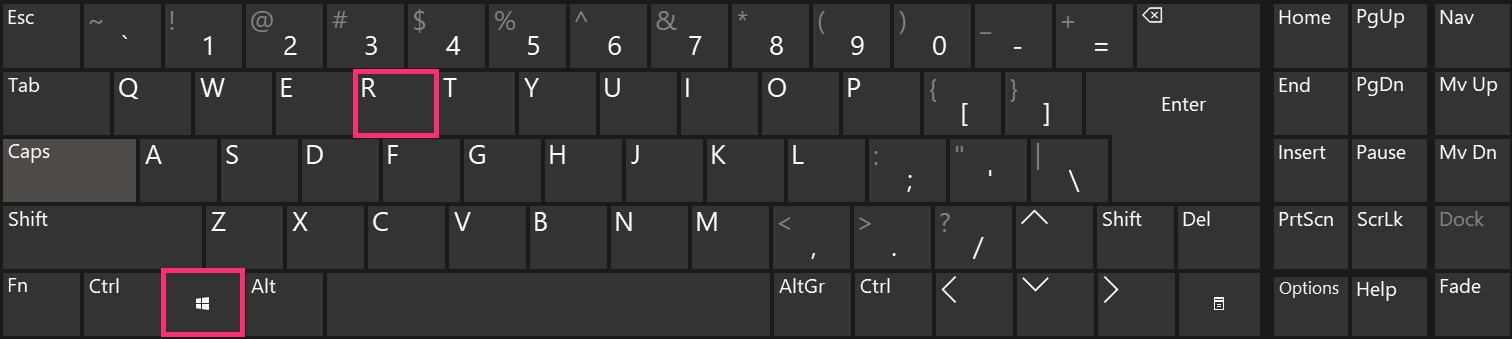
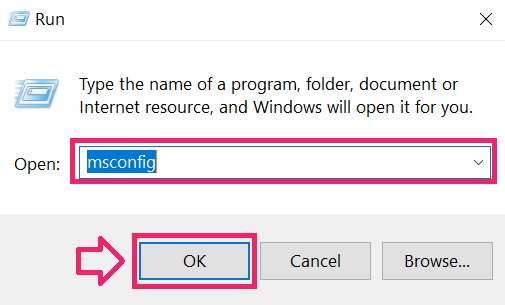
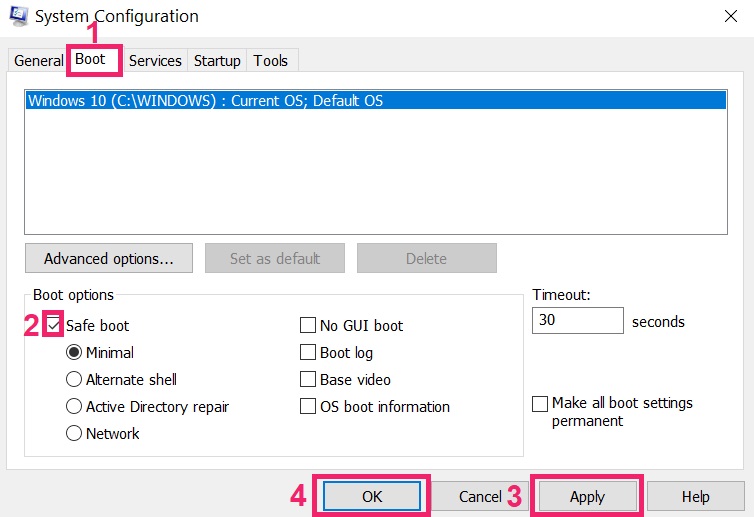
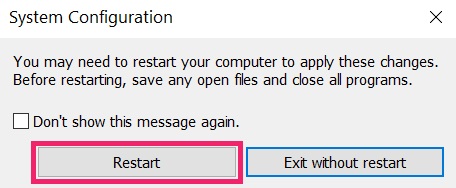
Step 2: Boot Your PC In Safe Mode
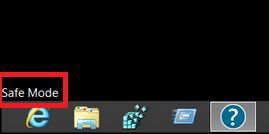
Step 3: Uninstall Yoyoyo.cyou and related software from Windows
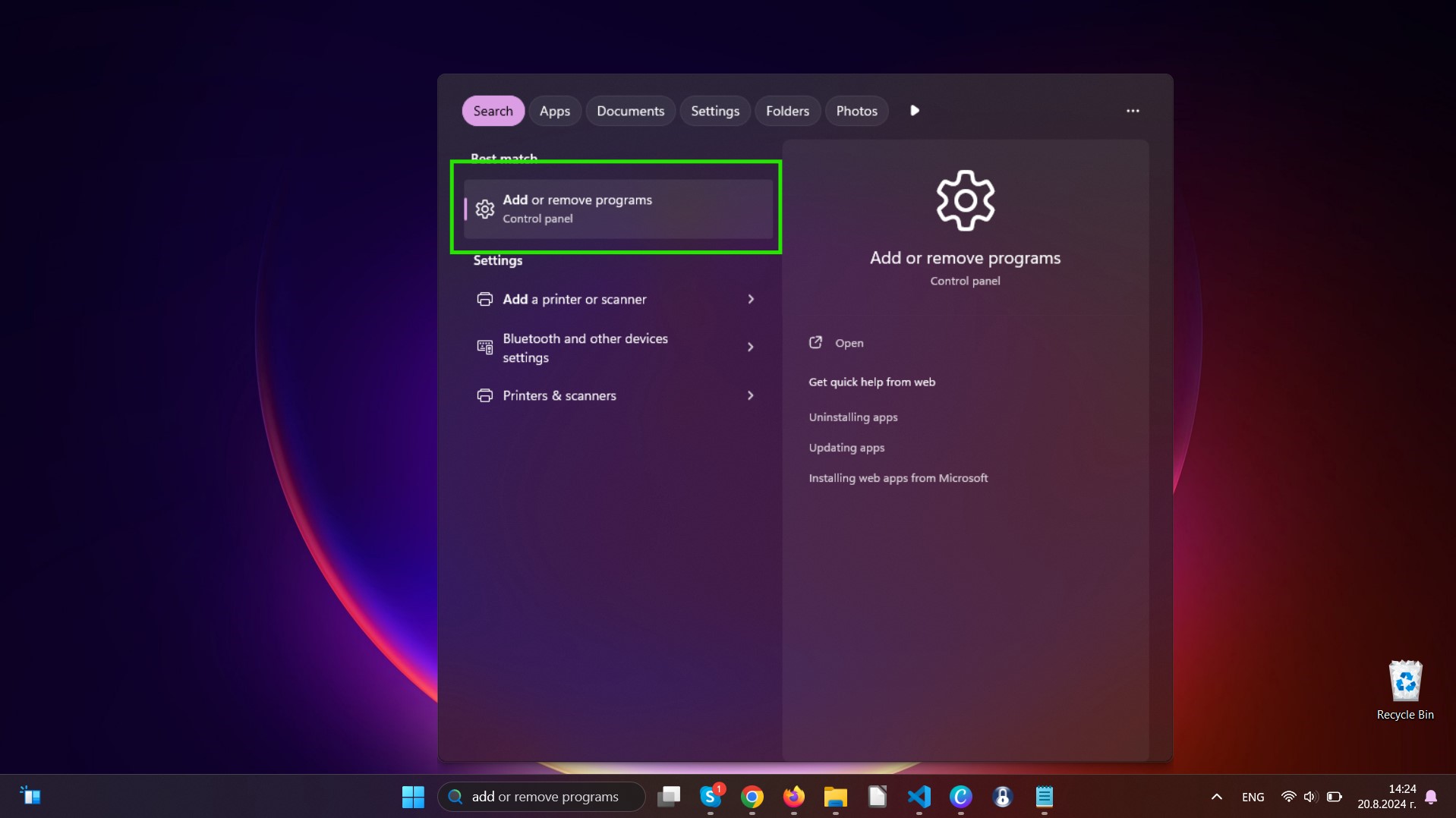
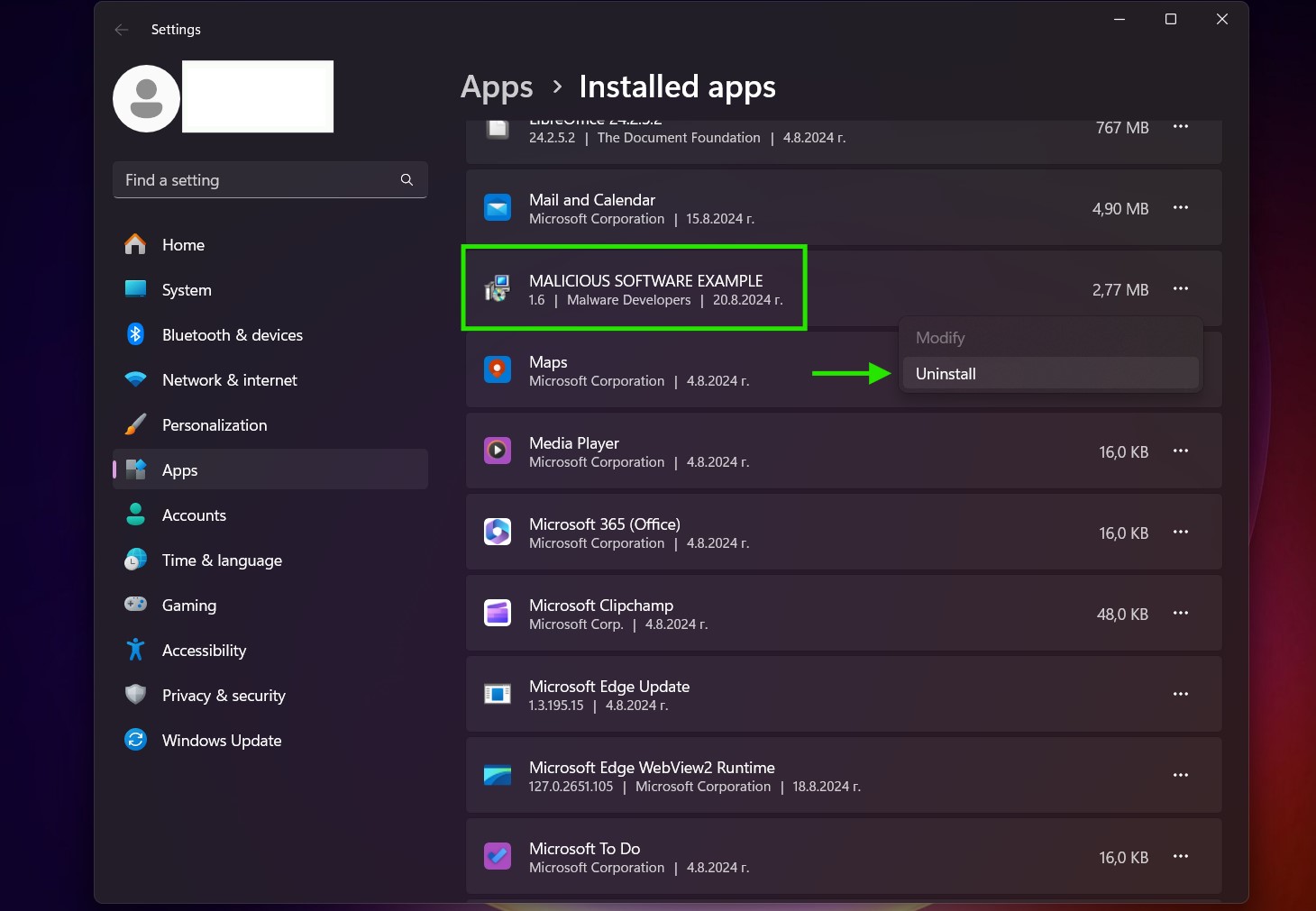
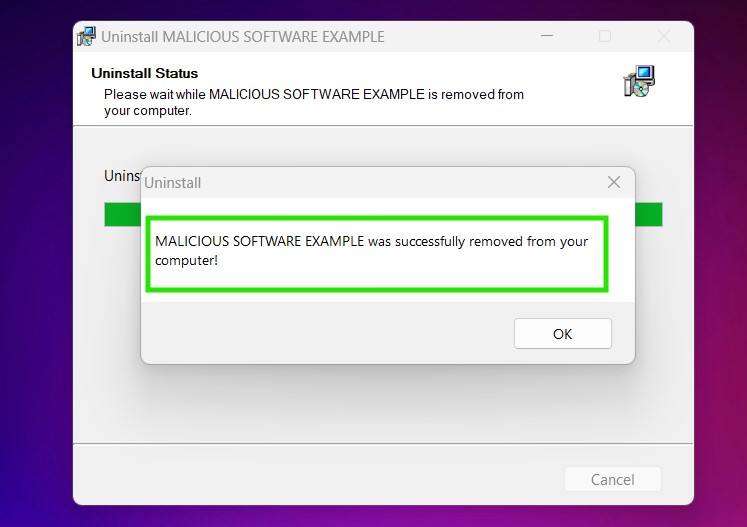
Uninstall Steps for Windows 11
Uninstall Steps for Windows 10 and Older Versions
Here is a method in few easy steps that should be able to uninstall most programs. No matter if you are using Windows 10, 8, 7, Vista or XP, those steps will get the job done. Dragging the program or its folder to the recycle bin can be a very bad decision. If you do that, bits and pieces of the program are left behind, and that can lead to unstable work of your PC, errors with the file type associations and other unpleasant activities. The proper way to get a program off your computer is to Uninstall it. To do that:
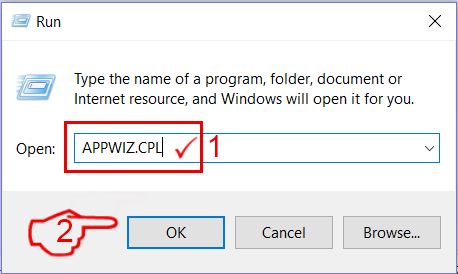
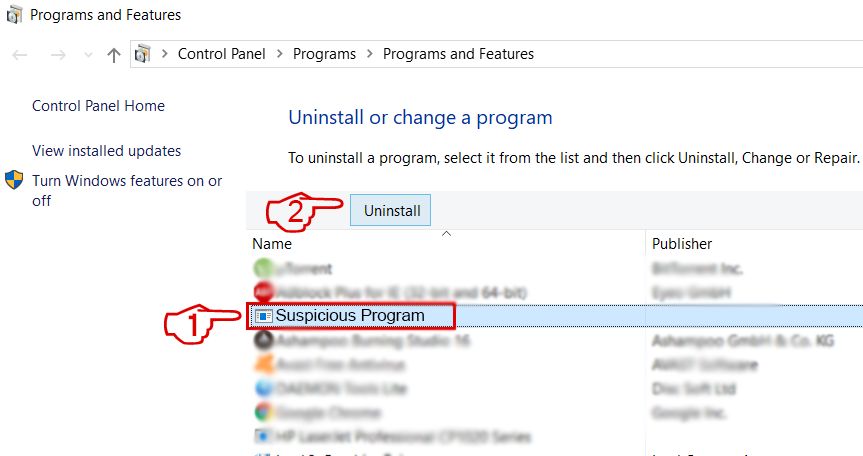 Follow the instructions above and you will successfully uninstall most programs.
Step 4: Clean Any registries, Created by Yoyoyo.cyou on Your PC.
The usually targeted registries of Windows machines are the following:
- HKEY_LOCAL_MACHINE\Software\Microsoft\Windows\CurrentVersion\Run
- HKEY_CURRENT_USER\Software\Microsoft\Windows\CurrentVersion\Run
- HKEY_LOCAL_MACHINE\Software\Microsoft\Windows\CurrentVersion\RunOnce
- HKEY_CURRENT_USER\Software\Microsoft\Windows\CurrentVersion\RunOnce
You can access them by opening the Windows registry editor and deleting any values, created by Yoyoyo.cyou there. This can happen by following the steps underneath:
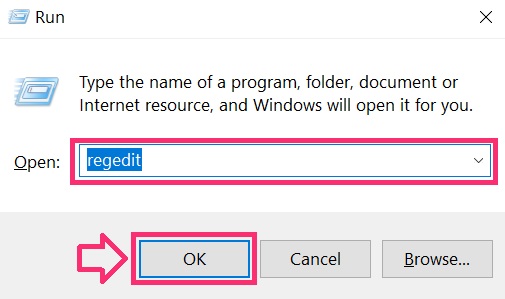
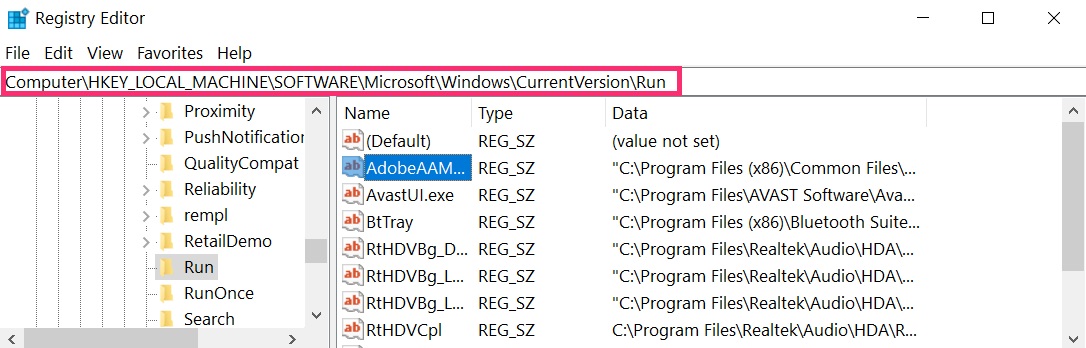
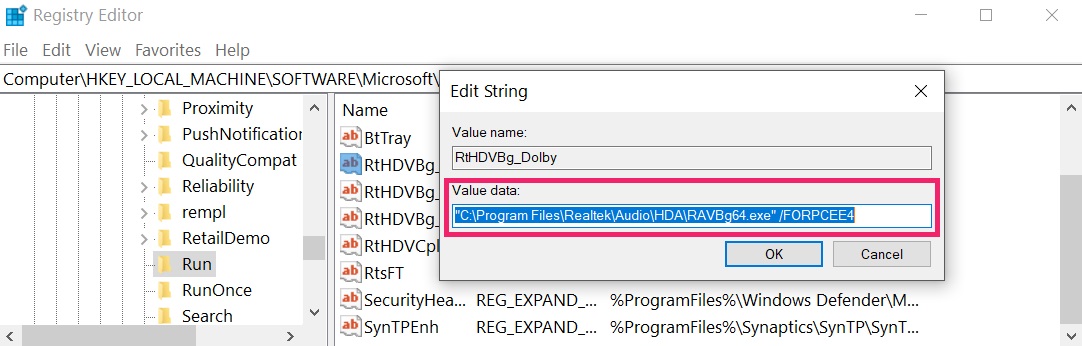 Tip: To find a virus-created value, you can right-click on it and click "Modify" to see which file it is set to run. If this is the virus file location, remove the value.
Video Removal Guide for Yoyoyo.cyou (Windows).
Get rid of Yoyoyo.cyou from Mac OS X.
Step 1: Uninstall Yoyoyo.cyou and remove related files and objects
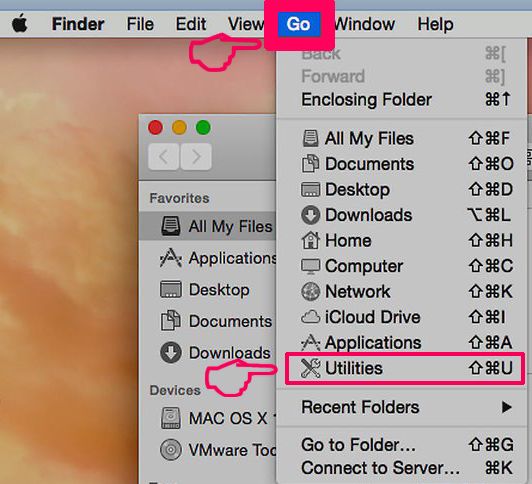
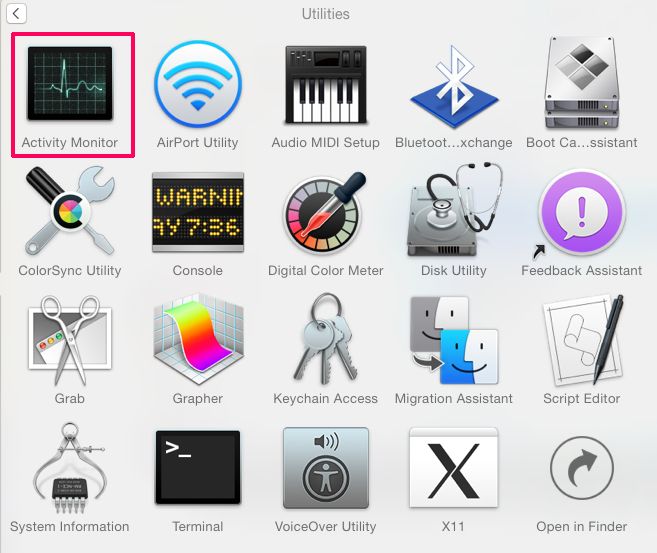
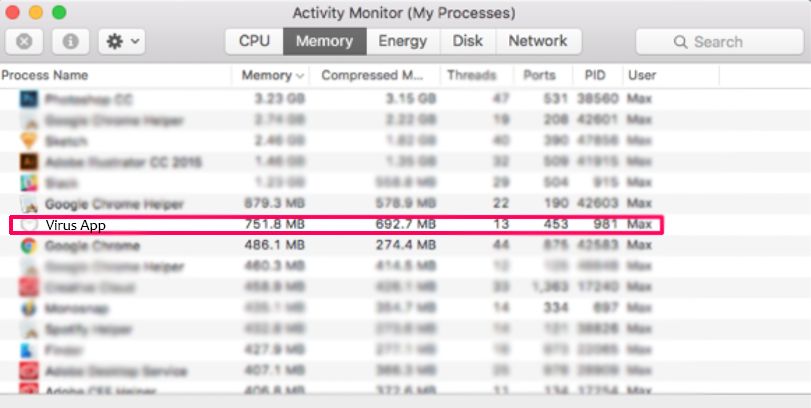
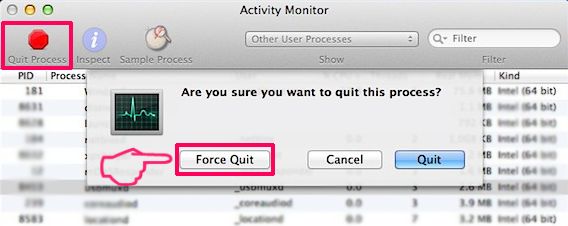
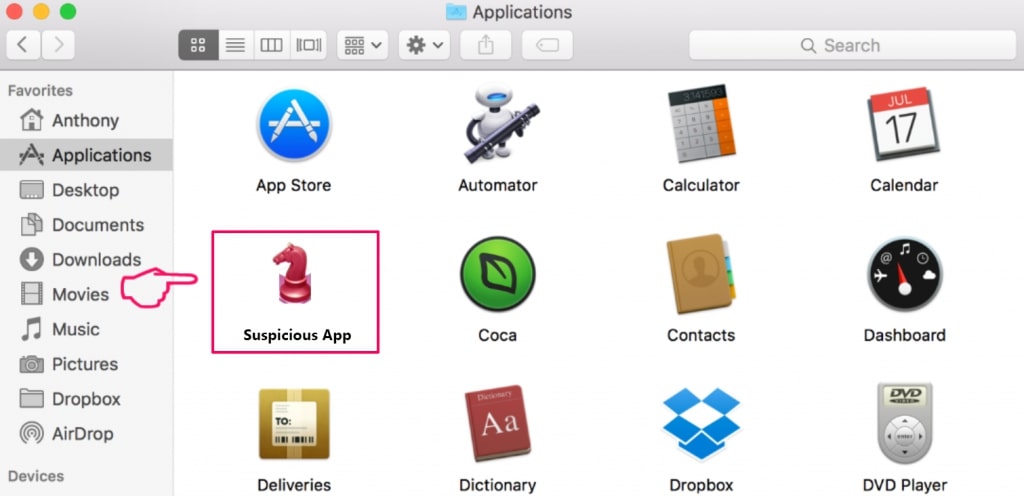
Your Mac will then show you a list of items that start automatically when you log in. Look for any suspicious apps identical or similar to Yoyoyo.cyou. Check the app you want to stop from running automatically and then select on the Minus (“-“) icon to hide it.
- Go to Finder.
- In the search bar type the name of the app that you want to remove.
- Above the search bar change the two drop down menus to “System Files” and “Are Included” so that you can see all of the files associated with the application you want to remove. Bear in mind that some of the files may not be related to the app so be very careful which files you delete.
- If all of the files are related, hold the ⌘+A buttons to select them and then drive them to “Trash”.
In case you cannot remove Yoyoyo.cyou via Step 1 above:
In case you cannot find the virus files and objects in your Applications or other places we have shown above, you can manually look for them in the Libraries of your Mac. But before doing this, please read the disclaimer below:
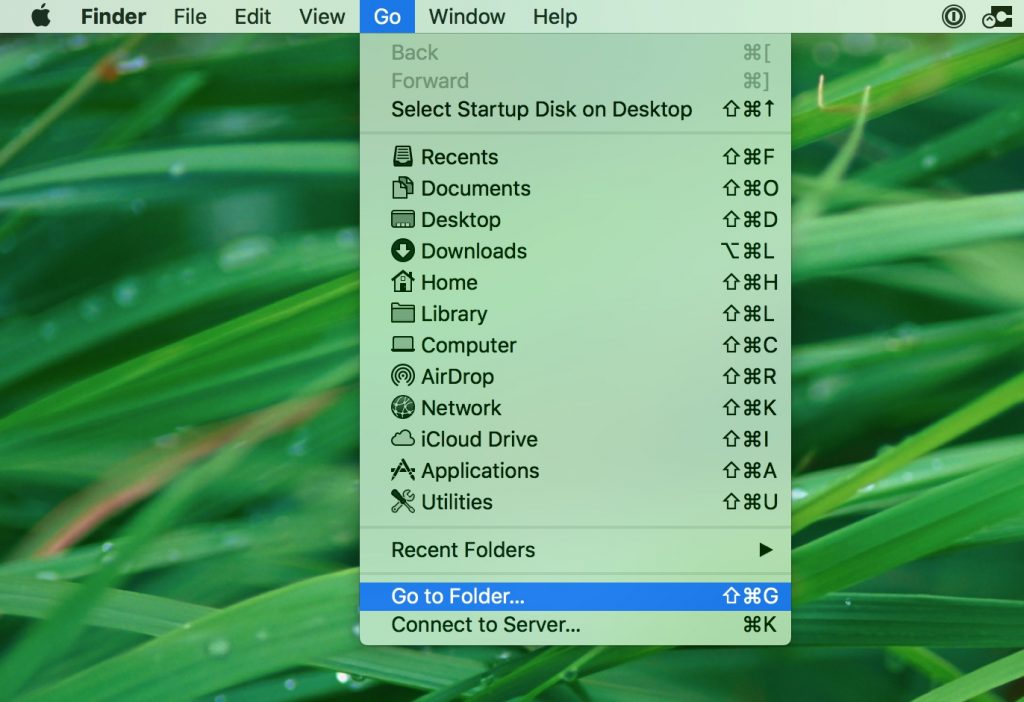
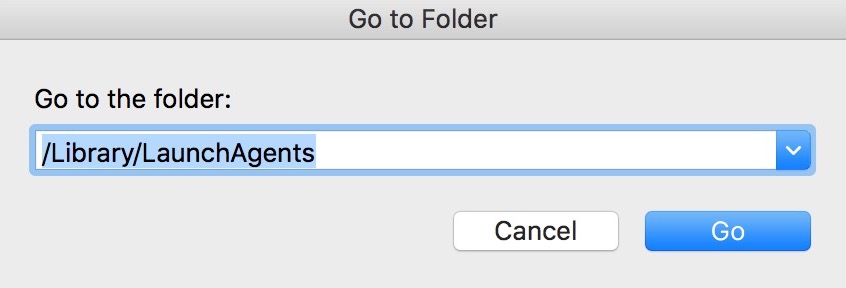
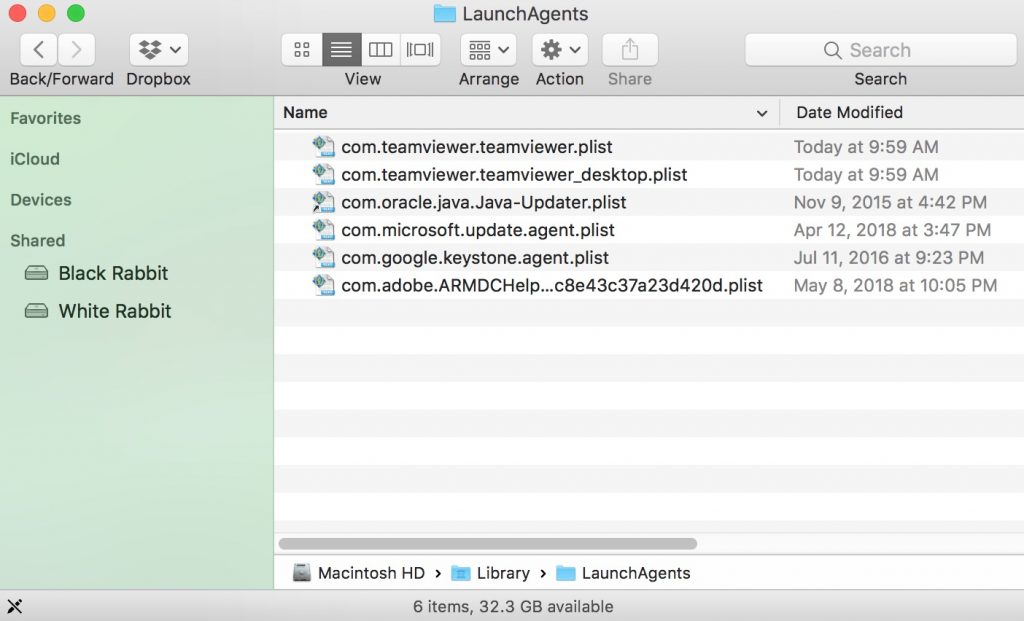
You can repeat the same procedure with the following other Library directories:
→ ~/Library/LaunchAgents
/Library/LaunchDaemons
Tip: ~ is there on purpose, because it leads to more LaunchAgents.
Step 2: Scan for and remove Yoyoyo.cyou files from your Mac
When you are facing problems on your Mac as a result of unwanted scripts and programs such as Yoyoyo.cyou, the recommended way of eliminating the threat is by using an anti-malware program. SpyHunter for Mac offers advanced security features along with other modules that will improve your Mac’s security and protect it in the future.
Video Removal Guide for Yoyoyo.cyou (Mac)
Remove Yoyoyo.cyou from Google Chrome.
Step 1: Start Google Chrome and open the drop menu
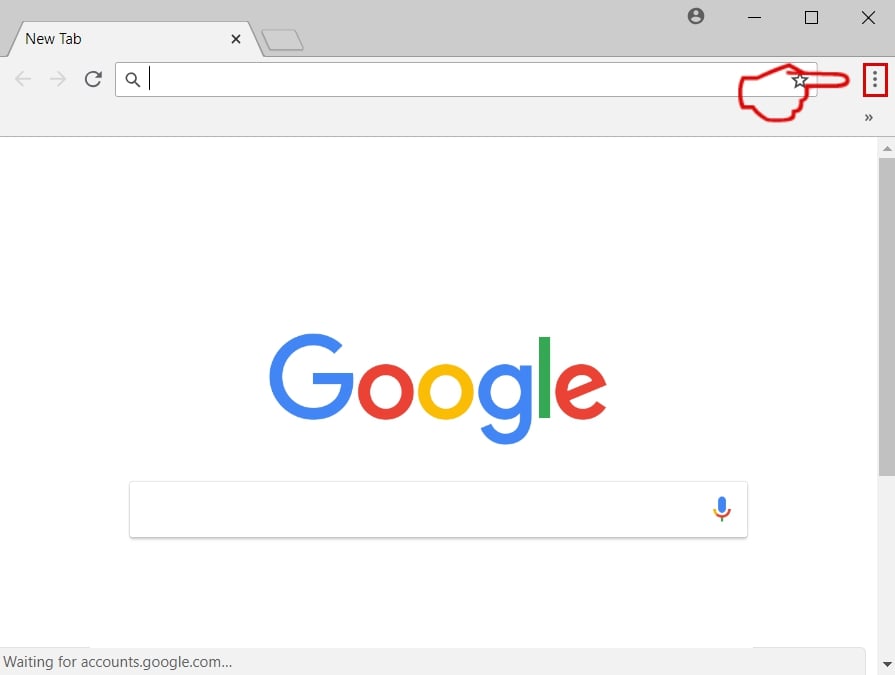
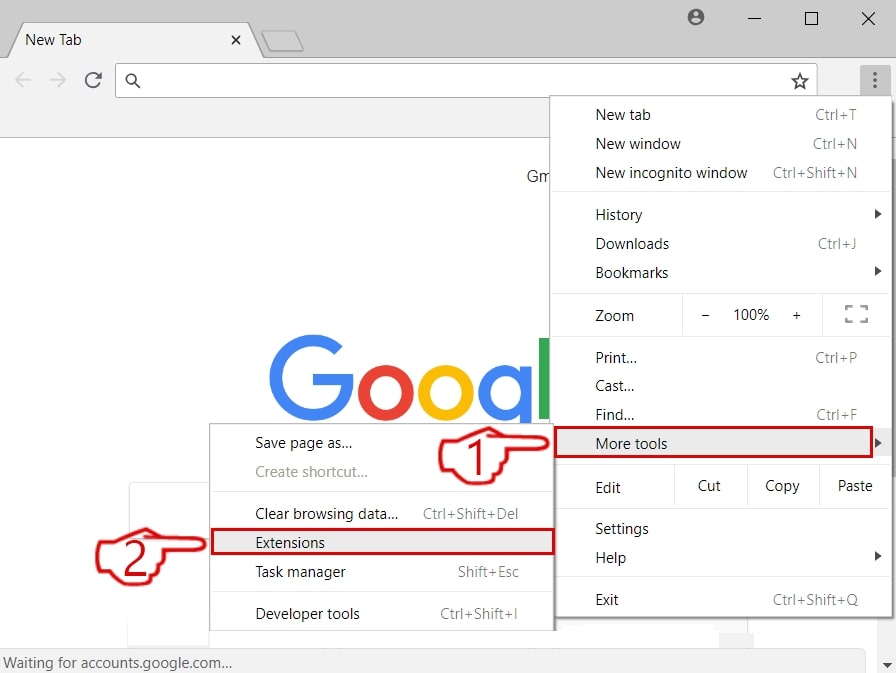
Step 2: Move the cursor over "Tools" and then from the extended menu choose "Extensions"
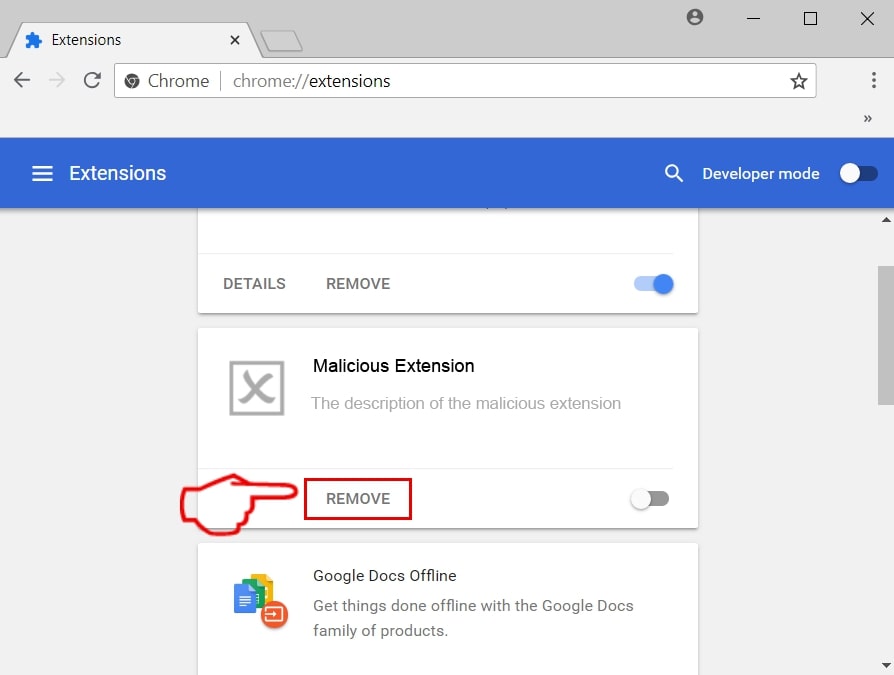
Step 3: From the opened "Extensions" menu locate the unwanted extension and click on its "Remove" button.
Step 4: After the extension is removed, restart Google Chrome by closing it from the red "X" button at the top right corner and start it again.
Erase Yoyoyo.cyou from Mozilla Firefox.
Step 1: Start Mozilla Firefox. Open the menu window:
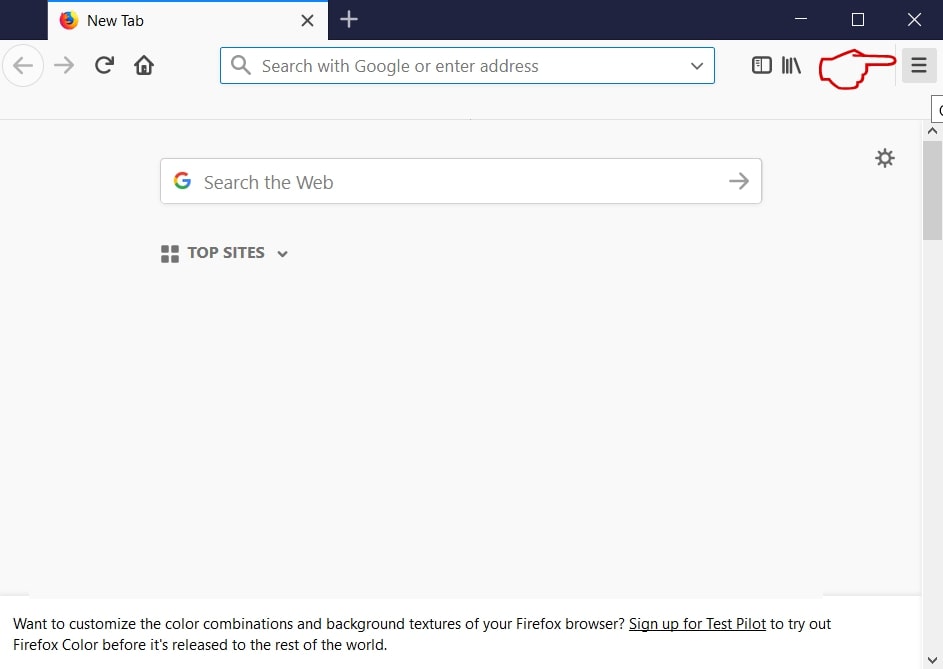
Step 2: Select the "Add-ons" icon from the menu.
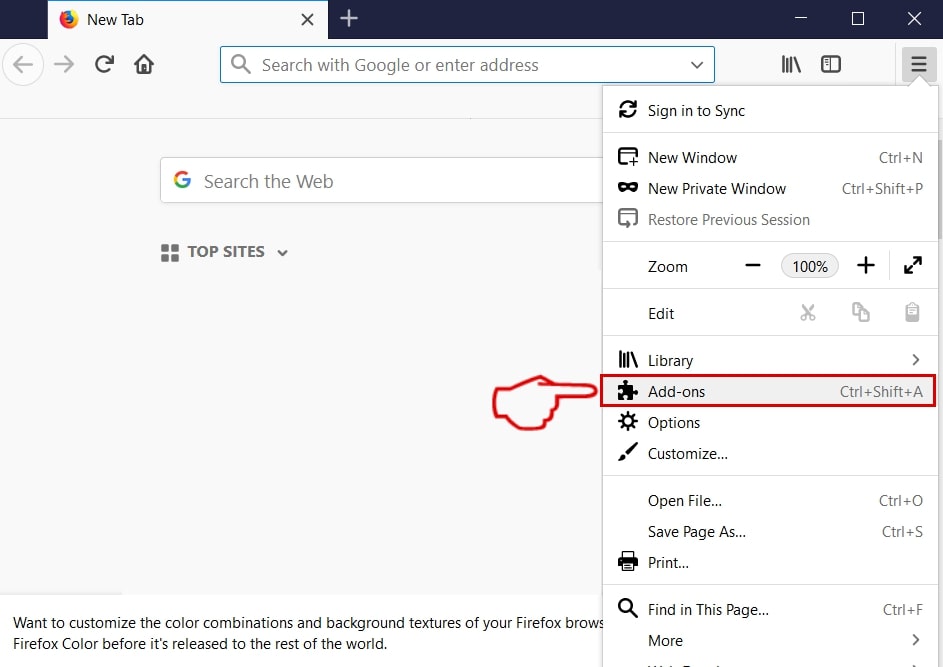
Step 3: Select the unwanted extension and click "Remove"

Step 4: After the extension is removed, restart Mozilla Firefox by closing it from the red "X" button at the top right corner and start it again.
Uninstall Yoyoyo.cyou from Microsoft Edge.
Step 1: Start Edge browser.
Step 2: Open the drop menu by clicking on the icon at the top right corner.
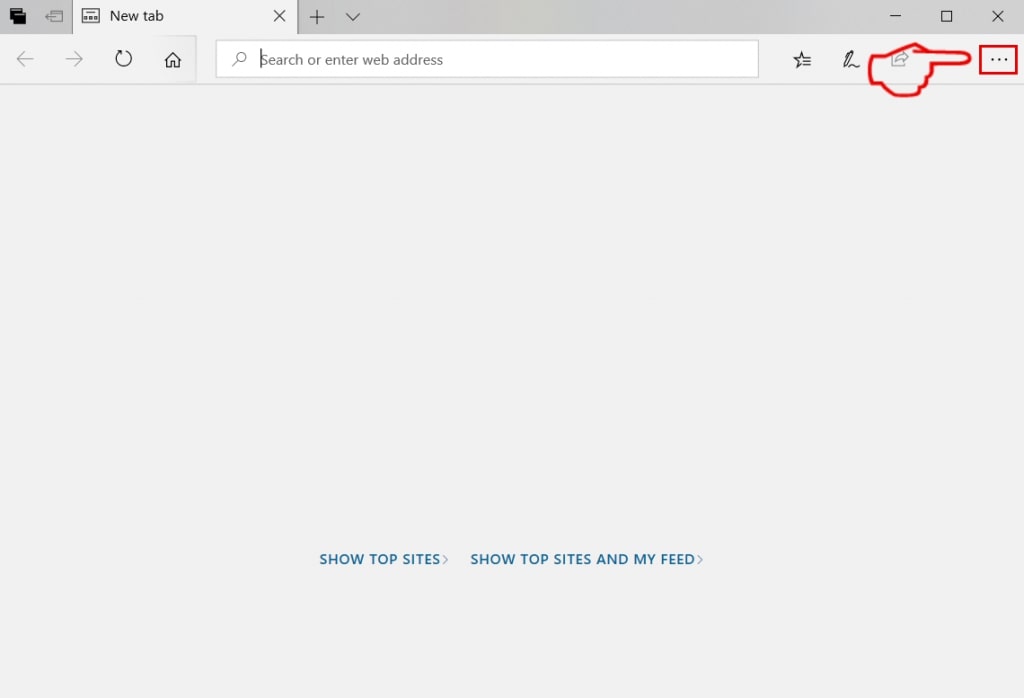
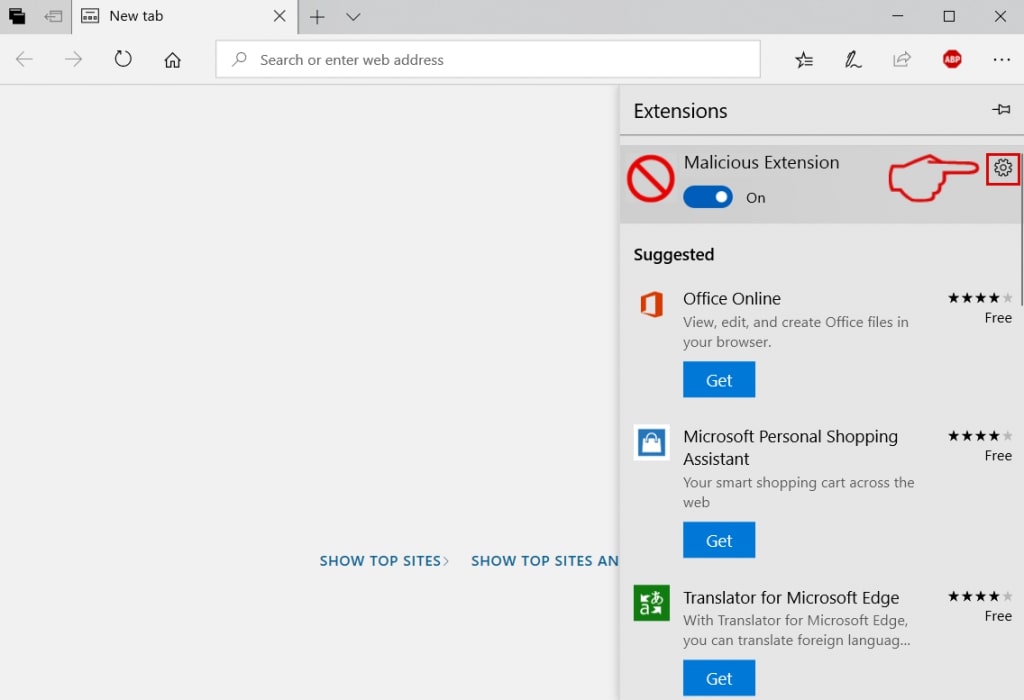
Step 3: From the drop menu select "Extensions".
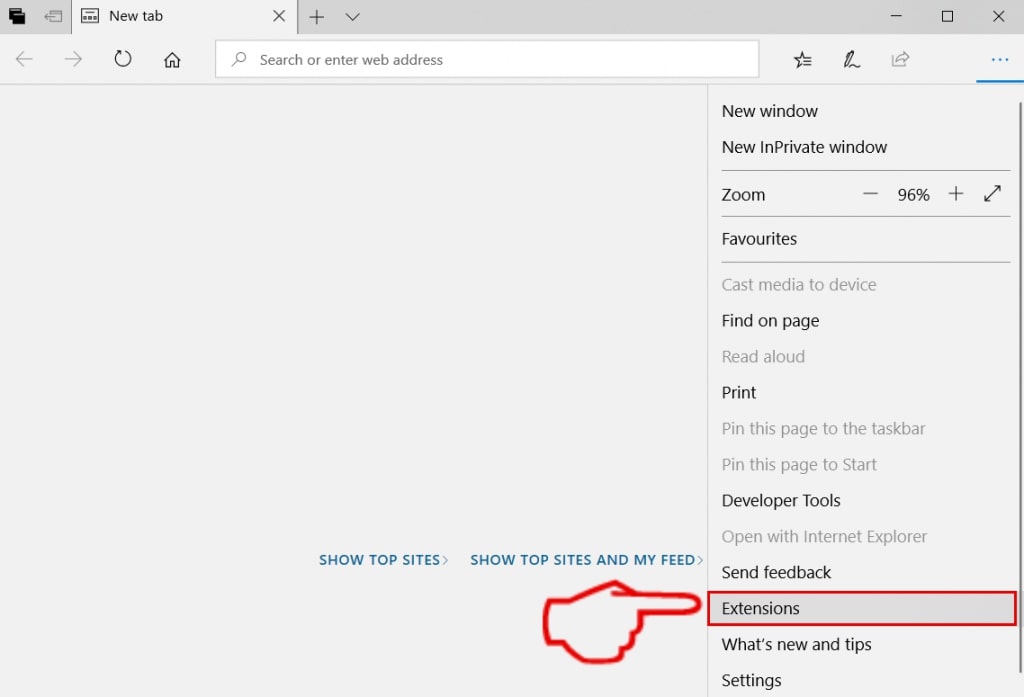
Step 4: Choose the suspected malicious extension you want to remove and then click on the gear icon.
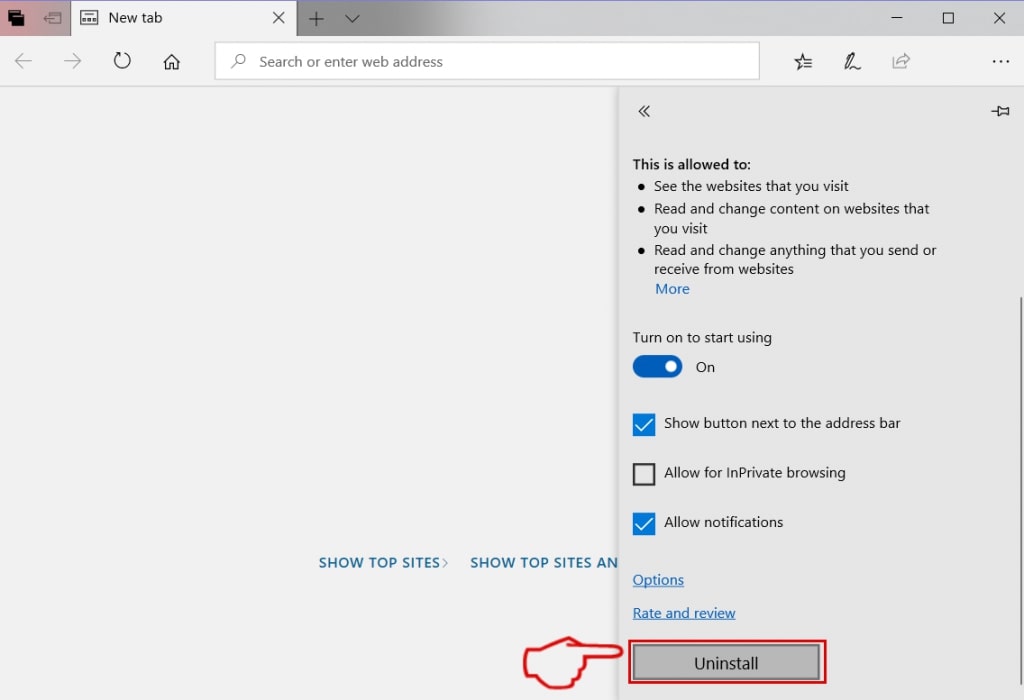
Step 5: Remove the malicious extension by scrolling down and then clicking on Uninstall.
Remove Yoyoyo.cyou from Safari
Step 1: Start the Safari app.
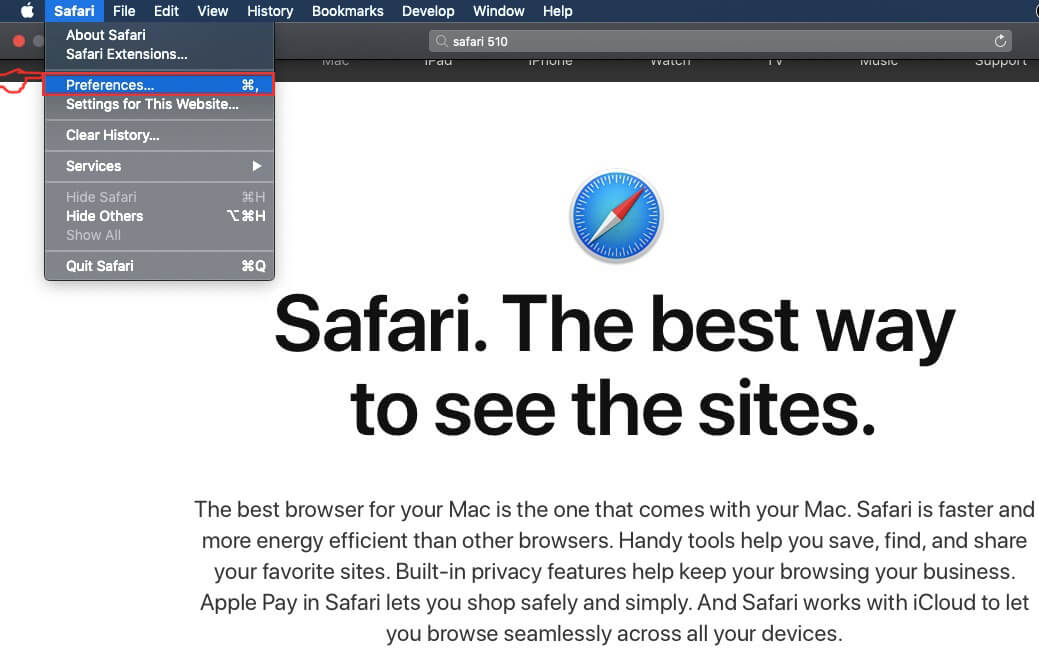
Step 2: After hovering your mouse cursor to the top of the screen, click on the Safari text to open its drop down menu.
Step 3: From the menu, click on "Preferences".
Step 4: After that, select the 'Extensions' Tab.

Step 5: Click once on the extension you want to remove.
Step 6: Click 'Uninstall'.
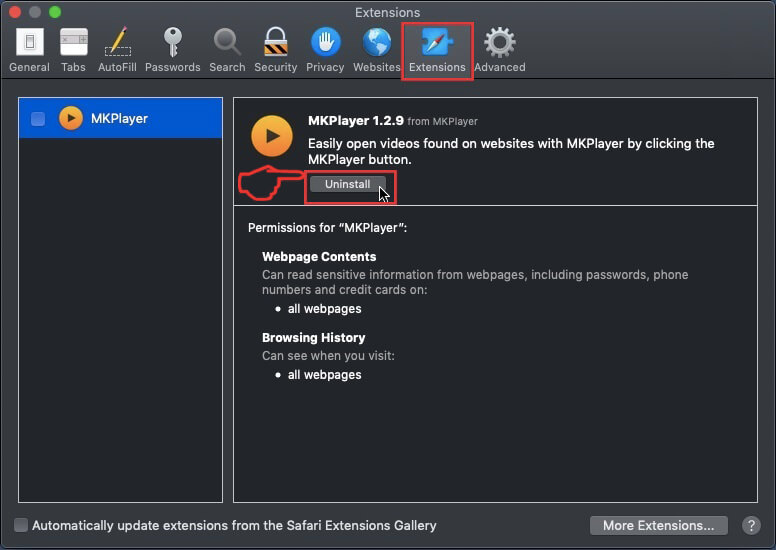
A pop-up window will appear asking for confirmation to uninstall the extension. Select 'Uninstall' again, and the Yoyoyo.cyou will be removed.
Eliminate Yoyoyo.cyou from Internet Explorer.
Step 1: Start Internet Explorer.
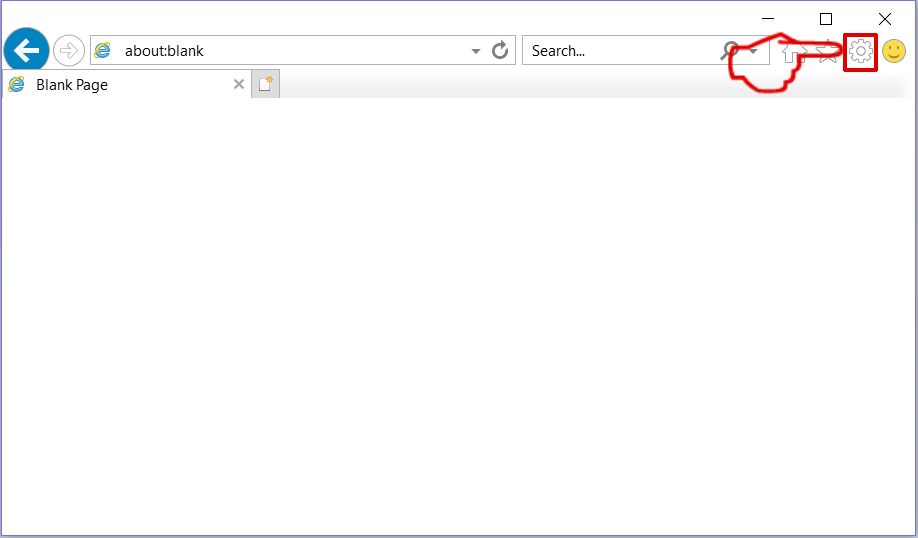
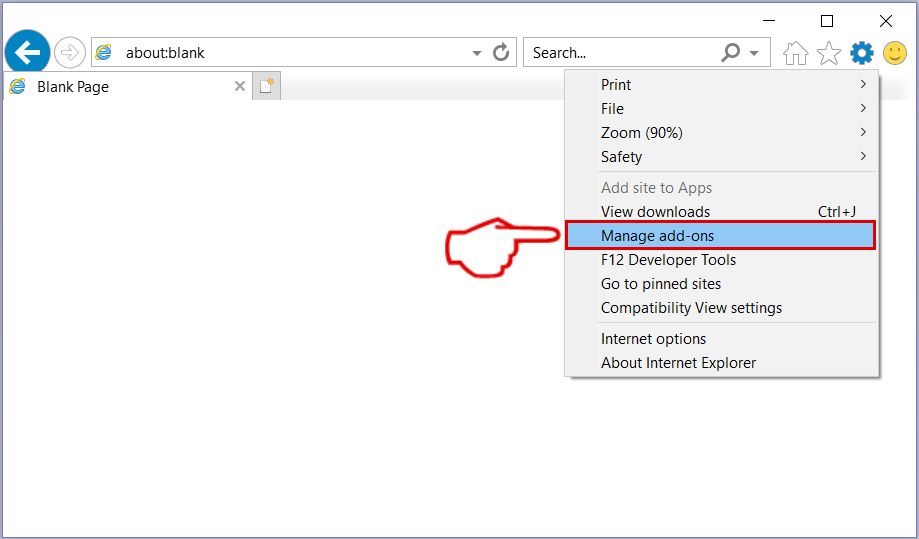
Step 2: Click on the gear icon labeled 'Tools' to open the drop menu and select 'Manage Add-ons'
Step 3: In the 'Manage Add-ons' window.
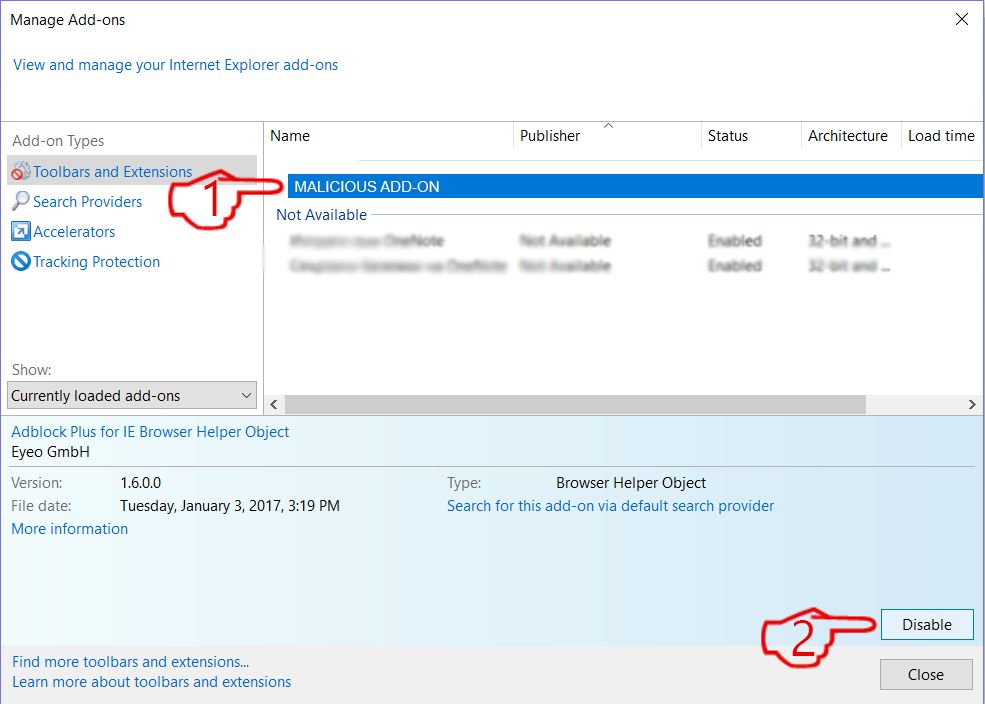
Step 4: Select the extension you want to remove and then click 'Disable'. A pop-up window will appear to inform you that you are about to disable the selected extension, and some more add-ons might be disabled as well. Leave all the boxes checked, and click 'Disable'.
Step 5: After the unwanted extension has been removed, restart Internet Explorer by closing it from the red 'X' button located at the top right corner and start it again.
Remove Push Notifications from Your Browsers
Turn Off Push Notifications from Google Chrome
To disable any Push Notices from Google Chrome browser, please follow the steps below:
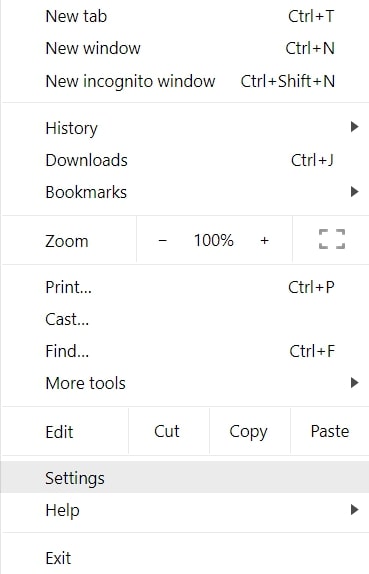
Step 1: Go to Settings in Chrome.
Step 2: In Settings, select “Advanced Settings”:
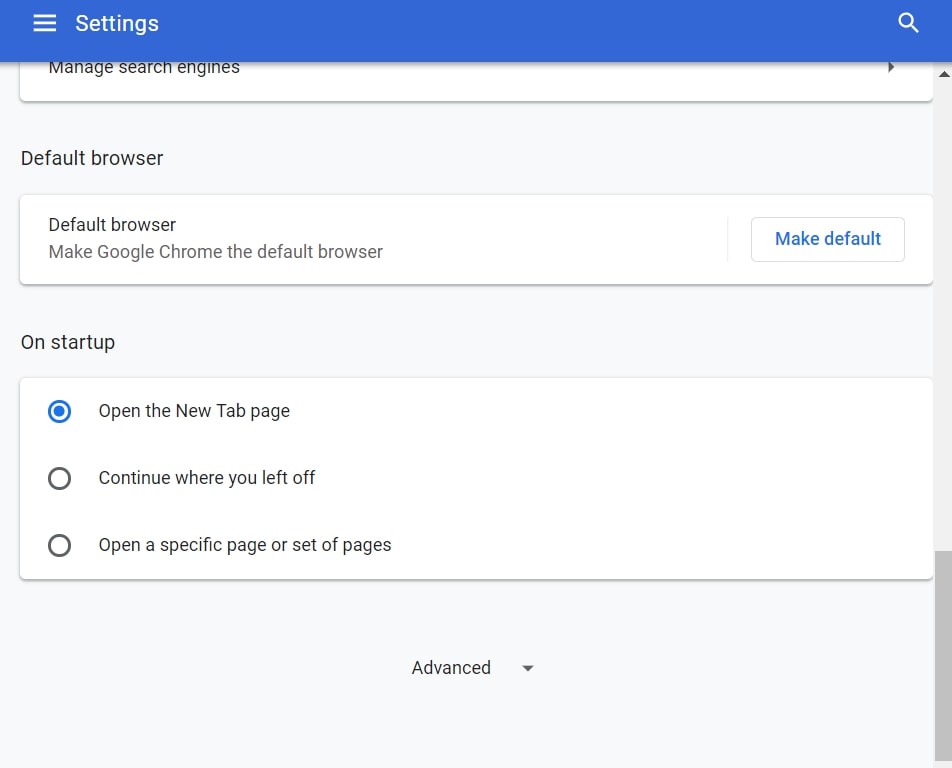
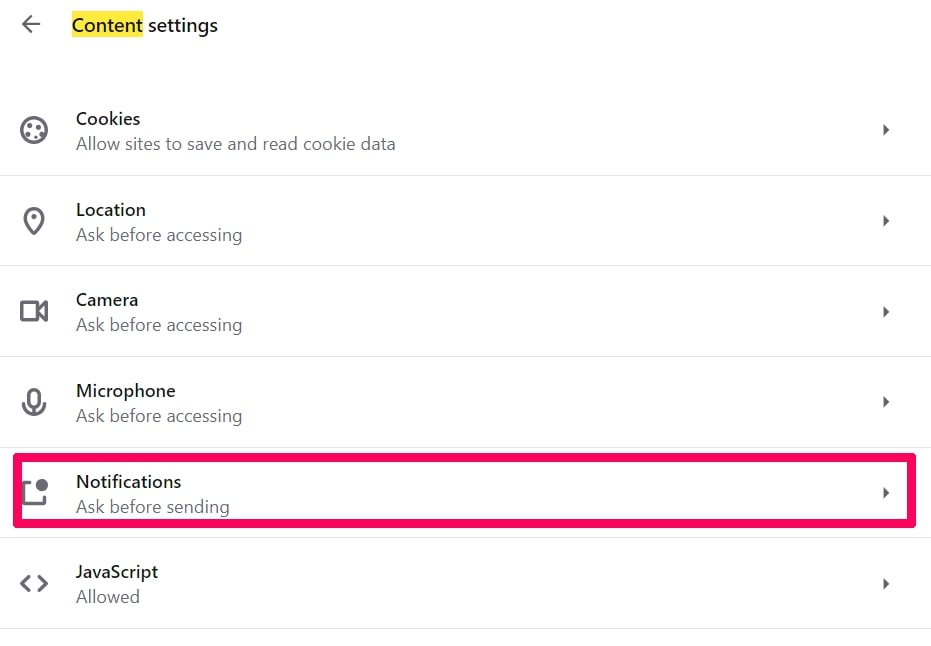
Step 3: Click “Content Settings”:
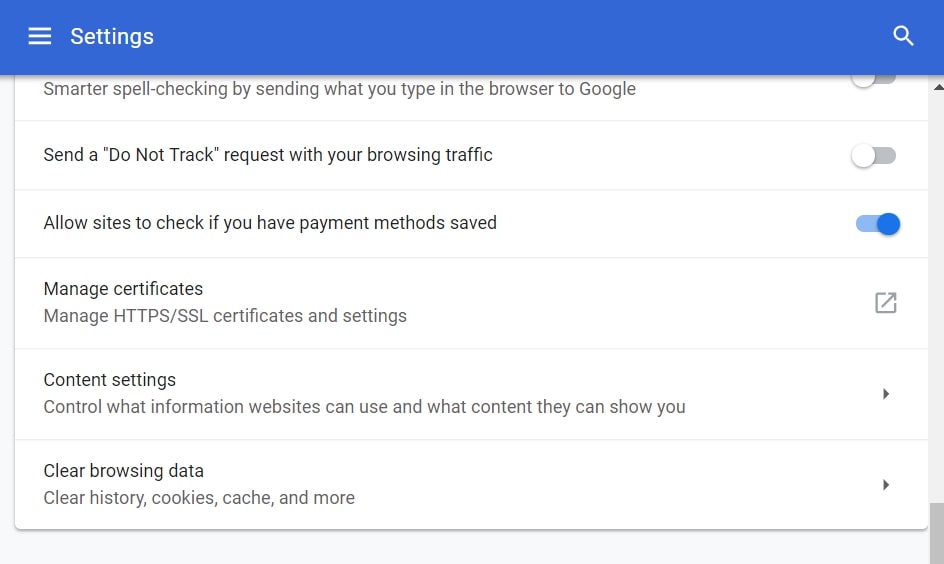
Step 4: Open “Notifications”:
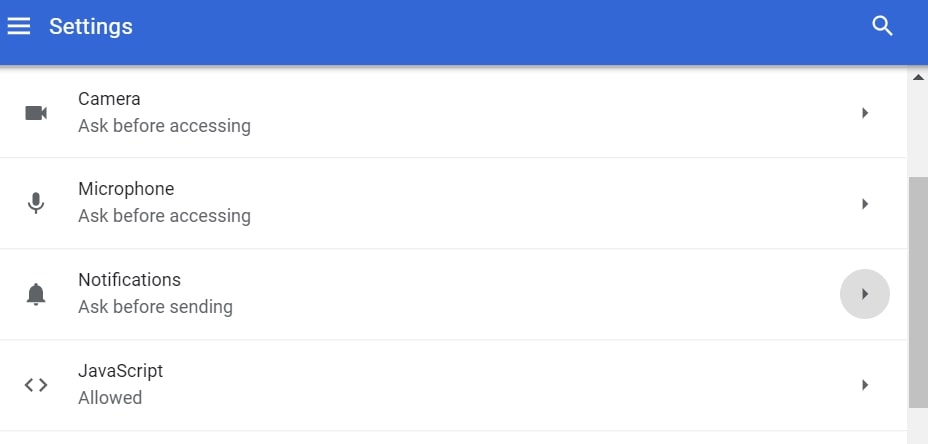
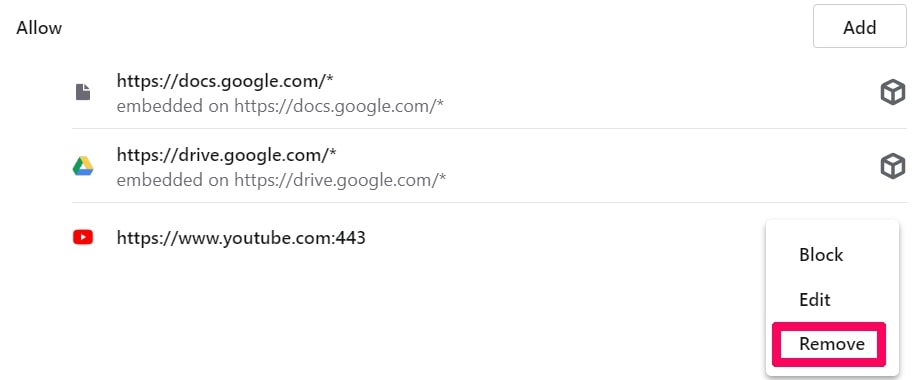
Step 5: Click the three dots and choose Block, Edit or Remove options:

Remove Push Notifications on Firefox
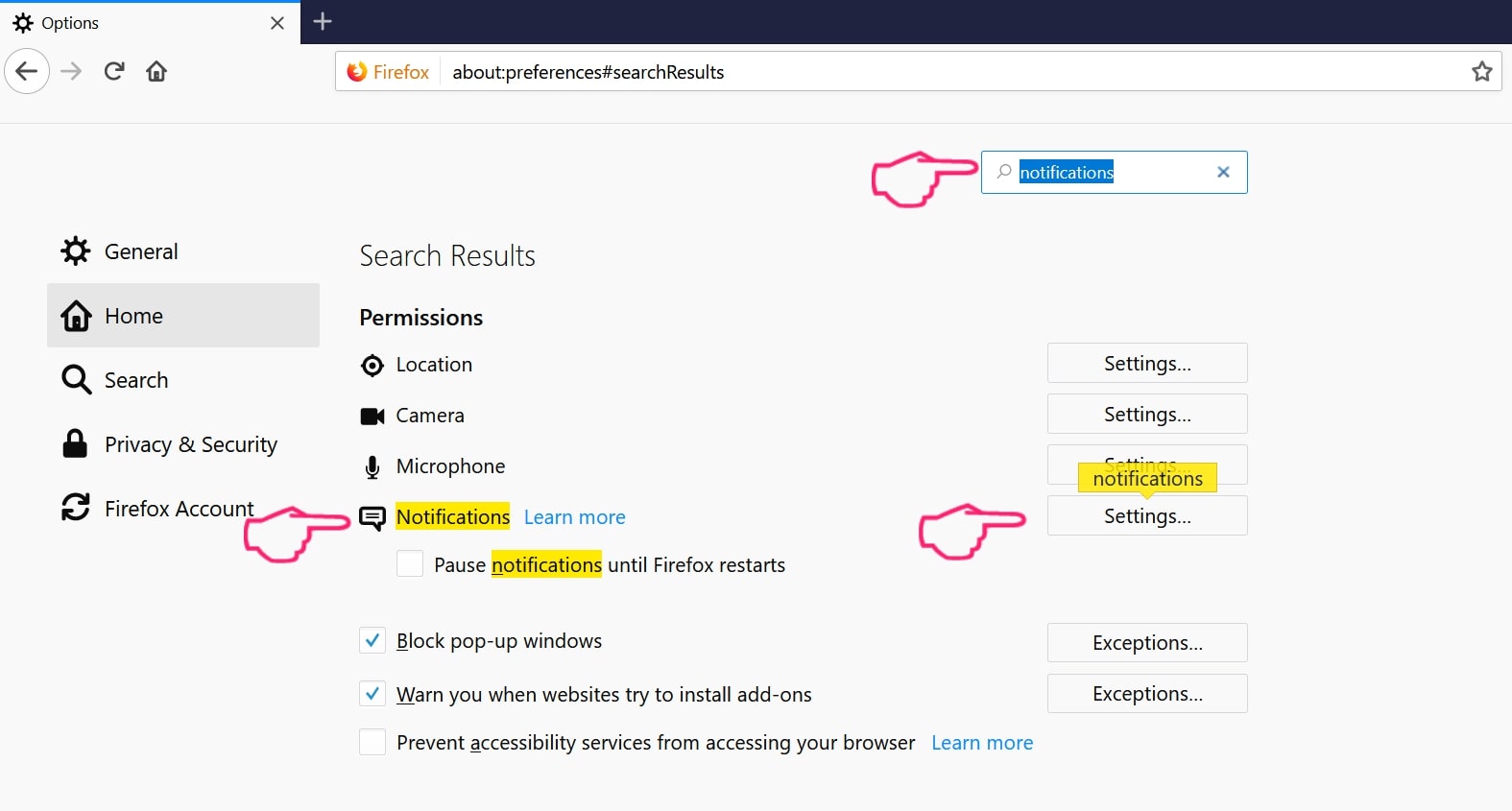
Step 1: Go to Firefox Options.
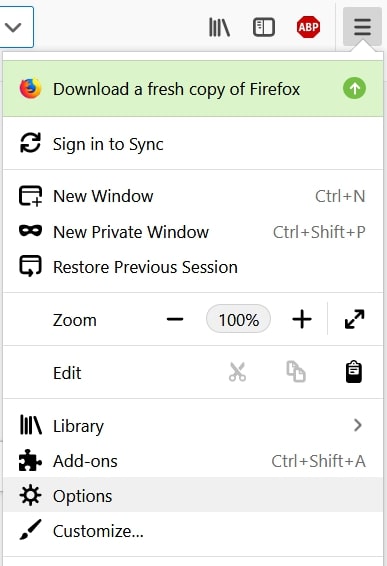
Step 2: Go to “Settings”, type “notifications” in the search bar and click "Settings":
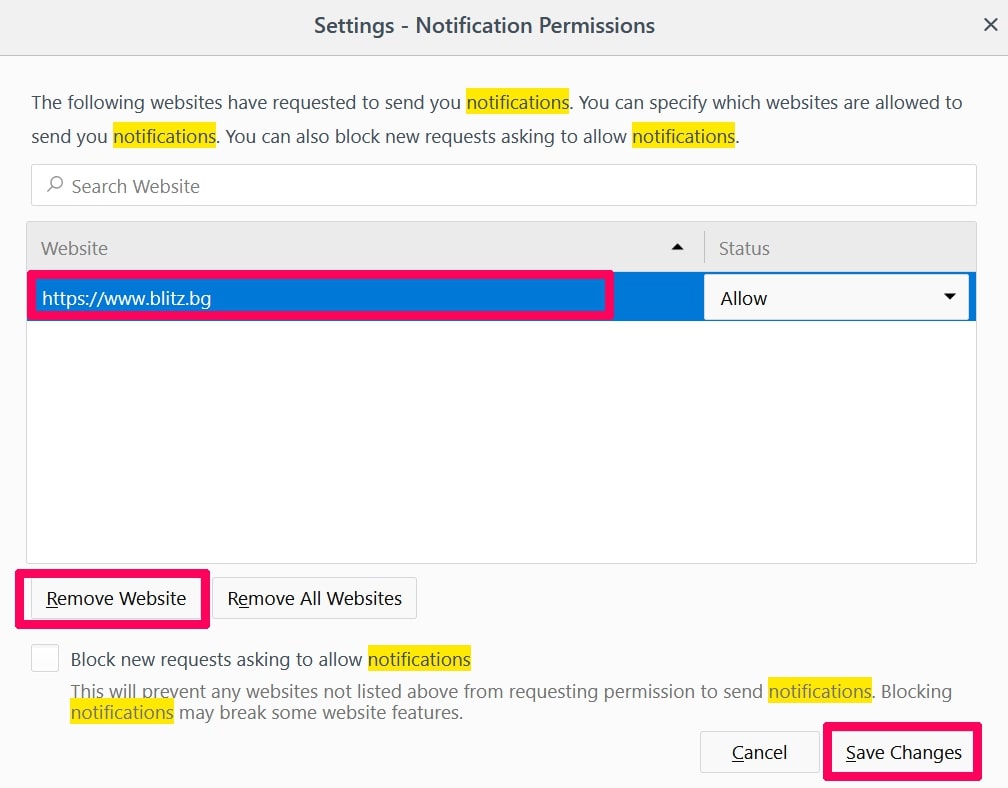
Step 3: Click “Remove” on any site you wish notifications gone and click “Save Changes”
Stop Push Notifications on Opera
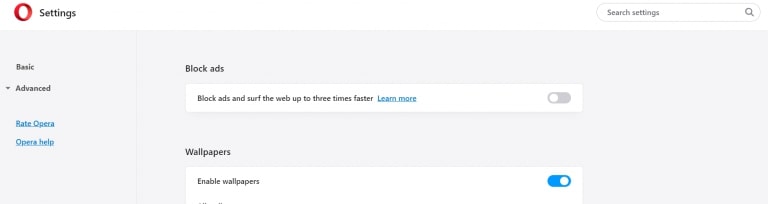
Step 1: In Opera, press ALT+P to go to Settings.
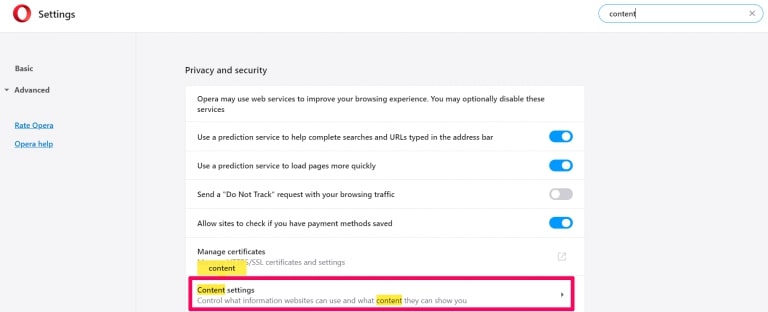
Step 2: In Setting search, type “Content” to go to Content Settings.
Step 3: Open Notifications:
Step 4: Do the same as you did with Google Chrome (explained below):
Eliminate Push Notifications on Safari
Step 1: Open Safari Preferences.
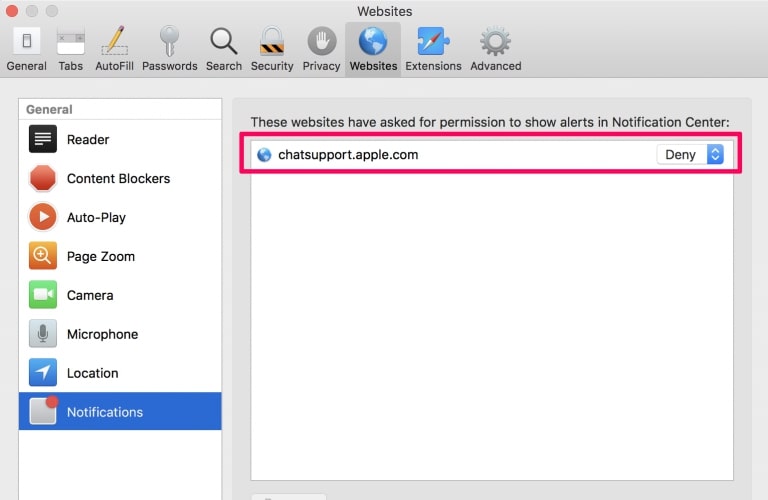
Step 2: Choose the domain from where you like push pop-ups gone and change to "Deny" from "Allow".
Yoyoyo.cyou-FAQ
What Is Yoyoyo.cyou?
The Yoyoyo.cyou threat is adware or browser redirect virus.
It may slow your computer down significantly and display advertisements. The main idea is for your information to likely get stolen or more ads to appear on your device.
The creators of such unwanted apps work with pay-per-click schemes to get your computer to visit risky or different types of websites that may generate them funds. This is why they do not even care what types of websites show up on the ads. This makes their unwanted software indirectly risky for your OS.
What Are the Symptoms of Yoyoyo.cyou?
There are several symptoms to look for when this particular threat and also unwanted apps in general are active:
Symptom #1: Your computer may become slow and have poor performance in general.
Symptom #2: You have toolbars, add-ons or extensions on your web browsers that you don't remember adding.
Symptom #3: You see all types of ads, like ad-supported search results, pop-ups and redirects to randomly appear.
Symptom #4: You see installed apps on your Mac running automatically and you do not remember installing them.
Symptom #5: You see suspicious processes running in your Task Manager.
If you see one or more of those symptoms, then security experts recommend that you check your computer for viruses.
What Types of Unwanted Programs Are There?
According to most malware researchers and cyber-security experts, the threats that can currently affect your device can be rogue antivirus software, adware, browser hijackers, clickers, fake optimizers and any forms of PUPs.
What to Do If I Have a "virus" like Yoyoyo.cyou?
With few simple actions. First and foremost, it is imperative that you follow these steps:
Step 1: Find a safe computer and connect it to another network, not the one that your Mac was infected in.
Step 2: Change all of your passwords, starting from your email passwords.
Step 3: Enable two-factor authentication for protection of your important accounts.
Step 4: Call your bank to change your credit card details (secret code, etc.) if you have saved your credit card for online shopping or have done online activities with your card.
Step 5: Make sure to call your ISP (Internet provider or carrier) and ask them to change your IP address.
Step 6: Change your Wi-Fi password.
Step 7: (Optional): Make sure to scan all of the devices connected to your network for viruses and repeat these steps for them if they are affected.
Step 8: Install anti-malware software with real-time protection on every device you have.
Step 9: Try not to download software from sites you know nothing about and stay away from low-reputation websites in general.
If you follow these recommendations, your network and all devices will become significantly more secure against any threats or information invasive software and be virus free and protected in the future too.
How Does Yoyoyo.cyou Work?
Once installed, Yoyoyo.cyou can collect data using trackers. This data is about your web browsing habits, such as the websites you visit and the search terms you use. It is then used to target you with ads or to sell your information to third parties.
Yoyoyo.cyou can also download other malicious software onto your computer, such as viruses and spyware, which can be used to steal your personal information and show risky ads, that may redirect to virus sites or scams.
Is Yoyoyo.cyou Malware?
The truth is that PUPs (adware, browser hijackers) are not viruses, but may be just as dangerous since they may show you and redirect you to malware websites and scam pages.
Many security experts classify potentially unwanted programs as malware. This is because of the unwanted effects that PUPs can cause, such as displaying intrusive ads and collecting user data without the user’s knowledge or consent.
About the Yoyoyo.cyou Research
The content we publish on SensorsTechForum.com, this Yoyoyo.cyou how-to removal guide included, is the outcome of extensive research, hard work and our team’s devotion to help you remove the specific, adware-related problem, and restore your browser and computer system.
How did we conduct the research on Yoyoyo.cyou?
Please note that our research is based on independent investigation. We are in contact with independent security researchers, thanks to which we receive daily updates on the latest malware, adware, and browser hijacker definitions.
Furthermore, the research behind the Yoyoyo.cyou threat is backed with VirusTotal.
To better understand this online threat, please refer to the following articles which provide knowledgeable details.