

If your antivirus flagged a file called TinyTask777Setup.exe, it’s not a false positive. The real TinyTask is a tiny 36KB portable app that doesn’t need an installer at all. Any file calling itself “TinyTask Setup” is already suspicious by design.
TinyTask777Setup.exe is a trojanized installer that pretends to be the legitimate TinyTask macro recorder. It uses the name recognition of a well-known automation tool to trick users into running it. Once executed, it can install backdoor components, steal credentials, and establish persistence on your system.
Last reviewed: April 2026. Detection names and removal steps verified against current Windows 11 and Windows 10.
What is TinyTask777setup.exe Virus?
The TinyTask777setup.exe Virus is a malware executable file that disguises itself as a legitimate installer. At first glance, it may appear to be related to a popular automation tool, but in reality, it is a Trojan horse designed to infiltrate systems and execute harmful activities without the user’s consent.
This type of malware falls under the Trojan category because it relies on deception to trick users into installing it. Once executed, the file does not behave like a normal setup program. Instead, it silently installs malicious payloads in the background, often without any visible indication.
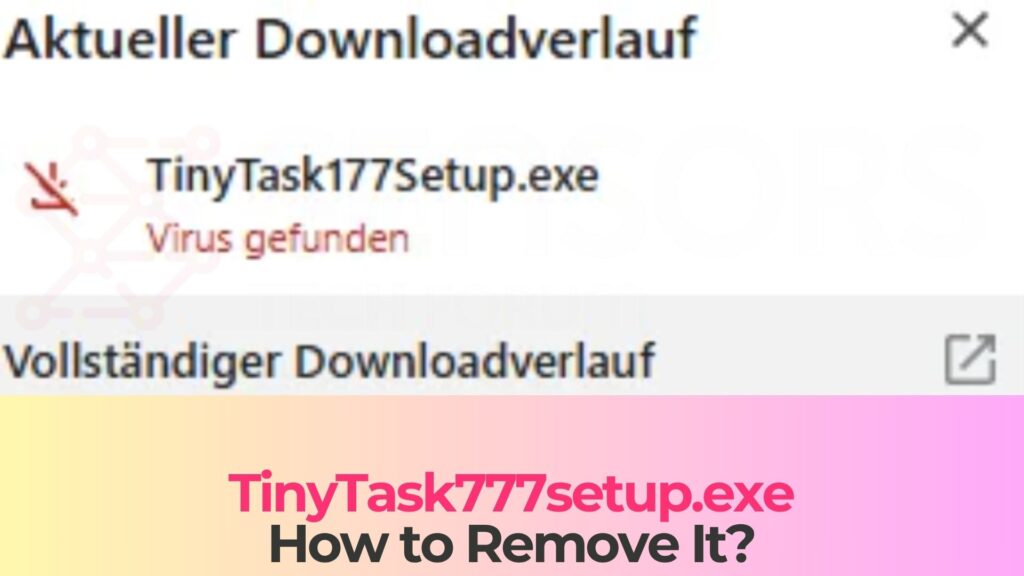
TinyTask777setup.exe Details
| Type | Trojan horse (fake installer) |
| Risk Level | High (backdoor access, credential theft, secondary malware delivery |
| Common AV detection names | Trojan:Win32/Wacatac, Trojan.GenericKD, Win32/TrojanDownloader, HEUR:Trojan.Win32.Generic, Trojan.Downloader |
| Symptoms | Unexpected processes, high CPU usage, disabled security software, new startup entries |
| Removal difficulty | Moderate (persistence mechanisms and possible secondary payloads) |
| Removal Tool |
See If Your System Has Been Affected by malware
Download
Malware Removal Tool
|
What Is TinyTask777Setup.exe?
TinyTask777Setup.exe is a trojan that impersonates a setup file for TinyTask, a popular freeware macro recorder. The real TinyTask, developed by Vista Software, is a legitimate automation tool that records and replays mouse clicks and keystrokes. It’s widely used for automating repetitive tasks.
Here’s the critical detail that gives this fake away: the genuine TinyTask is a standalone portable executable. It’s a single 36KB file. It has no installer, no setup wizard, no dependencies. You download the EXE, double-click it, and it runs. That’s it.
So any file with “Setup” in the name claiming to install TinyTask is fake by definition. The “777” in the filename is another red flag. It’s likely referencing a modified or non-existent version number to appear as the latest release. The actual latest version is 1.77 (or 1.78), distributed only through tinytask.net.
Attackers chose TinyTask specifically because it’s a common search term. People looking for quick automation tools often search “TinyTask download” and grab the first result. Fake download pages hosting trojanized versions like TinyTask777Setup.exe rank alongside (or above) the real source.
How to Tell Real TinyTask From the Fake
This distinction matters because the legitimate TinyTask does trigger some antivirus alerts on its own, and people confuse the two situations. Here’s how to tell them apart:
Legitimate TinyTask
- File name: TinyTask.exe (no “Setup” or version numbers in the name)
- File size: Approximately 36KB. If your download is significantly larger, it’s not the real thing
- Source: Only from tinytask.net. No other domain is official
- Installer: None. It’s a portable app. You run it directly
- AV detections: May trigger 1-3 heuristic alerts from lesser-known engines because it hooks keyboard/mouse input for macro recording. This is a false positive
TinyTask777Setup.exe (Trojan)
- File name: Contains “Setup,” “777,” or other additions to the standard name
- File size: Typically several MB or larger (far bigger than the 36KB original)
- Source: Third-party download sites, cracked software pages, or ad-supported links
- Installer: Has a setup wizard, possibly requesting admin permissions
- AV detections: Multiple engines flag it with definitive trojan signatures, not just heuristic guesses
Bottom line: if you downloaded something called TinyTask that’s bigger than 100KB or came with an installer, delete it and get the real one from tinytask.net.
How TinyTask777Setup.exe Ends Up on Your PC
Nobody searches for malware. People search for “TinyTask download” and land in the wrong place. Here’s how it typically happens:
Fake Download Sites
Search “TinyTask free download” and you’ll find dozens of third-party download portals. Some are legitimate software mirrors. Others wrap the real program inside their own installer, which bundles adware, toolbars, or in this case, a full trojan. The page looks professional, the download button looks normal, and the file name sounds right.
SEO-Poisoned Search Results
Attackers create pages optimized for search terms like “TinyTask download,” “TinyTask latest version,” or “TinyTask free.” These pages rank in search results alongside the real developer’s site. They sometimes outrank it. The downloaded file has a convincing name and icon but contains malicious code.
Cracked Software Bundles
This one is worth pausing on: TinyTask is completely free. There’s nothing to crack, no premium version, no license key. So if you found it on a piracy site, ask yourself why it’s there. The answer is that someone repackaged it with malware. Users installing a bundle of “useful free tools” get more than they bargained for.
Malvertising
Online ads that redirect to fake download pages. You click what looks like a legitimate ad for productivity software and end up downloading TinyTask777Setup.exe instead. These ads can appear even on reputable websites through compromised ad networks.
What TinyTask777Setup.exe Does Once Executed
When you run the fake installer, it may briefly display a setup wizard to maintain the illusion. Meanwhile, it’s doing the real work in the background:
Persistence Setup
First priority: surviving a reboot. It creates entries in Windows Registry Run keys so it launches at startup. It may also add scheduled tasks with generic names (like “SystemUpdate” or “WindowsHelper”) to restart itself if killed. Some variants drop files into AppData\Roaming or ProgramData with misleading names to avoid casual detection.
Backdoor Installation
Many fake installer trojans establish a connection to a remote command-and-control (C2) server. This gives attackers persistent remote access to your machine. They can run commands, move files around, and drop additional malware whenever they want. Your PC becomes a node they control.
Credential Theft
Ever save passwords in Chrome or Firefox? That’s exactly what infostealers target. The payload may harvest saved credentials from browsers, email clients, FTP programs, and crypto wallets. Stolen data gets sent to the attacker’s server, often within minutes of infection.
Secondary Malware Delivery
Fake installers frequently act as “droppers,” pulling down additional payloads after the initial infection. What comes next varies: coin miners, ransomware, spyware. The first trojan is just the door opener.
Security Software Tampering
Here’s where it gets nasty. Some variants disable Windows Defender, add exclusions to antivirus scanning, or block access to security websites entirely. If your antivirus suddenly shows as “disabled” or you can’t visit security-related URLs, something is actively interfering.
Signs Your PC May Be Infected
If you recently downloaded something you thought was TinyTask and noticed any of these, investigate immediately:
- New processes in Task Manager you don’t recognize, especially ones consuming CPU or maintaining network connections
- Windows Defender or your antivirus turned off without you doing it
- New entries in Startup (check Task Manager’s Startup tab) that weren’t there before
- Sudden browser changes: new extensions, altered homepage, or redirected search engine
- System slowdowns that started around the same time as the download
- Unexpected pop-ups or security warnings from your operating system
- Account compromise notifications from email providers or online services (a sign credentials may have been stolen already)
- Unable to access certain websites, especially security or antivirus sites
Here’s a quick way to check: if you still have the downloaded file, right-click it and check Properties. If the file size is several megabytes and there’s no valid digital signature, it’s not the real TinyTask.
How to Remove TinyTask777Setup.exe
Trojans create multiple persistence points, so deleting the original file isn’t enough. Follow these steps in order.
Step 1: Boot Into Safe Mode
Safe Mode prevents the trojan’s startup entries from loading, making removal much easier.
- Press Windows + I to open Settings
- Go to System > Recovery (Windows 11) or Update & Security > Recovery (Windows 10)
- Under “Advanced startup,” click Restart now
- Select Troubleshoot > Advanced options > Startup Settings > Restart
- Press 5 or F5 for Safe Mode with Networking
Step 2: Delete the Original File
Find and delete TinyTask777Setup.exe from wherever you saved it (usually Downloads or Desktop). Also check these common hiding spots for dropped payloads:
- C:\Users\[YourName]\AppData\Local\Temp
- C:\Users\[YourName]\AppData\Roaming (look for recently created folders with random names)
- C:\ProgramData (hidden folder, enable “Show hidden files” in Folder Options)
- C:\Windows\Temp
Right-click suspicious files and check Properties. Look at creation dates. Anything created around the same time you ran the fake installer deserves scrutiny.
Step 3: Run a Full Antivirus Scan
Update Microsoft Defender’s definitions first, then run a full scan.
- Open Windows Security > Virus & threat protection
- Click Protection updates > Check for updates
- Go to Scan options > Full scan > Scan now
- After the full scan, also run a Microsoft Defender Offline scan (same menu). This scans before Windows loads and catches threats that hide during normal operation
If Defender was disabled by the trojan and you can’t re-enable it, you’ll need a second tool. SpyHunter 5 can detect trojan persistence mechanisms (registry keys, scheduled tasks, dropped files) and clean them in one pass. That simplifies cleanup when the trojan has tampered with built-in security.
Step 4: Clean Registry and Scheduled Tasks
Even after an antivirus scan, check for leftover persistence entries manually.
Registry:
- Press Windows + R, type regedit, press Enter
- Check these locations for unfamiliar entries:
- HKEY_LOCAL_MACHINE\Software\Microsoft\Windows\CurrentVersion\Run
- HKEY_CURRENT_USER\Software\Microsoft\Windows\CurrentVersion\Run
- HKEY_LOCAL_MACHINE\Software\Microsoft\Windows\CurrentVersion\RunOnce
- HKEY_CURRENT_USER\Software\Microsoft\Windows\CurrentVersion\RunOnce
- Before deleting anything, check what file path the entry points to. Delete only entries pointing to suspicious locations (Temp, AppData, random folder names)
Scheduled Tasks:
- Open Task Scheduler (search it in Start)
- Browse Task Scheduler Library
- Look for tasks created around the time of infection with vague names (“Update,” “Sync,” “Helper”)
- Click each suspicious task, check the Actions tab to see what program it runs
- Delete any tasks pointing to files in Temp, AppData, or ProgramData
Step 5: Check Browser Extensions and Settings
Trojans sometimes install browser extensions or change settings to redirect searches or inject ads.
- Chrome: Go to chrome://extensions/ and remove anything unfamiliar. Check chrome://settings/searchEngines for hijacked search defaults
- Firefox: Go to about:addons. If problems persist, go to about:support and click “Refresh Firefox”
- Edge: Go to edge://extensions/ and review. Check edge://settings/searchEngines
Step 6: Verify the Cleanup
Restart normally and monitor for 48 hours:
- Check Task Manager for suspicious processes and high CPU/network usage at idle
- Confirm Windows Defender is active and running
- Verify no new startup entries or scheduled tasks appeared
- Run another full scan after 24 hours
If the trojan returns, you may have a rootkit or a secondary dropper that survived the cleanup. At that point, running a scan from outside Windows (like Defender Offline or a bootable rescue USB) is the next step. A clean Windows reinstallation is the nuclear option if nothing else works.
Securing Your Accounts After Removal
Trojans with infostealer components can harvest saved passwords within minutes of execution. Even if you removed the malware quickly, treat your credentials as potentially compromised.
- Change passwords immediately, starting with email and banking. Don’t reuse the compromised passwords anywhere
- Enable two-factor authentication on all important accounts. Use an authenticator app rather than SMS
- Check your email’s forwarding rules and sent folder. Attackers sometimes set up silent forwarding to maintain access
- Review login activity on Google, Microsoft, and banking accounts. Revoke unfamiliar sessions
- If you had cryptocurrency wallets accessible on the infected PC, move your funds to a new wallet immediately
- Monitor bank statements for 30-60 days for unauthorized transactions
How to Avoid Fake Installer Trojans
- Download software from official sources only. For TinyTask specifically, that’s tinytask.net. For any tool, find the developer’s actual website, not a download portal
- Check file size and signatures. If a “free tool” that should be 36KB is suddenly 5MB, something was added to it
- Be skeptical of search results. The first Google result isn’t always the official site. Check the URL carefully before downloading
- Never run an installer that requires admin rights for a program you didn’t specifically seek from a trusted source
- Keep Windows Defender real-time protection enabled. It catches most known trojans before they execute
- Use an ad blocker like uBlock Origin to prevent malvertising redirects
- If a free tool suddenly asks you to “install” with a setup wizard, pause and verify. Many legitimate free utilities are portable and don’t need installers
Frequently Asked Questions
Is TinyTask itself a virus?
No. The real TinyTask (from tinytask.net) is a legitimate macro recorder used by millions of people. It does trigger some antivirus heuristic alerts because it hooks into keyboard and mouse input to record macros, which technically resembles keylogger behavior. But these are false positives. The legitimate TinyTask is a 36KB portable file with no installer, no network activity, and no hidden components. TinyTask777Setup.exe, on the other hand, is a completely different file created by attackers that has nothing to do with the real developer.
I downloaded TinyTask777Setup.exe but didn’t run it. Am I infected?
Probably not. Simply downloading a file doesn’t execute it on modern Windows. The trojan activates only when you run the EXE. Delete the file from your Downloads folder and empty the Recycle Bin. To be safe, run a quick scan with Windows Defender, but if you never double-clicked the file, your system should be clean.
How can I tell if TinyTask777Setup.exe stole my passwords?
You can’t know for certain, which is why the safe approach is to assume they were compromised and change them. If the trojan included an infostealer component, it would have harvested saved passwords from your browsers within minutes of execution. Watch for signs like unexpected password reset emails, login notifications from unfamiliar locations, or unauthorized transactions. Enable two-factor authentication on critical accounts regardless.
Will Windows Defender catch TinyTask777Setup.exe?
In most cases, yes. Microsoft Defender detects common trojan variants, and its cloud-based protection analyzes new files in real time. However, brand-new variants (called “zero-day” samples) can sometimes slip past any antivirus for a short window until definitions are updated. Running Defender alongside a second opinion scanner like SpyHunter 5 gives you broader coverage, since different engines catch different things.
Can this trojan spread to other computers on my network?
Most fake installer trojans don’t self-replicate across networks. They rely on users running the file manually. However, if the trojan installed a backdoor, attackers could use your machine to target other devices on the same network. After cleaning the infected PC, check other machines on your network for suspicious activity, and change your Wi-Fi password as a precaution.
What is TinyTask and what is it used for?
TinyTask is a free, lightweight macro recorder for Windows. It records your mouse movements, clicks, and keystrokes, then replays them on command. People use it for automating repetitive tasks like filling forms, clicking through menus, or batch-renaming files. The legitimate version is a single 36KB file from tinytask.net. It requires no installation, no account, and no internet connection to work. If what you downloaded looks or behaves differently, it’s not the real TinyTask.
Final Verdict
TinyTask777Setup.exe is a trojan disguised as a setup file for software that doesn’t need one. That’s the first red flag, and it’s the one that should have stopped the infection. The real TinyTask is a 36KB portable app from tinytask.net with no installer.
If you ran this file, take it seriously. Boot into Safe Mode and run full scans with Microsoft Defender and a dedicated tool like SpyHunter 5. Clean up registry and scheduled task entries. Then change all your passwords. Don’t skip the credential cleanup. Infostealers work fast, and your saved browser passwords may already be in someone else’s hands.
Going forward, the simplest protection against fake installer trojans is verifying your download source. For any free tool, go straight to the developer’s official website. If a free program comes with a setup wizard or admin permission requests, pause. Verify the source before running it.

Ventsislav Krastev
Ventsislav is a cybersecurity expert at SensorsTechForum since 2015. He has been researching, covering, helping victims with the latest malware infections plus testing and reviewing software and the newest tech developments. Having graduated Marketing as well, Ventsislav also has passion for learning new shifts and innovations in cybersecurity that become game changers. After studying Value Chain Management, Network Administration and Computer Administration of System Applications, he found his true calling within the cybersecrurity industry and is a strong believer in the education of every user towards online safety and security.
Follow Me:
Preparation before removing TinyTask777setup.exe.
Before starting the actual removal process, we recommend that you do the following preparation steps.
- Make sure you have these instructions always open and in front of your eyes.
- Do a backup of all of your files, even if they could be damaged. You should back up your data with a cloud backup solution and insure your files against any type of loss, even from the most severe threats.
- Be patient as this could take a while.
- Scan for Malware
- Fix Registries
- Remove Virus Files
Step 1: Scan for TinyTask777setup.exe with SpyHunter Anti-Malware Tool
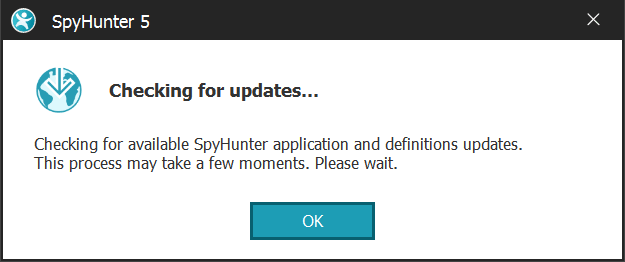
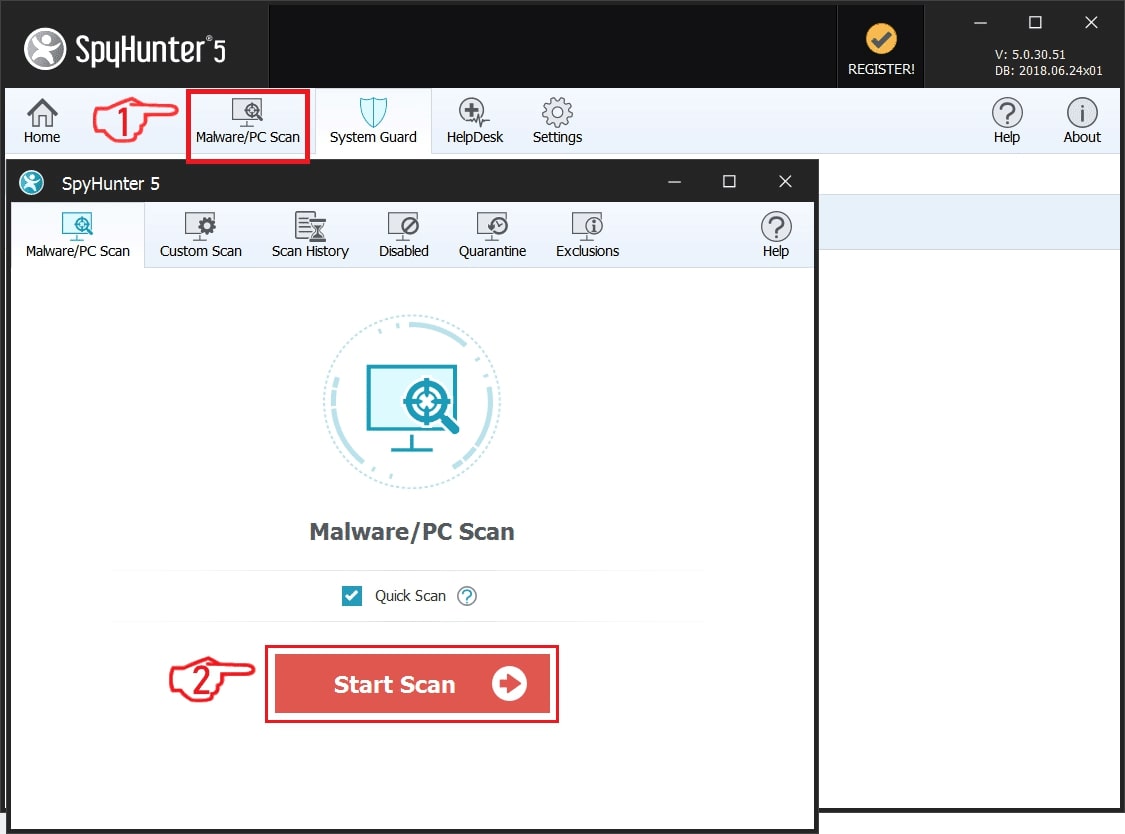
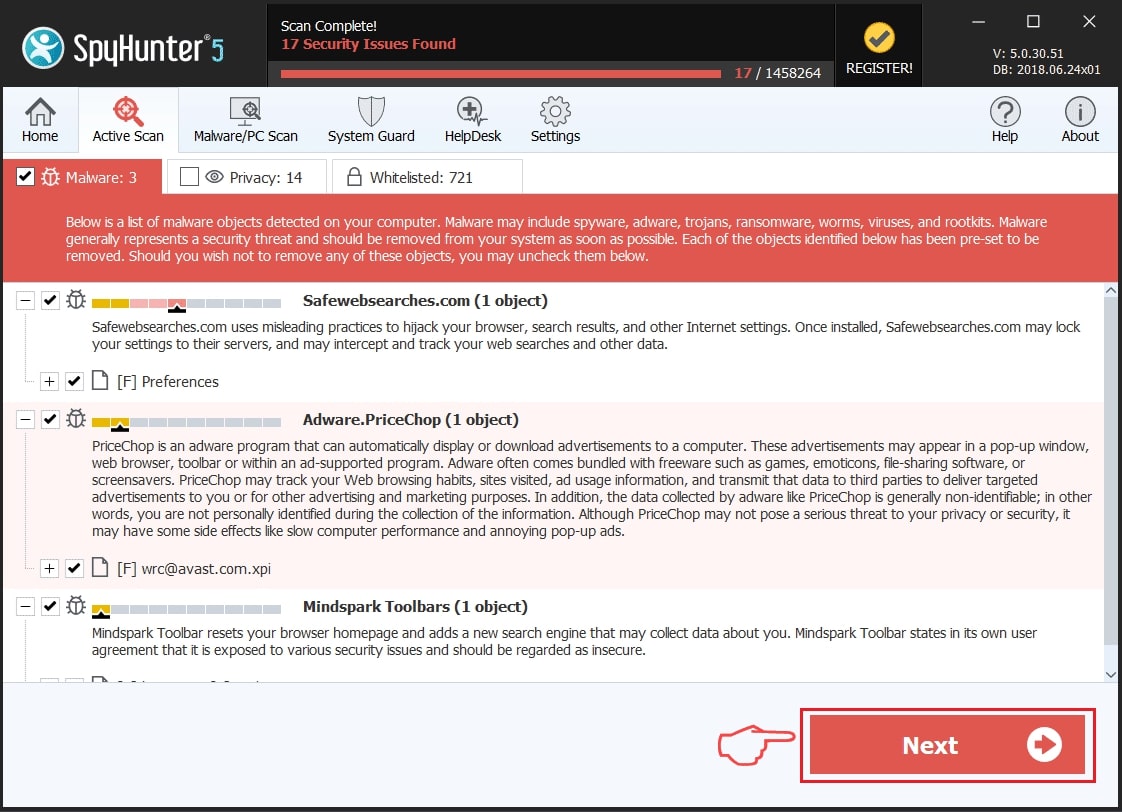
Step 2: Clean any registries, created by TinyTask777setup.exe on your computer.
The usually targeted registries of Windows machines are the following:
- HKEY_LOCAL_MACHINE\Software\Microsoft\Windows\CurrentVersion\Run
- HKEY_CURRENT_USER\Software\Microsoft\Windows\CurrentVersion\Run
- HKEY_LOCAL_MACHINE\Software\Microsoft\Windows\CurrentVersion\RunOnce
- HKEY_CURRENT_USER\Software\Microsoft\Windows\CurrentVersion\RunOnce
You can access them by opening the Windows registry editor and deleting any values, created by TinyTask777setup.exe there. This can happen by following the steps underneath:
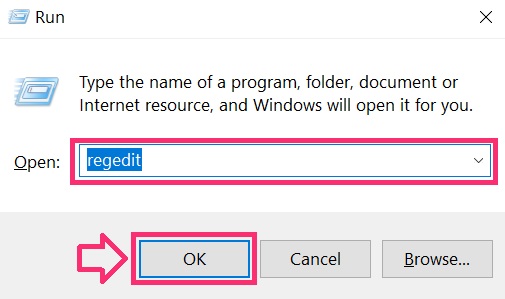
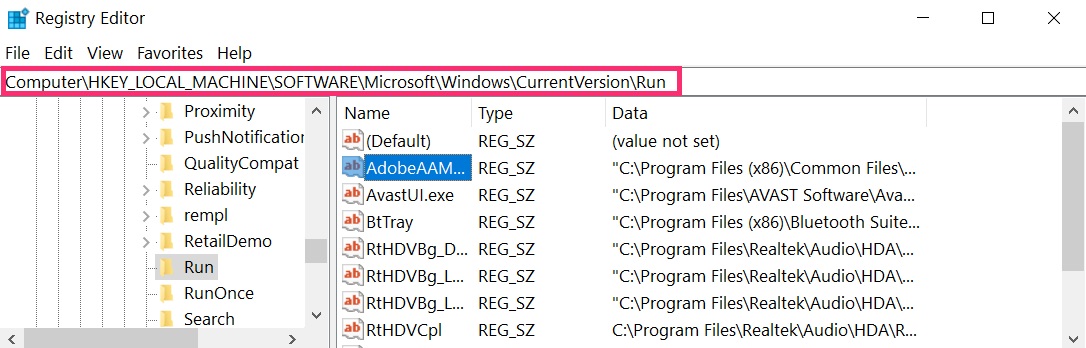
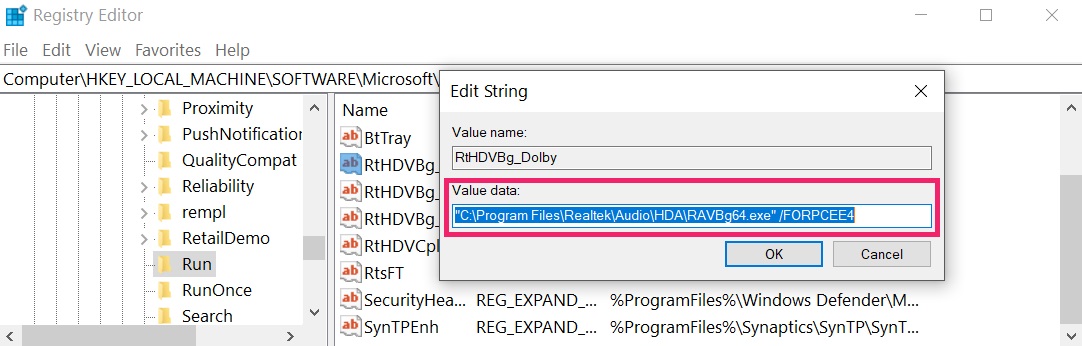 Tip: To find a virus-created value, you can right-click on it and click "Modify" to see which file it is set to run. If this is the virus file location, remove the value.
Step 3: Find virus files created by TinyTask777setup.exe on your PC.
1.For Windows 8, 8.1 and 10.
For Newer Windows Operating Systems
1: On your keyboard press + R and write explorer.exe in the Run text box and then click on the Ok button.
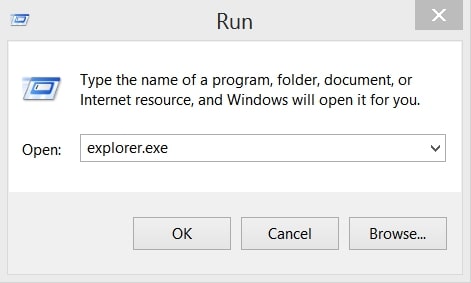
2: Click on your PC from the quick access bar. This is usually an icon with a monitor and its name is either “My Computer”, “My PC” or “This PC” or whatever you have named it.
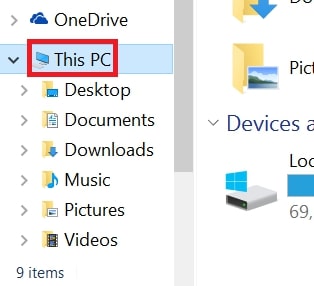
3: Navigate to the search box in the top-right of your PC's screen and type “fileextension:” and after which type the file extension. If you are looking for malicious executables, an example may be "fileextension:exe". After doing that, leave a space and type the file name you believe the malware has created. Here is how it may appear if your file has been found:
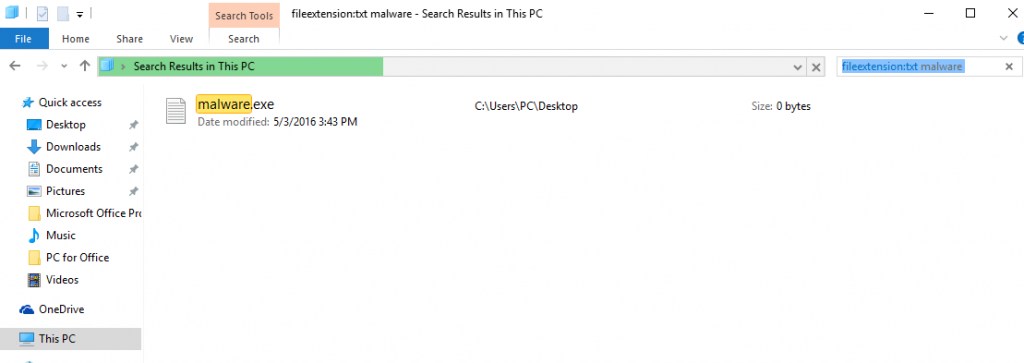
N.B. We recommend to wait for the green loading bar in the navigation box to fill up in case the PC is looking for the file and hasn't found it yet.
2.For Windows XP, Vista, and 7.
For Older Windows Operating Systems
In older Windows OS's the conventional approach should be the effective one:
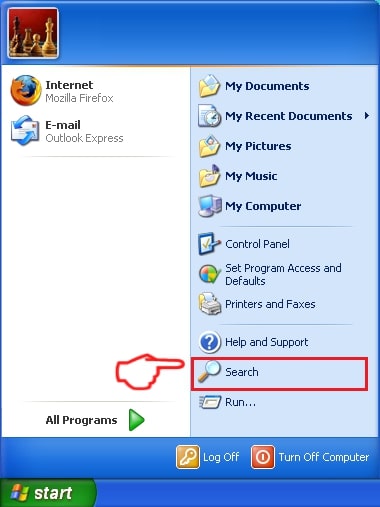
1: Click on the Start Menu icon (usually on your bottom-left) and then choose the Search preference.
2: After the search window appears, choose More Advanced Options from the search assistant box. Another way is by clicking on All Files and Folders.
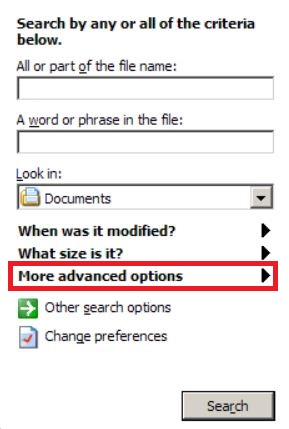
3: After that type the name of the file you are looking for and click on the Search button. This might take some time after which results will appear. If you have found the malicious file, you may copy or open its location by right-clicking on it.
Now you should be able to discover any file on Windows as long as it is on your hard drive and is not concealed via special software.
TinyTask777setup.exe FAQ
What Does TinyTask777setup.exe Trojan Do?
The TinyTask777setup.exe Trojan is a malicious computer program designed to disrupt, damage, or gain unauthorized access to a computer system. It can be used to steal sensitive data, gain control over a system, or launch other malicious activities.
Can Trojans Steal Passwords?
Yes, Trojans, like TinyTask777setup.exe, can steal passwords. These malicious programs are designed to gain access to a user's computer, spy on victims and steal sensitive information such as banking details and passwords.
Can TinyTask777setup.exe Trojan Hide Itself?
Yes, it can. A Trojan can use various techniques to mask itself, including rootkits, encryption, and obfuscation, to hide from security scanners and evade detection.
Can a Trojan be Removed by Factory Reset?
Yes, a Trojan can be removed by factory resetting your device. This is because it will restore the device to its original state, eliminating any malicious software that may have been installed. Bear in mind that there are more sophisticated Trojans that leave backdoors and reinfect even after a factory reset.
Can TinyTask777setup.exe Trojan Infect WiFi?
Yes, it is possible for a Trojan to infect WiFi networks. When a user connects to the infected network, the Trojan can spread to other connected devices and can access sensitive information on the network.
Can Trojans Be Deleted?
Yes, Trojans can be deleted. This is typically done by running a powerful anti-virus or anti-malware program that is designed to detect and remove malicious files. In some cases, manual deletion of the Trojan may also be necessary.
Can Trojans Steal Files?
Yes, Trojans can steal files if they are installed on a computer. This is done by allowing the malware author or user to gain access to the computer and then steal the files stored on it.
Which Anti-Malware Can Remove Trojans?
Anti-malware programs such as SpyHunter are capable of scanning for and removing Trojans from your computer. It is important to keep your anti-malware up to date and regularly scan your system for any malicious software.
Can Trojans Infect USB?
Yes, Trojans can infect USB devices. USB Trojans typically spread through malicious files downloaded from the internet or shared via email, allowing the hacker to gain access to a user's confidential data.
About the TinyTask777setup.exe Research
The content we publish on SensorsTechForum.com, this TinyTask777setup.exe how-to removal guide included, is the outcome of extensive research, hard work and our team’s devotion to help you remove the specific trojan problem.
How did we conduct the research on TinyTask777setup.exe?
Please note that our research is based on an independent investigation. We are in contact with independent security researchers, thanks to which we receive daily updates on the latest malware definitions, including the various types of trojans (backdoor, downloader, infostealer, ransom, etc.)
Furthermore, the research behind the TinyTask777setup.exe threat is backed with VirusTotal.
To better understand the threat posed by trojans, please refer to the following articles which provide knowledgeable details.