

Zoom-sdk_update.msi is a malicious Windows Installer (.msi) file that uses the Zoom brand name and SDK update framing to trick users into executing malware. The file is not a legitimate Zoom product – Zoom Video Communications does not distribute Zoom SDK updates as unsolicited .msi files through email, messaging platforms, or third-party download links. Zoom-sdk_update.msi is a social engineering attack that exploits the near-universal familiarity with Zoom as a trusted workplace application and the plausibility of an SDK update notification to bypass user caution about executing installer files.
The .msi format lends Zoom-sdk_update.msi additional credibility compared to a plain .exe, as Windows Installer packages are associated with legitimate enterprise software deployment. When executed, the file uses the Windows Installer framework to install malware with the same system access a legitimate software installer would receive. Trojans distributed as fake software updates using recognizable brand names are a consistent social engineering category, with Zoom being a frequent target given its widespread enterprise adoption. Users who received Zoom-sdk_update.msi through any channel other than a confirmed enterprise IT deployment should treat it as malicious.
Zoom-sdk_update.msi Short Overview
| Type | Trojan / Fake Software Update / Malicious MSI Installer. Zoom-sdk_update.msi is a malicious Windows Installer package masquerading as a Zoom SDK update. It is not associated with Zoom Video Communications. The file is distributed through social engineering channels to deliver malware under the cover of a legitimate-seeming software update package. |
| Detection Names | Trojan.FakeZoomUpdate; PUA:Win32/ZoomSDKFake; Trojan.MSI.FakeUpdate; Backdoor.ZoomSDK; Trojan.GenericKD.FakeInstaller (various AV vendors) |
| Symptoms | Zoom-sdk_update.msi file appearing in Downloads or a temporary folder without deliberate download by the user; antivirus alert triggered when Zoom-sdk_update.msi is scanned or executed; UAC (User Account Control) prompt requesting administrator permissions for Zoom-sdk_update.msi installation; unknown process or service appearing after Zoom-sdk_update.msi was run; Zoom application behavior changing after the fake update was installed; system exhibiting backdoor or infostealer symptoms following execution of the file |
| Removal Time | Approximately 15 minutes for a full-system scan |
| Removal Tool | See If Your System Has Been Affected by malware
Download
Malware Removal Tool
|
How Did Zoom-sdk_update.msi Get on My Computer?
- Phishing emails impersonating Zoom – emails designed to resemble Zoom update notifications or IT department communications include Zoom-sdk_update.msi as an attachment or link it from a fake Zoom download page, instructing the recipient to install the update to maintain meeting access.
- Messaging platform distribution – Zoom-sdk_update.msi is sent directly through Slack, Teams, Zoom chat, or email as a file attachment, often in the context of a spoofed IT support message requesting an urgent update installation.
- Fake Zoom download pages – pages mimicking Zoom’s official download center serve Zoom-sdk_update.msi as the download for a Zoom update or SDK installation, appearing credible through the use of Zoom branding and domain names resembling zoom.us.
- Malvertising – advertising on third-party sites serves Zoom-sdk_update.msi download prompts framed as required browser extensions or software updates for Zoom functionality.
What Does Zoom-sdk_update.msi Do?
- Malware installation through the Windows Installer framework – the .msi package uses the standard Windows Installer process to install malware components with legitimate installer privileges, potentially including UAC elevation if the user approves the installation prompt.
- Credential theft – the installed malware component targets browser saved passwords, Zoom account credentials, and other application credentials accessible on the system.
- Backdoor establishment – some Zoom-sdk_update.msi variants install a remote access component that establishes persistent attacker access to the system.
- Persistence through installer registration – because the malware installs through the Windows Installer, it may register as an installed application in Control Panel, creating a persistence mechanism that survives reboots and appears as a legitimate program entry.
How to Delete Zoom-sdk_update.msi
- Do not run Zoom-sdk_update.msi if you have received it and not yet executed it – delete the file immediately without opening it.
- If Zoom-sdk_update.msi has already been run, check Control Panel – Programs and Features for any recently installed program with “Zoom,” “SDK,” or an unfamiliar name that appeared after the file was executed. Run the uninstaller for any such entry.
- End any process installed by the .msi package in Task Manager.
- Check startup entries and services – open Task Manager – Startup tab and Task Scheduler for entries created by the installation. Check Services (services.msc) for unfamiliar services registered after the .msi was run.
- Change Zoom account credentials and browser saved passwords from a clean device if the file was executed, as credential theft is a primary function of this category of trojan.
- Verify your legitimate Zoom installation is genuine by downloading a fresh copy directly from zoom.us and reinstalling over the existing installation.
- Scan with SpyHunter to detect and remove all components installed by Zoom-sdk_update.msi and any associated malware.

Ventsislav Krastev
Ventsislav is a cybersecurity expert at SensorsTechForum since 2015. He has been researching, covering, helping victims with the latest malware infections plus testing and reviewing software and the newest tech developments. Having graduated Marketing as well, Ventsislav also has passion for learning new shifts and innovations in cybersecurity that become game changers. After studying Value Chain Management, Network Administration and Computer Administration of System Applications, he found his true calling within the cybersecrurity industry and is a strong believer in the education of every user towards online safety and security.
Follow Me:
Preparation before removing Zoom-sdk_update.msi.
Before starting the actual removal process, we recommend that you do the following preparation steps.
- Make sure you have these instructions always open and in front of your eyes.
- Do a backup of all of your files, even if they could be damaged. You should back up your data with a cloud backup solution and insure your files against any type of loss, even from the most severe threats.
- Be patient as this could take a while.
- Scan for Malware
- Fix Registries
- Remove Virus Files
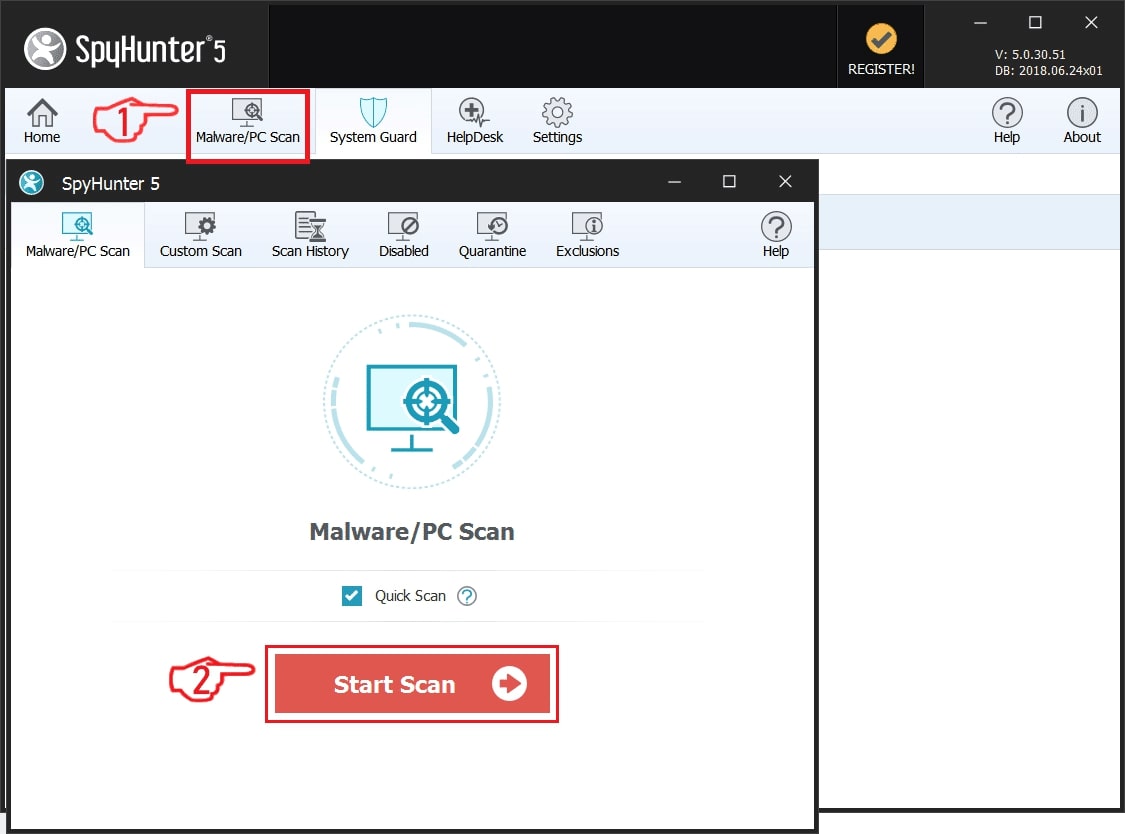
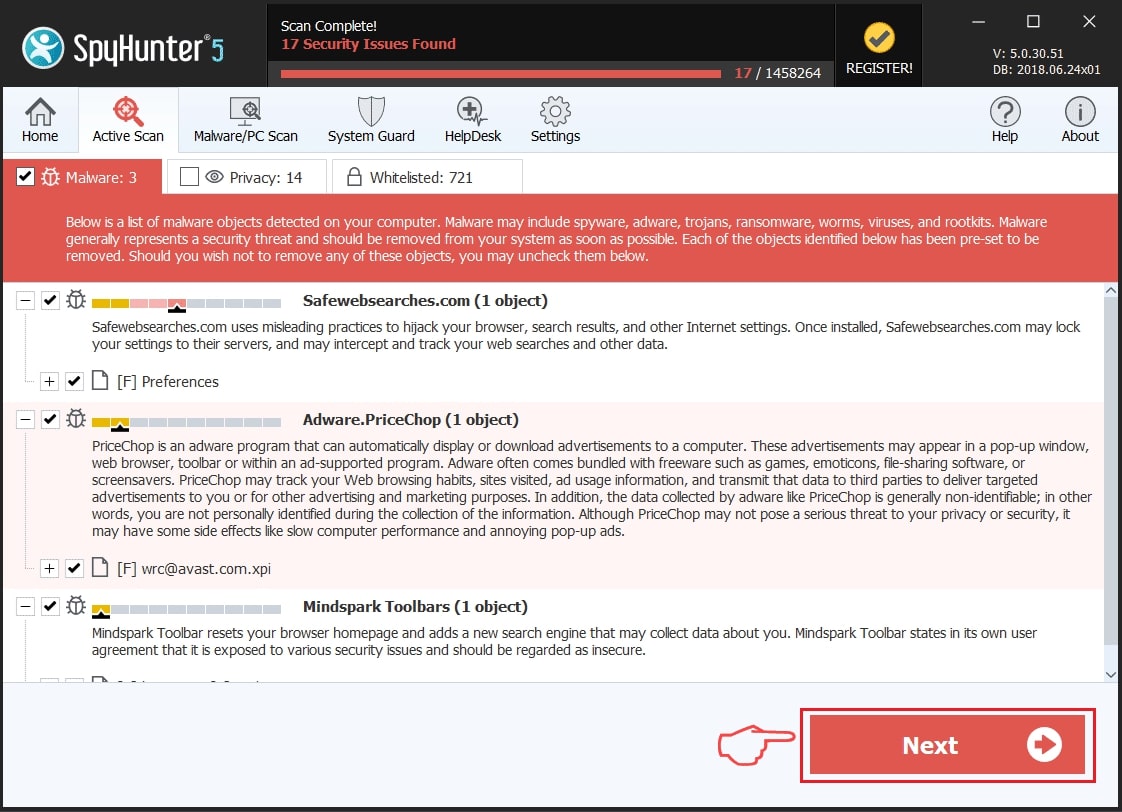
Step 1: Scan for Zoom-sdk_update.msi with SpyHunter Anti-Malware Tool
Step 2: Clean any registries, created by Zoom-sdk_update.msi on your computer.
The usually targeted registries of Windows machines are the following:
- HKEY_LOCAL_MACHINE\Software\Microsoft\Windows\CurrentVersion\Run
- HKEY_CURRENT_USER\Software\Microsoft\Windows\CurrentVersion\Run
- HKEY_LOCAL_MACHINE\Software\Microsoft\Windows\CurrentVersion\RunOnce
- HKEY_CURRENT_USER\Software\Microsoft\Windows\CurrentVersion\RunOnce
You can access them by opening the Windows registry editor and deleting any values, created by Zoom-sdk_update.msi there. This can happen by following the steps underneath:
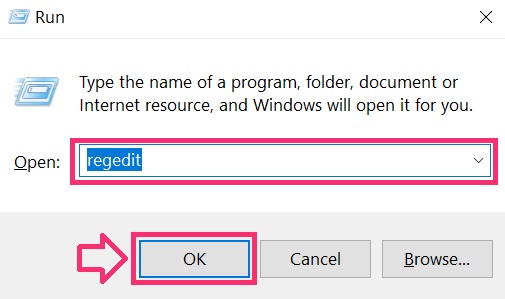
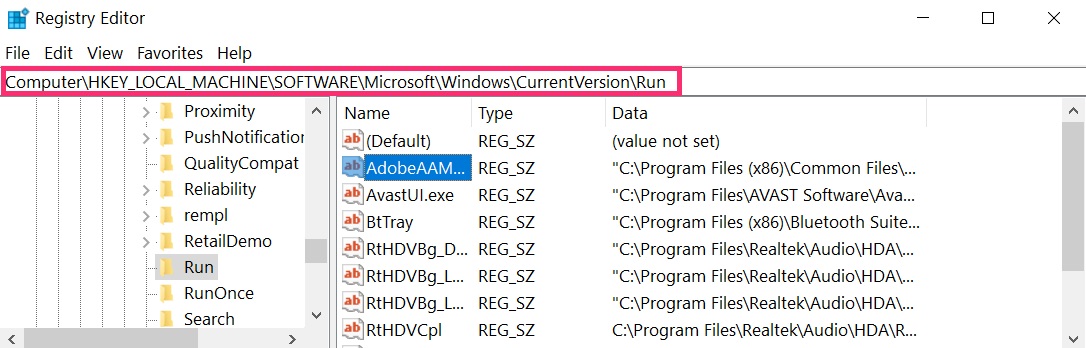
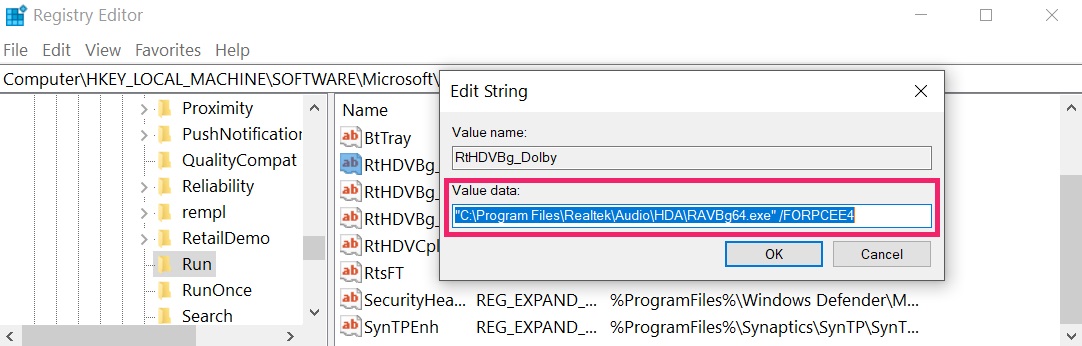 Tip: To find a virus-created value, you can right-click on it and click "Modify" to see which file it is set to run. If this is the virus file location, remove the value.
Step 3: Find virus files created by Zoom-sdk_update.msi on your PC.
1.For Windows 8, 8.1 and 10.
For Newer Windows Operating Systems
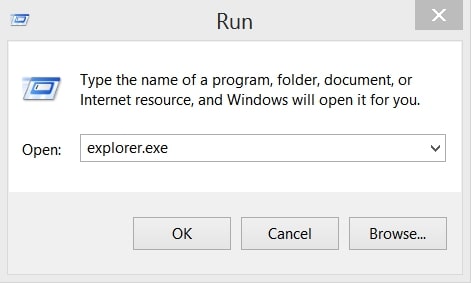
1: On your keyboard press + R and write explorer.exe in the Run text box and then click on the Ok button.
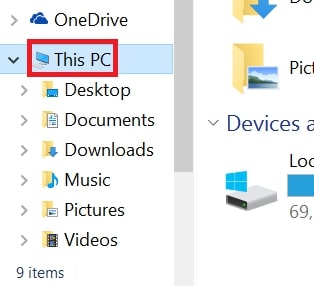
2: Click on your PC from the quick access bar. This is usually an icon with a monitor and its name is either “My Computer”, “My PC” or “This PC” or whatever you have named it.
3: Navigate to the search box in the top-right of your PC's screen and type “fileextension:” and after which type the file extension. If you are looking for malicious executables, an example may be "fileextension:exe". After doing that, leave a space and type the file name you believe the malware has created. Here is how it may appear if your file has been found:
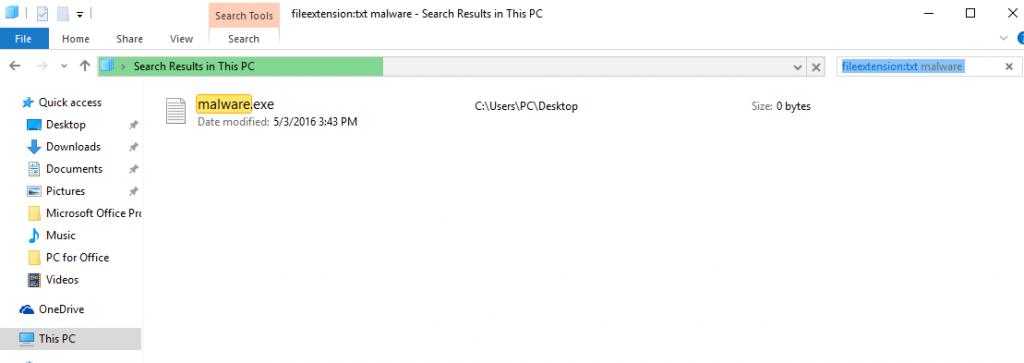
N.B. We recommend to wait for the green loading bar in the navigation box to fill up in case the PC is looking for the file and hasn't found it yet.
2.For Windows XP, Vista, and 7.
For Older Windows Operating Systems
In older Windows OS's the conventional approach should be the effective one:
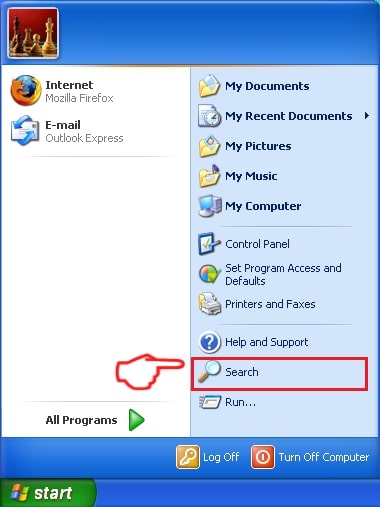
1: Click on the Start Menu icon (usually on your bottom-left) and then choose the Search preference.
2: After the search window appears, choose More Advanced Options from the search assistant box. Another way is by clicking on All Files and Folders.
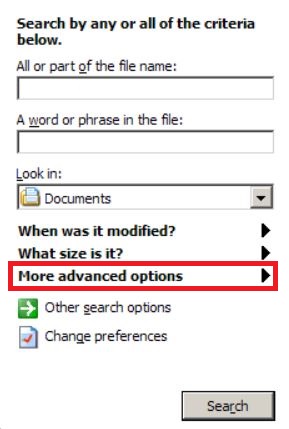
3: After that type the name of the file you are looking for and click on the Search button. This might take some time after which results will appear. If you have found the malicious file, you may copy or open its location by right-clicking on it.
Now you should be able to discover any file on Windows as long as it is on your hard drive and is not concealed via special software.
Zoom-sdk_update.msi FAQ
What Does Zoom-sdk_update.msi Trojan Do?
The Zoom-sdk_update.msi Trojan is a malicious computer program designed to disrupt, damage, or gain unauthorized access to a computer system. It can be used to steal sensitive data, gain control over a system, or launch other malicious activities.
Can Trojans Steal Passwords?
Yes, Trojans, like Zoom-sdk_update.msi, can steal passwords. These malicious programs are designed to gain access to a user's computer, spy on victims and steal sensitive information such as banking details and passwords.
Can Zoom-sdk_update.msi Trojan Hide Itself?
Yes, it can. A Trojan can use various techniques to mask itself, including rootkits, encryption, and obfuscation, to hide from security scanners and evade detection.
Can a Trojan be Removed by Factory Reset?
Yes, a Trojan can be removed by factory resetting your device. This is because it will restore the device to its original state, eliminating any malicious software that may have been installed. Bear in mind that there are more sophisticated Trojans that leave backdoors and reinfect even after a factory reset.
Can Zoom-sdk_update.msi Trojan Infect WiFi?
Yes, it is possible for a Trojan to infect WiFi networks. When a user connects to the infected network, the Trojan can spread to other connected devices and can access sensitive information on the network.
Can Trojans Be Deleted?
Yes, Trojans can be deleted. This is typically done by running a powerful anti-virus or anti-malware program that is designed to detect and remove malicious files. In some cases, manual deletion of the Trojan may also be necessary.
Can Trojans Steal Files?
Yes, Trojans can steal files if they are installed on a computer. This is done by allowing the malware author or user to gain access to the computer and then steal the files stored on it.
Which Anti-Malware Can Remove Trojans?
Anti-malware programs such as SpyHunter are capable of scanning for and removing Trojans from your computer. It is important to keep your anti-malware up to date and regularly scan your system for any malicious software.
Can Trojans Infect USB?
Yes, Trojans can infect USB devices. USB Trojans typically spread through malicious files downloaded from the internet or shared via email, allowing the hacker to gain access to a user's confidential data.
About the Zoom-sdk_update.msi Research
The content we publish on SensorsTechForum.com, this Zoom-sdk_update.msi how-to removal guide included, is the outcome of extensive research, hard work and our team’s devotion to help you remove the specific trojan problem.
How did we conduct the research on Zoom-sdk_update.msi?
Please note that our research is based on an independent investigation. We are in contact with independent security researchers, thanks to which we receive daily updates on the latest malware definitions, including the various types of trojans (backdoor, downloader, infostealer, ransom, etc.)
Furthermore, the research behind the Zoom-sdk_update.msi threat is backed with VirusTotal.
To better understand the threat posed by trojans, please refer to the following articles which provide knowledgeable details.